
Making the trek to a LAN party with your custom-built PC is exciting. Whether you're joining friends for a weekend of gaming or competing in a local tournament, bringing your own rig gives you control over performance, settings, and comfort. But one bump, jolt, or sudden stop can turn that high-end machine into a pile of damaged components. Transporting a desktop PC isn’t like carrying a laptop—it’s heavier, more fragile, and packed with sensitive parts. Done wrong, it risks bent pins, dislodged hardware, or even permanent failure.
The key to a safe journey lies in preparation, packaging, and awareness of environmental factors. From securing internal components to choosing the right case and vehicle setup, every detail counts. This guide walks through proven methods to protect your investment, based on real experiences, expert insights, and best practices from seasoned PC builders and event organizers.
Assess Your PC’s Vulnerabilities Before Travel
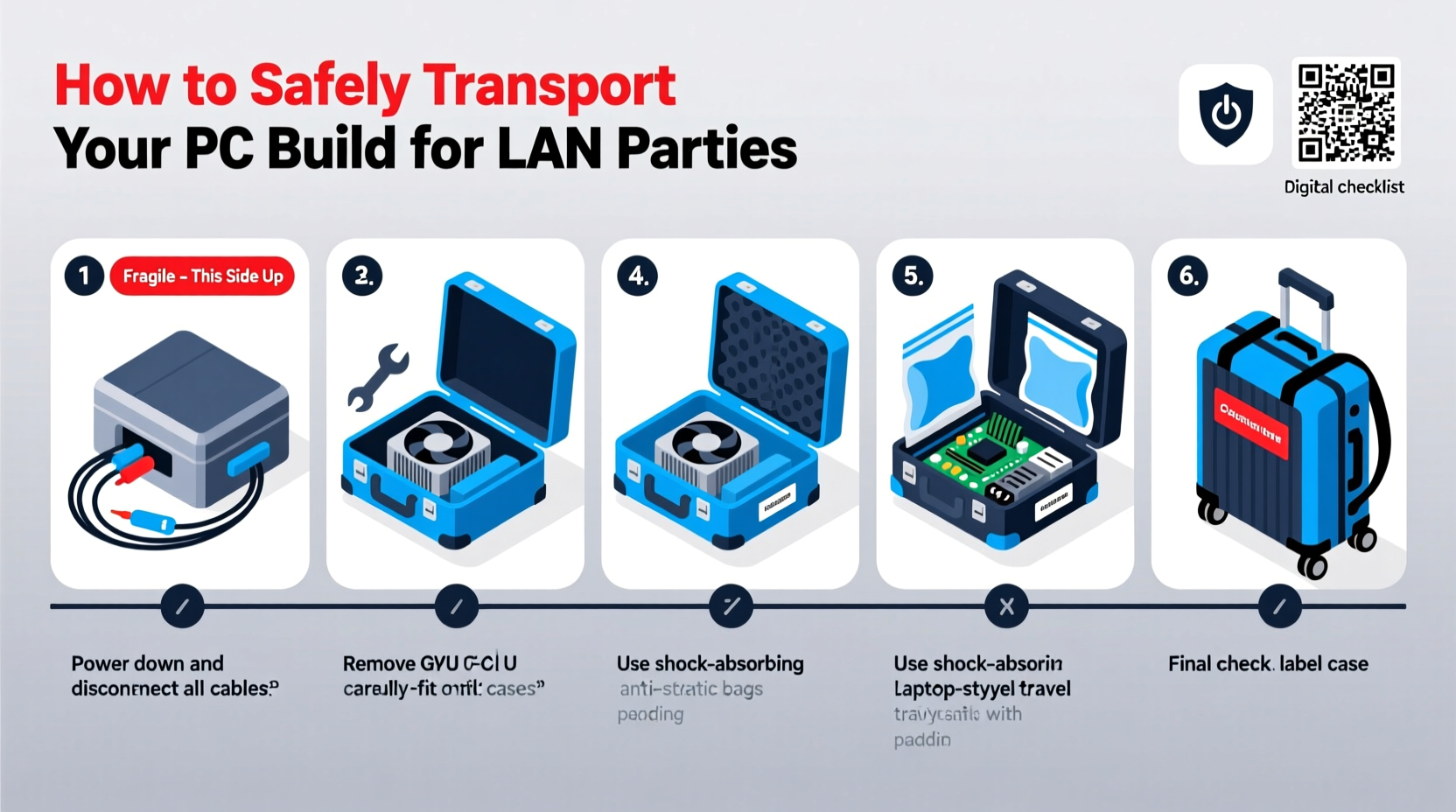
A desktop computer is not designed for mobility. Unlike laptops, which are built with shock absorption and compact integration in mind, tower PCs contain loosely mounted parts, long expansion cards, and intricate cabling—all susceptible to movement during transit.
The most common points of failure during transport include:
- Graphics card sag or detachment: Heavy GPUs can shift or disconnect from PCIe slots due to vibration.
- Radiator leaks (in liquid-cooled systems):strong> Pressure changes and movement may cause fittings to loosen or coolant to seep.
- Loose RAM or CPU cooler: Poorly secured modules can partially unseat, leading to boot failures.
- Cable strain: Wires pulling on motherboards or power supplies can damage solder points.
- Static discharge: Improper handling can introduce electrostatic damage, especially when reassembling.
Understanding these weak spots allows you to take targeted precautions. For example, if you’re using an AIO liquid cooler, draining it might be safer than risking a leak in someone’s living room. Similarly, reinforcing GPU support reduces the chance of slot damage.
Step-by-Step Guide to Preparing Your PC for Transport
Safely moving your PC requires more than just unplugging and tossing it in the back seat. Follow this detailed sequence to minimize risk:
- Back up critical data: While rare, power fluctuations or crashes during reassembly could corrupt drives. Ensure important files are backed up externally.
- Shut down and unplug everything: Fully power off the system and disconnect all peripherals—monitor, keyboard, mouse, USB hubs, etc.
- Ground yourself before opening the case: Touch a grounded metal object or wear an anti-static wrist strap to avoid damaging components.
- Remove storage drives (optional but recommended): SSDs and HDDs are generally robust, but removing them eliminates vibration risk and protects your OS and files.
- Secure or remove the graphics card: Use a PCIe retention bracket or foam support. For long trips or rough roads, consider removing it entirely and packing it separately in anti-static bags.
- Check all screws and fasteners: Ensure the motherboard, PSU, and drive cages are firmly screwed in. Tighten any loose standoffs.
- Bundle cables neatly: Use zip ties or Velcro straps to prevent wires from shifting and tugging on ports.
- Remove the battery (CMOS): Not required for safety, but doing so prevents BIOS resets caused by power loss during transit.
- Double-check cooling systems: For air coolers, confirm fan blades aren’t touching heatsinks. For custom loops, drain coolant unless you’re confident in your fittings.
This process should take 20–30 minutes for most builds. Rushing increases the chance of overlooking a loose component. Treat each step as essential, not optional.
Packaging and Carrying: Choosing the Right Case and Method
How you carry your PC matters as much as how you prepare it. The ideal transport method balances protection, accessibility, and practicality.
| Transport Option | Pros | Cons | Best For |
|---|---|---|---|
| Original PC Box | Perfect fit, factory cushioning | Rarely kept; bulky to store | One-time moves, maximum safety |
| Hard-shell travel case | Durable, customizable foam inserts | Expensive ($100+), heavy | Frequent travelers, valuable builds |
| Soft padded bag (PC-specific) | Affordable, lightweight, portable | Limited crush protection | Short-distance LANs, casual users |
| Cardboard box + padding | Cheap, accessible | Weak against impact, no structure | Emergency use only |
| No case (held in arms) | Immediate access | High drop risk, zero protection | Avoid at all costs |
If you don’t have the original packaging, invest in a dedicated PC transport case. Brands like Nanuk, Pelican, and R-Tek offer rugged cases with customizable EVA foam interiors that cradle your tower securely. These are especially valuable for gamers who attend multiple events per year.
When placing your PC in any container, ensure it cannot move side-to-side. Fill empty spaces with closed-cell foam, microfiber cloths, or bubble wrap (avoid loose packing peanuts). Always carry the case upright—the same orientation as normal operation—to reduce stress on internal components.
“Every time I’ve had a hardware issue after transport, it was because the GPU shifted slightly during a bumpy ride. Now I either brace it or remove it.” — Derek Lin, Competitive LAN Organizer & Hardware Enthusiast
Real Example: A Close Call at Midwest LAN Fest
Last summer, Mark, a regular attendee of regional LAN events, drove six hours to Midwest LAN Fest with his newly upgraded RTX 4090 build. Confident in his soft-sided PC bag, he placed the tower in the back seat and focused on the road. Halfway through the trip, he hit a pothole at speed. The PC slid and tipped over, striking the door panel.
Upon arrival, the system wouldn’t POST. After troubleshooting at the venue, he discovered the GPU had partially detached from the PCIe slot. The gold contacts were scratched, and one retention clip was broken. He spent $45 on a temporary PCIe riser loaned by another attendee and missed the first day of competition.
Mark now uses a hard-shell case with custom foam, removes his GPU for long trips, and packs it in a separate anti-static sleeve. “I learned the hard way,” he said. “That $200 GPU wasn’t worth losing two days of gameplay and repair hassle.”
This scenario is more common than many admit. Event forums are filled with similar stories—fixable issues caused by poor packaging or complacency.
Do’s and Don’ts During Transport
Once your PC is packed, how you handle it in transit determines its safety. Even a well-prepared system can be compromised by careless driving or improper placement.
| Do’s | Don’ts |
|---|---|
| Place the PC upright on a flat, stable surface in the car | Stack heavy items on top of the PC case |
| Use seatbelts to secure the container if possible | Place the PC in the trunk without padding |
| Drive smoothly—avoid sudden stops and sharp turns | Leave the PC in direct sunlight (e.g., hot car interior) |
| Keep the environment dry and temperate | Allow children or pets to play near the packed PC |
| Inspect the system upon arrival before powering on | Power it on immediately if it was exposed to moisture or extreme cold |
Temperature is often overlooked. Leaving your PC in a hot car—even for 30 minutes—can warp plastic shrouds, degrade thermal paste, or stress capacitors. In winter, condensation inside the case when warming up can lead to short circuits. Always let your PC acclimate to room temperature for at least 20 minutes before turning it on.
Reassembly and Post-Transport Checklist
After arriving at the LAN venue, resist the urge to plug in and boot immediately. Take a few minutes to inspect and verify everything is intact.
Follow this checklist before powering on:
- Let the PC sit at room temperature for 15–30 minutes (especially if coming from extreme outdoor conditions).
- Open the case and visually inspect for loose cables, shifted components, or signs of impact.
- Reseat the GPU, RAM, and power connectors if you suspect movement.
- Ensure CPU cooler is still firmly attached and fans are spinning freely.
- Reconnect storage drives if removed.
- Plug in only essential peripherals for initial boot test.
- Listen for unusual noises (grinding, buzzing) during startup.
- Enter BIOS to confirm all drives, RAM, and CPU are detected correctly.
If the system fails to start, go back and check physical connections. Most post-transport issues are mechanical, not electronic. A simple reseating of the GPU or RAM often resolves the problem.
FAQ: Common Questions About Transporting PCs
Can I lay my PC on its side during transport?
Yes, but only if it's securely packed and won't shift. However, always return it to its upright position before powering on. Some AIO pumps rely on gravity for optimal flow, and laying them sideways for extended periods can introduce air bubbles.
Should I remove the motherboard for extra safety?
Generally no—unless you're flying internationally or transporting the PC across rough terrain for days. Removing the motherboard introduces far more risk than leaving it installed, provided it's properly screwed in and isolated from contact.
Is it safe to transport a PC with an aftermarket cooler?
Air coolers are usually fine if tightly mounted. Large dual-fan setups should be checked for clearance. Liquid cooling is trickier: AIOs can usually stay in place, but custom loops should be drained unless professionally assembled with locking fittings.
Final Thoughts: Protect Your Investment Like a Pro
Your PC is more than just hardware—it’s a reflection of your time, effort, and passion. Treating it with care during transport ensures you arrive ready to play, not stuck troubleshooting preventable failures. Preparation beats luck every time. Whether you’re heading to your friend’s basement or a national gaming convention, the principles remain the same: secure what’s inside, protect what’s outside, and respect the fragility of precision engineering.
Start building smart habits now. Invest in a proper case, create a pre-transport checklist, and share your experience with others. The community grows stronger when we learn from both successes and mistakes.




 浙公网安备
33010002000092号
浙公网安备
33010002000092号 浙B2-20120091-4
Comments
No comments yet. Why don't you start the discussion?