
A damaged cell phone can be more than just an inconvenience—it can cut you off from essential data, contacts, messages, and even two-factor authentication codes. Whether your screen is cracked, unresponsive, or the device won’t power on properly, regaining access requires care and precision. Rushing into repairs or forced unlocks can worsen the damage or permanently lock you out. This guide walks through safe, methodical approaches to unlock a physically or functionally compromised smartphone while minimizing risk.
Assess the Type and Severity of Damage
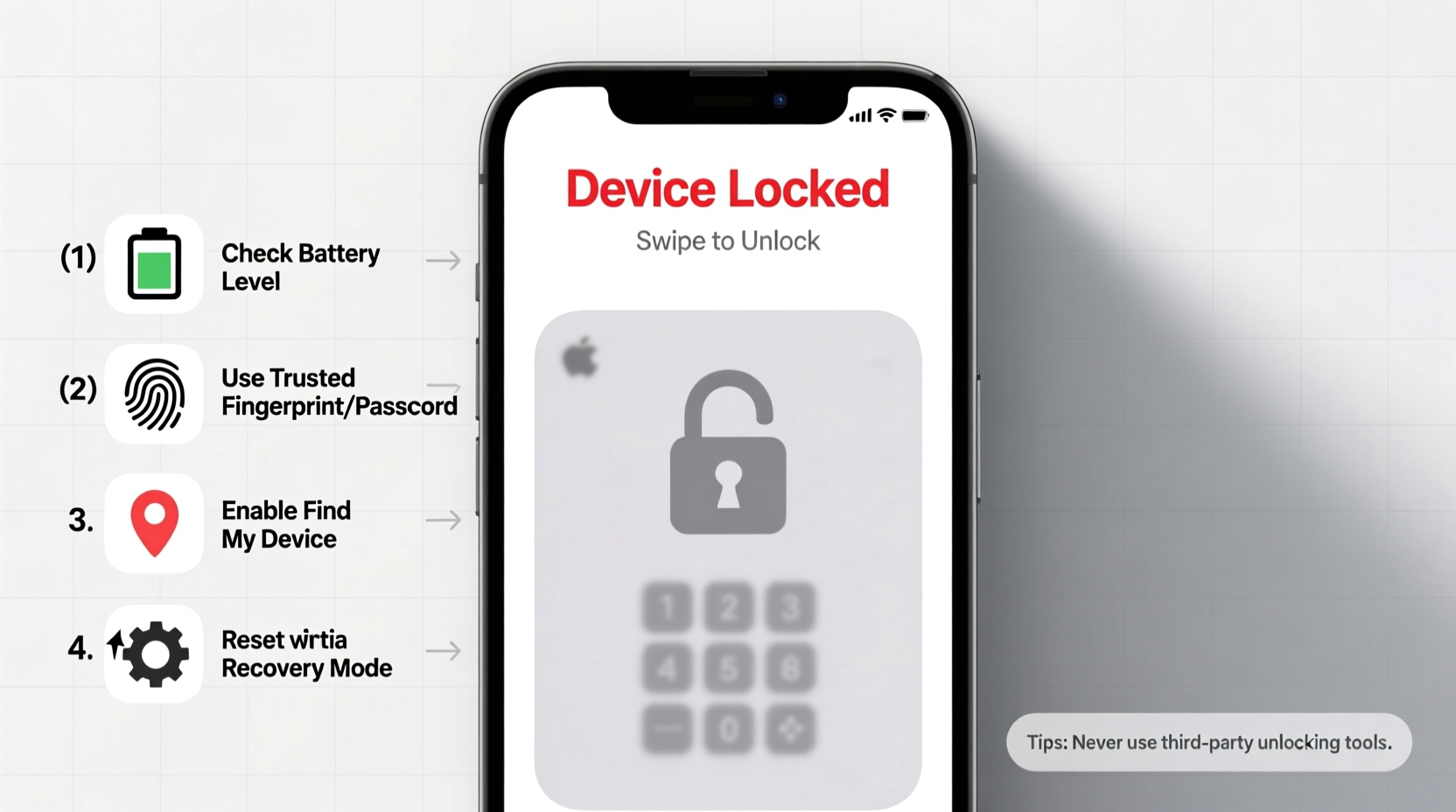
Before attempting any unlock method, identify the nature of the damage. The solution depends heavily on whether the issue is hardware-related (e.g., broken touchscreen, water damage) or software-based (e.g., frozen UI, forgotten password). Misdiagnosing the problem can lead to unnecessary steps or irreversible consequences.
- Screen damage: Cracked or black display but internal functions may still work.
- Touch unresponsiveness: Screen lights up but doesn’t register taps or swipes.
- Water exposure: Corrosion may affect internal circuits, including the power and lock mechanisms.
- Software freeze: Device stuck on logo, boot loop, or locked due to too many failed passcode attempts.
Step-by-Step Guide to Regain Access Safely
- Charge the device fully. A low battery can mimic hardware failure. Use the original charger and let it charge for at least 30 minutes.
- Try basic input methods. If the screen is cracked but partially visible, attempt your passcode carefully. Use a stylus if fingers aren’t registering.
- Connect to external devices. For Android, use a USB OTG adapter with a mouse to navigate the lock screen. For iPhones, connect to a trusted computer via iTunes or Finder.
- Use voice assistants. On some models, saying “Hey Siri” or “OK Google” may allow limited access to calls, messages, or settings—even when locked.
- Boot into recovery mode. This varies by brand:
- iPhone: Hold Side + Volume Down until recovery mode appears.
- Samsung: Press and hold Volume Up + Home + Power.
- Google Pixel: Press and hold Power + Volume Down.
- Restore via computer. Connect to a trusted PC/Mac and use official tools like iTunes (iOS) or Samsung Smart Switch / Google Find My Device (Android).
Do’s and Don’ts When Unlocking a Damaged Phone
| Do’s | Don’ts |
|---|---|
| Use manufacturer-approved software for resets | Don’t repeatedly enter incorrect passwords |
| Back up data immediately after unlocking | Don’t open the device unless qualified |
| Seek professional repair for screen issues | Don’t use third-party unlock services promising instant fixes |
| Enable Find My iPhone or Find My Device beforehand | Don’t expose wet phones to heat (e.g., microwaves, ovens) |
Real Example: Recovering a Water-Damaged iPhone
Carlos dropped his iPhone 13 in a pool during a weekend trip. The screen flickered and became unresponsive, though he could hear notifications. He didn’t panic. Instead, he powered it off immediately, wiped it down, and placed it in a sealed container with silica gel packets for 48 hours. After drying, the phone powered on but remained locked. Since he had previously enabled Find My iPhone and synced with iCloud, he used another device to go to iCloud.com/find, located the phone, and remotely erased it. Once reset, he restored from an iCloud backup—recovering all data without visiting a technician.
“Immediate action and prior setup of remote management tools are what saved Carlos’ data—not luck.” — Lena Patel, Mobile Forensics Technician at DataShield Recovery
Alternative Unlock Methods Based on Device Type
Different platforms offer distinct recovery paths. Knowing which tools are available—and legitimate—is critical.
For iPhones
- iCloud Remote Erase: Requires Find My iPhone enabled. Allows wiping and reactivation via web portal.
- Recovery Mode Restore: Forces a factory reset via iTunes/Finder, erasing all data but removing the lock.
- Apple ID Account Recovery: If locked out of the Apple ID itself, this multi-day verification process may be required.
For Android Devices
- Find My Device: Google’s service allows remote locking, locating, and erasing if the phone was linked to a Google account.
- Samsung FRP Bypass (for authorized users): Post-reset, Samsung devices require login with the last synced account. Legitimate owners can verify identity through customer support.
- Safe Mode Boot: Holding volume down during boot may bypass third-party lock screen apps causing freezes.
Checklist: What to Do When Your Phone Won’t Unlock Due to Damage
- ✅ Confirm the device has sufficient charge
- ✅ Listen for audio cues (ringtones, alerts, startup sounds)
- ✅ Try connecting a mouse (Android) or trusted computer (iOS/Android)
- ✅ Attempt voice commands (“Hey Siri,” “OK Google”)
- ✅ Boot into recovery or safe mode
- ✅ Use official cloud services (iCloud, Google Find My Device)
- ✅ Contact manufacturer support with proof of purchase if stuck at activation lock
- ✅ Avoid random online “unlock” tools—they often contain malware
Frequently Asked Questions
Can I unlock my phone if the screen is completely shattered?
Yes, if the internal system is intact. Using a USB OTG cable and external mouse (on Android), you can navigate the lock screen. For iPhones, connect to a trusted computer to restore via iTunes. If touch input is needed and unavailable, professional micro-soldering repair may be required to replace the screen before unlocking.
Will a factory reset remove the lock screen on a damaged phone?
It can, but only if you can access recovery mode. A reset will erase all data, so ensure you have a recent backup. Note: Activation locks (Apple ID or Google FRP) will persist after reset and require account credentials to bypass.
Are there legal risks in trying to unlock a damaged phone?
Unlocking your own device that you legally own carries no legal risk. However, using unauthorized tools to bypass carrier locks or access someone else’s phone violates privacy laws and terms of service. Always verify ownership and use official channels.
Final Thoughts and Next Steps
Unlocking a damaged cell phone isn’t just about technical know-how—it’s about patience, preparation, and avoiding shortcuts that could cost you your data or device permanently. The best defense is proactive: enable remote find-and-wipe features, maintain regular backups, and use strong but memorable passcodes. If physical damage occurs, act swiftly but thoughtfully. Follow manufacturer guidelines, leverage cloud tools, and don’t hesitate to consult certified repair professionals when needed.




 浙公网安备
33010002000092号
浙公网安备
33010002000092号 浙B2-20120091-4
Comments
No comments yet. Why don't you start the discussion?