
Saving photos from your iPhone doesn’t have to be complicated. Whether you're transferring images to a computer, sharing them with friends, or backing them up securely, there are multiple efficient ways to do it. With the right approach, you can preserve precious memories, free up device storage, and ensure your photos remain accessible across devices. This guide walks through practical, tested methods that balance speed, convenience, and reliability—so you can choose what works best for your needs.
Understanding Your Options
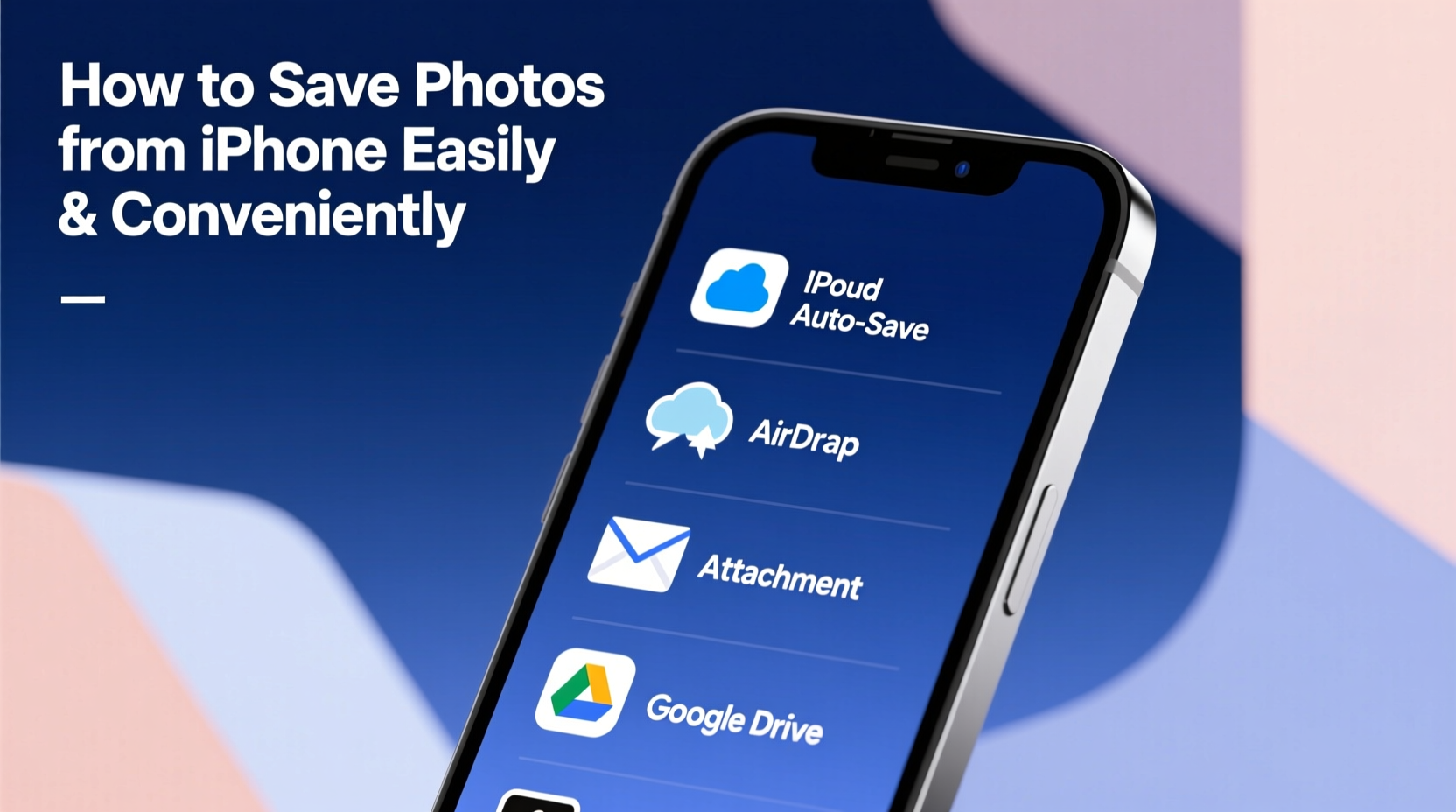
The iPhone’s native photo management system is powerful but sometimes limiting when it comes to exporting or saving images outside Apple’s ecosystem. However, Apple provides several built-in tools—like iCloud, AirDrop, and shared albums—and integrates well with external platforms such as Google Photos, Dropbox, and desktop operating systems. The key is knowing which method suits your scenario: quick sharing, long-term backup, or bulk transfer.
Each solution has trade-offs in terms of speed, file quality, compatibility, and data usage. For example, emailing one photo is simple, but sending dozens will degrade image quality and hit attachment limits. Similarly, syncing via iTunes preserves full resolution but requires a cable and some technical familiarity.
Method 1: Use iCloud Photos Across Devices
iCloud Photos is Apple’s seamless cloud-based syncing service. When enabled, every photo you take automatically uploads to iCloud and appears on all your Apple devices signed into the same account. This makes saving and accessing photos effortless—if you’re within the Apple ecosystem.
- Go to Settings > [Your Name] > iCloud > Photos.
- Toggle on Sync this iPhone (or “iCloud Photos” depending on iOS version).
- Wait for existing photos to upload (requires Wi-Fi and time based on library size).
- Access your photos from any Mac, iPad, or via iCloud.com.
Once synced, you can download individual or multiple photos directly from iCloud.com by selecting them and clicking the download icon. Files retain original quality and metadata.
This method excels for continuous backup and cross-device access but requires an active iCloud subscription once you exceed the free 5GB limit. Paid plans start at $0.99/month for 50GB.
“iCloud Photos gives users peace of mind knowing their images are backed up without manual effort.” — David Lin, Senior Cloud Solutions Architect at TechSecure Inc.
Method 2: Transfer Photos to a Computer Using Finder or iTunes
If you prefer local backups or need high-volume transfers, connecting your iPhone to a computer remains one of the most reliable options. On macOS Catalina and later, use Finder; on older macOS and Windows, use iTunes.
Step-by-Step Guide: Save Photos via Finder (Mac)
- Connect your iPhone to your Mac using a Lightning or USB-C cable.
- Unlock your phone and tap “Trust This Computer” if prompted.
- Open Finder, then select your iPhone under “Locations” in the sidebar.
- Navigate to the Photos tab.
- Select “Sync Photos” and choose a folder (e.g., Pictures, Photos app, or custom folder).
- Click “Apply” to begin transfer.
For Windows Users (Using iTunes):
- Install the latest version of iTunes from Apple’s website.
- Connect your iPhone and launch iTunes.
- Select your device, go to the Photos section.
- Check “Sync Photos,” then pick a source folder (e.g., Windows Photos or a specific directory).
- Click “Apply” to start syncing.
All transferred photos maintain original resolution and EXIF data, including timestamps and GPS location. This method avoids compression and internet dependency, making it ideal for archival purposes.
Method 3: Share Instantly with AirDrop and Email
When you only need to save a few photos quickly—say, sending vacation pictures to a friend or moving one image to your laptop—AirDrop and email offer fast, no-setup solutions.
- AirDrop: Works between Apple devices nearby. Open the Photos app, select images, tap Share, and choose the nearby device. Accept the transfer on the receiving end.
- Email: Tap Share > Mail. Note: Most email services compress attachments over ~20MB, reducing quality.
| Method | Best For | Limits |
|---|---|---|
| AirDrop | Fast transfer between Apple devices | Requires Bluetooth/Wi-Fi; max ~30 ft range |
| Sending 1–5 photos to non-Apple users | Compression after ~20MB; provider limits apply | |
| Messages (MMS/iMessage) | Quick sharing with contacts | Data charges possible; compression used |
Method 4: Leverage Third-Party Cloud Services
Google Photos, Dropbox, and OneDrive provide excellent alternatives to iCloud, especially if you use Android devices or want extra redundancy. These apps allow automatic backup, selective downloads, and easy web access.
Example: Saving Photos to Google Photos
- Download and install the Google Photos app from the App Store.
- Sign in with your Google account.
- Enable Backup & Sync in settings.
- Choose upload size: “High Quality” (free, slight compression) or “Original” (uses Google Drive quota).
- Wait for photos to upload over Wi-Fi.
- Access them at photos.google.com and download anytime.
This method is particularly useful for freeing up space on your iPhone while keeping everything safely stored online. You can also create shared albums for collaboration.
Mini Case Study: Traveler Saves Thousands of Vacation Photos
Sophie, a digital nomad visiting Japan, took over 1,200 photos in two weeks. Her iPhone storage was nearly full. Instead of waiting to get home, she installed Google Photos and enabled auto-backup over hotel Wi-Fi. Within hours, all images were securely saved in full quality. She then freed up space by deleting local copies—knowing she could re-download any photo later. This allowed her to keep shooting without interruption.
Essential Checklist for Safely Saving iPhone Photos
- Ensure your iPhone is charged or connected to power before large transfers.
- Verify that Wi-Fi is stable for cloud uploads.
- Confirm full-resolution originals are available (disable “Optimize iPhone Storage” temporarily if needed).
- Use trusted cables and updated software to prevent sync errors.
- Label and organize downloaded folders by date or event.
- Back up critical photos in at least two locations (e.g., computer + cloud).
Frequently Asked Questions
Will saving photos from my iPhone delete them from the device?
No, unless you manually delete them after transfer. Most methods—including iCloud, AirDrop, and computer sync—copy files rather than move them. To free up space, you must delete the originals yourself from the Photos app.
Why are my saved photos lower quality than the originals?
This usually happens due to compression during email transmission, MMS sharing, or using “High Quality” mode in Google Photos. To preserve full resolution, use direct sync via Finder/iTunes, iCloud, or “Original” quality settings in third-party apps.
Can I save Live Photos and videos the same way?
Yes. All methods described support Live Photos and video files. However, note that some platforms (like basic email or older PCs) may not display Live Photo interactivity. They’ll appear as still images unless viewed on compatible devices.
Final Thoughts and Next Steps
Saving photos from your iPhone should be stress-free, not a technical hurdle. Whether you rely on Apple’s integrated ecosystem or mix in third-party tools, consistency is key. Set up automatic backups where possible, perform regular manual checks, and always verify that your photos are truly saved where you expect them to be.
Digital memories are irreplaceable. A single failed device can erase years of moments if proper saving habits aren’t in place. Start today—enable iCloud Photos, connect to your computer, or configure Google Photos. Just one small step now can protect your visual history for decades.




 浙公网安备
33010002000092号
浙公网安备
33010002000092号 浙B2-20120091-4
Comments
No comments yet. Why don't you start the discussion?