
Saving YouTube videos to your phone can be incredibly useful when you're traveling, commuting, or in areas with limited internet access. Whether it's a tutorial, music video, or a long-form documentary, having offline access enhances convenience and reduces data usage. However, not all methods are created equal. Some violate YouTube’s terms of service, expose your device to malware, or compromise video quality. This guide outlines safe, legal, and effective ways to download or access YouTube content offline on your smartphone.
Understanding the Rules: What’s Allowed?
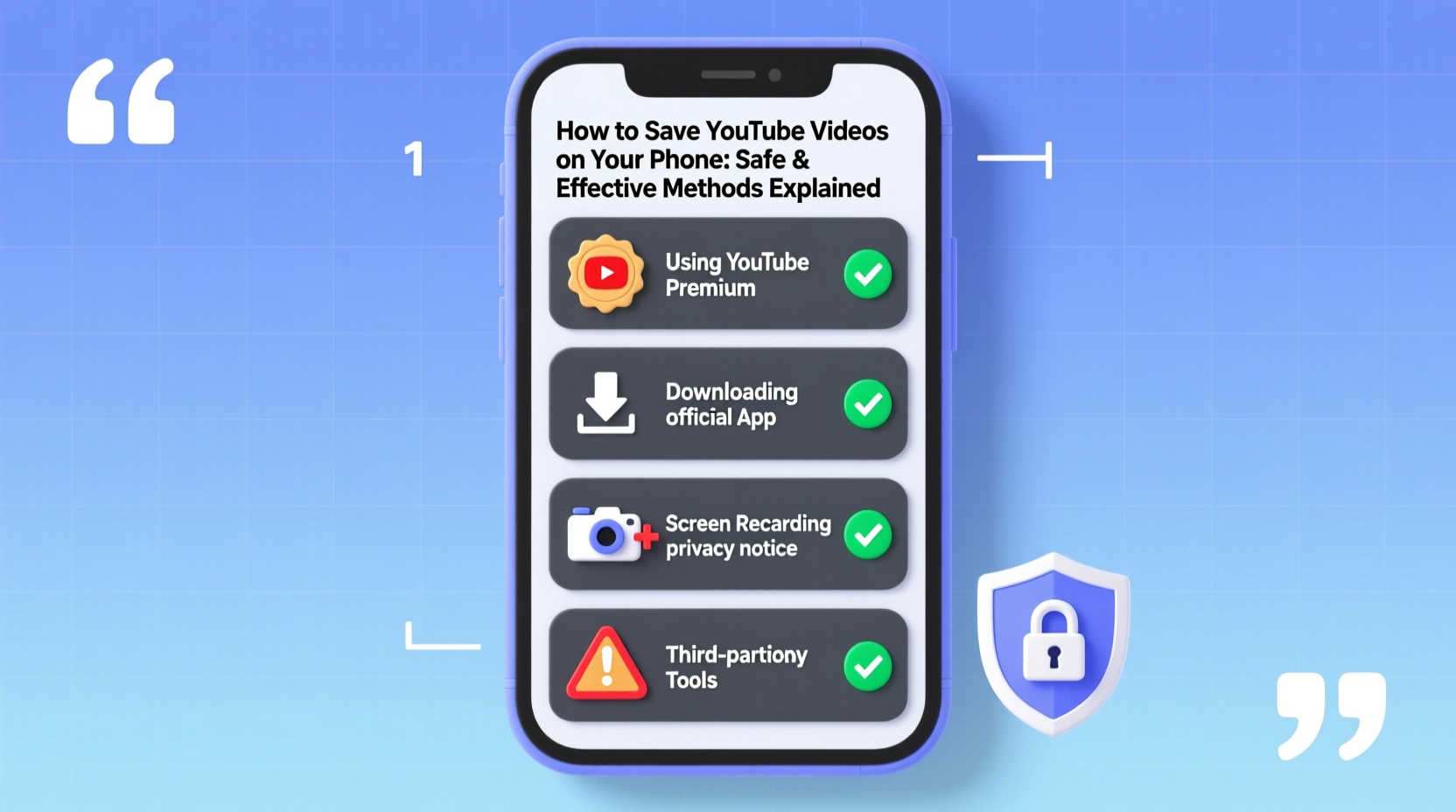
Before diving into methods, it’s important to understand YouTube’s policies. The platform allows offline viewing through its official Premium subscription. Downloading videos using third-party apps or websites without permission may breach YouTube’s Terms of Service and could lead to account restrictions or copyright issues, especially if the content is redistributed.
YouTube explicitly states that downloading videos via unauthorized tools is prohibited. However, temporary offline access through approved features is permitted. Your best bet for staying compliant while enjoying offline content is to use YouTube’s built-in functionality or other legitimate platforms that support offline playback.
“Downloading YouTube videos using unofficial tools may seem convenient, but it risks both user security and copyright compliance.” — Digital Rights Watch, Online Content Ethics Report 2023
Method 1: Use YouTube Premium (Official & Safest Option)
The most secure and straightforward way to save YouTube videos is through a YouTube Premium subscription. For a monthly fee, you gain ad-free playback, background listening, and full offline access across devices.
How to Download Videos Using YouTube Premium:
- Subscribe to YouTube Premium via the app or website.
- Open the YouTube app on your phone.
- Navigate to the video you want to save.
- Tap the “Download” icon below the video (a downward arrow).
- Select video quality (Auto, Low, Medium, High).
- Wait for the download to complete. The video will appear under “Library” → “Downloads”.
Videos saved this way are encrypted and can only be played within the YouTube app. You cannot transfer them to other apps or devices, but they remain high-quality and fully functional offline.
Method 2: Use Built-in Offline Features in Other Apps
Some content creators and educational platforms offer YouTube-like experiences with native offline support. Apps such as Khan Academy, TED, and Coursera often pull YouTube-hosted videos but allow legal downloads for learners in low-connectivity regions.
- Khan Academy: Download lessons for offline study.
- TED: Save talks directly through the app.
- News Apps: BBC, Reuters, and Al Jazeera let users download video reports.
If the video you need is part of an educational series or public-interest content, check whether it’s available through one of these partner platforms. It’s a legal workaround that respects copyright while serving the same purpose.
Method 3: Screen Recording (For Personal Use Only)
When no download option exists and you’re viewing content for personal reference, screen recording is a practical alternative. Both Android and iOS have built-in screen recorders that capture video and audio directly from your device.
Step-by-Step Guide to Screen Recording on Mobile:
- Enable screen recording from your phone’s Control Center (iOS) or Quick Settings (Android).
- Open the YouTube video and start playback.
- Begin screen recording and play the entire video.
- Stop the recording when finished. The file saves to your camera roll.
This method doesn’t violate YouTube’s policy as long as the recording is for private use and not shared or monetized. However, quality depends on your device performance and network stability during playback.
| Platform | Screen Recorder Location | Audio Capture Enabled? |
|---|---|---|
| iOS 16+ | Control Center (add via Settings) | Yes (if microphone is enabled) |
| Android (Samsung, Pixel, etc.) | Quick Settings Panel | Yes (system audio supported on newer models) |
What Not to Do: Avoiding Risky Methods
Despite their popularity, many third-party YouTube downloaders pose serious risks. Websites like y2mate, Snaptube, or TubeMate claim to convert videos to MP4, but they often come with hidden costs:
- Malware and spyware embedded in downloaded files.
- Data harvesting through intrusive permissions.
- Poor video quality and forced ads.
- Potential legal consequences for copyright infringement.
“We’ve seen a 40% increase in mobile malware linked to third-party video downloaders over the past year.” — Cybersecurity Bulletin, Mobile Threat Report 2024
Avoid installing APKs from unknown sources or entering your Google credentials on sketchy sites. These shortcuts may save time today but can compromise your device and personal information permanently.
Comparison Table: Safe vs. Unsafe Methods
| Method | Legal? | Quality | Security Risk | Offline Duration |
|---|---|---|---|---|
| YouTube Premium | Yes | HD, up to 1080p | None | Up to 30 days (renewable) |
| Educational App Downloads | Yes | Varies (usually HD) | None | Indefinite (app-dependent) |
| Screen Recording | Yes (personal use) | Depends on connection | Low | Permanent (stored locally) |
| Third-Party Download Sites | No | Inconsistent (often compressed) | High | Permanent (but risky) |
Real Example: Maria’s Study Routine
Maria, a nursing student in rural Guatemala, relies on YouTube for anatomy tutorials. With spotty internet, streaming isn’t always possible. Instead of using risky downloaders, she subscribed to YouTube Premium with a shared family plan. She downloads key lectures each Sunday and reviews them throughout the week on her phone during commutes and breaks. When funds were tight, she used screen recording to capture essential videos during hospital Wi-Fi access. Her disciplined approach ensured she stayed on track without compromising security or ethics.
Frequently Asked Questions
Can I download YouTube videos without paying?
Not officially. While free third-party tools exist, they violate YouTube’s terms and carry security risks. The safest free alternative is screen recording for personal use.
Do downloaded YouTube videos take up a lot of space?
Yes. A 10-minute HD video can use 100–200 MB. Manage storage by deleting downloads after watching or choosing lower quality (e.g., 480p) when sufficient.
Can I transfer downloaded YouTube videos to another device?
No. Videos downloaded via YouTube Premium are encrypted and tied to your account and the YouTube app. They cannot be copied, shared, or played outside the app.
Final Checklist: How to Save YouTube Videos Safely
- ✅ Check if the video is available on an educational platform with offline support.
- ✅ Consider YouTube Premium for regular offline access.
- ✅ Use screen recording for short-term, personal-use clips.
- ✅ Avoid third-party downloaders and unknown APKs.
- ✅ Regularly clear expired downloads to free up space.
- ✅ Never share or redistribute downloaded content.
Take Control of Your Viewing Experience
You don’t need to compromise safety or legality to enjoy YouTube videos offline. With YouTube Premium, smart use of screen recording, and trusted educational apps, you can build a reliable library of content accessible anytime, anywhere. Technology should empower you—not put your privacy at risk. Choose methods that respect creators, protect your device, and fit your lifestyle.




 浙公网安备
33010002000092号
浙公网安备
33010002000092号 浙B2-20120091-4
Comments
No comments yet. Why don't you start the discussion?