
Apple’s iOS 18 introduced native support for scheduling text messages directly in the Messages app—a long-awaited feature for users who value efficiency and timely communication. However, if you're still using an older version of iOS or haven’t upgraded yet, you might feel limited by the lack of built-in scheduling tools. The good news is that several reliable workarounds and third-party solutions allow you to schedule texts effectively. Whether you're reminding a colleague about a meeting, sending a birthday wish at midnight, or automating routine check-ins, this guide provides practical methods to get the job done without relying on iOS 18.
Why Scheduling Texts Matters
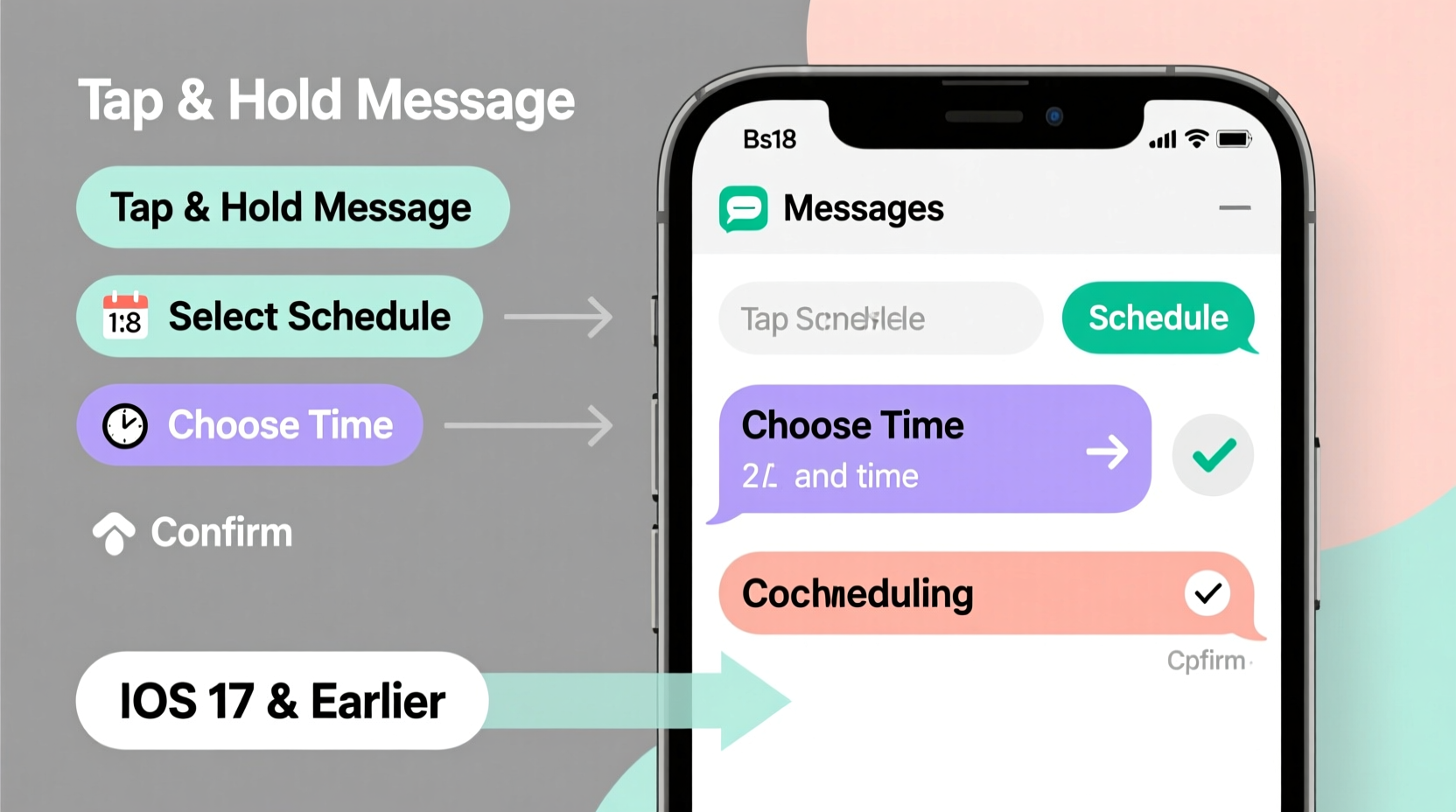
Scheduling messages isn't just about convenience—it's about precision and professionalism. Sending a message too early or forgetting it entirely can disrupt plans or damage relationships. For entrepreneurs, parents, remote workers, and busy professionals, being able to compose and set a message for later delivery ensures consistency without requiring constant attention.
Before iOS 18, Apple did not include message scheduling in its native messaging app. Unlike Android devices, which often support scheduling through default SMS apps or third-party integrations, iPhones required external tools. Understanding your options helps you maintain control over your communication flow, even on older operating systems.
“Time-sensitive communication should never depend on memory. Automation tools reduce cognitive load and improve reliability.” — Dr. Lena Torres, Digital Productivity Researcher, Stanford University
Available Methods to Schedule Texts Pre-iOS 18
While the native Messages app doesn’t support scheduling, there are multiple alternative approaches. Each has trade-offs in terms of ease of use, cost, privacy, and reliability. Below are the most effective strategies used by millions of iPhone users prior to iOS 18’s release.
1. Use Third-Party Messaging Apps
Dedicated apps fill the gap left by Apple’s omission. These applications integrate with your iPhone’s contact list and cellular network (or Wi-Fi) to send scheduled SMS and iMessages. Some operate independently; others sync with your existing message threads.
Popular apps include:
- ScheduleText – A simple interface lets you write a message, pick a recipient, choose date/time, and confirm. It sends via your carrier’s SMS gateway.
- TextLater – Offers recurring schedules, group messaging, and draft templates. Ideal for businesses or frequent reminders.
- Shortary – Focuses on clean design and seamless integration. Supports both one-time and repeating messages.
These apps typically require a small fee for full functionality, though free versions exist with limitations like ads or a cap on monthly messages.
2. Automate with Shortcuts (iOS Built-In Tool)
iOS includes the powerful Shortcuts app—often overlooked but capable of automating message scheduling using a workaround involving delayed notifications and manual sending cues.
Here’s how to create a shortcut that reminds you to send a message at a specific time:
- Open the Shortcuts app (preinstalled on all modern iPhones).
- Tap the \"+\" icon to create a new shortcut.
- Name it (e.g., “Evening Check-In”).
- Add action: “Text” → Enter your pre-written message.
- Add action: “Show Notification” or “Send Message” (note: true automation requires manual confirmation unless linked to Siri).
- Set up an automation: Go to the “Automation” tab → Create Personal Automation → Choose “Time of Day.”
- Select your desired send time and link it to the shortcut.
- Disable “Ask Before Running” to allow silent triggering (though iOS may still prompt once).
This method doesn’t auto-send over cellular/SMS unless combined with additional services like email-to-SMS gateways, but it ensures the message appears when needed, reducing forgetfulness.
3. Email-to-SMS Gateways
Some carriers allow sending SMS via email. By scheduling an email to a special address, you can indirectly schedule a text. This method works best for occasional use and requires knowing the recipient’s carrier.
For example:
| Carrier | Email Format |
|---|---|
| Verizon | number@vtext.com |
| AT&T | number@txt.att.net |
| T-Mobile | number@tmomail.net |
| Sprint (now T-Mobile) | number@messaging.sprintpcs.com |
To use this method:
- Compose an email in your preferred email client (e.g., Gmail, Outlook).
- Address it to the correct format (e.g.,
5551234567@vtext.com). - Write your message in the body (no subject needed).
- Use your email app’s scheduling feature (available in Gmail as “Schedule Send”).
- Choose the exact time you want the message delivered.
The recipient will receive it as a standard SMS. Note: MMS (pictures, group texts) won’t work, and delivery depends on carrier policies.
4. Web-Based Scheduling Platforms
Several web platforms let you schedule SMS from any device, including iPhones. They function through browser-based dashboards and connect via API or mobile number verification.
Top platforms include:
- TextReq – Designed for customer engagement, allows scheduling bulk or individual messages.
- Missive – Combines team inbox features with scheduled outbound texts.
- Chatby – Enables WhatsApp and SMS scheduling via web interface, accessible on iPhone Safari.
These services usually require a subscription but offer robust features like analytics, templates, and contact tagging. Ideal for business use or managing high-volume communications.
Mini Case Study: Managing Client Follow-Ups Remotely
Sarah Kim, a freelance graphic designer based in Portland, frequently collaborates with clients across time zones. Before upgrading to iOS 18, she struggled to send timely follow-ups without staying up late or waking early.
She adopted ScheduleText to automate her workflow. Every Friday at 5 PM, a reminder message was sent to clients due for feedback. She composed these messages Thursday evening and scheduled them in advance. Over six months, her response rate improved by 40%, and she reported feeling less stressed about timing.
“I used to juggle three apps and two alarms just to remember,” Sarah said. “Now I spend 10 minutes planning my week, and the rest runs itself.”
Her success highlights how simple automation tools can enhance professionalism—even without native OS support.
Do’s and Don’ts of Scheduling iPhone Texts
| Do’s | Don’ts |
|---|---|
| Test your first scheduled message to ensure delivery. | Assume all third-party apps are secure—check reviews and developer reputation. |
| Use scheduling for time-sensitive personal or professional messages. | Rely solely on free apps with no customer support or update history. |
| Keep messages concise and clear when automating. | Forget to disable automations after one-time use. |
| Review scheduled messages weekly to avoid duplicates. | Share sensitive data (like passwords) via automated texts. |
Step-by-Step Guide: Using ScheduleText App
If you're ready to start scheduling immediately, follow this detailed walkthrough using one of the most trusted third-party apps.
- Download ScheduleText from the App Store.
- Launch the app and grant permission to access your contacts (required for sending).
- Tap the \"+\" button to create a new scheduled message.
- Select a contact or enter a phone number manually.
- Type your message in the text box—emojis and line breaks are supported.
- Tap “Set Time” and choose the exact date and time for delivery.
- Optionally enable “Repeat” for daily, weekly, or monthly messages.
- Confirm and save. The message will appear in your scheduled list.
- Monitor delivery status: Sent, Failed, or Pending.
- To edit or cancel, go to the Scheduled tab and swipe left on the entry.
Note: Messages are sent via your cellular connection, so ensure your phone is powered on and connected to service at the scheduled time. If the device is off, most apps will attempt delivery once power is restored—but this isn’t guaranteed.
Frequently Asked Questions
Can I schedule iMessages (blue bubbles), not just SMS?
Most third-party apps only support SMS (green bubbles). True iMessage scheduling requires deep system integration, which Apple restricts for security. As of iOS 17 and earlier, no app can natively schedule iMessages. Your best workaround is to use the Shortcuts app to draft and notify you to send manually.
Will scheduled texts fail if my iPhone is off?
Possibly. If your phone is off, out of battery, or disconnected from the network, outgoing scheduled messages may not send. Some apps retry within a window, but reliability depends on the app and conditions. For critical messages, ensure your device remains powered and online.
Are scheduled messages private and secure?
Reputable apps use encryption and do not store message content longer than necessary. However, always read privacy policies. Avoid apps requesting unnecessary permissions (e.g., location, photos). For sensitive conversations, wait until iOS 18+ or consider end-to-end encrypted alternatives like Signal (which also lacks scheduling).
Checklist: Getting Started with Text Scheduling
Follow this checklist to implement message scheduling successfully on your current iPhone setup:
- ✅ Confirm your iOS version (Settings > General > About > Software Version)
- ✅ Decide whether you need SMS, iMessage, or both
- ✅ Choose a method: Third-party app, Shortcuts, or email-to-SMS
- ✅ Install and test one recommended app (e.g., ScheduleText or TextLater)
- ✅ Compose and schedule your first message
- ✅ Verify receipt with a test contact
- ✅ Review scheduled messages weekly
- ✅ Upgrade to iOS 18+ when possible for native support
Conclusion: Stay Ahead Until Native Support Arrives
Until you upgrade to iOS 18, scheduling text messages on your iPhone requires creative use of available tools. While Apple’s ecosystem prioritizes security—which limits third-party access to core functions—users have consistently found ways to enhance functionality through automation, trusted apps, and smart workflows.
The methods outlined here empower you to communicate proactively, maintain relationships, and manage responsibilities efficiently. Whether you’re a parent setting bedtime reminders, a manager coordinating teams, or someone who simply wants to send a thoughtful note at the perfect moment, these strategies bridge the gap left by Apple’s delayed feature rollout.




 浙公网安备
33010002000092号
浙公网安备
33010002000092号 浙B2-20120091-4
Comments
No comments yet. Why don't you start the discussion?