
Scheduling a text message is a small convenience that can make a big difference in communication. Whether you're wishing someone a happy birthday at midnight, sending a reminder during business hours, or sharing good news at just the right moment, timing matters. While many assume this requires downloading a third-party app, iPhone users have more options than they realize. With clever use of native iOS features and automation tools, it's entirely possible to schedule texts on an iPhone without installing any external software.
Apple hasn’t built direct message scheduling into the default Messages app — yet. But by combining features like Shortcuts, Siri, Reminders, and Calendar alerts, you can create reliable systems that deliver your messages exactly when you want them sent. This guide walks through practical, secure, and efficient methods to schedule texts using only what’s already on your iPhone.
Why Schedule Texts Without Third-Party Apps?
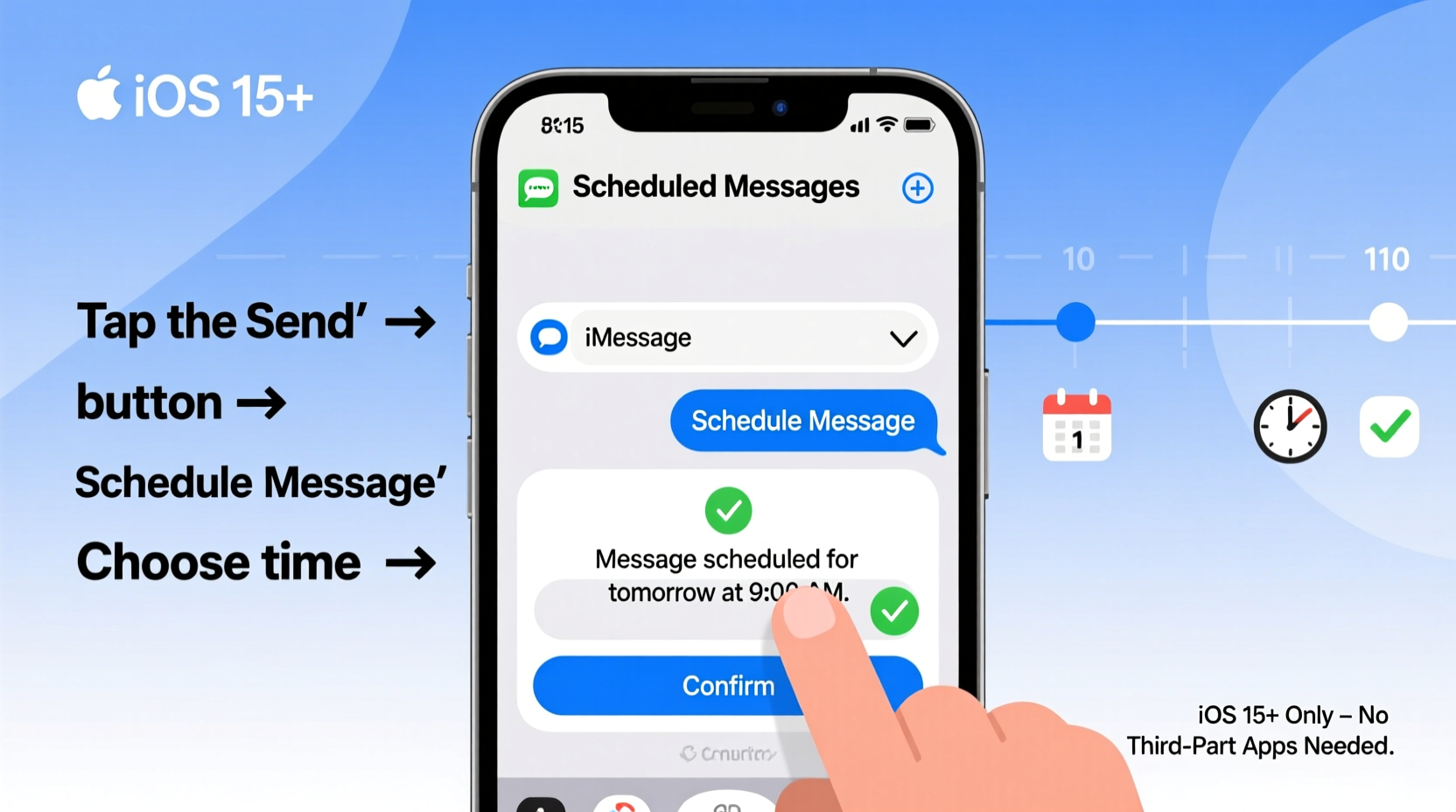
There are compelling reasons to avoid relying on outside apps for message scheduling. First, privacy: messaging is personal, and handing your text content over to a third-party service increases the risk of data exposure. Even reputable apps may collect metadata or require access to sensitive permissions.
Second, simplicity. Installing another app means managing updates, storage usage, and potential subscription fees. Many scheduling apps also clutter your home screen with ads or notifications. By sticking to Apple’s ecosystem, you maintain control, reduce digital noise, and ensure compatibility across your devices via iCloud sync.
Finally, reliability. Native iOS tools like Shortcuts and Siri integrate seamlessly with your phone’s core functions. They don’t depend on server uptime or internet connectivity in the same way cloud-based apps do. If your iPhone is on and charged, these solutions will work consistently.
“Automation within iOS has reached a point where users can replicate premium app functionality using only built-in tools.” — David Lin, Mobile Productivity Consultant
Using the Shortcuts App to Schedule Messages
The most powerful method available natively on iPhone is the Shortcuts app. Preinstalled on all modern iPhones, Shortcuts allows you to automate tasks, including sending delayed messages. While it doesn’t truly “schedule” a message in the background (the phone must be awake to send), it provides near-scheduled functionality with precise timing.
Here’s how to set up a shortcut that sends a text at a specific time:
Step-by-Step Guide: Create a Scheduled Message Shortcut
- Open the Shortcuts app (green icon with a white lightning bolt).
- Tap the + symbol in the top-right corner to create a new shortcut.
- Name your shortcut (e.g., “Birthday Wishes – Send at 9 AM”).
- Tap Add Action.
- In the search bar, type Send Message and select the action from the list.
- Tap the word Recipient and choose a contact or enter a phone number.
- Tap the word Text and enter your message.
- Toggle on Show When Run if you want to review the message before sending.
- To delay the message, add another action: search for Wait.
- Select Wait, then set the duration (e.g., 10 minutes, 1 hour). Note: This waits *from the moment you run the shortcut*, not at a fixed time.
- Tap Done to save.
This method works best when you can anticipate when you’ll activate the shortcut. For example, if you know you want a message sent at 8:00 AM and you typically wake up at 7:00 AM, set the wait for 60 minutes and run the shortcut upon waking.
Automating with Time-Based Triggers Using Personal Automations
iOS offers a deeper level of automation through Personal Automations. Unlike regular shortcuts, these can trigger based on time, location, or device events — such as connecting headphones or arriving at work.
You can configure a personal automation to prompt you to send a message at a specific time. While it won’t send silently in the background (due to iOS security restrictions), it will alert you precisely when needed, making it easy to tap and send.
Setting Up a Time-Based Automation
- Open the Shortcuts app and go to the Automation tab.
- Tap Create Personal Automation.
- Select Time of Day.
- Set the exact time you want the message to be sent.
- Choose whether it repeats daily, weekly, or once.
- Tap Next.
- Add an action: Search for Send Message and insert recipient and text.
- Disable Ask Before Running if you want it to send automatically (note: iOS may still show a confirmation banner).
- Tap Next > Done.
When the scheduled time arrives, your iPhone will either prompt you to send the message or send it directly if allowed. This works even if your phone is locked, provided it’s powered on and not in Low Power Mode.
“Personal automations turn your iPhone into a proactive assistant. You’re not just reacting — you’re orchestrating communication.” — Lena Patel, Digital Workflow Designer
Alternative Methods Using Native Apps
If Shortcuts feel too technical, there are simpler, low-tech ways to achieve similar results using apps already on your iPhone.
Method 1: Use Reminders with Message Copy-Paste
Create a Reminder set for the exact time you want to send the message. Include the full text of the message in the note field.
- Open the Reminders app.
- Create a new reminder and type your message.
- Tap the ⓘ icon and enable a time-based alert.
- Set date and time.
When the alert pops up, open Messages, select the contact, paste the text, and send. It’s manual but ensures timely delivery without extra apps.
Method 2: Calendar Event as a Trigger
Schedule a calendar event titled “Send Anniversary Text” with the message body in the description. Set an alert for 5–10 minutes before the event. When the notification appears, copy the message and send it.
Comparison of Native Scheduling Methods
| Method | True Scheduling? | User Effort | Best For |
|---|---|---|---|
| Shortcuts with Wait | Partially (requires activation) | Medium | Sending messages a few hours ahead |
| Personal Automation | Nearly full (runs at set time) | Low after setup | Daily or recurring messages |
| Reminders Alert | No (manual send) | High | One-time important messages |
| Calendar Event | No (prompt only) | High | Messages tied to events (birthdays, meetings) |
Real-World Example: Scheduling a Birthday Text
Sophie wanted to wish her sister a happy birthday at 12:01 AM but knew she’d be asleep. She didn’t want to download a new app due to privacy concerns. Instead, she used the Shortcuts app.
On the evening of December 4th, Sophie created a personal automation triggered at 12:01 AM on December 5th. The automation included a “Send Message” action with the text: “Happy Birthday, Maya! So lucky to have you as my sister 💖”. She disabled “Ask Before Running” and saved it.
At midnight, her iPhone lit up with a silent notification. Because the automation was approved, the message sent immediately. Her sister received it seconds after midnight — thoughtful, timely, and completely app-free.
Frequently Asked Questions
Can I schedule a text to send while my iPhone is off?
No. All native methods require your iPhone to be powered on at the scheduled time. If the device is off or in Airplane Mode without Wi-Fi, the message will not send. Ensure your phone is charged and connected to a network.
Why doesn’t Apple allow true message scheduling in iMessage?
Apple prioritizes user intent and security. Automatically sending messages without explicit approval could be misused. Additionally, background processing limitations help preserve battery life. However, Shortcuts and Automations offer a balanced compromise between automation and control.
Will these methods work on older iPhone models?
Yes, as long as your iPhone runs iOS 13 or later. The Shortcuts app and Automation features were significantly enhanced in iOS 13. Devices from the iPhone 6s onward support these versions.
Checklist: How to Schedule a Text Without Third-Party Apps
- ✅ Decide on the message content and recipient
- ✅ Choose a scheduling method (Shortcuts, Automation, Reminder, or Calendar)
- ✅ Set the exact time for delivery
- ✅ Test the shortcut or automation with a self-message
- ✅ Ensure your iPhone will be powered on at the scheduled time
- ✅ Disable Low Power Mode if automation fails to run
- ✅ Confirm delivery by checking the Messages app afterward
Maximizing Reliability and Avoiding Pitfalls
Even the best system fails if conditions aren’t met. To increase success rates:
- Keep your iPhone charged overnight if scheduling early morning messages.
- Avoid enabling Low Power Mode, as it disables background automation.
- Don’t force-close the Shortcuts app — iOS needs it running in the background.
- Double-check contact numbers to prevent failed deliveries.
- Use Wi-Fi whenever possible to ensure consistent connectivity.
Also, remember that SMS and MMS messages rely on cellular networks. If you’re in an area with poor signal, consider using iMessage (blue bubbles), which can route through Wi-Fi.
Conclusion: Take Control of Your Messaging Timing
Scheduling texts on an iPhone without third-party apps isn’t just possible — it’s practical, private, and powerful. By leveraging tools like Shortcuts and Personal Automations, you gain precision in your communication without sacrificing security or cluttering your device. These methods put you in control, letting you plan thoughtfulness in advance and execute it flawlessly.




 浙公网安备
33010002000092号
浙公网安备
33010002000092号 浙B2-20120091-4
Comments
No comments yet. Why don't you start the discussion?