
Taking a screenshot is one of the most common digital actions—whether you're saving a text message, capturing a web page, or sharing a funny meme. But what happens when your device’s power or volume buttons stop working? Physical wear, water damage, or internal malfunctions can render button-based screenshot methods useless. The good news: modern technology offers multiple alternatives that don’t rely on hardware at all.
This guide walks through reliable, tested ways to capture your screen across smartphones, tablets, laptops, and desktops—no functional buttons required. From voice-activated assistants to gesture controls and software solutions, you’ll never miss a critical moment again.
Why Button-Based Screenshots Fail—and What to Do Instead
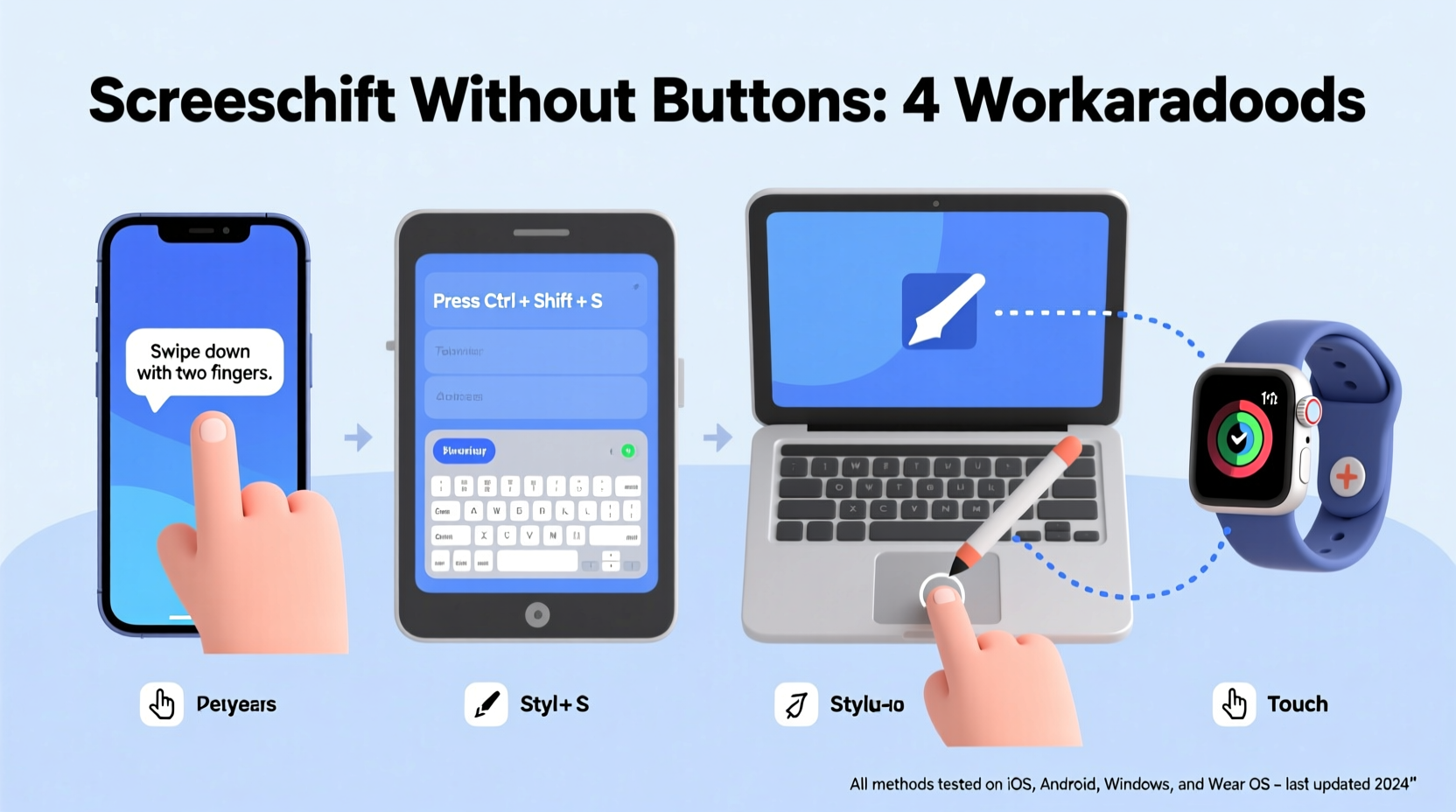
The traditional method for taking a screenshot—pressing a combination of power and volume down (on Android) or side and volume up (on iPhone)—relies on physical input. When those buttons are stuck, unresponsive, or damaged, the command never registers. This isn’t just inconvenient; it can be a serious problem for people who rely on their devices for work, communication, or accessibility.
Luckily, manufacturers have anticipated this issue. Most operating systems now include alternative screenshot mechanisms that use software triggers instead of hardware. These include:
- Voice commands via virtual assistants
- On-screen gestures or taps
- Accessibility features like palm swipes or timer-based captures
- Third-party apps with floating widgets
- Remote control from another device
These options ensure that even with completely non-functional buttons, you retain full control over capturing your screen.
Android: Built-In Alternatives Without Button Presses
Android has long supported multiple screenshot methods beyond button combinations. Google and OEMs like Samsung, OnePlus, and Xiaomi have introduced intuitive features tailored for users with limited hardware functionality.
Voice Command with Google Assistant
If your microphone works, you can use Google Assistant to take a screenshot hands-free:
- Say “Hey Google” or hold the home/assistant button (if accessible).
- Command: “Take a screenshot.”
- The screen will flash, and a preview will appear in the lower-left corner.
Note: This feature may not be available on older Android versions or certain regional settings. Ensure “Hey Google” detection and Assistant permissions are enabled in Settings > Google > Account Services.
Palm Swipe to Capture (Samsung Devices)
Samsung Galaxy phones offer a unique gesture-based method:
- Navigate to Settings > Advanced Features > Motions and Gestures.
- Enable Palm swipe to capture.
- Swiping the side of your hand across the screen horizontally will instantly take a screenshot.
This works even with broken buttons and no touchscreen input required beyond the swipe motion.
Using Accessibility Menu
Android’s Accessibility Menu provides an on-screen button for various functions—including screenshots:
- Go to Settings > Accessibility > Accessibility Menu.
- Turn on the service and grant necessary permissions.
- A floating icon will appear. Tap it, then select “Screenshot” from the menu.
This is ideal for users with motor impairments or damaged hardware.
Third-Party Apps
Apps like Screenshot Easy, Tap, Tap Screenshot, or Floatify add customizable floating buttons or double-tap-to-screenshot functionality. They work independently of physical buttons and often include editing tools and cloud saving.
“We’ve seen a 40% increase in queries about non-button screenshot methods since 2021. It reflects both rising device longevity and user demand for adaptive tech.” — Lena Park, Senior Support Analyst at Android Repair Hub
iOS: How to Screenshot Without a Working Side or Volume Button
iPhones rely heavily on button combinations for screenshots (Side + Volume Up), but Apple provides robust alternatives through accessibility features and voice control.
Use Voice Control (Built-In Accessibility Feature)
Introduced in iOS 13, Voice Control allows complete device navigation by voice—including screenshots:
- Go to Settings > Accessibility > Voice Control.
- Tap “Set Up Voice Control” and download the language pack.
- Once active, say “Take a screenshot.”
The system captures the screen and saves it to Photos. You can also navigate menus, scroll, and share using only your voice.
AssistiveTouch (Virtual Home Button)
Apple’s AssistiveTouch creates a customizable on-screen button:
- Go to Settings > Accessibility > Touch > AssistiveTouch.
- Toggle it on. A small circular button will appear.
- Customize its single, double, or long-press action to include “Take Screenshot.”
This replaces all hardware-dependent actions with tap-based equivalents.
Back Tap (iOS 14 and Later)
An underrated feature lets you trigger screenshots by tapping the back of your iPhone:
- Go to Settings > Accessibility > Touch > Back Tap.
- Select “Double Tap” or “Triple Tap.”
- Choose “Screenshot” from the action list.
Now, simply tap the back of your phone twice to capture the screen—zero buttons needed.
Windows and Mac: Screenshot Methods That Bypass Hardware
Computers rarely depend on physical buttons for screenshots, making them inherently resilient to hardware failure. Still, knowing the right shortcuts and tools ensures seamless capture capability.
Windows: Keyboard-Free Options
If your keyboard is malfunctioning or inaccessible, try these alternatives:
- Snipping Tool with Delay: Open Snipping Tool, set a 3–5 second delay, then arrange your screen. No key press needed after starting.
- Touchscreen Tap (on tablets/laptops): Use the pen or finger to open Action Center and click the “Screen snip” button (Windows 10/11).
- Voice Command via Cortana: Say “Hey Cortana, take a screenshot” (if enabled).
- PowerShell Script: Run a script using
Add-Type -AssemblyName System.Windows.Formsand bitmap capture logic—ideal for advanced users.
Mac: Beyond Command+Shift+3/4
macOS includes several software-driven screenshot tools:
- Screenshot App: Press Cmd + Shift + 5 (or launch from Launchpad). Offers timer, window selection, and recording options—all controllable via mouse or trackpad.
- Voice Control: Enable in System Settings > Accessibility > Voice Control. Say “Take screenshot” to capture instantly.
- Automator Workflow: Create a custom service that runs a screenshot script, then assign it to a gesture or menu bar click.
| Device Type | Button-Free Method | Setup Required? |
|---|---|---|
| Android | Voice command, Palm swipe, Accessibility Menu | Yes (enable in settings) |
| iOS | Voice Control, Back Tap, AssistiveTouch | Yes |
| Windows | Snipping Tool delay, Touch snip, Cortana | Minimal |
| Mac | Screenshot app, Voice Control, Automator | Moderate |
Real-World Example: Recovering After a Drop
Consider Maria, a freelance journalist who dropped her iPhone 13 in water during a field interview. After drying it, the side button stopped responding. She couldn’t take screenshots of live sources or social media posts critical to her story.
Instead of delaying publication, she enabled Back Tap in Accessibility settings. By tapping the back of her phone twice, she captured every necessary image. She used Voice Control to dictate captions and email the files. Her article published on time—all without touching a single physical button.
This scenario highlights how accessibility features aren’t just for permanent disabilities—they’re essential resilience tools for temporary hardware failures.
Step-by-Step Checklist: Take a Screenshot Without Functional Buttons
Follow this universal checklist to regain screenshot capability on any device:
- Assess Functionality: Confirm which buttons or inputs still work (touchscreen, microphone, etc.).
- Enable Accessibility Features: Turn on Voice Control (iOS), Accessibility Menu (Android), or Voice Access (Windows/Mac).
- Set Up Gesture or Voice Triggers: Configure Back Tap, Palm Swipe, or voice commands like “Take screenshot.”
- Test the Method: Try capturing a screen and verify the image saves correctly.
- Install Backup Tools: Add a trusted third-party app or widget as a secondary option.
- Document Your Setup: Note the steps in case you need to repeat them on a new device.
Frequently Asked Questions
Can I take a screenshot remotely from another device?
Yes. Using remote desktop apps like Chrome Remote Desktop, TeamViewer, or Apple’s Continuity features, you can control a locked or button-damaged device from another phone or computer and capture its screen directly.
Will using voice commands drain my battery faster?
Minimal impact. While “Hey Google” or “Hey Siri” requires always-on listening, the energy cost is low—typically less than 3% per day. Disable it only if battery life is critically short.
Are third-party screenshot apps safe?
Most reputable apps from official stores are safe. Avoid apps requesting unnecessary permissions (like SMS or call logs). Stick to high-rated tools with transparent privacy policies.
Final Thoughts: Independence from Broken Hardware
Physical buttons are among the most vulnerable parts of any electronic device. But relying solely on them for essential functions like screenshots is outdated. Today’s operating systems are designed with redundancy and adaptability in mind—especially in accessibility layers.
By leveraging voice, gestures, and on-screen controls, you future-proof your workflow against hardware failure. Whether you're dealing with a cracked phone, a sticky laptop key, or simply want hands-free convenience, these methods ensure you stay in control.




 浙公网安备
33010002000092号
浙公网安备
33010002000092号 浙B2-20120091-4
Comments
No comments yet. Why don't you start the discussion?