
When working with AI like ChatGPT, clarity is key. Sometimes words alone can’t convey what you’re seeing or experiencing—especially when troubleshooting an app interface, analyzing a webpage layout, or discussing visual data. On a Mac, sharing screenshots with ChatGPT doesn’t have to be clunky or time-consuming. With the right workflow, you can go from capturing a screen moment to pasting it into your conversation in seconds.
The integration of visual context elevates your interaction with AI. Instead of describing a confusing error message or trying to explain a chart’s structure, a screenshot delivers instant understanding. This guide walks through practical methods to streamline that process on macOS, so your conversations with ChatGPT become faster, richer, and more productive.
Why Visual Context Matters in AI Conversations
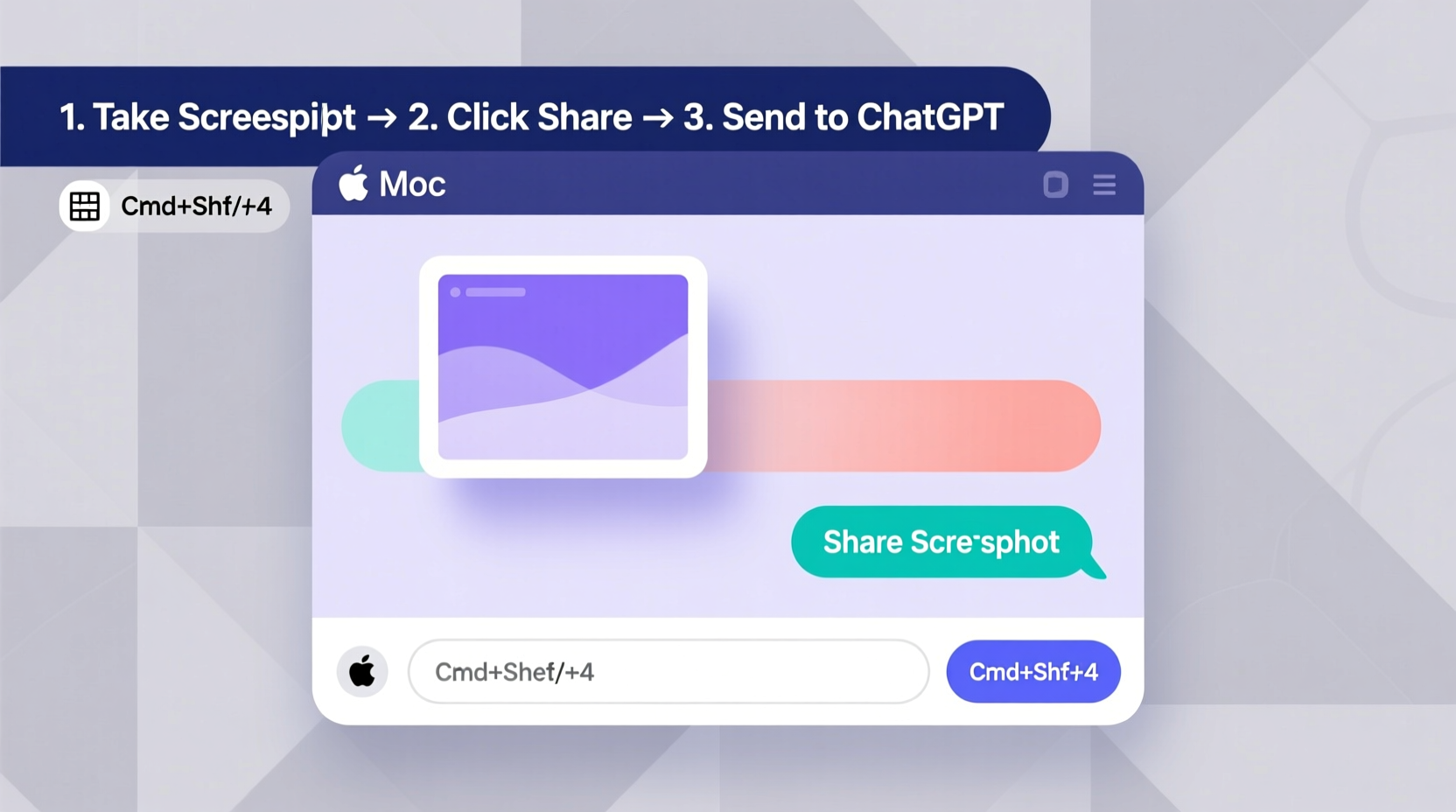
Text-based AI models are powerful, but they operate within linguistic boundaries. When you add a visual element—like a screenshot—you bridge the gap between description and perception. A well-placed image allows ChatGPT to analyze layouts, read text within graphics, interpret UI elements, and even suggest improvements based on visual hierarchy.
For example, imagine trying to debug a website layout issue. Saying “the button disappears on smaller screens” requires assumptions. But showing a screenshot of the broken layout lets the AI identify spacing issues, CSS conflicts, or responsive breakpoints instantly.
“Visual input transforms abstract problems into tangible ones. It reduces ambiguity and accelerates problem-solving.” — Dr. Lena Torres, Human-AI Interaction Researcher at Stanford HAI
Step-by-Step: Capturing and Sharing Screenshots Efficiently
macOS offers multiple ways to capture screenshots. The trick is choosing the method that aligns with your goal: speed, precision, or editing flexibility. Here’s a streamlined process for getting those visuals into ChatGPT without friction.
- Capture the Right Area: Use Shift + Command + 4 to select a specific portion of your screen. This avoids unnecessary background clutter and keeps file sizes small.
- Copy Directly to Clipboard (Optional): Hold Control while using any screenshot shortcut (e.g., Control + Shift + Command + 4) to copy the image directly to your clipboard instead of saving it as a file.
- Navigate to ChatGPT: Open your browser or app and go to your active conversation.
- Paste Instantly: Press Command + V to paste the screenshot directly into the message box. Most modern versions of ChatGPT support image uploads via paste.
- Add Context: Follow up with a concise question or explanation: “Why does this form look misaligned?” or “Can you extract the data from this chart?”
Alternative Methods: Drag-and-Drop and File Uploads
Not all workflows rely on clipboard efficiency. Some users prefer visual confirmation before sending. In these cases, macOS’s default screenshot behavior works in your favor.
By default, pressing Shift + Command + 5 opens the screenshot toolbar, where you can choose to record the screen or capture windows, full screens, or selected portions. You can also set the save location—preferably a folder you can access quickly, like Desktop or Documents.
Once saved, simply:
- Locate the screenshot file (usually named “Screenshot [date] at [time].png”).
- Drag and drop it directly into the ChatGPT message input area.
- Or click the upload icon (if available) and select the file manually.
This method is ideal when you need to review the image first or crop it slightly using the built-in markup tools that appear after capture.
Comparison of Screenshot Methods for ChatGPT Use
| Method | Speed | File Created? | Best For |
|---|---|---|---|
| Ctrl+Shift+Cmd+4 | Fastest | No (copied only) | Quick questions, minimal steps |
| Shift+Cmd+4 | Fast | Yes (saved to disk) | Situations requiring file reuse |
| Screenshot Toolbar (Cmd+5) | Moderate | Configurable | Precise captures, timers, recordings |
| Preview App | Slow | Yes | Detailed annotations, multi-step edits |
Real Example: Debugging a Website Layout Issue
Julia, a freelance web developer, was building a client’s landing page when she noticed the mobile menu collapsed incorrectly on certain devices. She could describe the issue, but knew a visual would help ChatGPT understand faster.
She pressed Control + Shift + Command + 4, selected the mobile preview window in her browser, and released. Without saving a file, she switched to ChatGPT and pressed Command + V. The screenshot appeared instantly.
Her prompt: “This mobile menu overlaps the logo. I’m using Flexbox. What CSS property should I adjust?”
Within seconds, ChatGPT identified a missing z-index rule and suggested restructuring the stacking context. Julia applied the fix, verified it, and moved on—all within three minutes. The visual context eliminated guesswork and reduced back-and-forth.
Optimizing Your Workflow: A Checklist
To make screenshot sharing with ChatGPT second nature, follow this daily checklist:
- ✅ Set screenshot output to clipboard when speed matters (Control + capture shortcut).
- ✅ Organize your desktop—disable “Save to Desktop” if files pile up too quickly.
- ✅ Use Shift + Command + 5 to customize defaults: set save location to “Clipboard” or a dedicated “ChatGPT Media” folder.
- ✅ Train yourself to paste immediately after capture to maintain flow.
- ✅ Always add a short textual prompt—even one sentence—to guide ChatGPT’s analysis.
- ✅ Delete outdated screenshots weekly to keep storage clean.
Frequently Asked Questions
Can ChatGPT actually see and interpret my screenshots?
Yes—when you upload or paste an image into ChatGPT (specifically GPT-4 with vision capabilities), it can analyze the contents. It reads visible text, identifies UI components, interprets charts, and understands spatial relationships within the image. However, it cannot access images hosted online unless you explicitly upload them.
Why isn’t my screenshot pasting into ChatGPT?
This usually happens if the image isn’t properly copied to the clipboard. Ensure you’re not just saving the file—press Control during capture to copy directly. Also, verify you’re using a version of ChatGPT that supports image input (available in Plus subscribers using GPT-4). Browser extensions or ad blockers may interfere; try disabling them temporarily.
Is it safe to share screenshots with sensitive information?
No. Avoid sharing screenshots containing personal data, passwords, financial details, or confidential work. Even if the platform claims end-to-end encryption, assume any uploaded image could be stored or accessed. Always redact sensitive areas using macOS markup tools before sharing.
Master the Flow, Elevate Your AI Collaboration
Sharing screenshots with ChatGPT on Mac isn’t just about convenience—it’s about enhancing communication. Every second saved in file management or description drafting is a second gained in productivity. By mastering macOS shortcuts, leveraging clipboard efficiency, and understanding how ChatGPT interprets visuals, you transform AI from a text-only assistant into a collaborative partner capable of seeing what you see.
The most effective users don’t just type faster—they think in multimodal terms. They combine words and images to create clearer, more actionable prompts. Start small: use clipboard capture tomorrow on a simple task. Then build the habit until seamless visual sharing becomes second nature.




 浙公网安备
33010002000092号
浙公网安备
33010002000092号 浙B2-20120091-4
Comments
No comments yet. Why don't you start the discussion?