
In today’s digital world, social media platforms like Instagram offer powerful tools for self-expression and connection. However, with increased visibility comes greater exposure to unwanted attention, data misuse, and online harassment. Whether you're sharing personal moments, building a brand, or simply staying in touch with friends, taking control of your privacy is essential. This guide walks you through the exact steps to secure your Instagram account, limit who sees your content, and reduce digital risks—without sacrificing usability.
Step 1: Make Your Profile Private
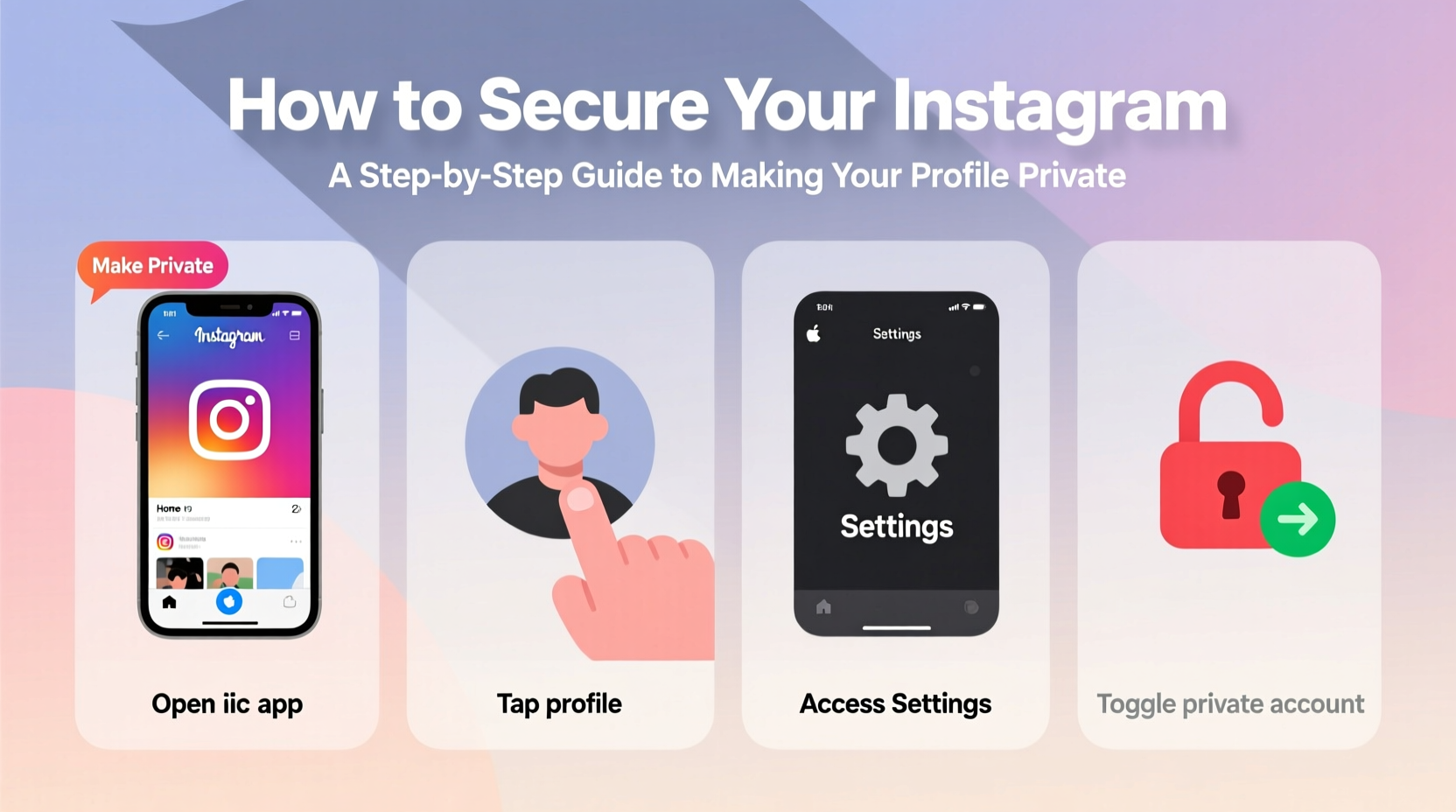
The foundation of Instagram security is switching from a public to a private account. When your profile is public, anyone—strangers, bots, marketers—can view your posts, stories, and follower list. By making it private, only approved followers gain access.
- Open the Instagram app and go to your profile.
- Tap the menu icon (three horizontal lines) in the top-right corner.
- Select “Settings and privacy.”
- Tap “Account privacy.”
- Toggle on “Private account.”
Once enabled, all new follower requests must be manually approved by you. Existing followers remain unless you remove them later.
Step 2: Manage Who Can Interact With You
Even with a private profile, you can still receive unwanted messages, comments, or tags. Instagram offers granular controls to manage interactions across posts, stories, and direct messages.
Adjust Comment Settings
- Go to Settings > Privacy > Comments.
- Choose “Only people you follow” to block comments from non-followers.
- Enable “Hide inappropriate comments” to filter out offensive language automatically.
- Create a custom list of blocked words to filter specific terms.
Control Story Interactions
If you share stories, limit who can reply or mention you:
- Navigate to Settings > Privacy > Story.
- Under “Who can reply,” select “People you follow” or “Close Friends” only.
- Disable “Allow message replies to story” if you want zero interaction.
Limit Tags and Mentions
Prevent others from tagging you in posts or adding you to group chats without consent:
- Settings > Privacy > Tags: Switch to “Off” or “Manual Approval.”
- Settings > Privacy > Story > “Add me to groups”: Disable this option.
| Interaction Type | Recommended Setting | Risk if Left Default |
|---|---|---|
| Comments | Only people you follow | Spam, bullying, scams |
| Story Replies | Close Friends only | Unwanted contact |
| Photo Tags | Manual Approval | Appearance in unrelated content |
| Message Requests | Filter + Manual approval | Phishing attempts |
Step 3: Strengthen Account Security
A private profile isn’t enough if your account can be hacked. Use these security measures to protect your login and personal information.
Enable Two-Factor Authentication (2FA)
Two-factor authentication adds an extra layer of protection by requiring a second verification step beyond your password.
- Go to Settings > Security > Two-factor authentication.
- Turn on “Text Message” or, preferably, “Authentication App.”
- Link your phone number or use apps like Google Authenticator or Authy.
Using an authenticator app is safer than SMS, as SIM-swapping attacks can bypass text-based 2FA.
Use a Strong, Unique Password
Avoid using birthdays, pet names, or simple sequences. Instead, create a password that is:
- At least 12 characters long
- Mixes uppercase, lowercase, numbers, and symbols
- Not reused across other accounts
Review Active Sessions
Check where your account is currently logged in and log out of unrecognized devices:
- Settings > Security > Login Activity.
- Review device type, location, and time.
- Tap any session and select “Log Out” if suspicious.
“Over 70% of compromised social media accounts lack two-factor authentication. It's the single most effective step users can take.” — Lena Patel, Cybersecurity Analyst at Digital Trust Labs
Step 4: Control What You Share and With Whom
Privacy isn’t just about settings—it’s also about behavior. Even the most secure account can leak data through careless posting.
Use Close Friends List for Sensitive Stories
Create a “Close Friends” list to share personal updates with a trusted circle:
- Go to your profile and tap the menu icon.
- Select “Close Friends” under “Lists.”
- Add people you trust implicitly.
- When posting a story, tap the “Close Friends” badge before sharing.
Audit Past Posts
Older public posts may contain sensitive details—home addresses, school names, vacation plans. Consider archiving or deleting them:
- Visit your profile and tap “Archive” below your grid.
- Browse past content and selectively hide what’s no longer relevant.
- Use “Permanently Delete” for high-risk posts.
Disable Location Tagging
Avoid revealing your whereabouts by skipping geotags on posts and stories. Never share real-time check-ins of your home or routine locations.
Mini Case Study: Recovering From an Impersonation Scam
Sophie, a college student with 2,500 followers, noticed strange messages from friends asking why she was requesting money. She discovered someone had created a fake account using her photos and bio. Though her profile was public, she hadn’t enabled 2FA and used a weak password. After reporting the impersonator, Sophie took action:
- Switched to a private account.
- Enabled 2FA with an authenticator app.
- Changed her password and reviewed all active sessions.
- Archived old posts showing her campus and dorm.
Within days, the scam stopped, and her account regained trust. Her experience underscores that proactive privacy beats reactive damage control.
Essential Security Checklist
Follow this checklist to fully secure your Instagram presence:
- ✅ Switch to a private account
- ✅ Enable two-factor authentication (preferably via app)
- ✅ Use a strong, unique password
- ✅ Review and log out of unknown devices
- ✅ Limit comments to followers only
- ✅ Filter DM requests and story replies
- ✅ Create a Close Friends list for private stories
- ✅ Audit old posts for sensitive information
- ✅ Disable photo tagging without approval
- ✅ Avoid sharing real-time location or routines
Frequently Asked Questions
Will making my account private reduce my reach?
Yes, but intentionally so. A private account limits visibility to approved followers only. If you're building a public brand, consider keeping the account public but tightening comment and DM filters instead.
Can someone screenshot my private posts?
Yes. Instagram does not prevent screenshots. While you’ll get a notification for disappearing messages in DMs, regular post screenshots are undetectable. Share only what you’re comfortable with potentially going public.
How often should I review my privacy settings?
At minimum, review every 3 months. Instagram occasionally updates its features and default settings. Also, recheck after major life changes—starting a new job, moving, or ending a relationship.
Take Control of Your Digital Identity
Your Instagram account holds a piece of your identity. Protecting it isn't about fear—it's about respect for your personal boundaries and digital well-being. The steps outlined here don’t require technical expertise, only consistent attention. From enabling two-factor authentication to curating who sees your stories, each action builds a stronger shield around your online presence. Start today. Secure your profile, refine your settings, and reclaim the peace of mind that comes with true privacy.




 浙公网安备
33010002000092号
浙公网安备
33010002000092号 浙B2-20120091-4
Comments
No comments yet. Why don't you start the discussion?