
Selling or donating an old smartphone can be a smart way to recoup some value or help someone in need. But if you don’t properly wipe your device, you risk exposing sensitive personal information—photos, messages, banking details, login credentials, and even location history. A simple factory reset isn’t always enough to permanently remove data. Cybercriminals with basic tools can recover deleted files from improperly erased phones. To truly protect your digital footprint, you need a comprehensive approach that goes beyond the default settings.
This guide walks through the essential steps to securely erase your smartphone’s data, whether it runs on Android or iOS. From backing up important files to disabling tracking features and using advanced wiping techniques, we’ll cover everything you need to ensure your private information stays private—even after the phone leaves your hands.
Why a Factory Reset Isn’t Always Enough
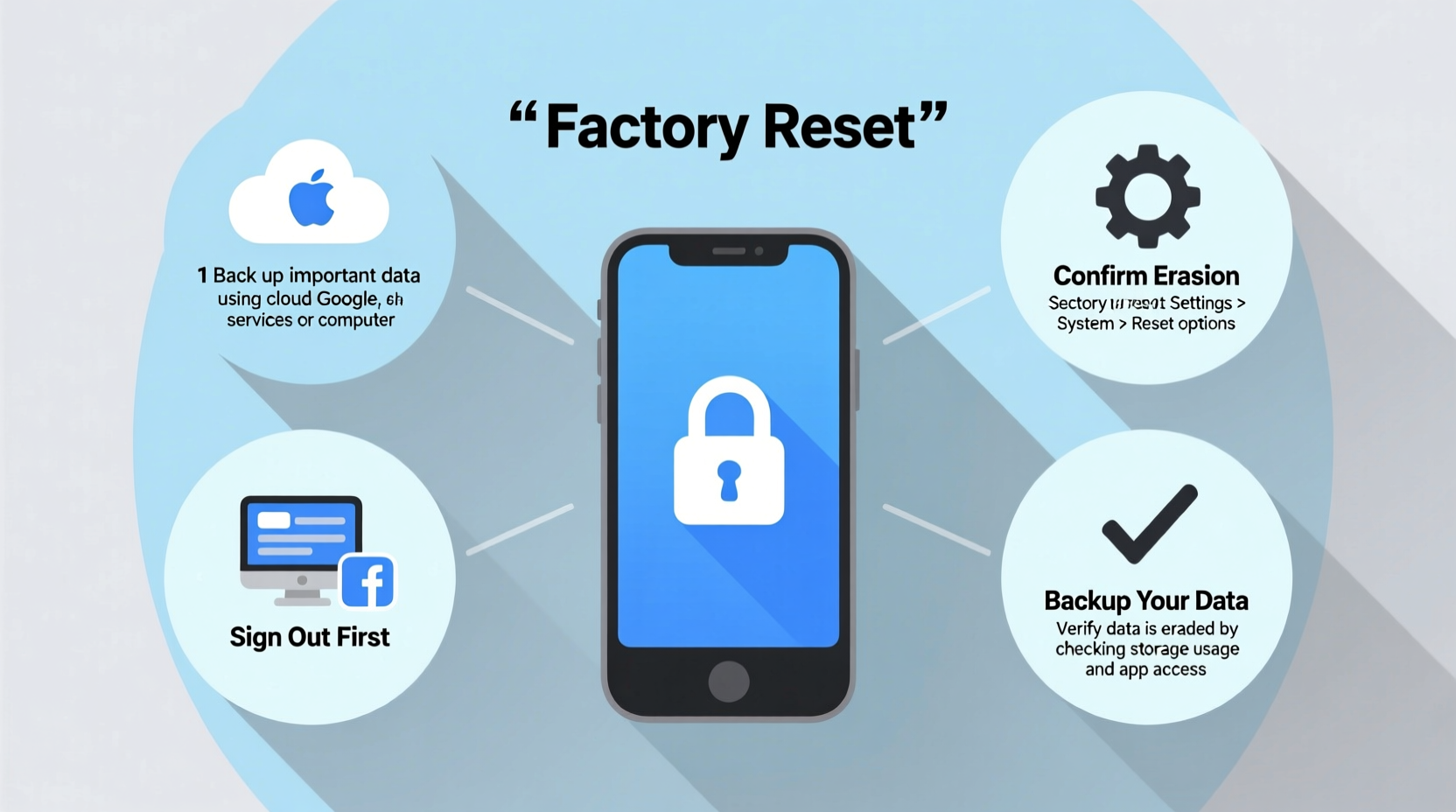
Many users assume that performing a factory reset removes all their data permanently. In reality, a factory reset only deletes the file index—the map that tells the phone where data is stored—while leaving the actual data fragments intact on the storage chip. These remnants can be recovered using data recovery software, especially on older Android devices that don’t use full-disk encryption by default.
According to a 2023 study by the National Cyber Security Centre (NCSC), nearly 40% of second-hand smartphones still contained recoverable personal data, including emails, photos, and app logins. This highlights a widespread misconception about digital privacy during device disposal.
“Just like shredding physical documents, digital data must be overwritten or encrypted to be truly unrecoverable.” — Dr. Lena Patel, Digital Forensics Researcher at Cambridge University
Modern iPhones and newer Android devices use encryption by default, which makes data recovery significantly harder once the encryption key is destroyed during a reset. However, this protection only works if the device hasn’t been compromised or rooted. For maximum security, additional precautions are necessary regardless of your phone’s age or model.
Step-by-Step: Securely Wiping Your Smartphone
Follow this detailed process to ensure your data is irreversibly erased before handing over your phone.
- Back up your data – Transfer photos, contacts, messages, and app data to a cloud service (Google Drive, iCloud) or external storage. This ensures you don’t lose anything important during the wipe.
- Sign out of accounts – Log out of Google, Apple ID, social media, banking apps, and any services tied to the device. This prevents unauthorized access and maintains account security.
- Revoke device permissions – On Google Account settings, go to Security > Your Devices and remove the phone. For Apple, go to iCloud.com and remove the device from your trusted list.
- Encrypt the device (if not already done) – Most modern phones encrypt by default, but older models may require manual activation. On Android, go to Settings > Security > Encrypt Phone. On iPhone, encryption is automatic if a passcode is set.
- Perform a factory reset – Navigate to Settings > System > Reset Options (Android) or Settings > General > Transfer or Reset iPhone (iOS). Choose “Erase All Content and Settings.”
- Fill storage with dummy data (optional but recommended for older Android devices) – After backup but before reset, fill the phone with large files (videos, music) until storage is full. Repeat the process once after the first reset. This overwrites residual data, making recovery extremely difficult.
- Remove SIM and SD cards – These components store separate data and aren’t affected by a factory reset. Physically remove them before selling.
Platform-Specific Best Practices
Different operating systems handle data deletion differently. Here’s how to maximize security based on your device type.
For iPhone (iOS)
iOS devices use hardware-level encryption when a passcode is enabled. Erasing content destroys the encryption key, rendering data inaccessible. However, Find My iPhone must be disabled to complete the process.
- Ensure iCloud Backup is complete.
- Go to Settings > [Your Name] > Find My > Find My iPhone and turn it off.
- Enter your Apple ID password to confirm.
- Proceed to erase all content and settings.
After the reset, the device should show the “Hello” screen, indicating it’s ready for a new owner. If it prompts for your Apple ID, Find My wasn’t properly disabled—a red flag for buyers and a security risk.
For Android Phones
Security varies widely across Android devices depending on manufacturer, model, and OS version. Google Pixel and Samsung Galaxy devices with recent updates use strong encryption, but budget or older models may not.
- Use Google’s “Find My Device” to verify the phone is linked and can be remotely wiped if needed.
- Enable encryption manually if not active (Settings > Security > Encrypt Phone).
- After factory reset, consider installing a temporary app that generates large files to overwrite free space.
- On Samsung devices, use “Secure Folder” to delete any isolated encrypted data separately.
Data Erasure Checklist
Use this checklist to ensure no step is missed before selling your smartphone:
- ✅ Backed up photos, contacts, and important files
- ✅ Signed out of Google, Apple ID, and other accounts
- ✅ Disabled Find My iPhone / Find My Device
- ✅ Removed SIM and microSD cards
- ✅ Verified encryption is active (especially on older Android)
- ✅ Performed factory reset
- ✅ Overwritten storage with dummy data (recommended for pre-2017 devices)
- ✅ Confirmed the phone boots to setup screen without login prompts
- ✅ Recorded IMEI number for personal records
Common Mistakes That Compromise Data Security
Even tech-savvy users make errors when preparing phones for resale. Avoid these pitfalls:
| Mistake | Why It’s Risky | How to Avoid |
|---|---|---|
| Skipping account sign-out | Allows remote access to emails, messages, and backups | Manually log out of all accounts before reset |
| Forgetting the SD card | Photos, downloads, and app data remain accessible | Remove and format or reuse the card |
| Not disabling device tracking | Phone remains locked to your account (activation lock) | Turn off Find My iPhone or Find My Device first |
| Assuming reset = permanent deletion | Unencrypted data can be recovered | Use encryption and data-overwriting techniques |
| Selling with low battery | Reset may fail or incomplete if power cuts mid-process | Charge to at least 80% before starting |
Real-World Example: The Resold Phone That Haunted Its Owner
In 2022, a user in Manchester sold his old Android phone online after a quick factory reset. Weeks later, he began receiving strange messages from strangers asking about his family photos. He discovered that the buyer had used freely available forensic software to recover thousands of personal images, messages, and even saved Wi-Fi passwords. The phone lacked full-disk encryption, and the reset hadn’t overwritten the raw data.
The incident led to phishing attempts on his email and social media accounts. Though no financial loss occurred, the emotional toll was significant. After reporting the issue to authorities, he emphasized the importance of proactive data destruction. His experience prompted local consumer groups to launch a campaign on secure device disposal.
This case underscores that even seemingly obsolete devices can pose serious privacy risks if not properly sanitized.
Frequently Asked Questions
Can someone really recover data after a factory reset?
Yes, especially on unencrypted Android devices. Factory resets often leave data traces that can be retrieved with specialized software. Encryption and overwriting free space greatly reduce this risk.
Should I use third-party data erasure apps?
Most are unnecessary on modern phones with built-in encryption. However, for older Android devices, apps like “Secure Erase” or “Shred It!” can help overwrite data multiple times, enhancing security. Stick to reputable developers with clear privacy policies.
Is it safe to sell a phone that won’t reset properly?
No. If the device freezes during reset, shows error messages, or fails to boot, it may have hardware issues or malware. Do not sell malfunctioning devices without full disclosure. Consider recycling through certified e-waste programs instead.
Final Steps and Verification
After completing the wipe, power the phone back on. It should start the initial setup wizard—displaying language selection, Wi-Fi prompts, and no login screens. If it asks for your Apple ID, Google account, or previously used credentials, the reset failed or tracking wasn’t disabled.
Double-check that no personal data appears during setup. Test by connecting to Wi-Fi and navigating through the menus. If everything looks clean, your phone is ready for sale.
Finally, consider using a professional data destruction service for corporate or high-risk devices. Companies like SecurDisc or Sims Lifecycle Services offer certified wiping with audit trails—ideal for businesses or individuals handling sensitive information.
Conclusion: Protect Your Digital Legacy
Your smartphone holds more personal information than most people realize. Selling it without proper data sanitization is like handing over the keys to your digital life. By following a rigorous erasure process—backing up, signing out, encrypting, resetting, and verifying—you ensure your privacy remains intact.




 浙公网安备
33010002000092号
浙公网安备
33010002000092号 浙B2-20120091-4
Comments
No comments yet. Why don't you start the discussion?