
Selling an old smartphone can be a smart way to recoup some value, but one misstep in the process could expose years of personal data. Photos, messages, banking details, location history, and saved passwords might still reside on your device—even after you’ve deleted files or performed a factory reset. Cybercriminals have recovered sensitive information from secondhand phones using basic forensic tools, making secure data erasure essential. This guide walks through proven methods to permanently remove your digital footprint, ensuring your private life stays private.
Why Factory Reset Isn’t Enough
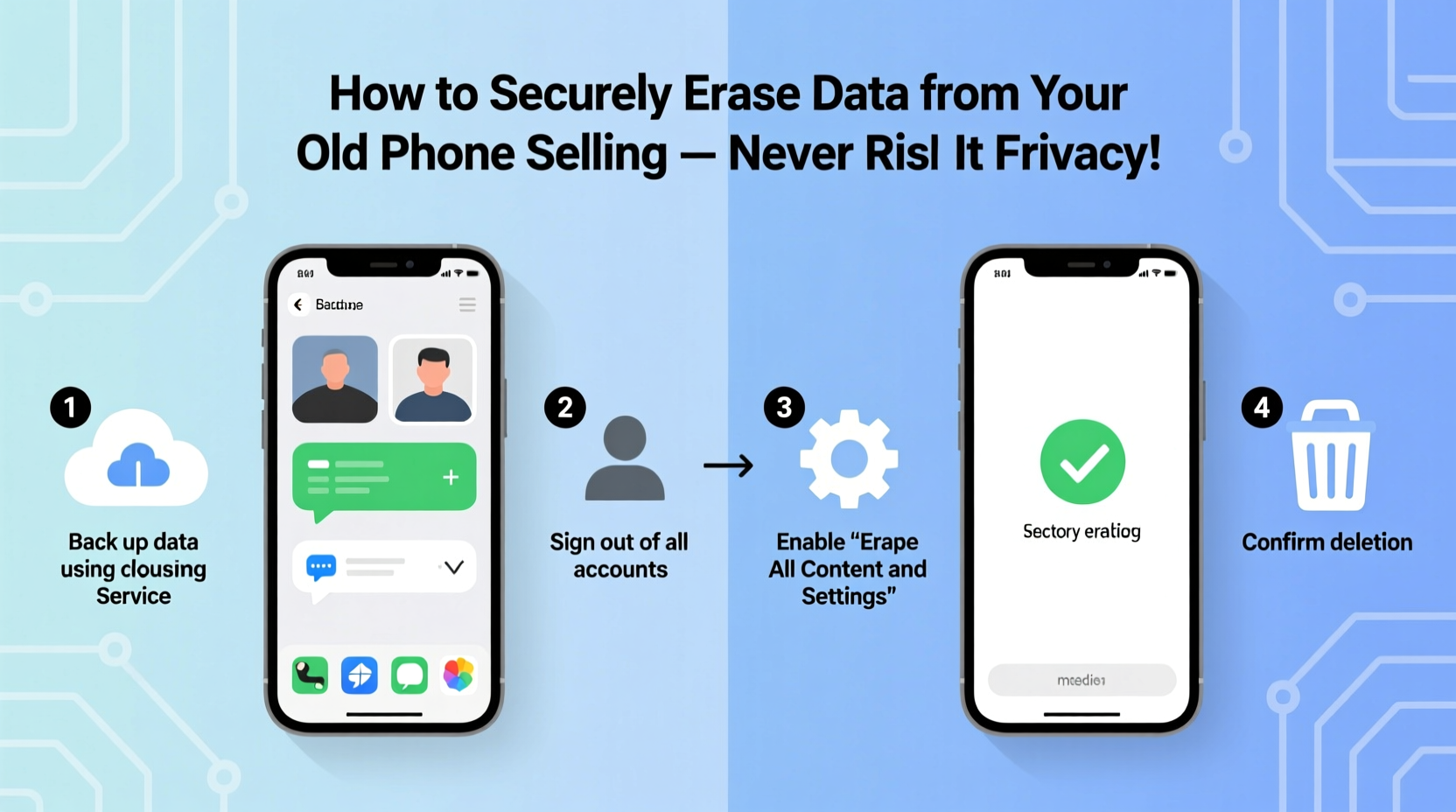
A factory reset returns your phone to its original operating state, removing apps and user accounts. However, this process doesn’t always overwrite the underlying data. Instead, it often only removes pointers to files, leaving the actual data intact until new information overwrites it. With the right software, skilled individuals can recover much of what appears to be “deleted.”
Security researchers at the University of Cambridge found that 40% of used smartphones sold online still contained recoverable personal data, including photos and emails. The study concluded that many users rely solely on factory resets without taking additional precautions.
“Just because you can’t see your data doesn’t mean it’s gone. Secure erasure requires deliberate overwriting or cryptographic techniques.” — Dr. Linus Bennett, Digital Forensics Researcher, CyberSecure Institute
Step-by-Step Guide to Permanently Erase Phone Data
Follow this structured approach to ensure your old phone is truly wiped clean before handing it over to a new owner.
- Back up essential data: Transfer photos, contacts, messages, and documents to a cloud service or external drive. Use Google Drive, iCloud, or a computer connection depending on your device.
- Sign out of all accounts: Log out of Google, Apple ID, Samsung account, social media, email, and banking apps. This prevents remote access and locks activation later.
- Revoke device permissions: On Google and Apple accounts, go to security settings and remove the device from trusted or connected devices.
- Encrypt your phone (if not already): Most modern phones encrypt by default when locked with a PIN or password. If unsure, enable encryption in security settings.
- Perform a factory reset: Go to Settings > System > Reset > Erase All Data (Android) or Settings > General > Transfer or Reset iPhone > Erase All Content and Settings (iOS).
- Fill storage with junk data (optional but effective): After backup and before reset, fill the phone with large video files or dummy data. Then delete them and reset again. This increases the chance of overwriting old data.
- Remove SIM and SD cards: These components store additional data and are not erased during resets. Physically remove and keep or destroy them separately.
Additional Measures for Maximum Security
For high-risk users—such as journalists, legal professionals, or those handling sensitive corporate data—additional steps are recommended:
- Use third-party data wiping apps approved by regulatory standards (e.g., Blancco Mobile).
- Consider physical destruction if the phone is outdated or damaged beyond reuse.
- Enable full-disk encryption prior to wiping, especially on Android devices where it may not be active by default.
Platform-Specific Wiping Procedures
Different operating systems offer varying levels of built-in data protection. Here's how to securely erase data based on your phone type.
iPhone (iOS)
iOS devices use hardware-level encryption when a passcode is set. To maximize security:
- Back up to iCloud or iTunes.
- Go to Settings > [Your Name] > Find My > Find My iPhone and disable it.
- Navigate to Settings > General > Transfer or Reset iPhone > Erase All Content and Settings.
- Enter your Apple ID password when prompted to deactivate Activation Lock.
Once complete, the device will reboot into setup mode, appearing as new. Because iPhones encrypt data tied to the UID (Unique Identifier), brute-force recovery is nearly impossible without the passcode.
Android (Samsung, Google Pixel, etc.)
Android fragmentation means security varies by manufacturer and OS version. Follow these enhanced steps:
- Ensure encryption is enabled: Settings > Security > Encryption & Credentials > Encrypt Phone.
- Back up data via Google Account or local transfer.
- Go to Settings > System > Reset > Erase All Data (Factory Reset).
- Confirm deletion and wait for completion.
- Boot into recovery mode (varies by model) and perform a second wipe if possible.
On Samsung devices, use the “Secure Folder” feature to delete any isolated encrypted data separately. Also disable “Find My Mobile” before resetting.
Older or Unsupported Devices
If your phone runs outdated software (e.g., Android 5 or earlier), built-in encryption may be weak or absent. In such cases:
- Manually delete sensitive files first.
- Install a reputable data erasure app like Shred It! or Eraser (available on older APK sources).
- After wiping, overwrite storage with large media files, then reset again.
| Device Type | Encryption Default? | Remote Wipe Available? | Recommended Extra Step |
|---|---|---|---|
| iPhone (iOS 9+) | Yes | Yes (via iCloud) | Disable Find My iPhone |
| Google Pixel (Android 7+) | Yes | Yes (via Find My Device) | Second factory reset |
| Samsung Galaxy (One UI) | Yes | Yes (via Find My Mobile) | Delete Secure Folder data |
| Pre-2014 Android Phones | No | Limited | Use third-party wiping tool |
Real Example: Recovered Data from a “Wiped” Phone
In 2022, a cybersecurity journalist purchased a used Samsung Galaxy S8 from an online marketplace. The seller claimed to have “reset it completely.” Using freely available forensic software (FTK Imager), the buyer extracted over 1,200 photos, including family pictures, screenshots of bank transfers, and login tokens for social media accounts.
The phone had undergone a factory reset, but no encryption was enabled, and the internal storage wasn’t overwritten. This case highlights how easily data can persist—and why relying on defaults is risky.
Had the owner followed proper procedures—enabling encryption, signing out of accounts, and using a secondary data-filling method—the recovery would have been far more difficult, if not impossible.
Checklist: Secure Data Erasure Before Selling
Use this checklist to ensure no step is missed:
- ✅ Backed up important files to cloud or computer
- ✅ Signed out of Google, Apple ID, and other accounts
- ✅ Disabled Find My iPhone / Find My Device / Find My Mobile
- ✅ Removed SIM card and microSD card
- ✅ Verified encryption is active (especially on Android)
- ✅ Performed factory reset from settings menu
- ✅ Considered filling storage with junk data before reset
- ✅ Confirmed phone boots to setup screen with no user data visible
- ✅ Kept proof of erasure (e.g., photo of reset confirmation)
Frequently Asked Questions
Can someone recover my data after a factory reset?
Yes, if the phone wasn’t encrypted and the data wasn’t overwritten. Factory resets often leave recoverable traces, especially on older Android devices. Encryption and multiple overwrites significantly reduce this risk.
Do I need special software to wipe my phone?
Most modern phones don’t require third-party tools if encryption is enabled and a proper reset is done. However, for maximum assurance—especially with older or corporate devices—tools like Blancco or iShredder provide certified erasure reports.
Is it safe to sell a phone without removing the battery?
Yes. Modern smartphones have non-removable batteries. The critical actions are digital: sign out, encrypt, reset, and remove external storage. Physical disassembly isn’t necessary or recommended.
Final Steps and Peace of Mind
Once your phone has been securely wiped, power it off, package it neatly, and keep a record of the sale. If possible, include a note stating that the device has been factory reset and deauthorized from all accounts—a small gesture that builds buyer trust.
Remember, your digital legacy shouldn’t outlive your ownership of a device. A few deliberate minutes spent securing your data today can prevent identity theft, privacy breaches, or emotional distress tomorrow. Technology evolves quickly, but responsibility for your personal information remains constant.
“The best time to secure your data was when you first set up the phone. The second-best time is right before you let it go.” — Maria Tran, Senior Privacy Consultant, DataShield Labs
Take Action Now
If you’ve been meaning to sell an old phone, don’t delay. Follow the steps outlined here, double-check each action, and reclaim control over your digital footprint. Your future self—and your next device—will thank you.




 浙公网安备
33010002000092号
浙公网安备
33010002000092号 浙B2-20120091-4
Comments
No comments yet. Why don't you start the discussion?