
Navigating the world used to require a keen sense of direction, a paper map, and a bit of luck. Today, digital tools have made finding your way simpler than ever—but only if you know how to use them effectively. Whether you're planning a road trip, hiking a trail, or just trying to avoid getting lost in a new city, understanding how to read and interact with maps is a vital life skill. This guide breaks down everything a beginner needs to confidently view, interpret, and navigate using both digital and traditional maps.
Understanding the Basics of Map Types
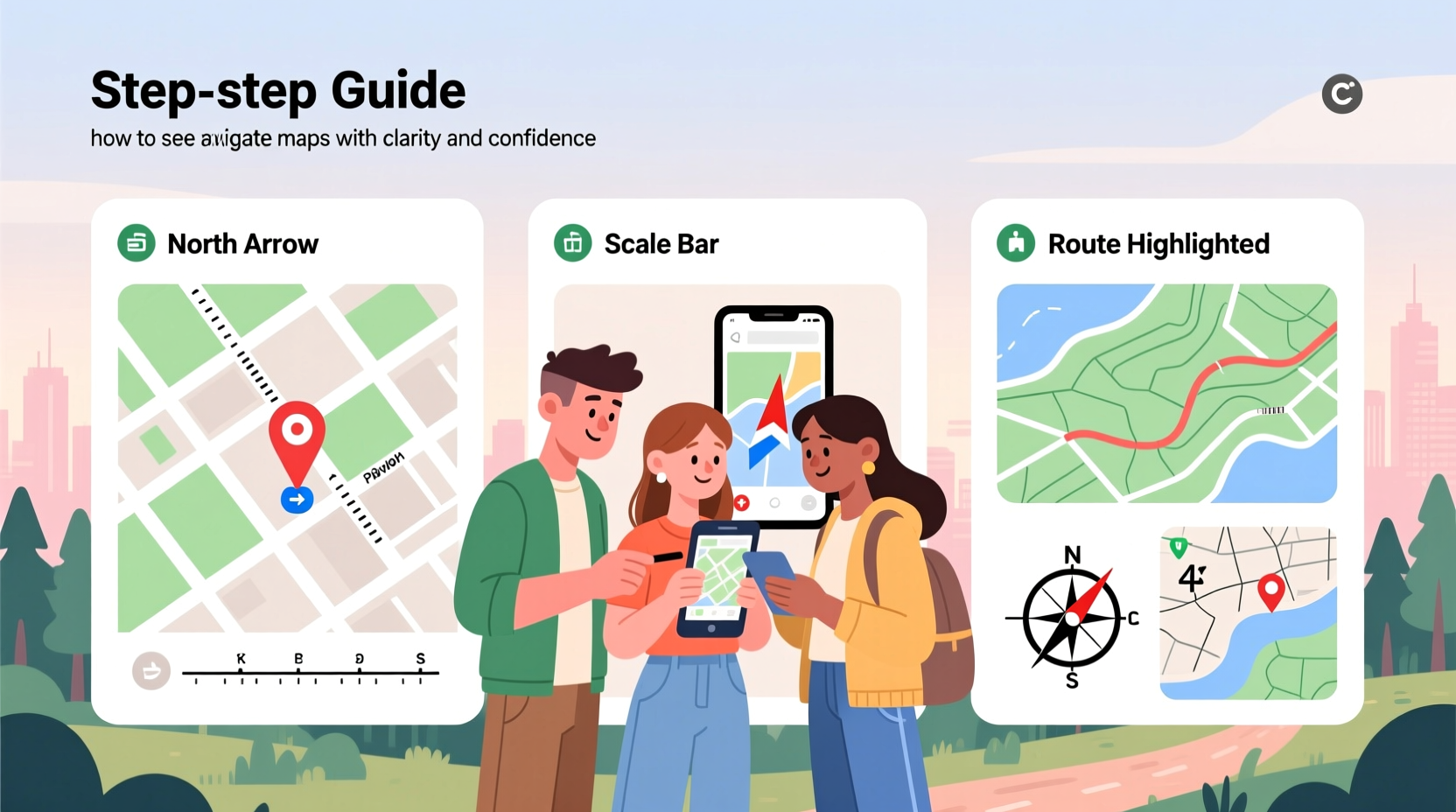
Before diving into navigation, it’s important to recognize the different types of maps available and what each is best suited for. Maps are not one-size-fits-all; choosing the right type can make the difference between smooth travel and confusion.
- Road Maps: Ideal for driving, showing highways, streets, exits, and points of interest.
- Topographic Maps: Display elevation, terrain features, and natural formations—essential for hikers and outdoor enthusiasts.
- Satellite & Aerial Maps: Use real imagery from space or aircraft to show landscapes, buildings, and vegetation.
- Street View Maps: Offer ground-level perspectives, helping users visualize exact locations.
- Transit Maps: Simplified layouts of public transportation routes like buses, subways, and trains.
Digital platforms such as Google Maps often combine several of these types, allowing seamless switching based on your needs.
Using Digital Maps: Step-by-Step Navigation
Most people today rely on smartphones and apps for navigation. Here’s a practical step-by-step process to get the most out of digital mapping tools.
- Choose a reliable app: Google Maps, Apple Maps, or Waze are widely trusted and regularly updated.
- Enable location services: Allow the app to access your GPS so it can pinpoint your current position.
- Enter your destination: Type an address, business name, or even a landmark into the search bar.
- Select a route: Apps typically offer multiple options (fastest, shortest, walking, cycling, public transit).
- Review turn-by-turn directions: Study the summary before departure, especially for long trips.
- Follow real-time guidance: Listen to voice prompts and watch the moving indicator on the screen.
- Adjust as needed: If you miss a turn, the app will recalculate automatically.
For offline use—especially in areas with poor signal—download maps ahead of time. In Google Maps, tap your profile icon, select “Offline maps,” and choose your desired region.
Maximizing Map Features for Clarity
Digital maps come with layers of functionality. Learn to toggle features that enhance clarity:
- Traffic overlay: Shows congestion in real time using color codes (green = clear, red = heavy).
- Street View: Drag the little orange figure onto the map to explore a location visually.
- Saved places: Mark homes, offices, or favorite spots for quick access.
- Time-based routing: Schedule departures to see how traffic might change at different hours.
“Over 90% of navigation errors stem from misreading directions rather than faulty GPS signals.” — Dr. Alan Reyes, Urban Mobility Researcher
Reading Traditional Paper Maps
Despite the rise of digital tools, paper maps remain valuable—especially during power outages, hikes, or international travel where data may be unavailable. To read them effectively:
- Identify the compass rose to determine direction (north is typically at the top).
- Check the scale to understand distance (e.g., 1 inch = 5 miles).
- Use the grid system (latitude and longitude or UTM coordinates) for precise location tracking.
- Match landmarks (rivers, roads, mountains) to your surroundings when navigating outdoors.
Fold your map strategically so the area you’re traveling through is visible, and consider laminating it or placing it in a waterproof case for outdoor use.
Essential Navigation Checklist for Beginners
Whether using digital or analog tools, follow this checklist before any journey:
- ✅ Confirm your starting point and destination
- ✅ Choose the appropriate map type
- ✅ Check for updates or offline availability
- ✅ Review alternate routes in case of delays
- ✅ Share your route with someone for safety
- ✅ Pack backup tools (extra battery, printed map)
- ✅ Verify units (miles vs. kilometers) match your preference
Common Mistakes and How to Avoid Them
Even simple navigation can go wrong without awareness. Below is a comparison of common pitfalls and their solutions:
| Mistake | Consequence | Solution |
|---|---|---|
| Ignoring traffic alerts | Unexpected delays | Enable live traffic mode and reroute proactively |
| Over-relying on GPS | Getting lost when signal drops | Carry a physical map as backup |
| Not checking map orientation | Walking/driving in the wrong direction | Ensure “up” on the map matches your heading |
| Misreading symbols | Confusing parks with parking lots, etc. | Study the legend before use |
Real-World Example: Navigating a Weekend Hike
Sarah planned a solo hike in the Blue Ridge Mountains. She downloaded the trail map on her phone using AllTrails but also printed a topographic version from the park’s website. Midway through the trail, her phone battery died. Thanks to her preparation, she used the paper map, matched visible ridgelines and creek crossings, and safely returned to the trailhead. Her dual-map strategy prevented panic and ensured confidence throughout the journey.
This scenario highlights why redundancy matters. Technology fails; foundational map-reading skills do not.
Frequently Asked Questions
Can I trust GPS navigation in remote areas?
GPS satellites work globally, but signal strength depends on terrain and device quality. In deep forests or canyons, reception may weaken. Always carry a paper map and compass as backup when venturing off-grid.
How do I zoom in and out on digital maps?
On smartphones, use two fingers to pinch (zoom out) or spread (zoom in). On computers, use the scroll wheel or +/– buttons in the corner of the map interface.
What does the blue line mean on Google Maps?
A solid blue line indicates your current route. A lighter, dashed blue line shows alternative routes. Traffic conditions are overlaid in red, orange, or green along the path.
Final Tips for Confident Navigation
Start simple. Practice navigating short routes in familiar areas using only your map app. Gradually increase complexity by exploring new neighborhoods or trails. Over time, you’ll develop spatial awareness and intuitive route judgment. Remember, every expert navigator was once a beginner who took the first step—literally.
Stay curious. Learn how contour lines indicate hills on topographic maps. Experiment with layering bike paths or public transit lines. The more you engage with maps, the more they reveal about the world around you.




 浙公网安备
33010002000092号
浙公网安备
33010002000092号 浙B2-20120091-4
Comments
No comments yet. Why don't you start the discussion?