
Faxing may seem like a relic of the past, but it's still widely used in industries such as healthcare, legal services, real estate, and government. Despite the digital age, many institutions require signed documents sent via fax for compliance, security, or procedural reasons. If you're an iPhone user needing to send a fax, you don’t need a physical machine or a paid subscription. You can send a fax directly from your iPhone—for free—using built-in tools and smart online services.
The key is knowing which platforms offer genuine free tiers and how to use them efficiently. This guide walks through practical, cost-free methods that work reliably, so you can send faxes from your iPhone without spending a dime.
Why Faxing Still Matters—and How Your iPhone Can Help
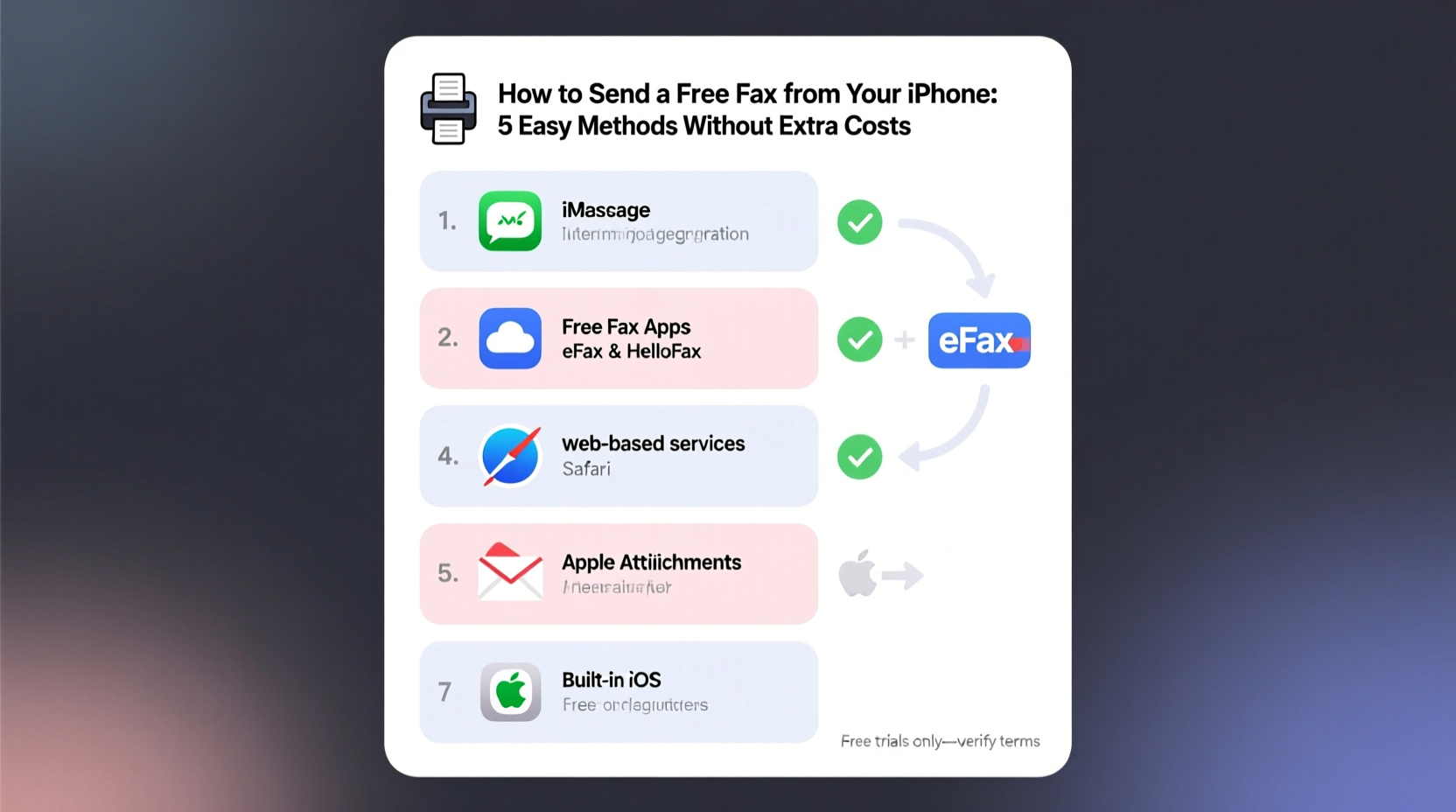
While email and cloud sharing dominate communication, faxing remains relevant due to its legal standing and encryption standards. For example, HIPAA-compliant environments often accept faxed documents because they create a verifiable transmission record. Similarly, notaries and attorneys may request faxed signatures to prevent tampering.
Your iPhone, equipped with a camera, internet access, and document-handling capabilities, is more than capable of replacing a traditional fax machine. By leveraging free web-based fax services and native iOS features, you can scan, format, and transmit documents securely—without installing bloated apps or paying monthly fees.
Method 1: Use a Free Web-Based Fax Service (No App Required)
You don’t need to download anything to send a fax from your iPhone. Several reputable online fax services offer limited free plans accessible through Safari or any mobile browser.
eFax’s Free Trial Option: While eFax primarily operates on a paid model, it offers a 7-day free trial that includes one outbound fax. This is ideal for one-time needs.
FaxZero – Truly Free for Occasional Use: FaxZero.com is one of the few services that allows completely free faxing, up to two pages per fax, with ads inserted on the cover page. It supports PDF and image file uploads and works seamlessly on iPhone browsers.
- Open Safari and go to faxzero.com.
- Select “Send a Free Fax.”
- Enter the recipient’s name and fax number.
- Upload your document from Files, iCloud Drive, or take a photo using the Camera app.
- Add your email address for confirmation.
- Solve the CAPTCHA and click “Send Fax.”
FaxZero delivers your document within minutes. The service inserts a small advertisement at the bottom of the first page, but the content remains intact and professional.
“Web-based faxing has evolved to be just as secure as traditional methods, especially when using HTTPS and encrypted uploads.” — David Lin, Cybersecurity Analyst at NetSecure Labs
Method 2: Leverage Email-to-Fax Gateways
Some fax services allow you to send a fax by emailing it. This method turns your iPhone’s Mail app into a fax machine. While most providers require a subscription, a few offer limited free usage.
How It Works: Each fax number corresponds to an email address. When you send an email to that address, the service converts it into a fax and transmits it.
MyFax Free Option: MyFax provides a 14-day free trial with one free outbound fax. During the trial, you get a temporary fax number and can send a fax via email attachment.
Steps to send a fax via email:
- Sign up for a free trial at myfax.com.
- Note your assigned fax email (e.g., 1234567890@efaxsend.com).
- Open the Mail app on your iPhone.
- Create a new message addressed to the recipient’s fax email.
- Attach your document (PDF or image).
- Send the email—the system automatically converts it to a fax.
This method is fast and integrates smoothly with iOS document handling, especially if you’re already managing files in PDF format.
Method 3: Convert iPhone Notes or Scanned Docs to Fax via Free Cloud Tools
If you’re creating a document from scratch—like a cover letter or form response—you can use Apple’s Notes app to draft, then export and fax it using free third-party tools.
Step-by-Step Workflow:
- Open the Notes app and create your message.
- Tap the three-dot menu and select “Make PDF” under Print options (via virtual print).
- Save the PDF to Files > iCloud Drive.
- Visit hellofax.com (now part of Docusign) or fax.to, both of which offer limited free sends.
- Upload the PDF and enter the recipient’s fax number.
- Confirm and send.
While HelloFax’s free tier is now restricted, fax.to allows users to send one free fax per day (up to 3 pages). It accepts direct uploads from iPhone and doesn’t require registration.
| Service | Free Pages | Registration? | Email-to-Fax | Ad on Document? |
|---|---|---|---|---|
| FaxZero | 2 per fax | No | No | Yes (cover page) |
| Fax.to | 3 per day | No | No | No |
| MyFax (Trial) | 1 fax | Yes | Yes | No |
| eFax (Trial) | 1 fax | Yes | Yes | No |
Mini Case Study: Sending Medical Forms Without Paying a Cent
Sarah, a freelance graphic designer in Portland, needed to submit a medical release form to her specialist. Her clinic only accepted faxes, and she didn’t own a fax machine. With an iPhone and a Wi-Fi connection, she used FaxZero to complete the task in under ten minutes.
She opened the form in her email, tapped “Share,” selected “Print,” and used the pinch gesture to save it as a PDF. She uploaded it to FaxZero via Safari, entered the clinic’s number, and confirmed the send. Twenty seconds later, she received an email confirmation that the fax was delivered successfully.
No app downloads, no credit card, no cost. Sarah saved time and avoided unnecessary expenses—all from her phone while sitting in a coffee shop.
Best Practices for Reliable, Secure Free Faxing
To ensure your free fax is received correctly and securely, follow these guidelines:
- Always preview your document before uploading. Check orientation, clarity, and completeness.
- Avoid public Wi-Fi when sending sensitive documents. Use cellular data or a trusted network.
- Use password-protected PDFs for confidential information—even if the service doesn’t require it.
- Keep a copy of the confirmation email or delivery receipt for your records.
- Stick to reputable services to avoid data harvesting or phishing risks.
FAQ
Can I send a fax from my iPhone without downloading an app?
Yes. You can use mobile websites like FaxZero or fax.to directly through Safari without installing any app. Simply upload your document and send.
Are free fax services safe for personal documents?
Most reputable free services use HTTPS encryption during upload. However, avoid sending highly sensitive data (like full Social Security numbers) unless the service explicitly states end-to-end encryption. For critical documents, consider a paid service or in-person faxing.
How many pages can I send for free?
Most free services limit you to 2–3 pages per fax. FaxZero allows 2 pages, while fax.to permits up to 3. Larger documents may require splitting into multiple faxes or upgrading to a paid plan.
Conclusion: Faxing Shouldn’t Cost You a Thing
Sending a fax from your iPhone doesn’t require special hardware, subscriptions, or technical skills. With the right approach, you can use free, accessible tools to transmit documents quickly and professionally. Whether you're submitting forms, signing agreements, or fulfilling administrative requirements, these methods eliminate cost barriers while maintaining reliability.




 浙公网安备
33010002000092号
浙公网安备
33010002000092号 浙B2-20120091-4
Comments
No comments yet. Why don't you start the discussion?