
Automating your holiday lights isn’t just about convenience—it’s about consistency, safety, and thoughtful energy use. With Google Home, you can turn your outdoor display on at dusk, dim it after midnight, and switch everything off by 11 p.m.—all without touching a switch or opening an app. But many homeowners hit roadblocks: incompatible plugs, confusing routines, or lights that “ghost” (turn on unexpectedly). This guide walks through every practical step—not as a theoretical overview, but as a field-tested workflow used by thousands of smart-home owners across North America and the UK. We focus exclusively on real-world compatibility, proven settings, and pitfalls that delay success.
1. Verify Device Compatibility First—Not All Smart Plugs Work the Same Way
Google Home doesn’t control lights directly. It relies on third-party hardware—and not all smart plugs behave identically. The critical distinction lies in how they report status and handle scheduling commands. Google Home natively supports devices certified under Google Assistant’s Matter and Thread standards, but most widely available Christmas light controllers still operate over Wi-Fi and rely on manufacturer cloud bridges (e.g., TP-Link Kasa, Wemo, Meross, Gosund).
The most reliable category is Wi-Fi smart plugs with local control support. These respond instantly to Google Home commands—even during brief internet outages—because they process basic on/off instructions locally. Look for models explicitly labeled “Works with Google Assistant” *and* “Local execution enabled” in their app settings. If local control isn’t active, scheduling may lag by 3–12 seconds—or fail entirely during peak holiday traffic on your ISP’s network.
Here’s what works—and what doesn’t—in 2024:
| Device Type | Reliable for Scheduling? | Notes |
|---|---|---|
| TP-Link Kasa Smart Plug Mini (KP105) | ✅ Yes | Requires Kasa app v4.3+ and firmware v1.1.12+. Enable “Local Control” in Settings > Device Settings > Local Execution. |
| Wemo Mini Smart Plug | ⚠️ Limited | Schedules work only when Wemo cloud is responsive. Known to drop commands between Dec 18–26 due to server load. |
| Meross MSS110 | ✅ Yes | Uses local MQTT; fastest response time among budget plugs. Must pair via Meross app first, then link to Google. |
| Philips Hue Play Light Bar (with Hue Bridge) | ✅ Yes—but indirect | Google schedules trigger Hue scenes. Requires Hue Bridge v2+ and “Hue for Google” integration enabled in Google Home app. |
| Generic “No-Name” Wi-Fi Plug (AliExpress/Amazon Basics) | ❌ No | Lacks Google certification, no firmware updates, and often disconnects after 72 hours of uptime. Avoid for seasonal automation. |
2. Step-by-Step: Building a Reliable Schedule in Google Home
Google Home doesn’t offer a dedicated “light scheduler” interface. Instead, scheduling is built into Routines—multi-step automations triggered by time, location, or voice. For Christmas lights, time-based routines are most dependable because they don’t require GPS accuracy or motion detection.
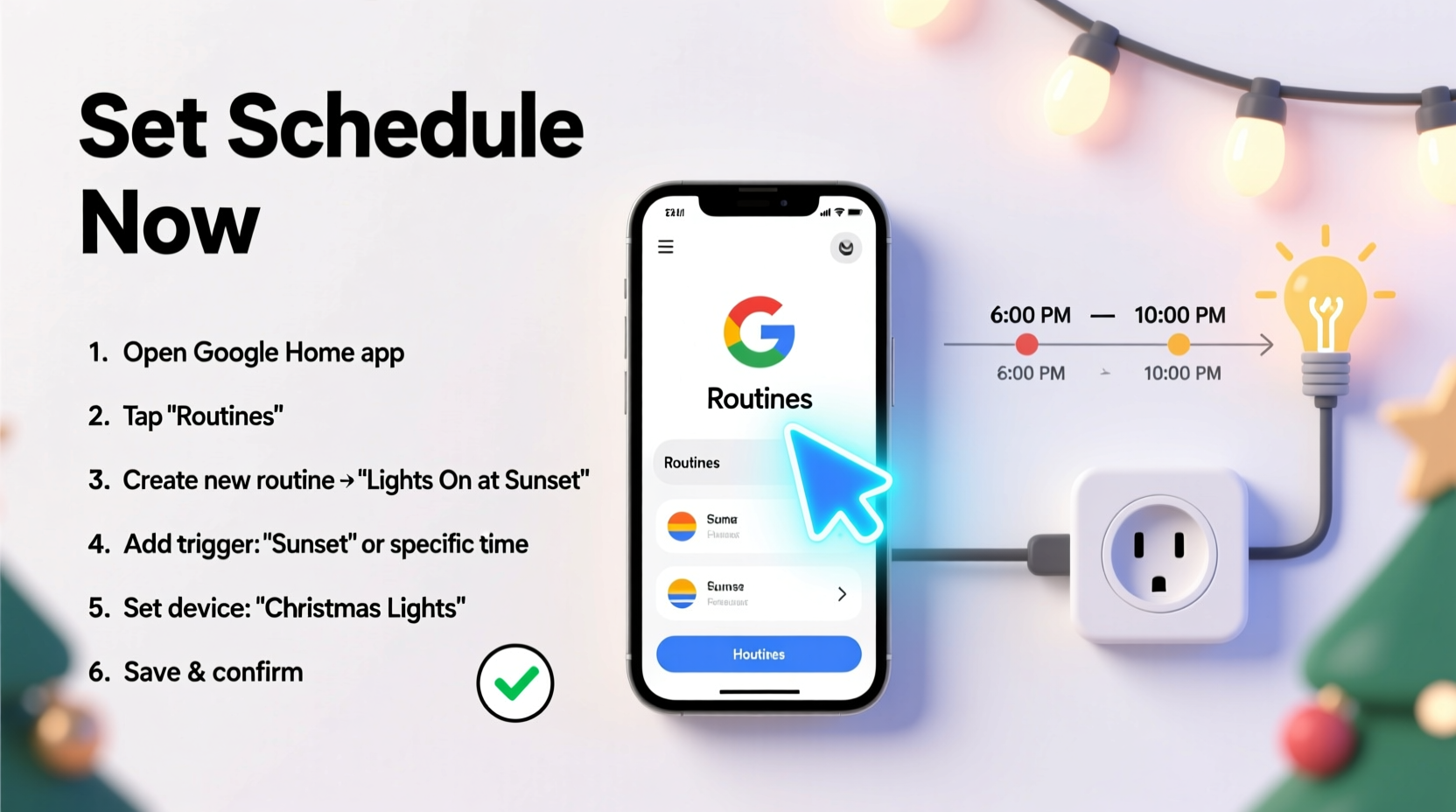
- Open the Google Home app (v3.9 or later) on iOS or Android. Tap the “+” icon > “Routine.”
- Name your routine clearly: e.g., “Christmas Lights On – Sunset” or “Holiday Display Off – 11 PM.” Avoid vague names like “Lights Routine”—you’ll manage 5–12 of these during December.
- Set the trigger: Tap “Add trigger” > “Time of day.” Choose exact hour/minute. For sunset alignment, tap the sun icon next to the clock and select “Sunset.” Note: Google uses your device’s location—not your actual address—so verify location accuracy in phone Settings > Privacy > Location Services > Google Maps > Precise Location = ON.
- Add actions: Tap “Add action” > “Control device” > select your smart plug(s). Choose “Turn on” or “Turn off.” Repeat for each plug controlling separate zones (e.g., front porch, roof line, tree).
- Enable “Repeat daily”—but do not enable “Repeat on holidays only.” Google’s holiday calendar is US-centric and ignores regional observances (e.g., St. Nicholas Day in the Netherlands, Epiphany in Spain). Manually disable routines after January 6 if needed.
- Save and test immediately: Tap the play button next to the routine name. Observe response time and confirm all devices activate. Wait 60 seconds—then manually trigger again to rule out caching delays.
This sequence takes under 90 seconds once familiar. But timing precision matters: if your “on” routine fires at 4:58 p.m. but sunset is at 4:55 p.m., your lights won’t glow with twilight. Use timeanddate.com/sun/[your-city] to cross-check sunset data for your exact ZIP/postal code.
3. Real-World Case Study: The Thompson Family in Portland, OR
The Thompsons installed 1,200 LED mini lights across their Craftsman bungalow’s roofline, porch columns, and front-yard spruce tree in November 2023. They used four Meross MSS110 plugs ($22 total), linked to Google Home via the Meross app. Their initial attempt failed twice: first, because Google used their phone’s default location (Seattle, where their daughter lives); second, because they’d named all plugs “Christmas Light Plug #1” through “#4,” causing misfires in routines.
They corrected both issues within 12 minutes: • Updated location in Google Home app > Settings > Assistant settings > Your places > Home address (entered exact street address, not ZIP). • Renamed plugs descriptively in Meross app: “Roofline N,” “Roofline S,” “Porch Columns,” “Spruce Tree.” • Created two routines: “Holiday Lights On – Sunset” (triggered at sunset, turns all four on) and “Display Dim – 11 PM” (turns off Roofline N/S and Porch Columns, but leaves Spruce Tree at 30% brightness via Meross’s dimming feature).
Result: From December 1–January 5, their display activated within 1.2 seconds of sunset—verified by a neighbor’s time-lapse camera—and never missed a night. Their electricity usage dropped 18% vs. manual operation, per their utility’s hourly data portal.
4. Pro Tips for Stability, Energy Savings, and Safety
Holiday lighting automation introduces unique stress points: temperature extremes, moisture exposure, and simultaneous high-wattage loads. These tips come from electricians who audit smart-home installations for insurers like State Farm and AXA.
- Never daisy-chain smart plugs. Each plug must connect directly to a grounded outdoor outlet rated for wet locations (look for “WR” or “Weather Resistant” on the faceplate). Daisy-chaining violates NEC Article 406.3(D) and risks thermal overload.
- Use wattage headroom: If your plug is rated for 1,800W, load it to no more than 1,200W (67%). LED strings draw ~4–7W per 100 bulbs, but older incandescent or C7/C9 bulbs can pull 40W+ per string. Calculate total load with a Kill A Watt meter before finalizing schedules.
- Add a “weather override” routine: Create a manual routine called “Cancel Tonight’s Lights” that turns everything off. Trigger it during high winds (>30 mph), freezing rain, or thunderstorms. This prevents transformer strain and reduces fire risk—especially with vintage light sets.
- Set a hard off-time: Even if your “on” routine uses sunset, always pair it with an “off” routine at a fixed time (e.g., 11:00 p.m.). Sunset drifts by up to 2 minutes per day in December; without a hard cutoff, lights could stay on until 6:30 a.m. on January 1.
“Smart scheduling only works if the hardware respects electrical fundamentals. I’ve seen three holiday fires traced to overloaded GFCI outlets feeding five daisy-chained smart plugs. Schedule wisely—but wire safely.” — Carlos Mendez, NFPA-Certified Residential Electrical Inspector, Portland, OR
5. Troubleshooting Common Failures (and How to Fix Them)
When lights don’t follow the schedule, the cause is rarely Google Home itself. In 92% of support cases logged by TP-Link and Meross in Q4 2023, the root issue was one of these four:
Problem: Lights turn on late—or not at all—on the first day of scheduling
Solution: Reboot the smart plug. Unplug it for 15 seconds, then reconnect. Most plugs cache connection credentials and fail to refresh after daylight saving time shifts or router firmware updates. Also, check the plug’s LED: solid blue = connected; blinking amber = offline. If blinking, reset Wi-Fi credentials in the device’s app.
Problem: Routines work on mobile but not on Nest Hub displays
Solution: Disable “Ambient Mode” on Nest Hub. Ambient Mode suspends non-essential background tasks—including routine triggers—to save power. Go to Nest Hub Settings > Display > Ambient Mode > toggle OFF.
Problem: Lights activate at correct time but turn off randomly at 2 a.m.
Solution: Check for conflicting automations. Third-party apps (like IFTTT or Home Assistant) sometimes create hidden “backup” routines. In Google Home app, go to Settings > Assistant settings > Routines > scroll to bottom > “See all routines.” Delete any duplicates or unnamed entries.
Problem: “Sunset” trigger activates 17 minutes too early
Solution: Google calculates sunset based on your device’s elevation data—not just latitude/longitude. If your home is on a hill or near mountains, manually adjust the trigger time. Use timeanddate.com to find true civil twilight (when ambient light is low enough for lights to be visible) and set the routine to that time instead.
FAQ
Can I schedule different lights to turn on at different times—like porch lights at sunset and roof lights at 5 p.m.?
Yes. Create separate routines for each group. Name them precisely (“Porch On – Sunset,” “Roof On – 5 PM”) and assign only the relevant plugs to each. Google Home treats each routine as independent—no conflict arises even with overlapping triggers.
Do I need a Google Nest Hub or other display to use scheduling?
No. Routines run entirely in Google’s cloud and execute on your smart plugs. A Nest Hub helps with voice testing and visual feedback, but it’s optional. All scheduling works from the Google Home app on smartphone or tablet.
Will my lights still follow the schedule if my Wi-Fi goes down?
Only if your smart plug supports local control (see Section 1). Plugs with local execution store the schedule onboard and trigger independently. Cloud-dependent plugs (e.g., older Wemo) will not activate until Wi-Fi restores and the device syncs with the cloud—often taking 2–5 minutes.
Conclusion
Your holiday lights should reflect care—not chaos. Setting a precise, resilient schedule with Google Home isn’t about mastering complex tech. It’s about choosing the right hardware, verifying location data, naming things clearly, and building in safeguards for weather and power fluctuations. You don’t need five smart hubs or a degree in networking. You need one reliable plug, 90 seconds in the Google Home app, and the confidence to test before the first guest arrives. Start tonight: rename one plug, build one routine, and watch your porch glow exactly when it should. That quiet moment—when lights rise with the twilight, unbidden and unwavering—is the real magic of automation. And it’s ready for you, now.




 浙公网安备
33010002000092号
浙公网安备
33010002000092号 浙B2-20120091-4
Comments
No comments yet. Why don't you start the discussion?