
In today’s digital landscape, children have unprecedented access to entertainment — and with that comes the responsibility of ensuring what they watch is age-appropriate. Streaming platforms offer powerful built-in parental control tools, but many parents either don’t know they exist or assume setting them up is complicated. The truth? You can secure your child’s viewing experience across most major services in less than five minutes.
Whether you're managing screen time for a curious 6-year-old or monitoring content for a teenager, these quick configurations help filter out mature themes, restrict inappropriate shows, and create separate profiles with appropriate limits. This guide walks you through actionable steps for Netflix, Disney+, Hulu, Amazon Prime Video, and YouTube — all using native features, no third-party apps required.
Why Parental Controls Matter Now More Than Ever
According to a 2023 Common Sense Media report, children aged 8–12 spend an average of 4.5 hours per day consuming digital video content, much of it via streaming platforms. While services like Netflix and Disney+ curate family-friendly options, unrestricted access means kids can stumble upon violent scenes, strong language, or adult themes — sometimes just one click away from a “recommended” title.
Parental controls aren’t about surveillance; they’re about creating safe digital boundaries. They empower caregivers to tailor content based on developmental stages, reduce exposure to harmful material, and encourage healthier media habits without constant supervision.
“Digital safety starts with proactive tools. Setting up parental controls isn’t restrictive — it’s responsible parenting in the modern age.” — Dr. Lisa Tran, Child Development Specialist and Digital Wellness Advocate
Step-by-Step: Set Up Controls in Under 5 Minutes (Per Platform)
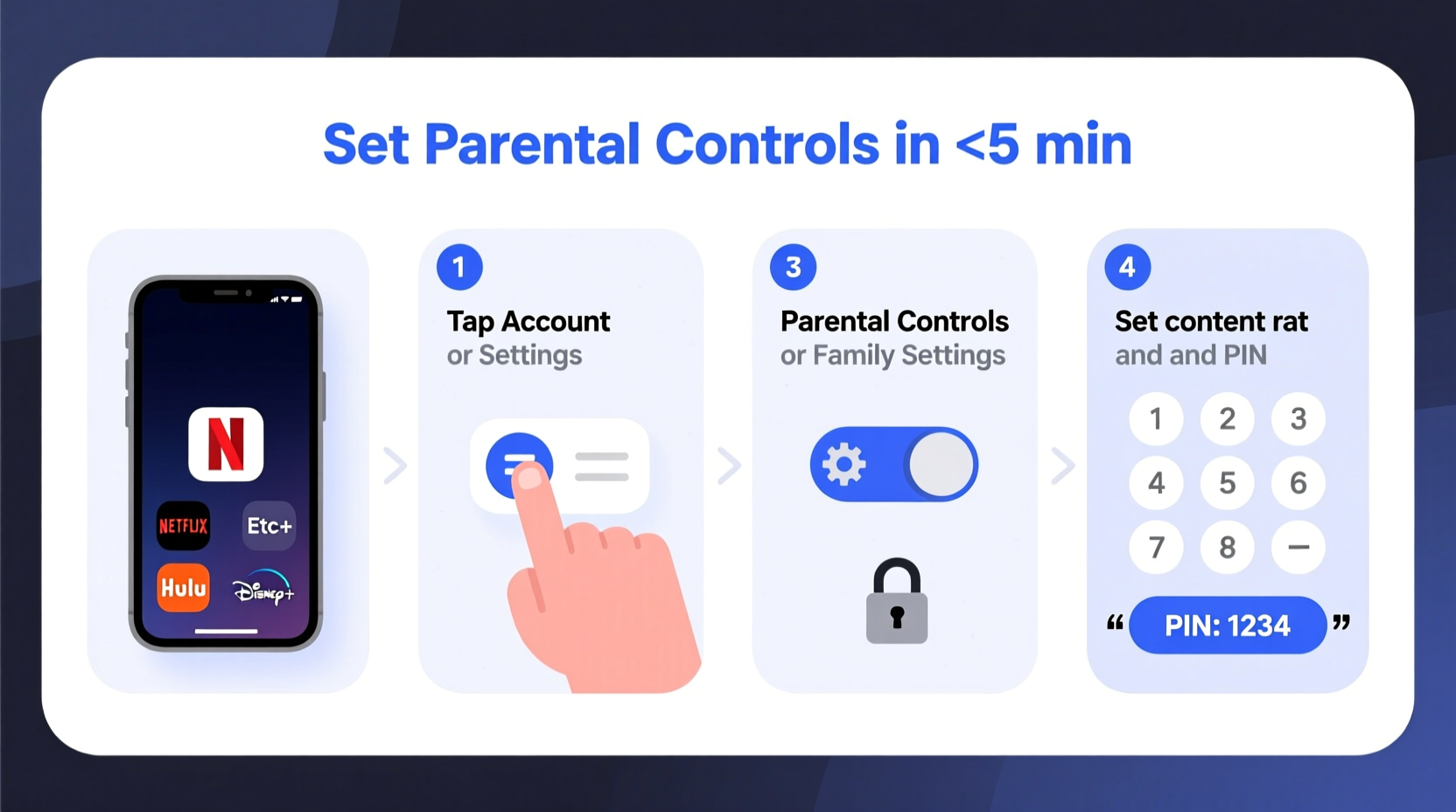
The process varies slightly between services, but each follows a consistent logic: navigate to account settings, locate profile or parental controls, select maturity level, and confirm changes. Below is a streamlined walkthrough for the five most widely used platforms.
1. Netflix – Profile-Based Restrictions
Netflix uses profile-specific maturity ratings. Each profile can be assigned a TV rating limit (e.g., TV-Y7, TV-14), which automatically hides titles exceeding that threshold.
- Log in to your Netflix account via web browser or app.
- Go to Account Settings (usually under your profile icon).
- Select the child’s profile from the list.
- Click Change next to “Profile Lock” or “Viewing Restrictions.”
- Enter your password when prompted.
- Choose a maturity level: Kids, Older Kids (TV-PG), Teens (TV-14), or Adults (TV-MA).
- Save changes.
2. Disney+ – PIN-Protected Profiles
Disney+ allows full content filtering through profile-level PIN protection and maturity settings.
- Open Disney+ and go to your Profile Icon > Settings.
- Select the profile you want to restrict.
- Tap Parental Controls > Set PIN.
- Create a 4-digit PIN (keep it private — not 1234!).
- Adjust the Maturity Rating slider (e.g., G, PG, TV-14).
- Confirm. All content above the selected rating will now require the PIN to view.
Note: Disney+ also lets you block specific titles manually if needed — useful for edge cases where a show rated PG still contains intense scenes.
3. Hulu – Content Ratings & Block Lists
Hulu offers both maturity filters and the ability to block individual shows or movies.
- Sign in to Hulu.com or open the app.
- Navigate to Account > Privacy & Settings.
- Under “Parental Controls,” select Manage Viewing Restrictions.
- Set the maximum content rating (e.g., TV-14, TV-MA).
- Optionally, use the search bar to find and block specific titles.
- Enable PIN Protection to prevent unauthorized changes.
Hulu requires a subscription that includes live TV for some advanced parental features, but basic content filtering is available on all plans.
4. Amazon Prime Video – Age-Based Profiles
Prime Video supports multiple user profiles with customizable age restrictions.
- Go to PrimeVideo.com or open the app.
- Click your profile name > Manage Profiles.
- Select the child’s profile or create a new one using the Child option.
- Under Content Restrictions, choose an age group (6+, 12+, 16+, 18+).
- Confirm with your account password.
- Optional: Enable purchase PIN to prevent accidental rentals.
Profiles labeled as “Child” only display content from approved partners like PBS Kids and Nickelodeon, making it ideal for younger viewers.
5. YouTube & YouTube Kids – Dual Approach
YouTube is trickier due to its open nature, but two strategies work together: using YouTube Kids and restricting main app access.
- Install YouTube Kids on your child’s device.
- Create a supervised account linked to yours via Family Link.
- Choose between Approved Content Only, Explore, or Explore More modes.
- On the main YouTube app, enable Restricted Mode:
- iOS/Android: Go to Settings > General > Restricted Mode (toggle on).
- Web: Scroll to footer, sign in, and toggle “Restricted Mode” on.
- Lock Restricted Mode with a passcode (via Google Account settings).
While no system is foolproof, combining YouTube Kids with Restricted Mode significantly reduces exposure to unsuitable videos.
Quick Checklist: Secure Your Streaming Setup in 5 Minutes
- ✅ Identify which streaming services your child uses.
- ✅ Log in to each service via web or app.
- ✅ Navigate to Account or Profile Settings.
- ✅ Locate Parental Controls or Viewing Restrictions.
- ✅ Select appropriate maturity level (e.g., TV-PG or lower).
- ✅ Set a secure PIN (don’t share with kids).
- ✅ Save changes and test by browsing the profile.
Comparison Table: Parental Control Features by Platform
| Service | Profile-Based? | Max Rating Limit | PIN Protection | Block Specific Titles? | Time Limits? |
|---|---|---|---|---|---|
| Netflix | Yes | TV-MA | Yes (per profile) | No | No (native), but possible via device settings |
| Disney+ | Yes | TV-MA | Yes (with custom PIN) | Yes (manual blocking) | No |
| Hulu | Yes | TV-MA | Yes | Yes | Limited (Live TV plan only) |
| Amazon Prime Video | Yes | 18+ | Yes (purchase & viewing) | Yes | No |
| YouTube | No (but via accounts) | Restricted Mode filters | Yes (passcode-locked) | Yes (in YouTube Kids) | Yes (via Family Link scheduling) |
Real Example: A Busy Parent’s Success Story
Sarah M., a single mother of two in Austin, TX, realized her 9-year-old had watched a horror-themed episode of a sci-fi series rated TV-14 after seeing it recommended on Netflix. “I thought ‘animated’ meant safe,” she said. “But one scene gave him nightmares for days.”
Determined to fix it quickly, Sarah spent less than ten minutes total — five on Netflix, three on YouTube, and two testing the changes. She switched his profile to “Older Kids,” enabled a PIN, and installed YouTube Kids on his tablet. Within a week, she noticed he was independently choosing age-appropriate shows like *Bluey* and *Phineas and Ferb* without prompting.
“It wasn’t about banning everything,” she shared. “It was about giving him freedom within safe guardrails. Now I feel confident letting him pick his own shows.”
Frequently Asked Questions
Can my child bypass parental controls if they know my password?
Yes — that’s why it’s critical to use a unique PIN for parental settings that differs from your main account password. Many platforms allow separate PINs for purchases and content access. Never share these with children, even if they promise to behave.
Do parental controls work offline or on downloaded content?
Generally, yes. On services like Netflix and Disney+, downloaded content respects the profile’s maturity settings. However, once a file is saved, changing restrictions won’t retroactively hide already-downloaded titles. Regularly review what’s stored on devices.
Are there any free tools to manage multiple platforms at once?
Not natively — each service manages its own controls. However, Google Family Link and Apple Screen Time can enforce broader device-level rules (e.g., app usage time, downtime). These complement but don’t replace platform-specific filters. For full coverage, configure each service individually.
Final Tips for Lasting Digital Safety
Setting up parental controls takes less than five minutes per service, but maintaining them requires ongoing attention. Children grow, interests evolve, and new apps emerge. Revisit your settings every few months — especially after birthdays or when adding new devices.
Also, talk to your kids about why these limits exist. Explain that filters aren’t punishments but tools to protect their well-being, just like seatbelts or internet privacy rules. Open dialogue builds trust and encourages responsible digital behavior long-term.
Take Action Today — Peace of Mind Is Just Minutes Away
You don’t need technical expertise or expensive software to safeguard your child’s streaming experience. With just a few clicks, you can filter out inappropriate content, create tailored profiles, and restore confidence in their screen time. The setup is fast, free, and effective — and the benefits last far beyond those initial five minutes.
Start tonight: pick one platform, follow the steps, and check it off your list. Then move to the next. Before bedtime, your home’s digital environment could be significantly safer.




 浙公网安备
33010002000092号
浙公网安备
33010002000092号 浙B2-20120091-4
Comments
No comments yet. Why don't you start the discussion?