
In today’s remote and hybrid work environments, maximizing efficiency at home is more important than ever. One of the most effective upgrades you can make to your workspace is adding a second monitor. A dual monitor setup allows you to multitask seamlessly—keeping email open on one screen while working on documents, spreadsheets, or design projects on the other. Studies from the University of Utah have shown that using two monitors can increase productivity by up to 42% in certain tasks. But simply plugging in an extra display isn’t enough. To truly benefit, you need a thoughtful, ergonomic, and technically sound configuration.
This guide walks through everything you need to know—from assessing your computer’s compatibility to arranging your screens for optimal comfort and workflow. Whether you're a freelancer, remote employee, student, or creative professional, a well-designed dual monitor system can transform how you work from home.
Assess Your Hardware Compatibility
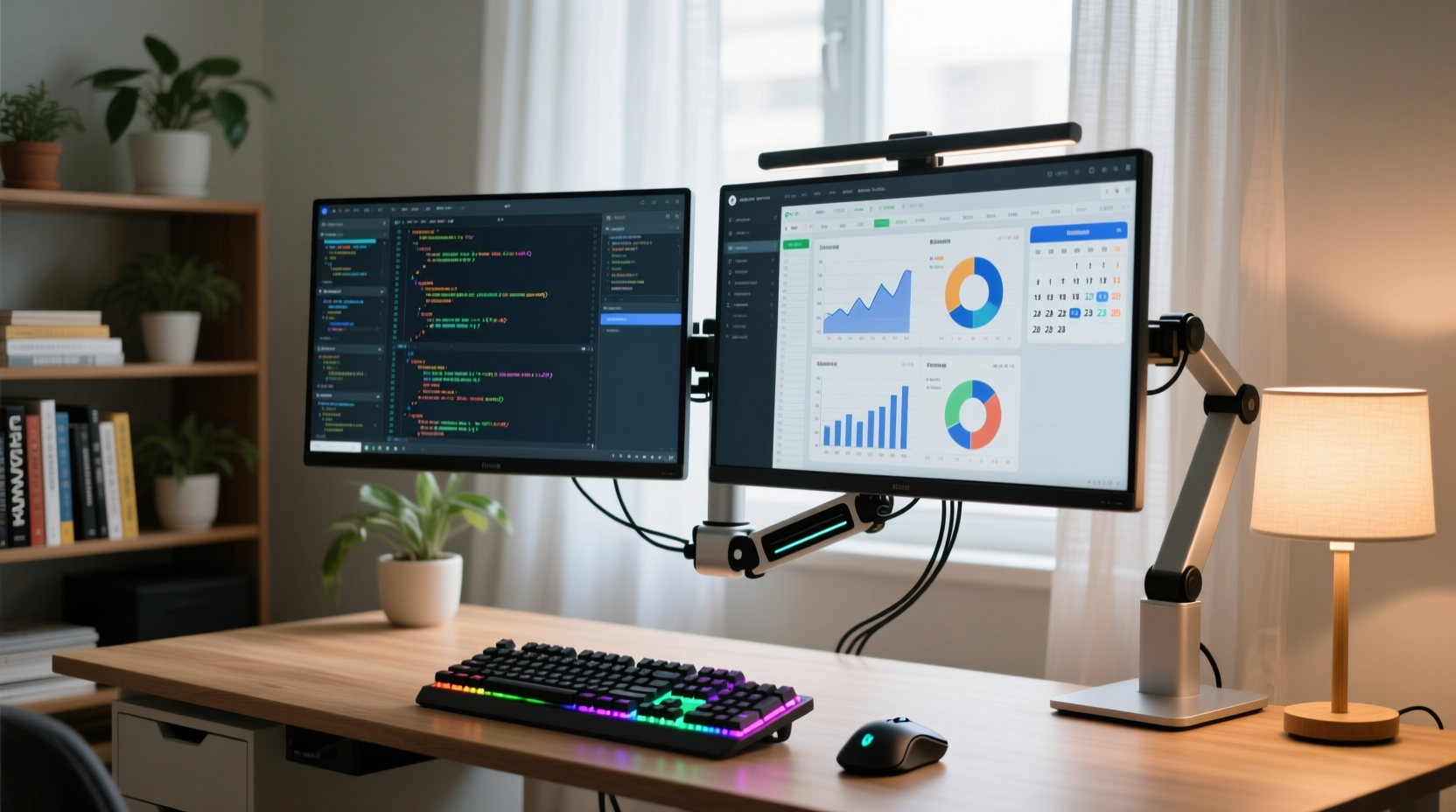
Before purchasing a second monitor, confirm that your current computer supports multiple displays. Most modern laptops and desktops do, but the number and type of video outputs vary significantly.
Check your device for available ports such as HDMI, DisplayPort, DVI, or USB-C (with DisplayPort Alt Mode). Many computers have at least one HDMI port, which is widely compatible with most external monitors. If your laptop only has one video output but you want to connect two external displays, you may need a docking station or a USB-to-HDMI adapter.
Consider your graphics card capabilities. Integrated graphics (like Intel UHD or Apple M-series chips) typically support dual monitors without issue. However, if you're running graphic-intensive applications—such as video editing, 3D modeling, or CAD software—ensure your GPU can handle the additional load. Older systems might struggle with high-resolution displays across two screens, leading to lag or poor performance.
Selecting the Right Monitors
Choosing compatible monitors enhances both visual comfort and productivity. While it's possible to use mismatched screens, pairing similar models ensures consistent color, brightness, and resolution across both displays.
For general office work, a 24-inch Full HD (1920x1080) monitor offers ample space and clarity. Creative professionals may prefer larger 27-inch QHD (2560x1440) or even 4K displays for detailed image work. Consider panel types: IPS panels provide better color accuracy and viewing angles, making them ideal for design and photo editing; VA panels offer deeper blacks and are good for mixed use; TN panels are faster but have poorer color reproduction and narrower viewing angles.
If budget allows, opt for monitors with adjustable stands that allow height, tilt, and swivel adjustments. This flexibility is crucial for maintaining proper ergonomics when placing screens side by side or in a corner setup.
| Monitor Size | Best For | Recommended Resolution |
|---|---|---|
| 22–24 inches | General office tasks, web browsing, writing | 1920x1080 (Full HD) |
| 27 inches | Graphic design, programming, multitasking | 2560x1440 (QHD) |
| 32+ inches | Video editing, data analysis, immersive workflows | 3840x2160 (4K UHD) |
“Matching screen sizes and resolutions reduces eye strain and cognitive load when shifting focus between monitors.” — Dr. Lena Torres, Human Factors & Ergonomics Researcher
Step-by-Step Setup Process
Once you’ve selected your hardware, follow this sequence to configure your dual monitor system properly.
- Position the monitors: Place them side by side, aligned so the top edges are level. The primary monitor should be directly in front of you; the secondary can be slightly angled inward for easier viewing.
- Connect both monitors: Use appropriate cables (HDMI, DisplayPort, etc.) to connect each monitor to your computer. Power them on.
- Detect displays in your OS: On Windows, right-click the desktop and select “Display settings.” Click “Detect” under the display layout section. On macOS, go to System Settings > Displays and arrange them visually.
- Arrange display order: Drag the on-screen representations to match your physical layout. This ensures smooth mouse movement between screens.
- Set primary display: Choose which monitor hosts your taskbar (Windows) or menu bar (macOS). Typically, this is the central or main work screen.
- Adjust resolution and scaling: Set each monitor to its native resolution. For high-DPI screens, adjust text scaling (e.g., 125% or 150%) for readability.
- Calibrate brightness and color: Match brightness, contrast, and color temperature between both screens to avoid visual fatigue.
After setup, test the arrangement by dragging windows across screens and verifying that applications respond correctly. Some apps may default to the wrong monitor—adjust their placement manually and save window positions where possible.
Ergonomic Arrangement for Long-Term Comfort
A poorly positioned dual monitor setup can lead to neck strain, eye fatigue, and reduced concentration. Proper ergonomics are essential, especially during extended work sessions.
The center of both screens should be about 15–20 degrees below eye level when seated. This encourages a natural downward gaze, reducing tension in the neck and shoulders. The total width of both monitors should not exceed your field of view—ideally, no more than 100 degrees horizontally. Positioning screens too far apart forces excessive head turning.
If using two vertical monitors, consider rotating one to portrait mode—ideal for reading long documents, coding, or managing emails. Developers often place code editors on a vertical screen and reference materials or debug consoles on the horizontal one.
- Maintain a viewing distance of 20–40 inches (50–100 cm) from the screen.
- Use monitor arms or risers to achieve optimal height and reduce desk clutter.
- Ensure ambient lighting minimizes glare—avoid placing monitors directly opposite windows or bright lights.
Optimize Software and Workflow
Hardware is only half the equation. Leveraging software tools unlocks the full potential of a dual monitor system.
Use virtual desktops (available in Windows 10/11 and macOS Mission Control) to organize tasks across multiple digital workspaces. For example, dedicate one desktop to communication apps (Slack, email, calendar), another to active project files, and a third to research or media.
Take advantage of window management utilities:
- Windows Snap Layouts: Hover over the maximize button to access grid layouts and snap windows into place.
- FancyZones (PowerToys): Create custom zones for precise window positioning across both screens.
- moom (macOS): Enables keyboard shortcuts and drag-based window resizing across multiple displays.
Assign specific roles to each monitor. Common configurations include:
- Primary Screen: Active workspace (document editing, design canvas, coding IDE).
- Secondary Screen: Reference material, chat apps, timelines, or monitoring dashboards.
Many professionals report improved focus when they isolate distractions like social media or personal email to the secondary screen—out of immediate reach but still accessible.
Mini Case Study: Remote Developer Boosts Output
Jamal, a freelance software developer based in Austin, worked long hours debugging complex applications on a single 13-inch laptop screen. After upgrading to a dual monitor setup—adding a 27-inch QHD IPS display alongside his MacBook—he restructured his workflow. He placed his code editor and terminal on the main screen, rotated the second monitor vertically, and used it for documentation, GitHub issues, and Slack. Within two weeks, he reported a noticeable reduction in eye strain and completed client projects 30% faster due to fewer context switches. “I don’t have to minimize and reopen tabs every five minutes,” he said. “Everything I need is visible at once.”
Troubleshooting Common Issues
Even with careful planning, technical hiccups occur. Here are frequent problems and solutions:
- Second monitor not detected: Check cable connections, reboot the monitor, and update graphics drivers. Try a different cable or port if necessary.
- Blurry text on one screen: Ensure the display is set to its native resolution. Adjust scaling settings independently per monitor.
- Inconsistent colors: Calibrate both monitors using built-in OS tools or a hardware calibrator for design work.
- Lag or flickering: Avoid using low-quality adapters. Prefer DisplayPort or HDMI 2.0+ for higher bandwidth.
FAQ
Can I use two different monitor brands or sizes?
Yes, but mismatched sizes or resolutions can cause discomfort when moving the cursor between screens. Larger jumps in size may require frequent readjustment of window positions. For best results, keep aspect ratios consistent (e.g., both 16:9).
Do I need special software to run dual monitors?
No. Modern operating systems support multi-monitor setups natively. However, third-party tools like DisplayFusion (Windows) or Stay (macOS) enhance functionality with advanced window rules, taskbars, and wallpaper management.
Is it better to extend or duplicate my displays?
Extending gives you more usable screen real estate and is ideal for productivity. Duplicating mirrors the same image on both screens—useful for presentations or training, but not for multitasking.
Checklist: Setting Up Your Dual Monitor System
- ✔ Confirm your computer supports dual displays
- ✔ Choose compatible monitors with matching resolution and panel type
- ✔ Acquire necessary cables or adapters (HDMI, DisplayPort, USB-C)
- ✔ Position monitors at eye level, aligned and angled properly
- ✔ Connect both monitors and power them on
- ✔ Detect and arrange displays in system settings
- ✔ Set primary monitor and adjust resolution/scaling
- ✔ Calibrate brightness and color across both screens
- ✔ Install window management tools for enhanced control
- ✔ Test workflow and optimize app placement
Conclusion
A dual monitor system is one of the most cost-effective ways to boost productivity at home. With the right hardware, correct setup, and smart workflow design, you gain more space, reduce task-switching fatigue, and create a professional-grade environment tailored to your needs. It’s not just about having more screens—it’s about working smarter, staying comfortable, and maintaining focus throughout the day.




 浙公网安备
33010002000092号
浙公网安备
33010002000092号 浙B2-20120091-4
Comments
No comments yet. Why don't you start the discussion?