
In today’s digital workspace, screen real estate is one of the most underutilized yet powerful tools for boosting efficiency. Whether you're managing spreadsheets, coding, writing, or editing video, having more space to organize your work can dramatically reduce time spent switching tabs and increase focus. A dual monitor setup offers exactly that—without requiring a high-end workstation or expensive peripherals.
The misconception that multiple monitors are costly keeps many professionals from exploring this upgrade. But with smart choices and a bit of research, you can build an effective dual-display environment for under $200. This guide walks through everything you need to know: assessing compatibility, sourcing affordable components, configuring display settings, optimizing layout, and avoiding common pitfalls—all while maximizing productivity gains.
Assess Your Current Hardware Compatibility
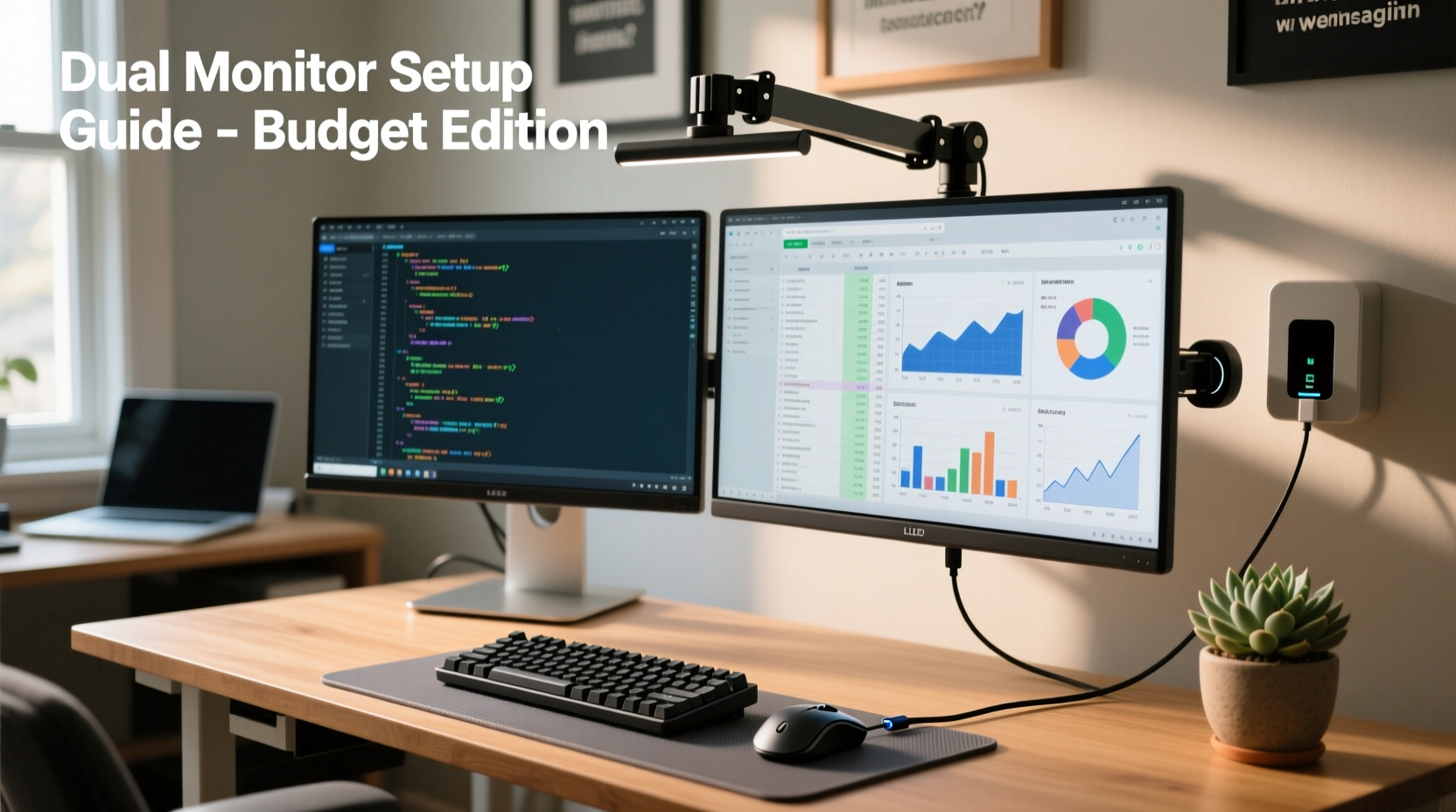
Before purchasing any new equipment, verify whether your current computer supports dual monitors. Most modern laptops and desktops released in the last decade have at least two video output ports or support extended displays via adapters. Common outputs include HDMI, DisplayPort, VGA, and USB-C (with DisplayPort Alt Mode).
Check your device’s specifications by:
- Reviewing the manufacturer’s website using your model number.
- Looking physically at the sides or back of your machine for available ports.
- Using built-in system tools: On Windows, press Win + R, type
dxdiag, and check the “Display” tab. On macOS, go to Apple Menu > About This Mac > System Report > Graphics/Displays.
If your computer has only one video output, don’t assume it’s incompatible. Many integrated graphics chipsets allow daisy-chaining displays over DisplayPort or using USB-to-HDMI adapters. While external adapters may slightly reduce performance for graphic-intensive tasks, they’re perfectly suitable for office work, browsing, and media consumption.
Choose Affordable Yet Functional Monitors
You don’t need identical or ultra-high-resolution screens to benefit from a dual monitor setup. The key is finding two functional displays that meet basic clarity and size standards without breaking the bank. Consider these criteria when shopping:
- Size: 22 to 24 inches is ideal for desk use—large enough for comfort, small enough to fit standard spaces.
- Resolution: Full HD (1920x1080) provides sharp text and smooth visuals for everyday tasks.
- Panel Type: IPS panels offer better color accuracy and viewing angles than TN, making them preferable for long work sessions.
- Input Options: Ensure each monitor has at least one input type compatible with your computer’s outputs (e.g., HDMI, VGA).
Budget-friendly options include refurbished business-class monitors from brands like Dell, HP, and Lenovo. These are often sold in bulk by companies upgrading their offices and can be found on eBay, Craigslist, or specialized resellers like Newegg Refurbished or Amazon Renewed for $50–$80 each.
Avoid brand-new generic models from unknown manufacturers; they may save $10 upfront but often suffer from poor backlighting, dead pixels, or short lifespans.
| Monitor Type | Avg. Price | Best For | Watch Out For |
|---|---|---|---|
| Refurbished Dell/Business Model | $60–$80 | Office work, coding, web browsing | Check warranty and return policy |
| New Budget Retailer Brand | $90–$130 | General use | Inconsistent quality control |
| Used CRT or Old LCD | $20–$40 | Secondary reference screen | High power usage, bulky design |
| Old TV as Monitor | Free–$50 | Media-heavy workflows | Lag, oversized footprint |
“Even mismatched monitors can double your effective workspace. Focus on usability, not symmetry.” — Jordan Lee, IT Infrastructure Consultant
Step-by-Step Setup Process
Once you’ve acquired your hardware, follow this sequence to connect and configure your dual monitor system:
- Gather cables and adapters. Match your computer’s video outputs to your monitors’ inputs. You may need HDMI-to-VGA converters or USB-C hubs with video out.
- Power down your computer. Although hot-plugging is usually safe, turning off prevents signal conflicts during initial detection.
- Connect both monitors. Plug each into a separate video port. If using a docking station or USB adapter, connect it first.
- Turn on the monitors and boot your PC. Wait for both screens to light up. One will likely mirror the other initially.
- Access display settings:
- Windows: Right-click desktop → Display Settings. Identify which screen is which by clicking “Identify.” Set one as primary (main taskbar), arrange the other left/right based on physical placement.
- macOS: System Settings → Displays → Arrangement. Drag screen icons to match your desk layout.
- Select “Extend Desktop” mode. This enables true multitasking across both screens instead of duplication.
- Adjust resolution and orientation. Set both to native resolution for clearest image. Rotate one vertically if used for documents or coding.
Test the setup by dragging a window from one screen to the other. If movement feels restricted, ensure the on-screen arrangement matches your physical desk layout.
Optimize Layout for Maximum Productivity
The true value of a dual monitor system lies not just in having extra space, but in how you use it. Thoughtful organization reduces cognitive load and streamlines workflow.
A common configuration places the primary monitor directly in front of you, centered with your keyboard, running your main application (e.g., word processor, IDE). The secondary monitor sits to the side, displaying auxiliary tools: email, chat apps, documentation, or video calls.
Different professions benefit from tailored layouts:
- Writers & Researchers: Primary screen for drafting; secondary for browser tabs, notes, or reference material.
- Developers: Code editor on main screen, terminal and API docs on the second.
- Accountants & Analysts: Spreadsheet on one, calculator, PDF statements, or data sources on the other.
- Designers: Canvas in full screen on primary, layers and tool palettes on secondary.
To enhance usability further, enable operating system features like Snap Assist (Windows) or Mission Control (macOS) to quickly resize and position windows. Third-party tools such as DisplayFusion (Windows) or Magnet (macOS) offer advanced window management for minimal cost or even free versions.
Mini Case Study: Freelance Graphic Designer on a Tight Budget
Sarah, a freelance illustrator working from home, needed more screen space to manage client feedback, layer palettes, and her drawing canvas simultaneously. Her laptop screen was too small, causing constant tab-switching and eye strain.
She purchased a single 22-inch refurbished Dell monitor for $70 and connected it to her existing laptop using an HDMI cable. By extending her desktop, she placed her illustration software on the external monitor and kept communication tools (Slack, email, Zoom) on her laptop screen.
The change reduced her project completion time by nearly 25%. She later added a vertical-mounted second-hand monitor for color swatches and asset libraries, bringing her total investment to $130. “It felt like hiring an assistant,” she said. “I stopped losing track of messages while deep in creative flow.”
Essential Checklist Before You Start
Use this checklist to ensure a smooth, cost-effective dual monitor setup:
- ✅ Confirm your computer supports dual displays (check ports and GPU specs).
- ✅ Measure desk space to avoid overcrowding.
- ✅ Source at least one affordable monitor (refurbished or used).
- ✅ Obtain necessary cables or adapters (HDMI, VGA, USB-C, etc.).
- ✅ Test connections before finalizing monitor positions.
- ✅ Configure display settings to extend—not mirror—the desktop.
- ✅ Arrange windows strategically to minimize distractions and maximize focus.
Frequently Asked Questions
Can I mix different monitor sizes and resolutions?
Yes. Modern operating systems handle mismatched resolutions well. However, differences in scaling (e.g., 100% vs. 125%) may cause windows to appear larger or smaller when moved between screens. Adjust scaling settings per monitor in your OS display menu for consistency.
Will a dual monitor setup slow down my computer?
For typical office tasks, web browsing, and document editing, no. Even older integrated graphics can handle two 1080p displays. Performance issues arise only with demanding applications like 4K video editing or gaming across both screens. If you notice lag, close background apps or reduce resolution on the secondary monitor.
Is it worth using a very old monitor as a second screen?
Yes, if it powers on reliably and connects to your system. An aging monitor works well for static content like calendars, music players, or monitoring dashboards. Just be mindful of higher energy consumption and bulkier designs compared to slim modern panels.
Final Thoughts: Small Investment, Big Returns
Setting up a dual monitor system doesn’t require premium gear or technical expertise. With careful planning and resourcefulness, you can transform your workspace into a highly efficient environment for less than the price of a mid-range tablet. The benefits—reduced task-switching, improved multitasking, and enhanced concentration—are backed by studies showing productivity increases of up to 30% with multiple displays.
Start small: add one affordable monitor today. As your needs grow, expand incrementally. Over time, you’ll wonder how you ever worked with just one screen.




 浙公网安备
33010002000092号
浙公网安备
33010002000092号 浙B2-20120091-4
Comments
No comments yet. Why don't you start the discussion?