
Dual monitor setups are now standard for professionals in design, programming, finance, and content creation. They boost productivity, streamline multitasking, and enhance workflow efficiency. But nothing undermines that advantage faster than screen lag, input delay, or visual glitches. A poorly configured dual monitor system can result in stuttering video playback, inconsistent refresh rates, or even one monitor cutting out under load. The good news is that with the right hardware, proper cabling, and intelligent configuration, you can achieve a smooth, glitch-free experience.
This guide walks through every critical step—from assessing your system’s capabilities to fine-tuning display settings—so you can build a reliable dual monitor setup that performs flawlessly under real-world use.
Assess Your System's Compatibility
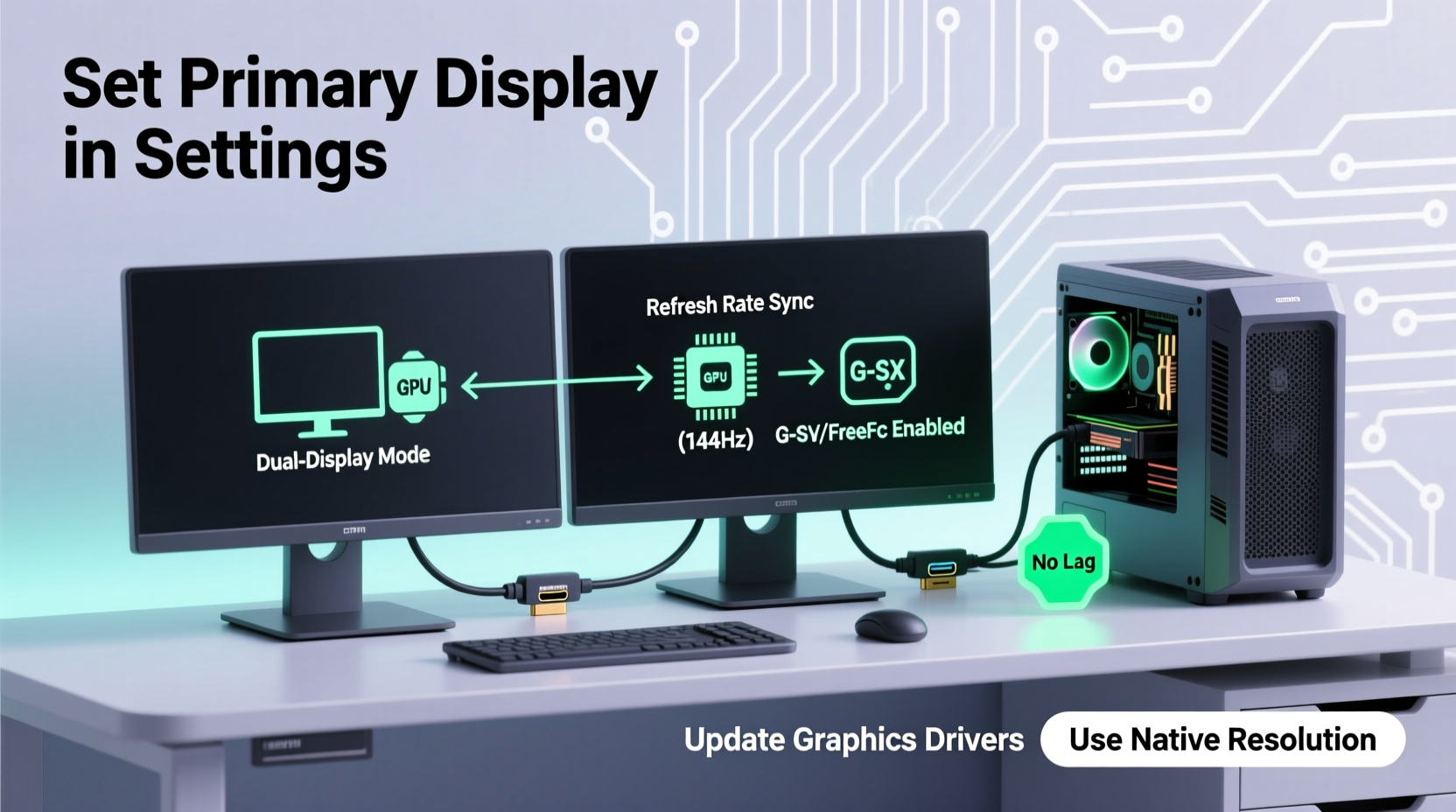
The foundation of a lag-free dual monitor system lies in compatibility. Not all computers are built to handle multiple high-resolution displays simultaneously. Before connecting any cables, evaluate your current hardware to avoid bottlenecks.
Your graphics processing unit (GPU) plays the most crucial role. Integrated graphics on older CPUs may struggle with two 1080p monitors at 60Hz, especially if running video-heavy applications. Dedicated GPUs from NVIDIA, AMD, or Intel Arc typically offer better multi-monitor support.
Check the number and type of video outputs on your computer. Common ports include:
- HDMI – Widely used, supports up to 4K at 60Hz (HDMI 2.0 or higher recommended)
- DisplayPort – Best for high refresh rates and resolutions; supports daisy-chaining via MST
- DVI – Older standard; limited bandwidth and no audio support
- VGA – Analog signal; avoid unless absolutely necessary due to signal degradation
Ensure your GPU has at least two active output ports that match your monitors’ inputs. If not, consider using an adapter—but be cautious. Active adapters (e.g., DisplayPort to HDMI) maintain signal integrity, while passive ones may reduce bandwidth or cause instability.
Select the Right Cables and Adapters
Even the most powerful GPU will underperform with substandard cables. Poor-quality or outdated cables can introduce latency, flickering, or resolution drops—especially when driving high-resolution panels.
For a stable dual monitor setup:
- Use certified cables rated for your monitor’s resolution and refresh rate (e.g., HDMI 2.0 for 4K@60Hz)
- Avoid long cable runs (>3 meters) without signal boosters or fiber-optic variants
- Prefer shielded cables to reduce electromagnetic interference
If your monitors support DisplayPort 1.2 or higher, consider daisy-chaining them using Multi-Stream Transport (MST). This allows both displays to run off a single DisplayPort output, reducing clutter and port usage. However, not all GPUs or monitors support MST reliably, so verify compatibility first.
| Cable Type | Max Resolution (Recommended) | Refresh Rate Support | Best For |
|---|---|---|---|
| HDMI 1.4 | 1080p @ 144Hz or 4K @ 30Hz | Limited high-refresh support | Basic office use |
| HDMI 2.0 | 4K @ 60Hz | Good | General dual-monitor work |
| DisplayPort 1.2 | 4K @ 60Hz or 1440p @ 144Hz | Excellent | Gaming, creative work |
| DisplayPort 1.4 | 8K @ 60Hz or 4K @ 120Hz | Outstanding | High-performance setups |
| VGA | 1080p @ 60Hz (with quality loss) | Poor | Legacy systems only |
“Signal integrity is just as important as raw bandwidth. A cheap HDMI cable can introduce micro-stutters that feel like lag—even when specs suggest it should work.” — David Lin, Senior Hardware Engineer at Vanta Systems
Configure Display Settings for Optimal Performance
Once both monitors are physically connected, proper software configuration ensures smooth operation. Misaligned refresh rates or incorrect scaling can create perceived lag or graphical artifacts.
In Windows, go to Settings > System > Display. Click “Identify” to confirm which screen is which. Then, select each monitor and adjust the following settings:
- Resolution: Set each monitor to its native resolution. Running below native sharpness can cause blurriness and scaling delays.
- Refresh Rate: Ensure both monitors run at their maximum supported refresh rate. Mismatched rates (e.g., one at 60Hz, another at 75Hz) can cause tearing or judder.
- Scaling: Use consistent scaling (e.g., 100% or 125%) across both screens to prevent UI elements from resizing unexpectedly when dragged between monitors.
- Orientation & Arrangement: Drag the on-screen representations to match your physical desk layout. This ensures mouse movement feels natural.
On macOS, navigate to System Settings > Displays. Hold Option while clicking “Scaled” to reveal all resolution options. Choose “Default for display” unless you have a specific need for lower resolution.
Step-by-Step Setup Guide
Follow this sequence to ensure a clean, efficient installation:
- Power down your computer before connecting new monitors to prevent driver conflicts.
- Connect both monitors using appropriate cables (preferably DisplayPort or HDMI 2.0+).
- Power on the monitors first, then boot the computer to allow proper EDID handshake.
- Update your GPU drivers via NVIDIA GeForce Experience, AMD Software, or Intel Driver & Support Assistant.
- Open display settings and detect both screens. Assign primary and secondary roles based on your workflow.
- Match refresh rates and resolutions across both displays where possible.
- Test under load by playing video, scrolling through large documents, or dragging windows rapidly between screens.
- Adjust GPU control panel settings (e.g., NVIDIA Control Panel) to manage color profiles, anti-aliasing, and power management.
If one monitor remains undetected, try switching ports or cables. Some motherboards disable integrated graphics when a discrete GPU is installed—check BIOS settings if using a mix of CPU and GPU outputs.
Real-World Example: Fixing Glitches in a Financial Analyst’s Setup
Mark, a financial analyst in Chicago, uses two 27-inch 1440p monitors to track live market data, analyze spreadsheets, and manage communications. After upgrading his workstation, he noticed occasional screen freezes when switching between trading platforms.
Diagnosis revealed that one monitor was connected via a low-quality HDMI 1.4 cable, limiting its refresh rate to 60Hz despite supporting 120Hz. The second monitor ran over DisplayPort at 120Hz. The mismatch caused the GPU to render inconsistently, leading to frame pacing issues.
The fix was simple: replacing the HDMI cable with a certified HDMI 2.0 version and adjusting both monitors to run at 120Hz eliminated the stutter. He also disabled V-Sync globally in the NVIDIA Control Panel, allowing smoother window transitions even during heavy GPU loads.
After these changes, Mark reported a noticeable improvement in responsiveness—critical when reacting to fast-moving markets.
Troubleshooting Common Issues
Even well-planned setups can encounter problems. Here are frequent culprits and solutions:
- One monitor goes black under load: Likely a power or bandwidth issue. Check cable integrity and ensure the GPU isn’t overheating.
- Cursor lags when moving between screens: Caused by differing refresh rates or scaling. Align both monitors to the same refresh rate and scaling percentage.
- Colors look different on each screen: Calibrate both monitors using built-in tools or a hardware calibrator. Save profiles per display.
- Flickering or ghosting: Often due to faulty cables or incompatible adapters. Replace with certified versions.
FAQ
Can I mix monitor sizes and resolutions without issues?
Yes, but expect some UI scaling inconsistencies. Use matching DPI scaling (e.g., 125% on both) and position the higher-resolution monitor as your primary workspace to reduce visual strain.
Why does my second monitor disconnect randomly?
This often points to insufficient power delivery, loose cables, or outdated drivers. Update GPU firmware, secure connections, and avoid daisy-chaining unless explicitly supported.
Is wireless display (Miracast) suitable for dual monitor setups?
No. Wireless display technologies introduce latency and compression artifacts. They are not suitable for primary work monitors. Use only for temporary presentations or secondary viewing.
Final Checklist for a Lag-Free Dual Monitor Setup
- ✅ Confirm GPU supports dual independent displays
- ✅ Use high-bandwidth cables (DisplayPort 1.2+ or HDMI 2.0+)
- ✅ Match refresh rates across both monitors
- ✅ Set native resolution on each display
- ✅ Apply consistent scaling settings
- ✅ Update graphics drivers to latest stable version
- ✅ Physically arrange monitors to match on-screen layout
- ✅ Test performance with real applications (video, gaming, multitasking)
Conclusion
A dual monitor system shouldn’t come with trade-offs. With careful planning and attention to detail, you can enjoy expanded screen real estate without sacrificing performance. The key is balancing hardware capability with correct configuration—choosing the right cables, aligning settings, and eliminating hidden bottlenecks.
Whether you're managing complex datasets, editing video timelines, or simply organizing your digital workspace, a smooth, responsive dual monitor setup enhances both efficiency and comfort. Take the time to configure it right the first time, and you’ll reap the benefits for years to come.




 浙公网安备
33010002000092号
浙公网安备
33010002000092号 浙B2-20120091-4
Comments
No comments yet. Why don't you start the discussion?