
In today’s mobile-first world, professionals, students, and creatives alike are constantly seeking ways to enhance productivity without being tied to a desk. One of the most effective upgrades you can make is turning your tablet into a second monitor. Whether you're editing photos, managing spreadsheets, or coding on the go, having an extended display significantly improves workflow efficiency. The good news? You don’t need expensive hardware or complicated setups. With modern software and a few simple steps, your tablet can become a powerful secondary screen.
Why Use a Tablet as a Second Monitor?
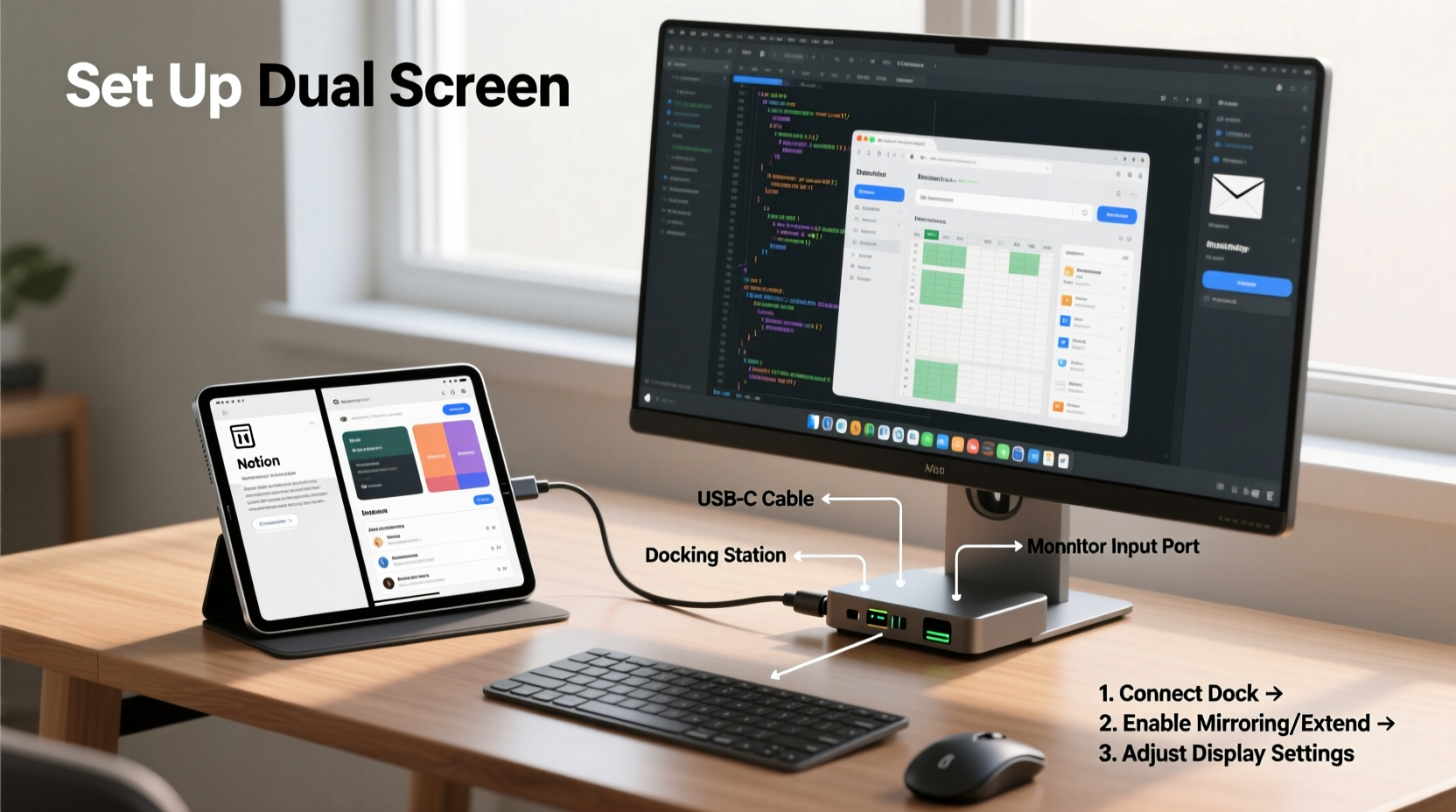
The appeal of using a tablet as a second monitor lies in its portability, versatility, and cost-effectiveness. Unlike traditional monitors that require power outlets, cables, and fixed positioning, tablets offer wireless flexibility. They’re ideal for remote workers, digital nomads, and anyone who values a clutter-free workspace.
Modern operating systems—including Windows, macOS, iPadOS, and Android—support screen mirroring and extension through native features or third-party apps. This means you can drag windows from your laptop onto your tablet just as if it were a physical monitor. For graphic designers, this could mean using one screen for tools and another for canvas. For writers, it allows research on one side and drafting on the other.
“Extending your workspace with a tablet doubles your visual real estate without doubling your desk footprint.” — Jordan Lee, UX Consultant at Workspace Labs
Step-by-Step Guide to Connecting Your Tablet as a Second Monitor
Setting up a second monitor with your tablet involves matching hardware compatibility, installing the right software, and configuring display settings. Below is a comprehensive timeline to get you started.
- Determine Compatibility: Confirm that both your primary device (laptop/desktop) and tablet support multi-display functionality. Most modern devices do, but check OS requirements.
- Choose Connection Method: Decide between wired (USB/Lightning) or wireless (Wi-Fi/Bluetooth). Wireless offers mobility; wired ensures stability.
- Install Required Software: Download and install compatible screen extension apps such as Duet Display, Splashtop Wired XDisplay, or Microsoft’s Wireless Display app.
- Connect Devices: Pair the tablet via USB cable or Wi-Fi network depending on your chosen method.
- Configure Display Settings: On your main computer, open display settings and select “Extend” rather than “Mirror” to use the tablet as additional screen space.
- Adjust Resolution and Orientation: Fine-tune resolution for clarity and rotate orientation based on usage (landscape vs. portrait).
- Test Functionality: Drag a window across screens, test touch input (if supported), and verify responsiveness.
Best Apps for Turning Your Tablet Into a Second Monitor
While some operating systems offer built-in solutions, third-party apps often provide better performance, lower latency, and enhanced features like stylus support and touch gestures. Here are the top options across platforms:
| App Name | Platform Support | Connection Type | Key Features |
|---|---|---|---|
| Duet Display | iPad, Android, Windows, macOS | Wired & Wireless | Low latency, pressure-sensitive stylus support, retina-quality display |
| Splashtop Wired XDisplay | Windows, macOS, iPad, Android | Wired Only | Free, high frame rate, no ads |
| Microsoft Wireless Display | Windows 10/11, Android | Wireless | Built-in Miracast support, easy pairing |
| Sidecar (Apple) | iPad + Mac only | ||
| Native integration, Apple Pencil support, automatic setup | |||
| Spacedesk | Windows, Android, iOS | Wireless | Free, web-based, supports multiple clients |
Duet Display stands out for cross-platform users due to its consistent performance and premium features. However, budget-conscious users may prefer Splashtop’s free offering, especially when using a wired connection. Apple’s Sidecar remains the gold standard for seamless integration within the ecosystem, requiring no third-party downloads.
Real-World Example: A Freelance Designer’s Setup
Maria, a freelance UI/UX designer based in Lisbon, uses her iPad Pro as a second monitor while working from cafes and co-working spaces. Her MacBook Air handles design software like Figma and Adobe XD, while the iPad displays color palettes, client feedback, and reference images.
She connects via Duet Display over USB-C, which provides stable performance even during long sessions. “I used to carry two monitors in my bag,” she says. “Now I just bring my iPad—it charges my laptop too. It’s transformed how I work remotely.”
By extending her workspace, Maria reduces context switching and keeps her focus sharp. She also uses the Apple Pencil on the iPad to sketch ideas directly into her design tool, leveraging the tablet’s touch interface for creative input.
Optimizing Performance and User Experience
Even with the right tools, suboptimal configuration can lead to lag, poor resolution, or disconnections. To maximize effectiveness, consider these optimization strategies:
- Use a High-Speed Cable: When connecting via USB, opt for certified cables (e.g., USB 3.0+ or Thunderbolt) to maintain data throughput.
- Disable Battery-Saving Modes: These can throttle processing power and disrupt screen streaming.
- Update Software Regularly: Both your computer and tablet should run the latest OS and app versions for compatibility.
- Minimize Background Activity: Close unused apps and browser tabs to free up RAM and CPU resources.
- Position Ergonomically: Place the tablet at eye level or use a stand to avoid neck strain during prolonged use.
Touch responsiveness is another critical factor. Some apps allow you to interact with the extended desktop using touch—ideal for presentations or drawing—but may introduce unintended inputs. Disable touch if not needed, or assign gesture shortcuts for common actions like scrolling or zooming.
Do’s and Don’ts When Setting Up a Tablet Monitor
| Do’s | Don’ts |
|---|---|
| ✅ Use a stable Wi-Fi network or direct USB connection | ❌ Rely on public or congested networks for wireless setups |
| ✅ Match screen brightness between devices to reduce eye strain | ❌ Leave auto-brightness enabled on the tablet—it can cause flickering |
| ✅ Secure your tablet with a stand or case for consistent viewing angle | ❌ Hold the tablet manually while using it as a display |
| ✅ Test audio routing if using for video calls or media playback | ❌ Assume sound will automatically follow the active window |
| ✅ Leverage split-screen multitasking on the tablet for auxiliary tasks | ❌ Run resource-heavy games or videos on the tablet while mirroring |
Frequently Asked Questions
Can I use any tablet as a second monitor?
Most modern tablets running iOS 12+, iPadOS, Android 8+, or Windows 10/11 can function as secondary displays. However, performance varies by processor speed, RAM, and supported apps. Older or entry-level models may experience lag, especially over Wi-Fi.
Is a wired or wireless connection better?
Wired connections (via USB or USB-C) typically offer lower latency, higher reliability, and faster data transfer—ideal for intensive tasks like video editing or coding. Wireless is more convenient for quick setups or mobile workflows but depends heavily on network quality. For professional use, start with a wired link and switch to wireless once you’ve tested stability.
Does using a tablet as a second monitor drain the battery quickly?
Yes, especially when using wireless streaming. Screen mirroring consumes significant GPU and network resources. To preserve battery life, connect the tablet to a power source during extended sessions. Some apps, like Duet, offer “battery saver” modes that reduce refresh rates to extend usage time.
Checklist: How to Set Up Your Tablet as a Second Monitor
- ☐ Verify that your tablet and main device are compatible with screen extension
- ☐ Choose a connection method: wired (recommended) or wireless
- ☐ Install a trusted app like Duet Display, Splashtop, or Sidecar
- ☐ Connect both devices to the same Wi-Fi network (for wireless) or use a USB cable
- ☐ Launch the app on both devices and establish a secure connection
- ☐ On your computer, open display settings and select “Extend” mode
- ☐ Adjust resolution, orientation, and position of the extended screen
- ☐ Test dragging windows, using touch input (if applicable), and closing the connection properly
- ☐ Optimize performance by disabling battery-saving features and background apps
- ☐ Use a stand or dock to position the tablet ergonomically
Conclusion: Unlock More Productivity Today
Turning your tablet into a second monitor isn’t just a tech hack—it’s a practical upgrade that redefines how you work. Whether you’re analyzing data, designing visuals, or managing emails, the added screen real estate reduces clutter and enhances focus. With minimal investment and straightforward setup, you gain a flexible dual-screen environment that travels with you.




 浙公网安备
33010002000092号
浙公网安备
33010002000092号 浙B2-20120091-4
Comments
No comments yet. Why don't you start the discussion?