
In an era where online privacy is increasingly under threat—from data harvesting to public Wi-Fi vulnerabilities—using a Virtual Private Network (VPN) is no longer optional for many. A well-configured VPN encrypts your internet traffic, masks your IP address, and protects your digital footprint whether you're browsing at home, working remotely, or traveling. This guide walks you through setting up a reliable VPN on every major device, explains key considerations, and provides actionable steps to ensure your connection stays secure.
Understanding the Basics: What Is a VPN?
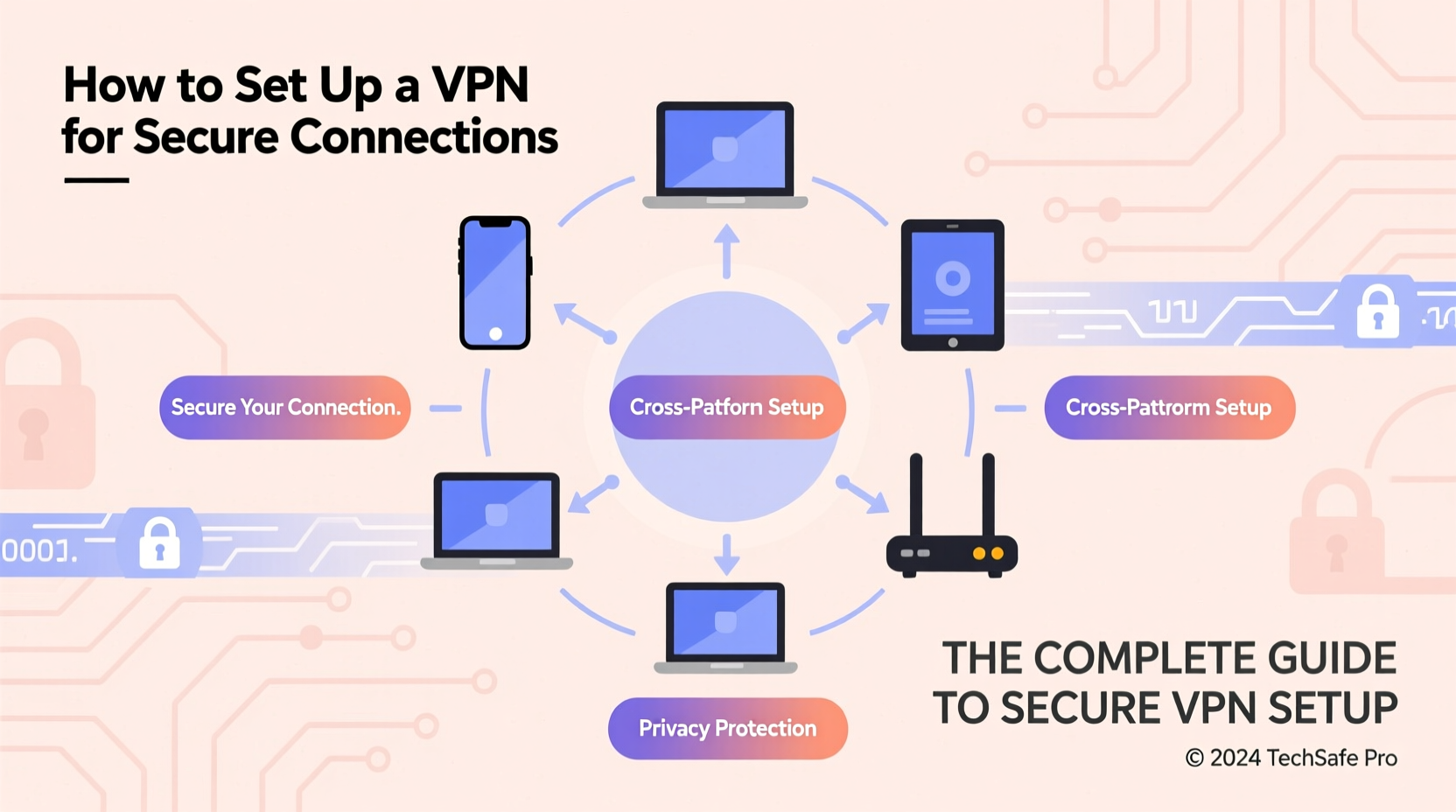
A Virtual Private Network creates a secure tunnel between your device and a remote server operated by a VPN provider. All data passing through this tunnel is encrypted, making it nearly impossible for third parties—like ISPs, hackers, or advertisers—to intercept or track your activity. The result? Enhanced privacy, protection from surveillance, and the ability to bypass geo-restrictions on streaming platforms or websites.
While some organizations provide corporate VPNs for employees, most individuals use commercial services such as NordVPN, ExpressVPN, or ProtonVPN. These services offer user-friendly apps across multiple platforms and maintain large server networks globally.
Step-by-Step Guide to Setting Up a VPN
1. Choose a Reputable VPN Service
Selecting the right provider is the foundation of a secure setup. Look for:
- Strong encryption standards (AES-256)
- No-logs policy with third-party verification
- Multi-platform support (Windows, macOS, iOS, Android, Linux, routers)
- Large server network with options in various countries
- Support for modern protocols like WireGuard or OpenVPN
2. Subscribe and Download the App
After selecting a service, sign up and log into your account. Most providers allow simultaneous connections on 5–10 devices. Download the official app for each device you plan to protect—never rely on third-party versions.
3. Install and Configure the Application
Installation is typically straightforward:
- Run the installer or open the downloaded app.
- Log in using your credentials.
- Allow necessary permissions (e.g., network access).
- Choose a default protocol (preferably WireGuard for speed and security).
4. Connect to a Server
Once logged in, select a server location. For general browsing, connect to the nearest recommended server. For accessing region-specific content (like U.S.-only streaming), manually pick a server in that country. The app will establish the encrypted tunnel automatically.
5. Enable Kill Switch and Auto-Connect Features
A kill switch disconnects your internet if the VPN drops, preventing accidental exposure. Enable this feature in settings. Similarly, configure auto-connect to activate the VPN whenever you join a new network.
“Using a VPN without a kill switch is like locking your front door but leaving the windows wide open.” — James Lyne, Global Head of Security Research, Sophos
Setting Up a VPN Across Different Devices
The process varies slightly depending on your operating system or hardware. Below are specific instructions for common platforms.
Windows & macOS
Most providers offer native desktop clients. After installation, launch the app, sign in, and click \"Connect.\" Advanced users can manually configure L2TP/IPsec or OpenVPN via system network settings, though this is less convenient and not recommended unless necessary.
iOS and iPadOS
Apple requires explicit permission for VPN profiles. When you install a reputable app from the App Store, it will prompt you to add a configuration profile. Tap “Allow” when asked. Once approved, the status appears in the top-left corner (a small key icon), indicating an active tunnel.
Android
Android supports both app-based and manual setups. Use the official app for simplicity. If configuring manually, download the OpenVPN configuration file from your provider’s website and import it using a client like OpenVPN Connect.
Router-Level Setup
Installing a VPN directly on your router extends protection to all connected devices—including smart TVs, gaming consoles, and IoT gadgets—that lack native app support. This requires flashing compatible firmware (like DD-WRT or Tomato) or using a pre-configured router from providers such as FlashRouters. Configuration involves entering login details and choosing routing rules.
Comparison Table: Key Features by Platform
| Platform | Native App? | Manual Setup Support | Auto-Connect Available? | Best For |
|---|---|---|---|---|
| Windows | Yes | Yes (OpenVPN, L2TP) | Yes | General browsing, work |
| macOS | Yes | Yes (IKEv2, OpenVPN) | Yes | Privacy-focused users |
| iOS | Yes | Limited (via profile) | Yes | Mobile security on public Wi-Fi |
| Android | Yes | Yes (OpenVPN files) | Yes | Customization and control |
| Router | No (firmware-dependent) | Yes | Configurable | Whole-home protection |
Real-World Example: Securing Remote Work Connections
Sophia, a freelance marketer based in Lisbon, frequently works from cafés and co-working spaces. She uses public Wi-Fi daily but doesn’t want her client communications or financial transactions exposed. By installing ExpressVPN on her MacBook and iPhone, she ensures end-to-end encryption. She enabled the kill switch and set her app to auto-connect whenever she joins a new network. Even when connecting to Portuguese hotspots, she routes her traffic through a German server to avoid local tracking. Her entire workflow—email, cloud storage, banking—is now shielded from potential snoopers.
Common Mistakes to Avoid
- Using free VPNs: Many free services log and sell your data or inject ads. Some even contain malware.
- Ignoring protocol selection: Outdated protocols like PPTP should be avoided. Stick with WireGuard or OpenVPN.
- Forgetting mobile devices: Phones often carry sensitive personal data and need equal protection.
- Leaving split tunneling on unintentionally: This feature allows certain apps to bypass the VPN—use it only if you understand the risks.
Frequently Asked Questions
Can a VPN slow down my internet?
Yes, slightly. Encryption and server distance add latency. However, modern protocols like WireGuard minimize speed loss. Choosing a nearby server helps maintain performance.
Is it legal to use a VPN?
In most countries, yes. However, some nations—including China, Russia, and Iran—restrict or ban unauthorized VPN usage. Always check local regulations before use.
Do I need a VPN on my phone if I already have one on my laptop?
Yes. Each device accesses the internet independently. Without protection, your smartphone remains vulnerable—especially on public networks.
Final Checklist Before Going Live
- ✅ Selected a trusted, audited VPN provider
- ✅ Installed the official app on all primary devices
- ✅ Enabled the kill switch in settings
- ✅ Configured auto-connect for untrusted networks
- ✅ Verified connection via IP leak test (visit ipleak.net)
- ✅ Considered router-level setup for full coverage
Secure Your Digital Life Today
Setting up a VPN isn't just for tech enthusiasts or journalists—it's a fundamental step in protecting your identity, data, and freedom online. Whether you're shielding yourself from cybercriminals on public Wi-Fi, avoiding targeted ads, or accessing global content, a properly configured VPN gives you control over your digital presence. The time invested in setup pays long-term dividends in security and peace of mind. Start today: choose a provider, follow the steps outlined here, and make encrypted browsing a habit across all your devices.




 浙公网安备
33010002000092号
浙公网安备
33010002000092号 浙B2-20120091-4
Comments
No comments yet. Why don't you start the discussion?