
For streamers and competitive gamers, a dual-monitor setup isn't just a luxury—it's a necessity. One screen for the game, the other for chat, OBS controls, or browser sources: this configuration enhances productivity and engagement. But when high frame rates drop unexpectedly or audio stutters mid-broadcast, the experience unravels. Lag spikes in a dual-monitor environment often stem from overlooked hardware limits, inefficient software routing, or poor system prioritization. The solution lies not in upgrading blindly, but in intelligent optimization.
A well-tuned dual-monitor system balances performance across GPU workloads, CPU threads, and peripheral bandwidth. It requires more than plugging in an extra display; it demands deliberate configuration of both hardware and software. This guide walks through proven strategies to maintain smooth gameplay and stable streams—without sacrificing visual fidelity or responsiveness.
Assess Your Hardware Foundation
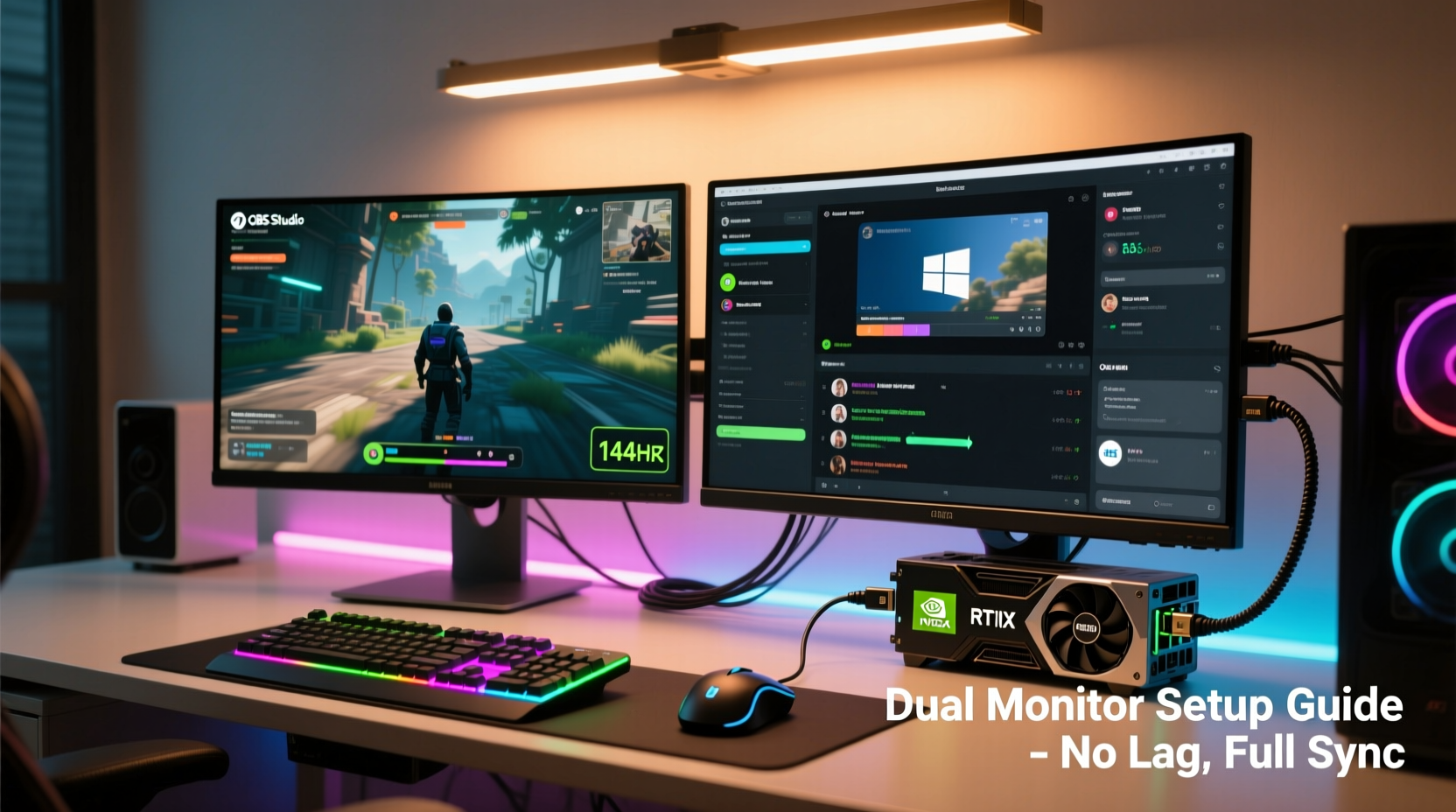
The first step in eliminating lag is ensuring your components can handle the load. Dual monitors increase GPU rendering demands, especially when one is running a game at high refresh rates while the second displays resource-heavy applications like Discord, Twitch Dashboard, or video editors.
Your graphics card must support multiple displays efficiently. Modern GPUs from NVIDIA (RTX 30/40 series) and AMD (RX 6000/7000 series) typically offer three or more outputs—HDMI, DisplayPort, sometimes USB-C—and can drive two monitors simultaneously without issue. However, older or entry-level cards may struggle under extended multi-display loads, particularly if using lower-bandwidth connections like HDMI 1.4 instead of DisplayPort 1.4 or HDMI 2.1.
CPU performance is equally critical. Streaming encodes video in real time, which consumes significant processing power. If your CPU is outdated or overheating, it will bottleneck both game performance and stream stability. A modern quad-core processor (e.g., Intel i5-12400 or AMD Ryzen 5 5600X) is the minimum recommended baseline. For best results, aim for six cores or more, especially if you plan to run background apps like music players, browsers, or communication tools.
RAM should be no less than 16GB DDR4/DDR5 at 3200MHz or higher. While 16GB is sufficient for most games and streaming software, 32GB provides headroom for multitasking and future-proofs your setup.
Optimize Monitor Configuration and Placement
Physical placement affects both ergonomics and performance perception. Position your primary monitor directly in front of you—this should display your game. The secondary monitor, placed to the side, hosts OBS Studio, chat windows, or browser sources. Avoid placing the secondary screen behind or above the main one, as constant head movement increases fatigue and distracts focus.
Resolution and refresh rate settings are crucial. Ideally, both monitors should operate at compatible resolutions (e.g., both 1080p or both 1440p). Mismatched resolutions force the GPU to scale differently across displays, increasing overhead. Similarly, mismatched refresh rates—such as 60Hz on one screen and 144Hz on another—can cause timing conflicts, especially during windowed or borderless gaming modes.
“Streamers often overlook display timing mismatches. Even small sync differences between monitors can introduce micro-stutters that degrade perceived smoothness.” — Daniel Reyes, Systems Engineer at Broadcast Tech Labs
To minimize strain on your GPU, consider running non-gaming applications on the secondary monitor at lower DPI scaling (100% vs 125%) and disable animations in your OS settings. On Windows, go to Settings > System > Display > Advanced scaling settings and turn off “Fix scaling for apps” if experiencing blurriness or lag.
Step-by-Step Setup for Lag-Free Performance
Follow this sequence to configure your dual-monitor system for optimal gaming and streaming performance:
- Connect monitors using high-bandwidth ports: Use DisplayPort for the primary (gaming) monitor and either a second DisplayPort or HDMI 2.0+ for the secondary. Avoid daisy-chaining unless using certified MST hubs.
- Set correct display order: In Windows, press Win + P, select “Extend,” then right-click desktop > “Display settings.” Drag the monitor icons to match physical layout. Designate the central screen as “1” (primary).
- Adjust resolution and refresh rate: Set both monitors to their native resolution. Match refresh rates where possible (e.g., 144Hz on both). If unavailable, ensure the gaming monitor runs at maximum refresh rate.
- Update GPU drivers: Download the latest driver from NVIDIA GeForce Experience or AMD Adrenalin. Enable “High-performance” mode in power settings.
- Configure GPU workload distribution: In NVIDIA Control Panel or AMD Software, assign specific applications to use the dedicated GPU. Ensure OBS Studio, game clients, and browsers are not falling back to integrated graphics.
- Launch OBS and assign scenes: Create separate scenes for streaming and recording. Place source windows (Twitch Chat, Streamlabs, alerts) on the secondary monitor. Use “Window Capture” carefully—avoid capturing entire Chrome windows with multiple tabs.
- Limit background processes: Disable startup apps via Task Manager. Close unused browsers, email clients, and cloud sync tools during streams.
Software Optimization: Reduce CPU and GPU Load
Even powerful systems suffer lag when software isn’t tuned correctly. Streaming software like OBS Studio, Streamlabs, or XSplit can consume excessive resources if misconfigured.
Start by selecting the right encoder. If you have an NVIDIA GPU, use NVENC (Hardware) encoding. It offloads compression from the CPU to a dedicated chip on the GPU, freeing up cycles for gameplay. AMD users should enable AMF encoding, while Intel Arc owners can leverage Quick Sync Video.
In OBS, navigate to Settings > Output. Set output mode to “Advanced.” Under “Video Bitrate,” use 6000–8000 kbps for 1080p60 streaming. Higher bitrates improve quality but require faster upload speeds. Test your connection beforehand using Speedtest.net.
| Encoder Type | Best For | CPU Impact | Recommendation |
|---|---|---|---|
| NVENC (H.264) | NVIDIA RTX/ GTX 10-series+ | Low | ✅ Preferred for most streamers |
| x264 (Software) | High-end CPUs (6+ cores) | High | ⚠️ Only if NVENC unavailable |
| AMF (H.264) | AMD RX 5000-series+ | Low | ✅ Good alternative to NVENC |
| Quick Sync | Intel UHD Graphics / Arc | Very Low | ✅ Efficient but variable quality |
Use scene collections wisely. Create a dedicated “Streaming” profile in OBS with only essential sources enabled. Disable audio inputs you’re not using (e.g., microphone filters, unused desktop audio devices). Lower the resolution of browser sources—many streamers run Twitch Chat at 480p within a 1080p canvas, reducing GPU texture load.
Consider using lightweight alternatives: replace full Chrome instances with native chat overlays via StreamElements or Streamlabs Desktop, which are optimized for low resource usage.
Real-World Example: Fixing Persistent Frame Drops
Take the case of Maya Tran, a part-time streamer playing Valorant while broadcasting to 300+ viewers. Despite having an RTX 3060 and Ryzen 5 5600X, she experienced frequent 10–20 frame drops every few minutes. Her setup included a 144Hz gaming monitor and a 60Hz secondary display showing Streamlabs, Discord, and YouTube.
Initial diagnostics showed CPU temperatures spiking to 85°C, and OBS was using x264 encoding. She was also capturing a full Chrome window with eight tabs open—including social media feeds updating in real time.
After switching to NVENC encoding, closing unnecessary tabs, and replacing Chrome capture with StreamElements’ built-in chat widget, her average FPS stabilized. She further reduced load by moving Discord to pop-out mode and disabling hardware acceleration in the app settings. Within one session, her stream ran smoothly for over three hours without a single stutter.
This scenario illustrates that lag isn’t always about raw power—it’s about efficiency. Small changes in software behavior can yield dramatic improvements in system responsiveness.
Dual-Monitor Streaming Checklist
Before going live, verify the following:
- ✅ Both monitors connected via DisplayPort or HDMI 2.0+
- ✅ Primary display set as main in OS settings
- ✅ Game running on high-refresh-rate monitor
- ✅ OBS using hardware encoder (NVENC/AMF)
- ✅ Secondary monitor running only essential apps
- ✅ Background apps minimized or closed
- ✅ Audio sources properly routed (mic, desktop, alerts)
- ✅ Internet speed tested (minimum 10 Mbps upload for 1080p)
- ✅ GPU drivers updated
- ✅ System cooling adequate (clean fans, proper airflow)
Frequently Asked Questions
Can I use different brands or sizes of monitors?
Yes, you can mix monitor brands, sizes, and even resolutions. However, differing refresh rates (e.g., 60Hz and 144Hz) may cause minor sync issues. To avoid problems, run the game on the higher-refresh monitor and keep the secondary display at a consistent 60Hz. Use NVIDIA G-Sync or AMD FreeSync only on the primary screen if supported.
Why does my game lag only when OBS is running?
This typically indicates encoder overload or CPU contention. If using x264 software encoding, switch to NVENC or AMF. Also check for background tasks consuming CPU—browser tabs, automatic updates, or antivirus scans. Limit OBS to 30 FPS output if streaming less dynamic content like talk shows or retro games.
Should I use vertical or ultrawide monitors for streaming?
Vertical monitors are excellent for stacking chat, alerts, and viewer lists in a narrow column beside your game. Ultrawide screens can serve as a single expansive workspace, but stretching OBS across wide fields increases GPU memory usage. Use them wisely—split into virtual desktops or zones using tools like FancyZones (PowerToys).
Final Thoughts: Stability Over Flashiness
A flawless dual-monitor streaming setup doesn’t come from expensive gear alone. It emerges from thoughtful integration—matching hardware capabilities with disciplined software management. Every component, from cable choice to browser tab count, plays a role in maintaining fluid performance.
Don’t chase maximum visual settings at the expense of stability. A 1080p60 stream with zero dropped frames delivers a better viewer experience than a jittery 1440p attempt. Prioritize consistency, monitor system health, and refine your workflow over time.




 浙公网安备
33010002000092号
浙公网安备
33010002000092号 浙B2-20120091-4
Comments
No comments yet. Why don't you start the discussion?