
Dual monitor setups have become essential for professionals in design, programming, finance, and remote work environments. The expanded screen real estate improves multitasking, reduces window switching, and enhances focus. However, a poorly managed setup can quickly devolve into a tangled web of cables that not only looks unprofessional but also makes troubleshooting difficult and cleaning nearly impossible. The key to unlocking the full potential of dual monitors lies not just in configuration, but in maintaining a clean, organized workspace. This guide walks through every step—from selecting the right equipment to managing cables discreetly—so you can enjoy peak productivity with minimal visual and physical clutter.
Choose the Right Monitors and Mounting Solutions
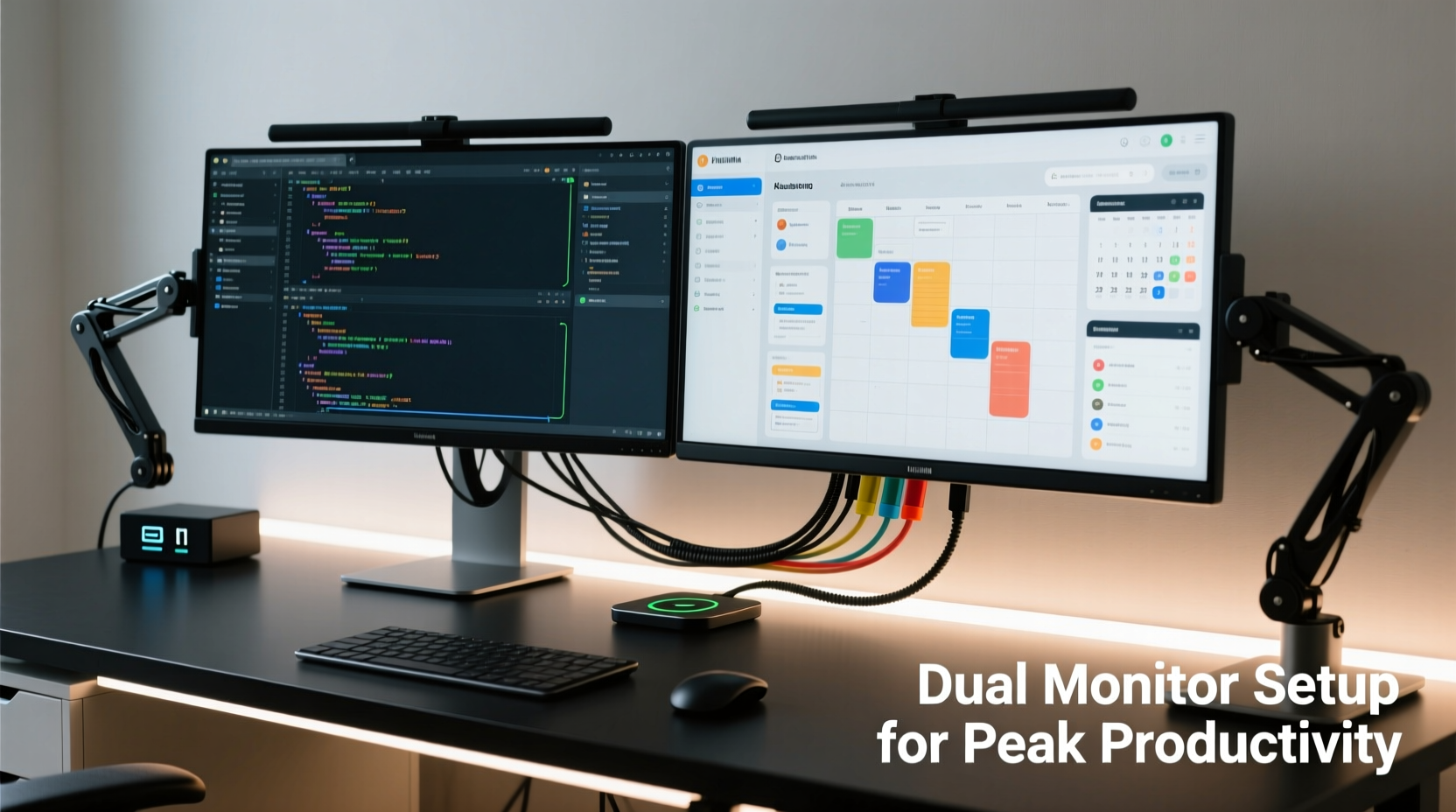
The foundation of a clean dual-monitor setup starts before the first cable is plugged in. Selecting monitors with similar bezel widths, heights, and input options ensures a visually cohesive display. Look for models with built-in cable management channels or magnetic rear covers that allow for cleaner routing. Equally important is the mounting solution. While desk stands are standard, they consume valuable surface area and often lack adjustability.
VESA-compatible monitor arms offer a superior alternative. These mounts attach directly to the back of your monitors and clamp onto your desk edge or wall, freeing up space and enabling precise positioning. A dual-arm mount keeps both screens aligned at eye level, reducing neck strain and improving ergonomics. Some advanced arms even feature internal cable conduits—hollow tubes through which power and data cables can be threaded, hiding them completely from view.
Plan Your Cable Layout Before Connecting
Rushing into plugging in cables leads to disorganization. Instead, map out your connections before powering on any device. Identify each cable’s purpose: video (HDMI, DisplayPort), power, USB upstream (for webcam, speakers, etc.), and any peripherals like headsets or external drives. Use a labeling system—small adhesive tags or heat-shrink labels—to mark each cable at both ends. This simplifies future upgrades or troubleshooting.
Group cables by function. For example, bundle all video inputs together, separate power cords, and isolate USB extensions. Use Velcro straps instead of zip ties—they’re reusable and won’t damage insulation. Avoid daisy-chaining power strips unless necessary; instead, use a single high-quality surge protector with enough outlets positioned near your desk’s vertical support or undercarriage.
“Cable management isn’t about hiding wires—it’s about creating a system where every connection has a designated path and purpose.” — Jordan Lee, Workspace Design Consultant
Step-by-Step Setup Guide
Follow this sequence to install your dual monitors efficiently while minimizing cable exposure:
- Assemble the monitor arms according to manufacturer instructions, ensuring they’re securely clamped to a stable part of your desk.
- Attach monitors to the arms using the included VESA screws, making sure the alignment allows for symmetrical positioning.
- Route cables through the arm’s internal channel if available. Feed HDMI/DisplayPort and power cables from the monitor down through the arm to the base.
- Connect video cables to your computer. If using a laptop, consider a docking station for centralized connectivity.
- Plug in power adapters and connect them to a surge protector placed beneath or behind the desk.
- Organize excess cable length using spiral wrap tubing or braided sleeves to prevent tangling.
- Use adhesive-backed clips along the desk leg or underside to secure bundles and guide them toward outlets.
- Configure display settings in your operating system: extend the desktop, arrange screens logically, and set primary display.
Smart Cable Management Techniques
Clean cable routing is what separates functional setups from truly professional ones. Here are proven methods to eliminate clutter:
- Cable trays: Install an under-desk tray to house power bricks, hubs, and junction points. This centralizes devices and hides bulk.
- Snap-on raceways: Adhesive plastic channels mounted along desk edges keep cables flush against surfaces and out of sight.
- Magnetic cable holders: Small metal discs with rubber grips stick to metal desks or monitor bases, holding cords in place without tools.
- Fabric cable sleeves: Bundle multiple cords into a single flexible tube that looks neater than loose wires.
- Desk grommet routing: If your desk has pre-drilled holes, feed cables through them to the back or floor, especially useful in standing desk configurations.
Avoid running cables across walkways or chair paths. Elevate them slightly using low-profile cord covers if floor routing is unavoidable. Never stretch cables taut—leave a small service loop to prevent strain on connectors.
Do’s and Don’ts of Cable Management
| Do’s | Don’ts |
|---|---|
| Use Velcro straps for adjustable bundling | Use zip ties permanently—they can damage wires |
| Label both ends of each cable | Leave unlabeled cables that confuse future changes |
| Route cables behind furniture or through walls | Let cords dangle freely over desk edges |
| Invest in a docking station for laptops | Plug multiple devices directly into laptop ports |
| Test connections before finalizing placement | Mount monitors without verifying signal reach |
Real-World Example: A Developer’s Clean Dual-Screen Upgrade
Mark, a freelance software developer working from a home office, struggled with constant distractions caused by a messy dual-monitor setup. His two 27-inch displays sat on bulky stands, with HDMI, power, USB, and headset cables spilling over the desk edge into a chaotic knot behind his PC tower. Every time he moved his chair, he risked unplugging something critical.
He decided to reconfigure his workspace. First, he purchased a dual VESA arm with internal cable routing. After mounting it, he transferred both monitors onto the arms, aligning them at eye level with a slight inward tilt to reduce glare. He replaced his old HDMI cables with flat, black ones that were easier to route and less visible. All cables were fed through the arm’s hollow shaft and connected to a Thunderbolt dock attached to his laptop.
Using adhesive raceways, he ran the single Thunderbolt cable down the side of his desk and into a power strip hidden in a rolling cabinet underneath. Excess lengths were coiled neatly inside a fabric sleeve. The transformation reduced visible wiring by over 80%. Mark reported faster workflow transitions between code editors and browser testing, and the cleaner aesthetic helped him stay focused during long coding sessions.
Essential Equipment Checklist
To achieve a streamlined dual-monitor setup, gather these items before starting:
- Two compatible monitors with VESA mounting support
- Dual-monitor VESA arm with cable management
- High-quality video cables (preferably flat or black for discretion)
- Surge protector or power strip with sufficient outlets
- Velcro straps or reusable cable ties
- Adhesive cable clips or snap-on raceway
- Labels or tags for cable identification
- Optional: USB hub or docking station for centralized connectivity
- Optional: Fabric cable sleeve or spiral wrap for bundling
Optimize Software and Display Settings
Hardware is only half the equation. Once physically connected, configure your operating system to maximize efficiency. On Windows, go to Settings > System > Display, then drag the screen icons to match your physical layout. Set the most frequently used application screen as the primary display. Enable “Snap Assist” to easily organize windows across both monitors.
On macOS, open System Settings > Displays, and arrange the white menu bar on the screen you want as primary. Use Mission Control to create separate Spaces for different workflows—coding on one screen, communication apps on the other.
For creative professionals, calibrate color consistency between monitors using built-in calibration tools or a hardware colorimeter. Mismatched brightness or color temperature can cause eye strain and reduce accuracy in photo or video editing.
Frequently Asked Questions
Can I use wireless displays to reduce cable clutter?
Yes, technologies like Miracast or Apple AirPlay allow screen mirroring without cables. However, they often introduce latency and lower resolution, making them unsuitable for primary productivity work. They’re best used for presentations or secondary viewing, not as replacements for wired dual-monitor setups.
What if my desk doesn’t have grommets or cable holes?
No problem. Use adhesive-backed cable raceways along the back edge of your desk to direct wires downward. Alternatively, run them along the side frame using magnetic clips. Just ensure the path avoids foot traffic and chair movement zones.
How do I manage cables with a standing desk?
Standing desks require extra attention. Use a cable management arm or “zig-zag” loom that expands and contracts with desk height. Avoid fixed-length runs that could get pinched during adjustment. Internal routing through the desk pole (if available) is ideal.
Final Thoughts: Productivity Starts with Order
A dual-monitor setup should enhance your workflow, not hinder it with disorganization. By investing time in thoughtful planning, choosing the right hardware, and applying disciplined cable management, you create a workspace that supports sustained focus and efficiency. The absence of visual noise—from tangled cords or misaligned screens—reduces cognitive load and fosters a more professional environment, whether you're attending video calls or diving into deep work.
Start small: label your cables today, then gradually upgrade to better mounts and routing solutions. Each improvement compounds, leading to a workspace that’s not only productive but also a pleasure to use. A clean desk isn’t just about aesthetics—it’s a reflection of control, clarity, and intentionality in how you work.




 浙公网安备
33010002000092号
浙公网安备
33010002000092号 浙B2-20120091-4
Comments
No comments yet. Why don't you start the discussion?