
In today’s digital workspace, efficiency isn’t just about working faster—it’s about working smarter. One of the most effective upgrades you can make is connecting dual monitors to your laptop. Whether you're managing spreadsheets while on a video call, editing videos while monitoring chat, or streaming content while browsing social media, a dual-monitor setup transforms your workflow. It reduces tab-switching fatigue, expands screen real estate, and creates a more immersive experience for both professional tasks and entertainment.
The good news? Setting up two external displays with a laptop is no longer reserved for desktop towers or high-end workstations. With modern ports, plug-and-play compatibility, and intuitive OS settings, nearly any recent laptop can support a dual-monitor configuration. But success depends on understanding your hardware limits, choosing the right cables, and configuring your display settings effectively.
Understanding Your Laptop’s Display Capabilities
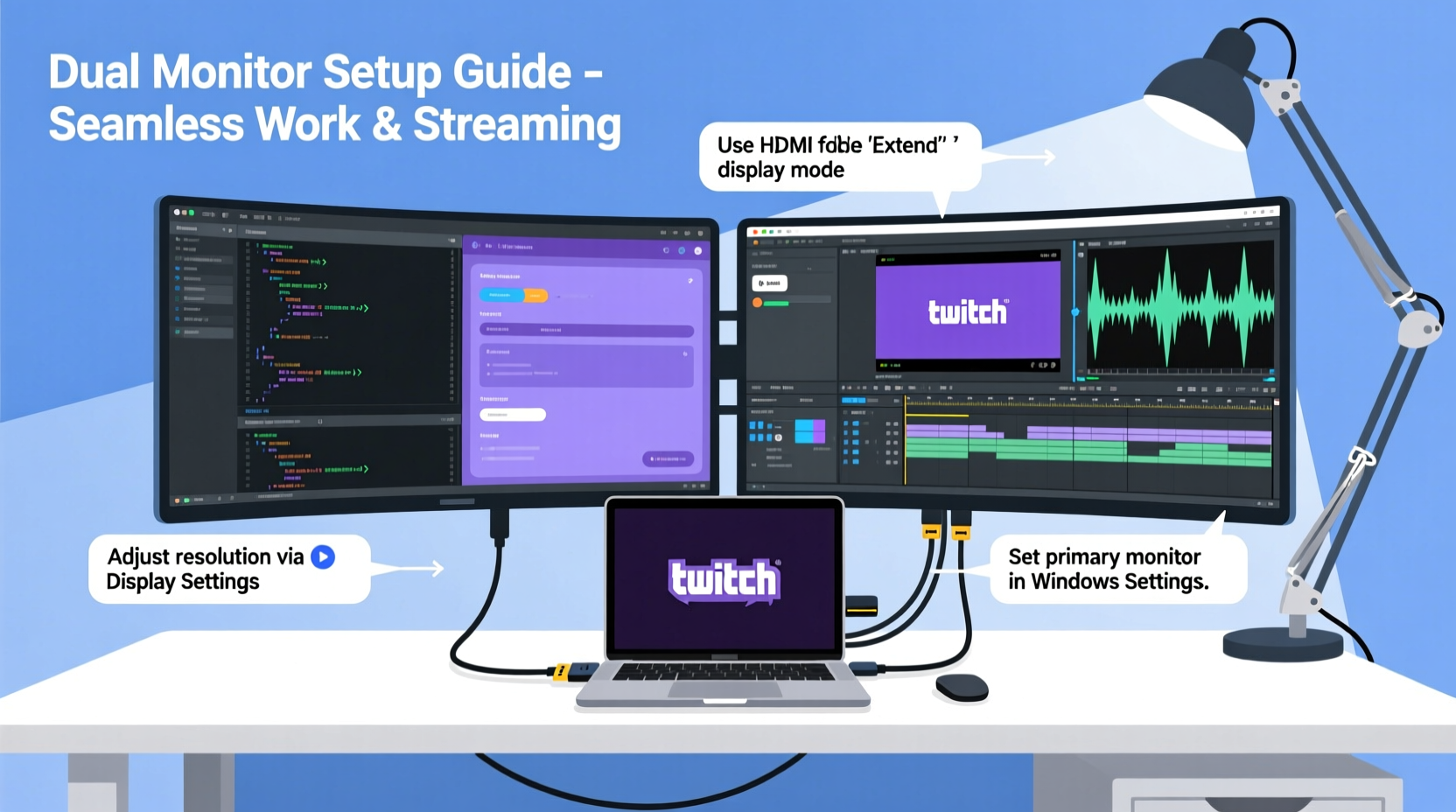
Before plugging in extra screens, assess what your laptop can actually handle. Not all laptops are created equal when it comes to supporting multiple external displays. The key factors include available video output ports, GPU performance, and operating system limitations.
Most modern laptops come equipped with at least one HDMI port, USB-C (often with DisplayPort Alt Mode), or Thunderbolt 3/4. Some ultrabooks may only have a single video-out port, which complicates dual-monitor setups unless adapters or docking stations are used. Check your device specifications to confirm:
- How many external displays your graphics card supports
- Which ports support video output
- If daisy-chaining via DisplayPort is possible
- Whether Miracast or wireless display options are enabled
For example, Intel Iris Xe integrated graphics typically support up to three displays simultaneously—including the laptop’s built-in screen. That means you could run two external monitors plus the laptop display, or disable the internal screen and use just the two externals. AMD and NVIDIA GPUs often offer similar multi-display flexibility, but older or budget models might be limited to one external monitor at a time.
“Many users assume their laptop can’t drive two monitors, but they’re surprised once they test the actual capabilities. It’s less about the brand and more about the underlying chipset and driver support.” — Rajiv Mehta, Systems Integration Specialist
Choosing the Right Hardware and Cables
Once you know your laptop’s limits, select compatible monitors and connection types. You don’t need identical screens, but matching resolution and refresh rate improves visual continuity across workspaces.
Common video interfaces include:
| Interface | Max Resolution Support | Dual Monitor Friendly? | Notes |
|---|---|---|---|
| HDMI 1.4 | 1920x1080 @ 60Hz | Limited | Adequate for basic use; insufficient for high-res dual setups |
| HDMI 2.0+ | 4K @ 60Hz | Yes | Ideal for 1440p or 4K secondary monitors |
| DisplayPort 1.2+ | 4K @ 60Hz or 1440p @ 144Hz | Yes (supports daisy-chaining) | Best for performance-heavy multitasking |
| USB-C (with DP Alt Mode) | Depends on spec, up to 8K | Yes | Single cable can carry power, data, and video |
| VGA/DVI | 1920x1200 max | No (legacy only) | Avoid unless absolutely necessary |
If your laptop lacks sufficient ports, consider using a docking station. A Thunderbolt 3 or 4 dock can provide dual HDMI or DisplayPort outputs, USB expansion, Ethernet, and even charging—all through one cable. For non-Thunderbolt laptops, USB 3.0 to HDMI adapters (like those from DisplayLink) allow additional monitor connections, though performance may vary depending on CPU load and driver optimization.
Step-by-Step Setup Process
Follow this sequence to ensure a smooth dual-monitor installation:
- Power down your laptop and disconnect all peripherals.
- Connect the first monitor using an appropriate cable (HDMI, DisplayPort, etc.) to one available port.
- Connect the second monitor to another port or via a docking station.
- Turn on both monitors and then power on your laptop.
- Wait for the system to detect both displays. On Windows, press Win + P to open projection options.
- Select Extend mode to use both monitors as a continuous desktop space.
- Navigate to Settings > System > Display and click “Identify” to see which number corresponds to each screen.
- Drag and arrange the display thumbnails to match your physical monitor layout (e.g., left/right).
- Set primary display by selecting the preferred monitor and checking “Make this my main display.”
- Adjust resolution, orientation, and scaling individually for optimal clarity.
On macOS, go to System Settings > Displays. Hold the Option key and click “Color Profile” to access advanced arrangements. Drag the white menu bar to choose the primary display. Arrange the screens visually to reflect their physical placement.
After arrangement, test the setup by dragging a window from one screen to the other. If movement feels unnatural or jumps unexpectedly, revisit the display positioning in settings.
Optimizing for Work and Streaming
A dual-monitor configuration shines when tailored to specific workflows. Here’s how professionals maximize theirs:
- Left Screen: Reserved for communication tools—Slack, Zoom, email, calendar.
- Right Screen: Dedicated to active projects—coding, design software, writing, or video editing.
- Streaming Scenario: One monitor runs OBS or Streamlabs; the other plays game footage or monitors live chat.
Use virtual desktops (Task View on Windows, Mission Control on Mac) to create separate environments—for instance, one for deep work, another for meetings, and a third for streaming prep. Keyboard shortcuts like Ctrl + Win + Left/Right Arrow let you switch quickly between them.
To reduce eye strain during long sessions, enable dark mode in apps where possible and synchronize brightness levels across all screens. Consider enabling Night Light (Windows) or True Tone (Mac) to adjust color temperature based on time of day.
Mini Case Study: Remote Editor Boosts Output with Dual Monitors
Sophia, a freelance video editor based in Austin, worked exclusively on her 13-inch MacBook Pro for over a year. She frequently experienced fatigue from constantly minimizing playback windows to check client feedback on email or messaging apps. After investing in two 24-inch 1080p monitors connected via a CalDigit Thunderbolt dock, she restructured her layout: one screen for timeline editing in Premiere Pro, the second for preview output and communication panels.
Within two weeks, Sophia reported a 40% reduction in project completion time and fewer errors due to improved visibility. “I used to lose track of audio sync because I couldn’t see both waveforms and video clearly,” she said. “Now I can monitor everything side-by-side. It’s changed how I approach every job.”
Common Pitfalls and How to Avoid Them
Even with proper hardware, issues can arise. Below are frequent problems and solutions:
| Issue | Root Cause | Solution |
|---|---|---|
| Second monitor not detected | Loose cable, wrong input source, outdated driver | Reseat cables, verify input (HDMI 1 vs 2), update GPU drivers |
| Flickering or blackouts | Poor-quality cable or power-saving settings | Replace cable, disable display sleep in power settings |
| Blurry text on secondary monitor | Incorrect scaling or resolution mismatch | Match DPI scaling or set native resolution |
| Lag during streaming or gaming | CPU/GPU overload from extended desktop rendering | Lower resolution on secondary screen or close background apps |
One overlooked factor is thermal throttling. Running multiple displays increases GPU workload, especially on thin laptops. Ensure adequate ventilation and consider using a cooling pad during prolonged use.
Checklist: Dual Monitor Setup Success
- ✅ Verified laptop supports dual external displays
- ✅ Identified correct video output ports
- ✅ Acquired necessary cables or docking station
- ✅ Connected both monitors and powered them on
- ✅ Detected displays in OS settings
- ✅ Arranged screen order to match physical layout
- ✅ Set primary display and adjusted resolution/scaling
- ✅ Tested window drag-and-drop between monitors
- ✅ Optimized app placement for work/streaming workflow
- ✅ Updated drivers and disabled conflicting display utilities
Frequently Asked Questions
Can I use different monitor sizes or resolutions?
Absolutely. Modern operating systems handle mixed resolutions well. However, significant differences in DPI (dots per inch) may lead to inconsistent scaling. Adjust scaling settings individually per monitor to maintain readable text and proportional UI elements.
Is it possible to run dual monitors without closing the laptop lid?
Yes. In Windows, go to Settings > System > Power & sleep > Additional power settings > Choose what closing the lid does, and set it to “Do nothing.” On macOS, connect the laptop to power, an external keyboard, mouse, and display—then it will continue running with the lid closed (clamshell mode). To keep the lid open, simply extend the display normally.
Why does my laptop overheat with two external monitors?
Driving multiple displays increases GPU usage, especially if playing video or running graphic-intensive applications. Overheating often occurs in compact laptops with passive cooling. Improve airflow by elevating the laptop, using a stand, or reducing graphical load on secondary screens.
Conclusion: Unlock Your Full Productivity Potential
Dual monitors with a laptop aren’t just for power users—they’re for anyone who values focus, speed, and comfort. Once configured correctly, the setup becomes invisible in the best way: it fades into the background while dramatically enhancing what you can accomplish. From splitting tasks across screens to creating a dynamic streaming environment, the benefits compound over time through reduced friction and increased control.
You don’t need top-tier gear to get started. Even modest monitors paired with a mid-range laptop can deliver transformative results. The key is thoughtful planning, correct cabling, and intentional workspace design. Now that you understand the full process—from hardware selection to daily optimization—there’s no reason to delay.




 浙公网安备
33010002000092号
浙公网安备
33010002000092号 浙B2-20120091-4
Comments
No comments yet. Why don't you start the discussion?