
Working with a single laptop screen often feels restrictive, especially when multitasking across multiple applications. Whether you're editing documents while referencing data, coding with documentation open, or managing spreadsheets side by side, a dual-monitor setup can dramatically improve efficiency and reduce digital clutter. The good news? Connecting two external monitors to one laptop is not only possible—it can be done smoothly with the right preparation and configuration.
While laptops are designed for portability, their compact form factor limits screen real estate. Fortunately, most modern laptops support multi-monitor configurations through built-in ports and graphics capabilities. With proper setup, you can transform your workspace into a powerful, extended desktop environment that enhances focus, streamlines workflow, and reduces eye strain from constant tab switching.
Understanding Your Laptop’s Display Capabilities
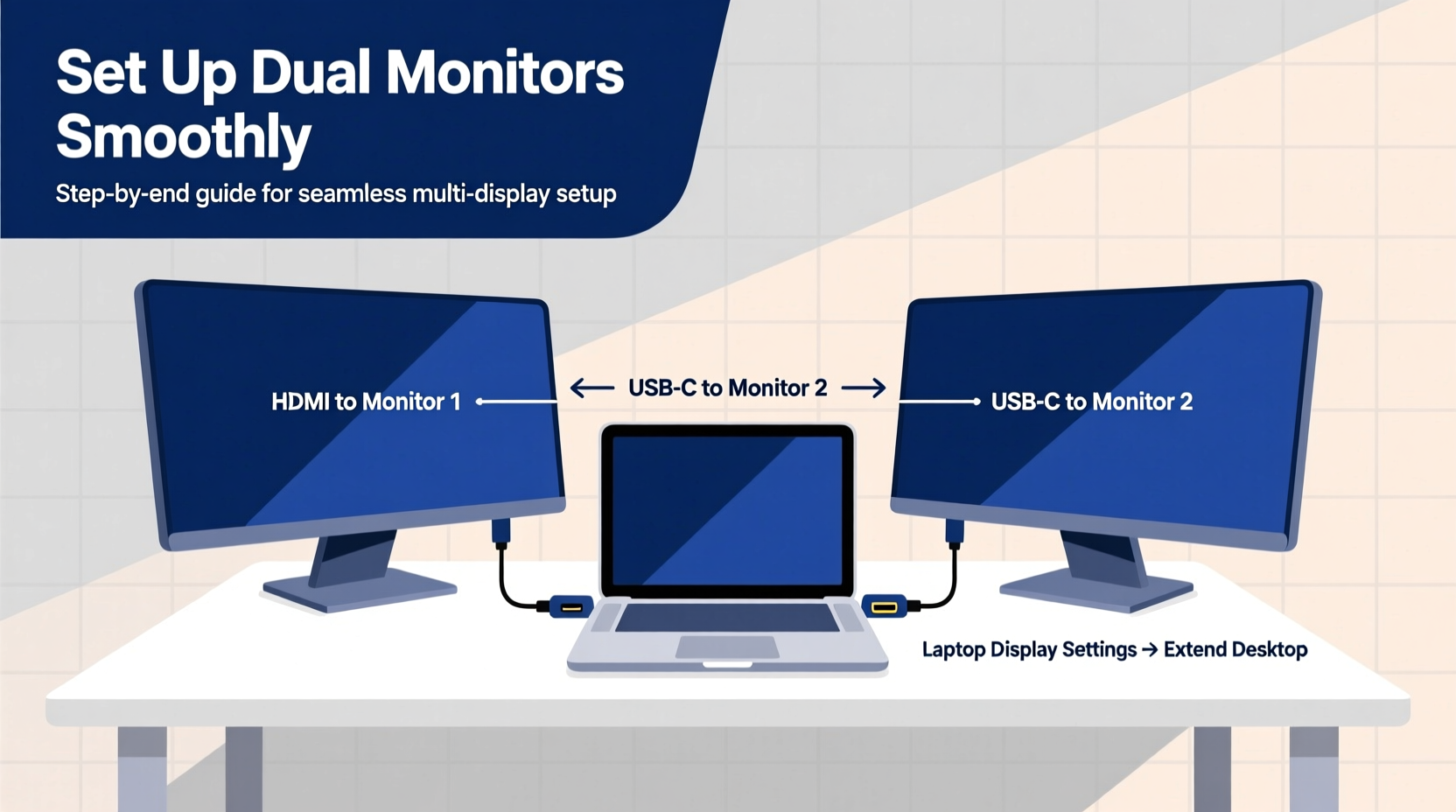
Before connecting any hardware, it's essential to assess your laptop’s ability to drive multiple displays. Not all laptops handle dual external monitors equally, even if they have multiple video output ports.
Most modern laptops come equipped with at least one HDMI port, USB-C/Thunderbolt 3 or 4, or a Mini DisplayPort. However, having multiple ports doesn’t automatically mean both can run simultaneously. Some older or budget models may allow only one external display at a time, defaulting to mirror mode unless properly configured.
The key factors determining compatibility include:
- Graphics chipset: Integrated Intel UHD or Iris Xe, AMD Radeon, or discrete NVIDIA/AMD GPUs vary in multi-display support.
- Operating system: Windows 10/11, macOS, and Linux distributions handle multi-monitor setups differently but generally support dual monitors well.
- Port types and bandwidth: USB-C with DisplayPort Alt Mode or Thunderbolt offers higher bandwidth than standard HDMI 1.4, enabling higher resolutions and refresh rates across multiple screens.
“Modern integrated graphics can easily support two external monitors, provided the resolution and refresh rate are within spec.” — David Lin, Hardware Systems Engineer
Choosing the Right Cables and Adapters
Selecting compatible cables and adapters is crucial for a stable dual-monitor experience. Mismatched connectors or low-bandwidth cables can lead to flickering, limited resolution, or failure to detect the second monitor.
Here’s a quick reference guide based on common port combinations:
| Laptop Port | Monitor Input | Required Cable/Adapter | Max Resolution Support (Typical) |
|---|---|---|---|
| HDMI 2.0 | HDMI | HDMI to HDMI cable | 4K @ 60Hz |
| USB-C (with DP Alt Mode) | DisplayPort | USB-C to DisplayPort cable | 4K @ 60Hz |
| USB-C (Thunderbolt 3/4) | HDMI or DP via dock | Thunderbolt dock with dual outputs | Dual 4K @ 60Hz |
| Mini DisplayPort | DisplayPort | Mini DP to DP cable | 4K @ 60Hz |
| USB-A (legacy) | VGA or HDMI | USB to HDMI/VGA adapter (active) | 1080p @ 60Hz (limited performance) |
Avoid passive adapters—they don’t convert signals and only work when physical pin compatibility exists. For example, a simple USB-A to HDMI plug won’t function without internal signal conversion. Instead, use active adapters or docking stations that include internal graphics processing chips (like DisplayLink technology).
Step-by-Step Setup Process
Follow this sequence to connect and configure two external monitors with your laptop efficiently.
- Power down your laptop before connecting any new hardware to prevent detection issues or driver conflicts.
- Connect the first monitor using an appropriate cable (e.g., HDMI) to your laptop’s HDMI port.
- Connect the second monitor via another available port—preferably USB-C with DisplayPort support or a Thunderbolt dock.
- If using a docking station, plug it into your laptop now and attach both monitors to the dock’s video outputs.
- Power on both monitors, then start your laptop.
- Once booted, press Win + P (Windows) or go to System Settings > Displays (macOS) to detect the new screens.
- In Windows, click “Detect” under Display Settings if either monitor isn’t recognized automatically.
- Arrange displays logically by dragging the screen thumbnails to match their physical layout on your desk.
- Set the correct resolution and orientation for each monitor under Advanced Display Settings.
- Choose a display mode: Extend, Duplicate, or Single Screen.
Optimizing Performance and Workflow
After successful connection, fine-tune your setup for maximum comfort and productivity.
Positioning matters. Place both external monitors at eye level, directly in front of you, with minimal neck rotation. The top of the screen should align with or slightly below eye level. If necessary, use monitor stands or risers to elevate them properly.
Adjust scaling and text size. High-DPI monitors (e.g., 4K) may appear too small unless scaled appropriately. In Windows, go to Settings > System > Display and set scaling individually per monitor—commonly 150% or 200% for 4K, 100% for 1080p.
Customize taskbar behavior. Right-click the taskbar > Taskbar Settings > Multiple Displays. Enable showing taskbar buttons on all displays or only the main one, depending on preference.
Assign primary functions. Designate one monitor as your primary workspace (e.g., coding or writing), and reserve the other for secondary tasks like email, chat, or research.
- Use keyboard shortcuts like Win + Shift + Left/Right Arrow to move windows between monitors quickly.
- Enable Snap Assist (Win + Z) to organize windows into quadrants.
- Consider third-party tools like DisplayFusion or Magnet (macOS) for advanced window management.
Common Issues and Troubleshooting
Even with careful planning, problems can arise. Here are frequent challenges and how to resolve them:
- Second monitor not detected: Update graphics drivers via Device Manager or manufacturer website. Restart after installation.
- Flickering or blackouts: Replace low-quality cables. Ensure firmware on docks is up-to-date.
- Resolution capped at 1080p: Verify cable supports higher bandwidth (e.g., HDMI 2.0 vs 1.4). Use DisplayPort where possible.
- Laptop screen turns off when extending: This is normal behavior; re-enable via Win + P > “Extend” mode.
- Performance lag with DisplayLink adapters: Close unnecessary apps, reduce screen resolution, or upgrade to a Thunderbolt dock.
“Always update your GPU drivers before troubleshooting display issues—many problems stem from outdated software rather than hardware faults.” — Sarah Kim, IT Infrastructure Lead
Real-World Example: Remote Developer Setup
Jamal, a freelance web developer, struggled with context switching between browser dev tools, code editors, and client calls on his 13-inch MacBook Air. He purchased two 24-inch 1080p IPS monitors and a CalDigit TS4 Thunderbolt 4 dock. After connecting both monitors to the dock and linking it to his laptop via a single USB-C cable, he extended his desktop seamlessly.
He positioned the left monitor for Chrome with responsive testing tabs, kept VS Code centered on the right, and used the laptop screen for Zoom meetings. Within a week, his coding speed improved by nearly 30%, and eye fatigue decreased significantly due to reduced zooming and scrolling.
Essential Dual-Monitor Checklist
- Confirmed laptop supports dual external displays
- Identified available video output ports (HDMI, USB-C, etc.)
- Purchased high-quality cables or docking station
- Connected both monitors and powered them on
- Detected displays in OS settings
- Arranged display order to match physical layout
- Set correct resolution and scaling per monitor
- Selected “Extend” display mode
- Tested window movement across screens
- Adjusted ergonomics (height, distance, angle)
Frequently Asked Questions
Can I use different monitor sizes and resolutions?
Yes. Modern operating systems handle mixed resolutions well. However, differences in DPI may cause windows to appear larger or smaller when dragged between screens. Adjust scaling settings individually for consistency.
Do I need a docking station?
Not always. If your laptop has two video-out ports (e.g., HDMI and USB-C), you can connect each monitor directly. But a docking station simplifies connectivity—especially for laptops with limited ports—and often includes extra USB, Ethernet, and charging capabilities.
Why does my laptop shut down when I close the lid?
By default, Windows and macOS may enter sleep mode when the lid closes. To keep working on external monitors only, change the power setting: On Windows, go to Control Panel > Power Options > Choose what closing the lid does > Set to “Do nothing.” On macOS, ensure the laptop is connected to power, an external keyboard/mouse, and display—the system will stay awake.
Final Thoughts and Next Steps
Setting up dual monitors with one laptop is a straightforward process once you understand your hardware limitations and follow best practices. From choosing the right cables to optimizing layout and performance, each step contributes to a seamless, productive workspace.
The investment pays off quickly in time saved, reduced stress, and enhanced multitasking ability. Whether you're a student, designer, programmer, or remote worker, expanding your visual workspace unlocks new levels of efficiency.




 浙公网安备
33010002000092号
浙公网安备
33010002000092号 浙B2-20120091-4
Comments
No comments yet. Why don't you start the discussion?