
Dual monitors significantly improve productivity, whether you're editing video, managing spreadsheets, coding, or simply browsing with more screen real estate. But many people hesitate because of the perceived cost—especially when high-end monitor arms and VESA-compatible stands are involved. The truth is, you don’t need a premium setup to enjoy a clean, ergonomic dual-monitor configuration. With some creativity, basic tools, and everyday household items, it’s entirely possible to create a stable, functional, and even stylish dual-monitor workstation without spending hundreds on specialized hardware.
This guide walks through practical, budget-friendly methods to arrange two monitors side by side or vertically, while maintaining proper viewing angles, desk space efficiency, and cable management—all without relying on expensive commercial stands or mounts.
Why Dual Monitors Matter (and Why Cost Shouldn’t Be a Barrier)
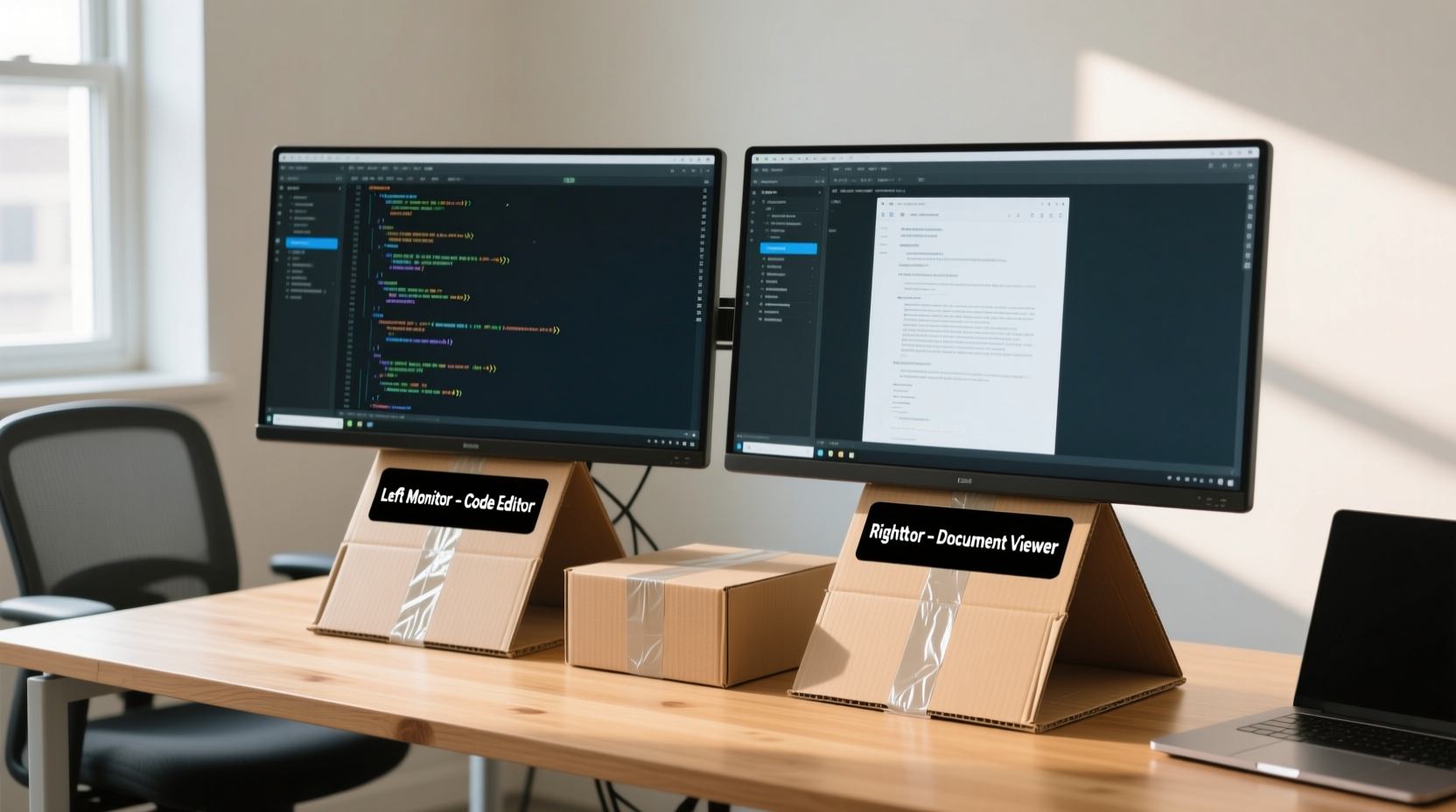
Multiple studies, including research from the University of Utah, have shown that dual monitors can boost productivity by up to 30%. Tasks like copy-pasting between documents, comparing data sets, or referencing materials while writing become dramatically easier. Yet, many home offices and remote workers still operate with a single screen, often citing lack of space or budget as the main obstacle.
The misconception is that effective multi-monitor setups require complex mounting systems. In reality, most monitors come with built-in tilt and swivel bases, and many desks offer enough surface area to accommodate two screens safely. The key is thoughtful placement and stability—not price tags.
“Ergonomics doesn’t have to be expensive. A well-positioned pair of monitors at eye level and arm’s distance can prevent strain just as effectively as a $300 articulating arm.” — Dr. Lena Torres, Occupational Health Specialist
Creative & Affordable Ways to Position Dual Monitors
You don’t need a VESA mount or gas-spring arm to get your monitors into the right position. Here are several low-cost or no-cost strategies that deliver professional results:
1. Stack Books or Binders Under One Monitor
If one monitor is significantly smaller or thinner than the other, use sturdy hardcover books, phone directories, or thick binders to elevate it. This levels the screens so both sit at roughly the same height, reducing neck strain.
2. Use Wooden Blocks or Craft Stands
Visit a hardware store and purchase pre-cut wooden blocks (like 2x4s or hardwood offcuts). Sand them down, paint or stain if desired, and stack them under your monitor base. These provide durable, customizable risers that blend into most office environments.
- Cost: $5–$10 for multiple pieces
- Stability: High when placed on flat surfaces
- Bonus: Can double as cable organizers underneath
3. Repurpose Old Furniture or Shelving
Small floating shelves, unused TV stands, or even sturdy picture ledges can serve as secondary monitor platforms. Mount one monitor on the desk and place the second on a nearby shelf slightly behind or beside it.
Ensure the shelf is level and can support the monitor’s weight—most standard LCDs weigh between 8–15 lbs. Avoid wobbly furniture; stability is critical.
4. DIY Monitor Risers from Household Items
Common objects around the house can function as temporary or permanent risers:
- Laptop cooling pads: Flat, elevated, and designed to hold weight.
- Plastic storage bins: Stackable and available in various heights.
- Metal toolboxes: Heavy-duty and often have flat tops.
- Speaker enclosures: If already on your desk, they may provide a stable platform.
Just ensure the item has a non-slip surface or add rubber feet to prevent sliding.
Step-by-Step Guide: Setting Up Your Dual-Monitor System for Under $20
Follow this timeline to assemble a fully functional dual-monitor station using only affordable or repurposed materials.
- Day 1: Assess Your Equipment and Space (15 minutes)
- Measure your desk depth and width.
- Note the size, weight, and stand design of each monitor.
- Determine primary vs. secondary screen roles.
- Day 2: Gather Materials (Budget: $0–$20)
- Wooden blocks, books, or plastic bins
- Rubber drawer liners or anti-slip pads
- Cable ties or Velcro straps
- Tape measure and level (optional but helpful)
- Day 3: Build and Test Riser(s) (30 minutes)
- Stack chosen materials to match the height of your main monitor.
- Place a level on top to ensure horizontal alignment.
- Add anti-slip material where the monitor meets the riser.
- Day 4: Arrange and Connect Monitors (20 minutes)
- Position both monitors side by side or in an L-shape based on workflow.
- Connect power and video cables (HDMI, DisplayPort, etc.).
- Boot up and confirm detection in your operating system.
- Day 5: Optimize Ergonomics and Cables (15 minutes)
- Adjust tilt so the top of the screen is at or slightly below eye level.
- Use cable ties to bundle excess cords neatly.
- Test mouse and keyboard reach with both screens active.
By the end of this five-day process, you’ll have a customized, clutter-free dual-monitor setup tailored to your physical space and usage habits—all for less than the cost of a single coffee shop lunch.
Do’s and Don’ts of Budget-Friendly Monitor Setups
| Do’s | Don’ts |
|---|---|
| Use non-slip pads under risers to prevent sliding | Stack unstable items like cardboard boxes long-term |
| Center your primary monitor directly in front of you | Place secondary monitor too far to the side, requiring constant head turning |
| Keep cables secured and out of walking paths | Run cords across high-traffic areas without taping them down |
| Align monitor tops at or slightly below eye level | Elevate monitors so high that you’re looking up at the screen |
| Leave at least 2 inches of ventilation space behind each unit | Pack monitors tightly against walls or other electronics |
Real-World Example: Maria’s Home Office Upgrade
Maria, a freelance accountant working from her apartment living room, used a single 24-inch monitor balanced on a wobbly TV tray. Her neck ached after long days of tax season work. She wanted a second screen but couldn’t justify spending $150 on a dual-arm mount.
Instead, she visited a local thrift store and bought a small wooden shelving unit for $12. She placed her existing monitor on the desk and mounted the second screen on the shelf, positioned slightly behind and to the right. Using adhesive rubber pads, she stabilized both units. Then, she routed all cables along the back edge using Velcro strips.
The result? A clean, stable dual-monitor layout that improved her workflow and eliminated discomfort. “I thought I needed fancy gear,” she said. “But really, I just needed better positioning.”
Checklist: Your No-Cost/Low-Cost Dual-Monitor Setup Plan
Use this checklist to ensure your setup is safe, efficient, and ergonomic:
- ☐ Measure desk space and monitor dimensions
- ☐ Identify which monitor will be primary (center-facing)
- ☐ Choose riser materials (books, wood, bins, etc.)
- ☐ Add non-slip surfaces to all platforms
- ☐ Align monitor tops at eye level or slightly below
- ☐ Leave 1–2 inches between screens for easy mouse movement
- ☐ Secure all cables with ties or clips
- ☐ Test display settings (extend vs. duplicate mode)
- ☐ Adjust brightness/contrast for visual consistency
- ☐ Take a test run with typical daily tasks
Frequently Asked Questions
Can I use my laptop as a second monitor without additional hardware?
Yes. Most modern laptops support external displays natively. You can connect a desktop monitor to your laptop via HDMI or USB-C, then extend the display. Alternatively, use free software like Microsoft’s “Project to this PC” or third-party apps such as SpaceDesk to wirelessly mirror or extend your main computer’s screen to the laptop.
What if my monitors are different sizes or resolutions?
Different sizes are common and manageable. Position them so their bottom edges align or their top edges align—whichever reduces neck strain. In Windows or macOS, adjust scaling independently per monitor so text and icons appear consistent. Avoid placing a much larger monitor on the non-dominant side unless necessary.
Is it safe to stack heavy monitors on wooden crates or shelves?
It depends on the material strength. Solid wood shelves and thick plywood supports are generally safe for standard LCD monitors. Always check weight ratings and avoid particleboard or hollow-core furniture. When in doubt, distribute weight evenly and avoid overhang.
Final Thoughts: Functionality Over Price Tags
A powerful dual-monitor setup doesn’t require a designer desk or industrial-grade hardware. What matters most is alignment, comfort, and usability. By leveraging simple materials and smart positioning, anyone can create a professional-quality workspace regardless of budget.
The goal isn’t perfection—it’s progress. Whether you’re stacking old textbooks or building a custom riser from scrap wood, every step toward a better dual-screen experience enhances focus, reduces fatigue, and supports long-term health.




 浙公网安备
33010002000092号
浙公网安备
33010002000092号 浙B2-20120091-4
Comments
No comments yet. Why don't you start the discussion?