
Working from home or managing a growing freelance workload often means upgrading your workspace for better efficiency. One of the most effective upgrades is adding a second monitor. Dual screens can dramatically improve multitasking, reduce window-switching fatigue, and enhance productivity across design, coding, writing, and data analysis tasks. But many people hesitate at the thought of buying premium monitor arms or adjustable stands that cost as much as the monitors themselves.
The good news: you don’t need to spend hundreds to create a functional, ergonomic dual-monitor setup. With some creativity, basic household items, and affordable accessories, you can build a professional-grade dual-display station that supports posture, screen alignment, and visual comfort—all on a tight budget.
Why Dual Monitors Matter (and Why Stands Don’t Have to)
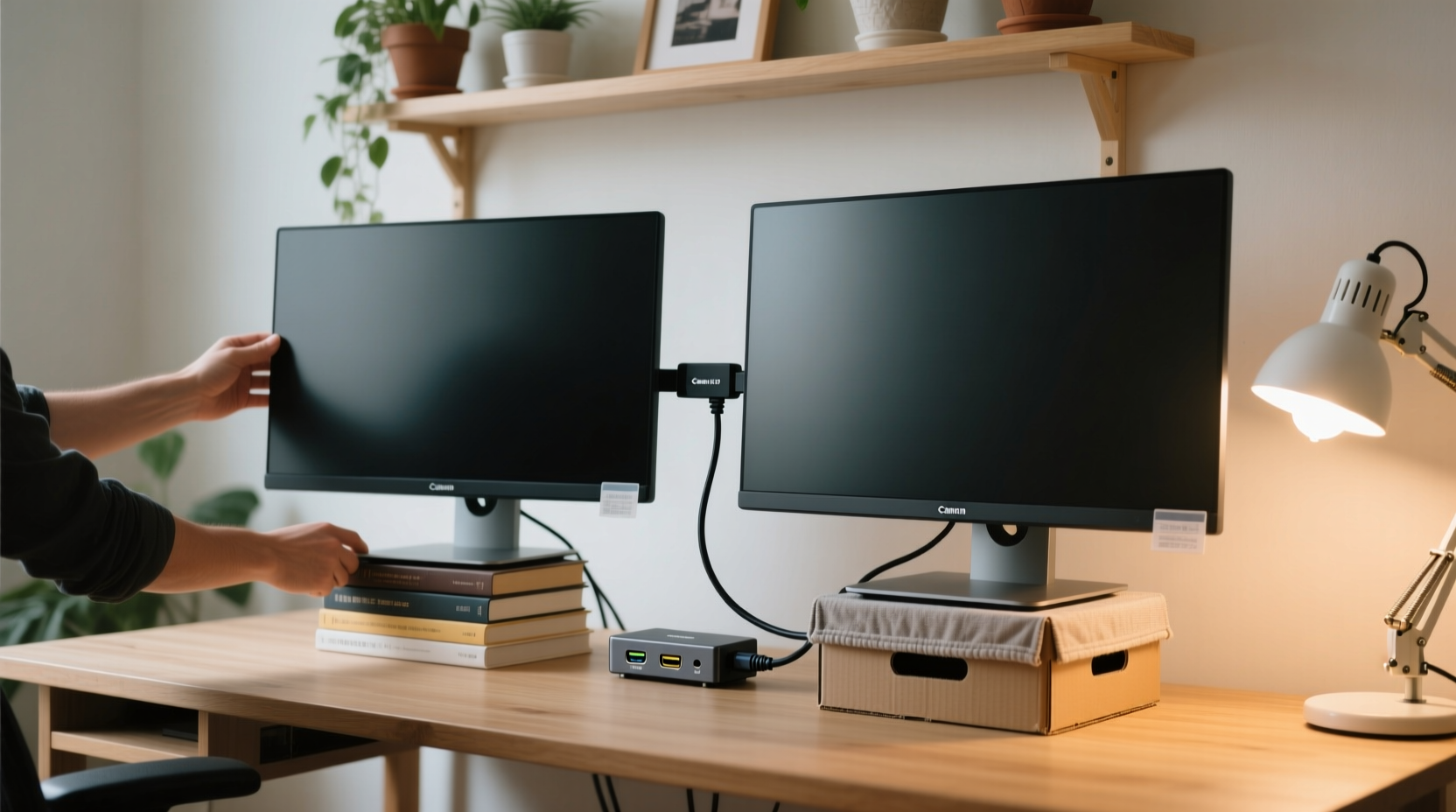
Dual monitors increase screen real estate, allowing users to keep reference material open on one side while editing on the other. According to a 2023 study by the University of Utah, workers using two monitors were up to 42% more productive in tasks involving spreadsheets, email, and document editing compared to single-screen users.
Yet high-quality dual monitor arms—with features like gas-spring height adjustment, cable management, and VESA compatibility—can easily exceed $150. For students, remote workers, or those building a starter office, that’s an impractical expense.
Instead of investing in costly hardware, consider this: most monitors come with built-in stands capable of tilt adjustment. When combined with low-cost elevation methods and clever positioning, these native stands can be part of a fully functional multi-monitor environment.
“Ergonomics isn’t about spending more—it’s about aligning your equipment with your body’s natural posture. You can achieve that with minimal investment if you know how.” — Dr. Lena Patel, Occupational Health Consultant
Step-by-Step Guide to Building a Budget Dual-Monitor Setup
Follow this practical sequence to assemble a clean, stable, and ergonomic dual-monitor configuration without overspending.
- Assess Your Monitors’ Compatibility: Check whether your monitors support VESA mounting (typically 75x75mm or 100x100mm screw patterns). Even if they do, you don’t need a VESA arm unless you're wall-mounting or using a clamp-based solution.
- Gather Materials: Collect what you already have—stackable books, wooden crates, old speaker boxes, or drawer organizers. These can serve as risers.
- Choose Primary and Secondary Placement: Place your main monitor directly in front of you at eye level. The secondary should sit slightly to the side, angled inward so both screens form a gentle curve toward your face.
- Elevate Strategically: Use sturdy objects to raise the secondary monitor so its top edge aligns with your seated eye line. Avoid wobbly stacks; secure them with non-slip pads.
- Connect and Calibrate: Plug in both monitors, extend your desktop via display settings (Windows: Win+P; macOS: System Settings > Displays), then drag windows to test positioning.
- Cable Management: Bundle cords with zip ties or use adhesive clips to route cables along the desk edge, reducing clutter and tripping hazards.
Affordable Alternatives to Premium Monitor Arms
You don’t need designer gear to get stability and adjustability. Here are five cost-effective alternatives under $50 each:
- Single-Arm Desk Clamp Mount ($25–$40): Attach one monitor to a flexible arm, leaving the other on the desk. Frees up space and allows precise angle tuning.
- Stacked Wooden Boxes or Acrylic Risers ($10–$20): Aesthetic, durable, and customizable. Paint or stain wood to match your decor.
- Repurposed Furniture Pieces: Small shelving units, printer trays, or even thick picture frames can act as platforms.
- VESA-Compatible Wall Brackets ($15–$30): Mount one monitor vertically or above your desk to save surface area.
- DIY PVC Pipe Stand (Under $15): Cut and glue PVC pipes into a custom frame that holds your monitor securely. Sand edges smooth and paint for finish.
One popular option gaining traction among frugal tech enthusiasts is the “bookshelf method”—using matching hardcover books or binders to elevate the second screen. While temporary, it works well when paired with anti-slip mats.
Do’s and Don’ts of Low-Cost Monitor Setups
| Do’s | Don’ts |
|---|---|
| Use non-slip rubber pads under stacked materials | Stack lightweight cardboard boxes or magazines |
| Align the center of the primary screen with your nose | Place the secondary monitor too far to the side (>30° angle) |
| Keep both screens at the same height (top edge level) | Mount a heavy monitor on unstable furniture |
| Test viewing angles before finalizing placement | Run loose cables across walkways |
| Invest in a basic HDMI splitter or USB-C hub if ports are limited | Ignore flickering or resolution mismatches between monitors |
Real Example: Sarah’s Home Office Upgrade on a $30 Budget
Sarah, a freelance copywriter based in Portland, needed a second screen to manage client briefs while drafting articles. Her budget was tight after purchasing a new keyboard and microphone. She had a spare 22-inch monitor but no stand.
She visited a local thrift store and bought a small wooden crate for $8. Back home, she placed her main monitor on her desk and set the second monitor atop the crate, ensuring both tops aligned with her eye level when seated. To prevent sliding, she added a silicone kitchen mat underneath the monitor.
For cable management, she used binder clips attached to the desk edge to hold HDMI and power cords neatly. Finally, she adjusted her Windows display settings to extend the desktop left-to-right. Total time: 20 minutes. Total cost: $9.99 (crate + mat).
Within days, Sarah reported reduced neck strain and faster workflow transitions. “I thought I’d need a fancy arm,” she said, “but this setup works perfectly—and looks cleaner than I expected.”
Essential Checklist for a No-Frills Dual Monitor Build
Before powering up your new dual-screen system, go through this checklist to ensure safety, functionality, and comfort:
- ✅ Confirm both monitors are securely positioned and won’t tip
- ✅ Test all video cables (HDMI, DisplayPort, etc.) for signal stability
- ✅ Adjust brightness and scaling settings so text appears consistent
- ✅ Position the mouse and keyboard centrally to minimize reach strain
- ✅ Ensure the gap between monitors isn’t too wide (ideally less than 2 inches)
- ✅ Verify that both displays are recognized by your operating system
- ✅ Use blue light filters or dark mode during evening hours to reduce eye fatigue
“The best ergonomic setup is one you’ll actually use consistently. Simplicity often beats complexity when it comes to long-term adoption.” — Mark Tran, Workplace Wellness Trainer
Frequently Asked Questions
Can I use different-sized monitors in a dual setup?
Yes, absolutely. Many professionals use a 24-inch main screen with a smaller 22-inch vertical monitor for chat apps or code navigation. Just make sure the top edges are aligned to minimize head movement. You may need to adjust scaling in your OS settings so text sizes match visually.
What if my desk is too shallow for two monitors?
If depth is limited, consider mounting one monitor on a side wall using a swing-arm bracket, or place the secondary screen behind the primary one on a taller riser. Another option is to rotate one monitor vertically (portrait mode) for reading documents or browsing code—this reduces horizontal footprint significantly.
Are wireless displays a viable alternative?
Wireless adapters like Microsoft Wireless Display or Miracast dongles can mirror or extend screens, but they introduce latency and compression artifacts unsuitable for detailed work. They’re better suited for presentations than daily productivity. Stick to wired connections for reliability.
Maximize Functionality Without Maximizing Costs
Dual monitors don’t require luxury accessories to deliver value. By leveraging existing furniture, repurposing household items, and applying basic principles of ergonomics, anyone can create an efficient workspace for under $50—or even free. The key lies in thoughtful placement, secure elevation, and attention to posture.
Whether you're launching a side hustle, studying online, or managing complex projects, a second screen offers tangible benefits. And now, you know how to access those benefits without draining your wallet.




 浙公网安备
33010002000092号
浙公网安备
33010002000092号 浙B2-20120091-4
Comments
No comments yet. Why don't you start the discussion?