
Setting up dual monitors can dramatically improve productivity, whether you're editing video, managing spreadsheets, or coding across multiple environments. But too often, the experience is ruined by a jungle of tangled cables behind your desk and persistent screen flickering that strains your eyes and disrupts focus. These problems aren’t inevitable. With the right planning, tools, and configuration, you can achieve a clean, stable, and professional dual-monitor setup that enhances both aesthetics and performance.
The key lies in combining thoughtful physical organization with technical precision. This guide walks through proven strategies for eliminating cord clutter, preventing flicker, and creating a seamless multi-display workspace that works reliably every day.
Plan Your Monitor Layout and Cable Needs
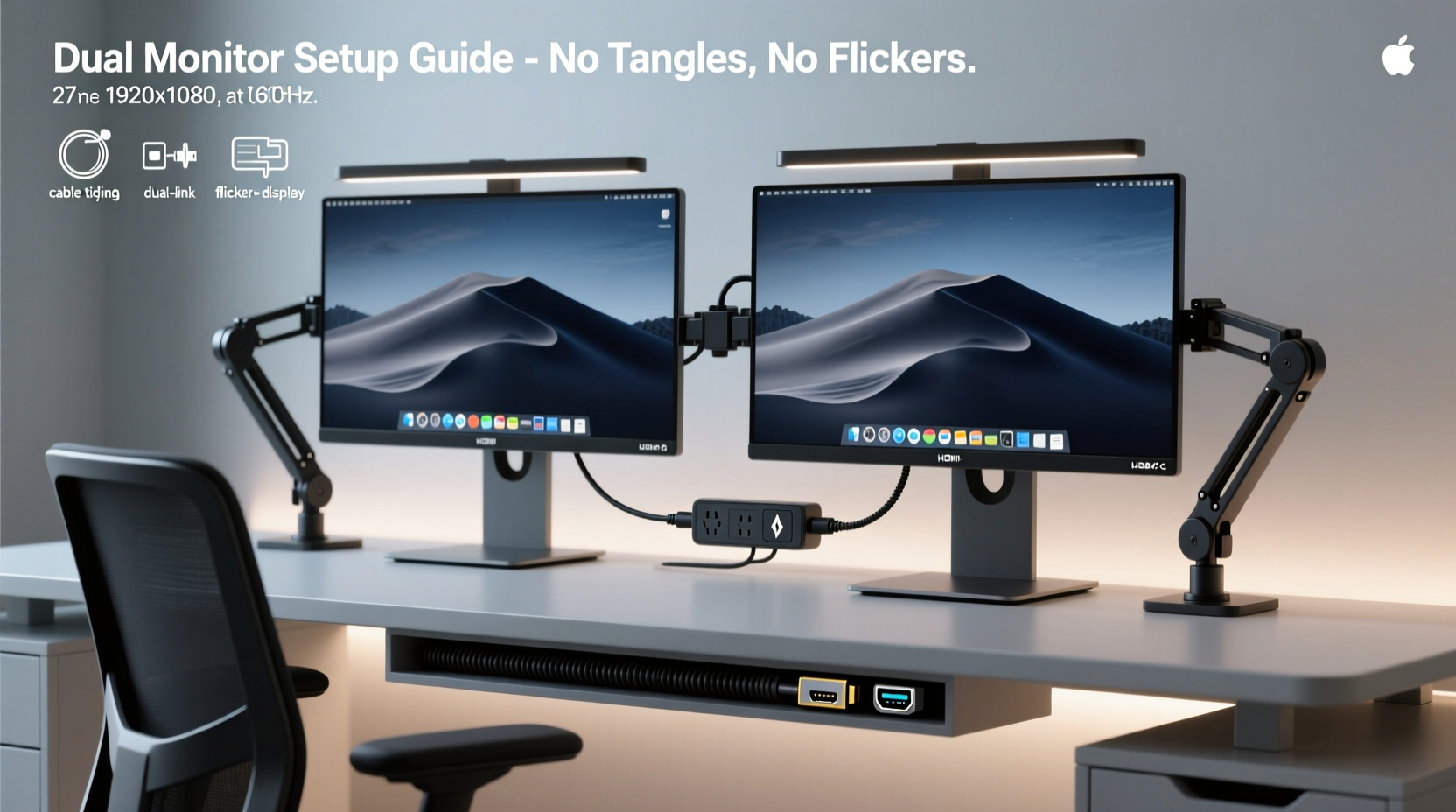
Before plugging in a single wire, take time to map out your ideal monitor arrangement. Are you placing them side-by-side, in an L-shape, or one above the other? The layout affects not only ergonomics but also cable routing efficiency. A well-planned design minimizes slack and reduces strain on ports and connectors.
Start by identifying the types of cables each monitor requires—HDMI, DisplayPort, USB-C, or DVI—and check your computer’s available output ports. Mismatched connections are a common cause of flickering, especially when using adapters or low-quality cables. If your laptop or desktop lacks sufficient video outputs, consider upgrading your GPU or using a docking station with dual video support.
Measure the distance from your computer to each monitor location. Avoid excessively long cables, as they increase electromagnetic interference (EMI) risk and signal degradation, which may lead to flickering. For runs over 3 meters (10 feet), opt for active cables or fiber optic variants designed for high-speed data integrity.
Eliminate Cord Chaos with Smart Cable Management
Tangled cords aren’t just unsightly—they create airflow blockages, make troubleshooting difficult, and increase the chance of accidental disconnections. A systematic approach to cable management transforms your workspace into a tidy, functional environment.
Begin by grouping power and data cables separately. Use Velcro straps instead of zip ties; they allow adjustments without cutting and damaging wires. Route all cables along the back of your desk using adhesive clips or a cable raceway. If you have a sit-stand desk, use retractable cable sleeves to maintain flexibility during height changes.
For a completely clean look, consider installing a desktop grommet kit. These kits include a hole cover and built-in cable channel that routes wires directly through your desk surface into a central hub or power strip below. This method hides nearly all cabling from view and prevents snagging.
“Over 70% of workstation inefficiencies stem from poor cable organization. A clean setup isn’t just visual—it improves reliability.” — James Lin, Workplace Ergonomics Consultant
Label each cable at both ends with small tags or colored tape. Knowing which HDMI goes to which monitor saves time during maintenance or reconfiguration. You can also use color-coded cables to distinguish between power, video, and peripheral connections.
Prevent Flickering with Proper Hardware and Settings
Flickering screens are more than annoying—they can trigger headaches, eye fatigue, and reduced concentration. Most flicker issues originate from incompatible refresh rates, faulty cables, or outdated drivers. Addressing these systematically ensures a smooth, stable image on both displays.
First, confirm that both monitors support the same refresh rate (e.g., 60Hz, 75Hz). Running one monitor at 60Hz and another at 144Hz can sometimes cause instability, especially if your graphics driver struggles with synchronization. Set both monitors to the highest common refresh rate supported by your system and cables.
Next, access your display settings:
- On Windows: Right-click desktop > Display settings > Advanced display settings
- On macOS: System Settings > Displays > click each display to adjust resolution and refresh rate
Ensure both monitors are running at their native resolution. Forcing a non-native resolution can introduce flicker or screen tearing. Also, disable any dynamic refresh rate features like FreeSync or G-Sync unless both monitors and your GPU fully support them.
| Issue | Possible Cause | Solution |
|---|---|---|
| Intermittent flickering | Loose or damaged cable | Reseat or replace cable; test with known-good alternative |
| Constant flicker on one monitor | Incompatible refresh rate | Match refresh rates across both displays |
| Screen dimming/flickering under load | Power-saving mode or adaptive brightness | Disable adaptive brightness in OS and monitor menu |
| Flicker only in dark scenes | PWM-based dimming (common in cheaper panels) | Increase brightness slightly or use flicker-free monitor |
Update your graphics drivers regularly. Outdated drivers are a leading cause of display instability. Visit your GPU manufacturer’s website—NVIDIA, AMD, or Intel—to download the latest certified version. After installation, reboot and recheck display behavior.
Step-by-Step Setup Guide for a Clean, Stable Dual-Monitor System
Follow this sequence to install your dual monitors correctly and avoid common pitfalls:
- Position monitors on desk: Place them at eye level, angled slightly inward for optimal viewing. Leave space between them for ventilation and easy access to ports.
- Check compatibility: Confirm your computer supports dual output and both monitors use compatible input types.
- Lay cables neatly: Run HDMI/DisplayPort cables along the desk edge using clips or raceways. Keep power cords separate.
- Connect and power on: Plug video cables into both monitors and the PC. Power on devices and verify detection.
- Configure display settings: Extend or duplicate displays based on preference. Arrange screen positions to match physical layout.
- Set uniform resolution and refresh rate: Adjust both monitors to native resolution and equal refresh rate.
- Secure and conceal cables: Bundle with Velcro, label, and route through grommets or under-desk trays.
- Test for stability: Open full-screen video, scroll rapidly, and switch apps to detect flicker or lag.
If flickering persists after initial setup, disconnect one monitor and test each individually. This isolates whether the issue is with a specific display, cable, or port.
Real-World Example: Fixing a Home Office Setup Gone Wrong
Mark, a freelance graphic designer, recently upgraded to dual 27-inch monitors to streamline his workflow. Initially excited, he quickly became frustrated. Cables snaked across his floor, tripping hazards emerged, and his secondary monitor flickered whenever he opened large Photoshop files.
After researching solutions, Mark took action. He replaced the flimsy HDMI cable with a premium shielded DisplayPort cable, updated his NVIDIA drivers, and configured both monitors to 60Hz at native 1440p resolution. He then mounted a cable management tray under his desk, routed all wires through it, and used labeled Velcro straps to group them.
The result? A sleek, tangle-free desk and perfectly stable dual-display setup. His productivity improved, and eye strain decreased significantly. “It wasn’t the monitors,” he said. “It was the details I ignored at first—the cables, the settings, the little things that make a big difference.”
Dual Monitor Setup Checklist
Use this checklist before, during, and after installation to ensure success:
- ✅ Verify GPU supports dual independent outputs
- ✅ Choose matching cable types (e.g., DisplayPort to DP)
- ✅ Test cables individually before final setup
- ✅ Position monitors for ergonomic comfort
- ✅ Route cables cleanly using clips or raceways
- ✅ Connect and power on all devices
- ✅ Access display settings and extend desktop
- ✅ Match resolution and refresh rate on both screens
- ✅ Disable adaptive brightness and power-saving modes
- ✅ Secure and label all cables
- ✅ Perform final stability test with multimedia and apps
Frequently Asked Questions
Why does my second monitor keep flickering?
Flickering on the second monitor is often due to a mismatched refresh rate, a failing cable, or insufficient GPU bandwidth. Try swapping the cable, updating your graphics driver, or lowering the resolution temporarily to test stability. Also, ensure the monitor isn’t receiving a signal through a daisy-chained connection unless explicitly supported (e.g., DisplayPort MST).
Can wireless displays eliminate cords entirely?
Wireless display tech like Miracast or Wi-Fi Direct can transmit video without cables, but they’re typically limited to mirroring rather than true extended desktops. Latency and compression artifacts make them unsuitable for professional multitasking. For now, wired connections remain the most reliable option for dual-monitor productivity.
Do I need two different video outputs on my PC?
Yes. To run dual monitors independently, your computer must have at least two video output ports (e.g., HDMI + DisplayPort, or dual DisplayPort). Some laptops support dual displays via a single Thunderbolt or USB-C port with a docking station. Check your device specifications to confirm multi-display capability.
Conclusion: Build a Cleaner, Smoother Dual-Screen Experience
A dual-monitor setup should enhance your work, not complicate it. By addressing cable clutter proactively and fine-tuning display settings for stability, you create a workspace that’s not only efficient but also enjoyable to use daily. The effort invested in proper planning and execution pays off in fewer distractions, reduced eye strain, and a polished professional appearance.
Don’t accept flickering or messy cords as normal. Apply the steps outlined here—from choosing quality cables to configuring synchronized display settings—and transform your dual-monitor experience into a model of functionality and clarity.




 浙公网安备
33010002000092号
浙公网安备
33010002000092号 浙B2-20120091-4
Comments
No comments yet. Why don't you start the discussion?