
Setting up your home or workspace with the right technology and services can feel overwhelming. From internet routers to smart speakers, printers, and streaming platforms, each device comes with its own setup process. For beginners, this can quickly turn into confusion. The good news? With a logical sequence and clear instructions, you can get everything running smoothly in under a day. This guide walks you through each essential step—from unpacking to optimizing performance—so you can enjoy seamless connectivity and convenience from day one.
1. Start with Internet and Wi-Fi Setup
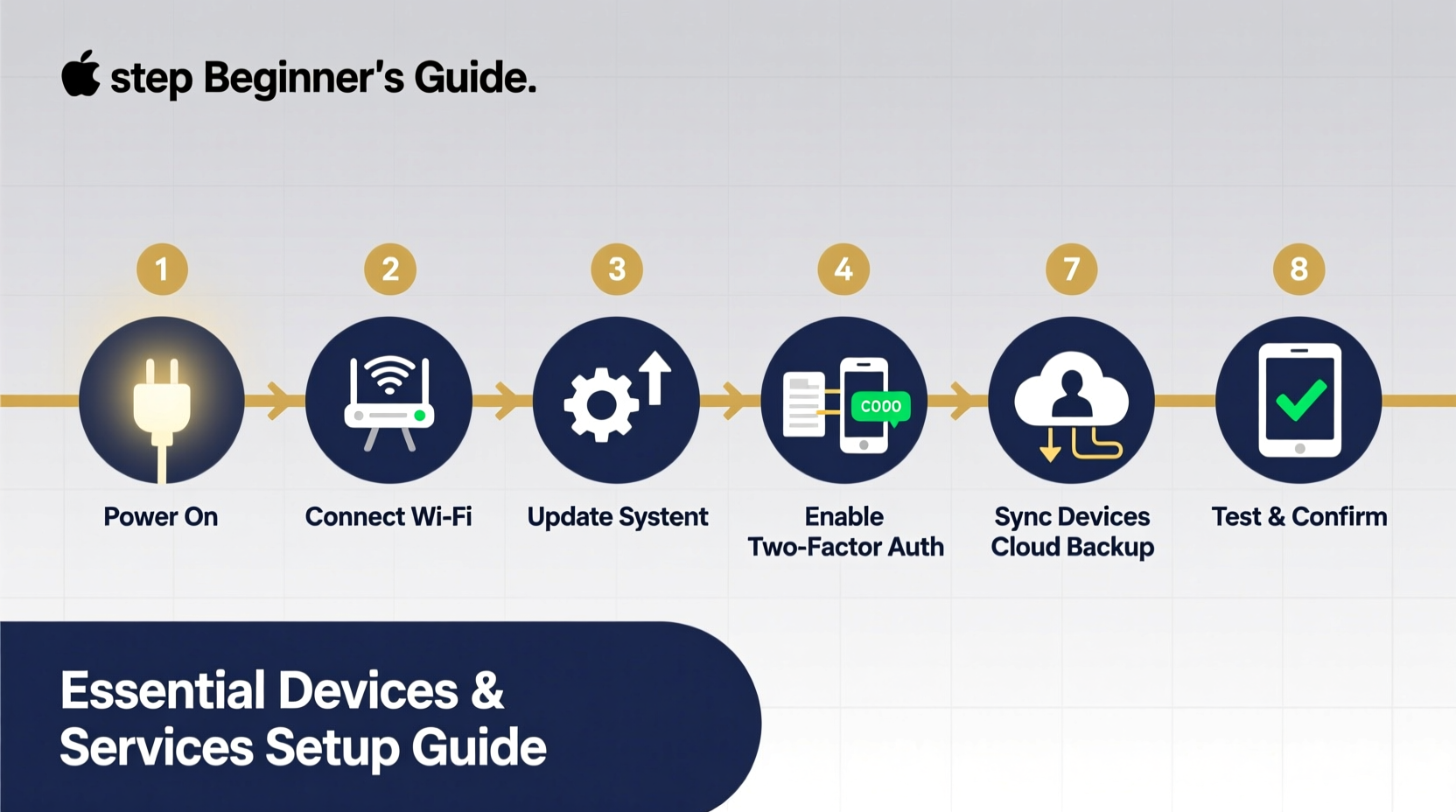
Your internet connection is the backbone of all other smart devices. Without reliable Wi-Fi, nothing else functions properly. Begin here before moving on to individual gadgets.
- Unbox your modem and router. Most providers supply a combined unit. If not, connect the modem (from your ISP) to the router using an Ethernet cable.
- Plug in the power and wait. Allow 2–3 minutes for lights to stabilize. A solid green light typically indicates a successful connection.
- Connect to the default network. Find the network name (SSID) and password printed on the router’s label.
- Open a browser and access the router settings. Enter the admin address (usually 192.168.1.1 or 192.168.0.1). Log in with the default credentials (also on the label).
- Change the Wi-Fi name and password. Use a strong password (at least 12 characters with numbers, symbols, and mixed case).
- Update firmware. Check for updates in the admin panel to ensure security and performance improvements.
2. Connect Core Devices: Smartphone, Laptop, and Tablet
Once Wi-Fi is active, connect your primary devices. These are the tools you’ll use to configure others.
- On each device, go to Wi-Fi settings and select your new network.
- Enter the password you created during router setup.
- Confirm internet access by loading a website like google.com.
- Enable automatic updates and backups (iCloud, Google Drive, etc.) to protect your data.
After connecting, consider setting up two-factor authentication (2FA) on key accounts (email, banking, social media). This adds a layer of security beyond just passwords.
3. Set Up Smart Home Essentials
Smart speakers, plugs, and displays enhance convenience. They’re also gateways to controlling other devices later.
Step-by-Step: Setting Up a Smart Speaker (e.g., Amazon Echo or Google Nest)
- Plug in the device and wait for the startup chime.
- Download the companion app (Alexa or Google Home).
- Open the app, create an account if needed, and tap “Add Device.”
- Follow prompts to connect the speaker to your Wi-Fi network.
- Test with a voice command: “What’s the weather today?”
Repeat similar steps for smart bulbs, thermostats, or doorbells. Always verify compatibility with your ecosystem (Amazon Alexa, Google Assistant, Apple HomeKit).
| Device Type | Recommended Placement | Troubleshooting Tip |
|---|---|---|
| Smart Speaker | Central room, elevated surface | Restart if voice responses lag |
| Wi-Fi Extender | Midway between router and dead zone | Match SSID to main network for seamless roaming |
| Smart Plug | Near appliances you want to control remotely | Don’t overload; check wattage limits |
4. Install and Configure Key Services
Beyond hardware, digital services power your daily life. These include email, cloud storage, streaming, and security tools.
Email and Cloud Sync
Set up your primary email account on all devices. Use IMAP to sync messages across platforms. Enable cloud backup:
- iOS: iCloud Backup (Settings > [Your Name] > iCloud > iCloud Backup)
- Android: Google One (Settings > Google > Backup)
- Windows/Mac: OneDrive or Google Drive desktop apps
Streaming Platforms
For entertainment, install apps like Netflix, Spotify, or YouTube. Sign in with your credentials. On smart TVs or streaming sticks:
- Connect the device to HDMI and power.
- Select your Wi-Fi network.
- Log in to your accounts.
- Customize profiles and parental controls as needed.
Security Essentials
Install antivirus software (like Bitdefender or Norton) on computers. Enable firewall and real-time scanning. For mobile devices, use built-in protections and avoid sideloading unknown apps.
“Over 60% of home network breaches stem from unchanged default passwords or outdated firmware.” — Sarah Lin, Cybersecurity Analyst at NetShield Labs
5. Printers, Cameras, and Peripheral Devices
These accessories often require extra attention but are vital for productivity and safety.
Wireless Printer Setup
- Unbox and assemble the printer. Insert ink cartridges and paper.
- Power on and press the Wi-Fi button (or navigate via display menu).
- Use WPS (if supported): Press WPS on router, then on printer within 2 minutes.
- Alternatively, use the printer’s app or software (HP Smart, Epson Connect) to enter Wi-Fi credentials manually.
- Install drivers on your computer or download the brand’s mobile app.
- Print a test page to confirm functionality.
Home Security Camera
For indoor or outdoor cameras (e.g., Arlo, Ring):
- Mount the camera with clear view and secure mounting.
- Charge or plug in, then pair via the manufacturer’s app.
- Connect to Wi-Fi—ensure strong signal at installation site.
- Set motion zones and alert preferences.
- Enable end-to-end encryption if available.
Mini Case Study: Maria’s First Apartment Setup
Maria moved into her first apartment and felt lost with all the tech. She started by calling her ISP to confirm her router model and login details. After placing the router centrally, she connected her phone and laptop. Using the Google Home app, she added a Nest Mini and smart bulb. She installed Netflix on her TV and set up her HP printer using the HP Smart app. Within four hours, everything worked. “I thought I’d need help,” she said, “but taking it one step at a time made it easy.”
Essential Setup Checklist
- ☐ Test internet connection and configure router
- ☐ Connect smartphones, tablets, and computers to Wi-Fi
- ☐ Update all device operating systems and apps
- ☐ Set up smart speaker and core smart home devices
- ☐ Install and log in to essential services (email, cloud, streaming)
- ☐ Configure printer and security camera
- ☐ Enable backups and password manager
- ☐ Perform final test: Can you stream, print, and control devices by voice?
Frequently Asked Questions
Why won’t my device connect to Wi-Fi even with the correct password?
This often happens due to signal interference or incorrect band selection. Ensure you're not trying to connect a 5 GHz-only device to a 2.4 GHz network (or vice versa). Restart both the device and router. If problems persist, reset the router to factory settings and reconfigure.
Can I set up multiple smart devices on the same network?
Yes, modern routers support dozens of connected devices. However, too many high-bandwidth devices (like security cameras or streaming boxes) can slow performance. Prioritize wired connections for heavy users and use Quality of Service (QoS) settings in your router to manage bandwidth.
Is it safe to use public Wi-Fi after setting up my devices?
No. Public networks are risky. Avoid accessing sensitive accounts (banking, email) on them. Use a trusted Virtual Private Network (VPN) service if remote access is necessary.
Final Steps and Ongoing Maintenance
Your setup isn’t complete until you’ve tested every function. Try sending a print job, asking your smart speaker to play music, and streaming a show on your TV. Reboot all devices once to clear any glitches.
Maintenance matters. Schedule monthly checks:
- Reboot your router to prevent slowdowns.
- Review connected devices in your router’s admin panel for unknown entries.
- Update firmware and apps regularly.
- Clear cache on streaming devices every few months.
“The most reliable systems aren’t the most advanced—they’re the ones maintained consistently.” — James Reed, IT Infrastructure Consultant
Take Action Today
You don’t need technical expertise to build a functional, secure, and smart environment. By following these steps, even complete beginners can confidently set up their essential devices and services. Don’t rush—go one device at a time. Save this guide for reference, and revisit your setup every few months to optimize performance. Technology should simplify your life, not complicate it. Start now, and enjoy the freedom of a fully connected space.




 浙公网安备
33010002000092号
浙公网安备
33010002000092号 浙B2-20120091-4
Comments
No comments yet. Why don't you start the discussion?