
For parents navigating the digital landscape of modern gaming, the Nintendo Switch offers both entertainment and challenges. While its vibrant library appeals to players of all ages, unrestricted access can expose younger users to inappropriate content or excessive screen time. Fortunately, Nintendo provides a robust parental control system through its dedicated smartphone app, allowing caregivers to set boundaries without being physically present at the console. Understanding how to configure these tools properly ensures children enjoy age-appropriate games in a balanced environment.
The key to effective control lies not just in enabling restrictions but in customizing them thoughtfully. From content ratings and playtime limits to online interactions and spending safeguards, each feature plays a role in shaping a safer gaming experience. This guide walks through every step of the process, offering practical advice and real-world applications so you can confidently manage your child’s Nintendo Switch usage.
Understanding the Nintendo Switch Parental Controls System
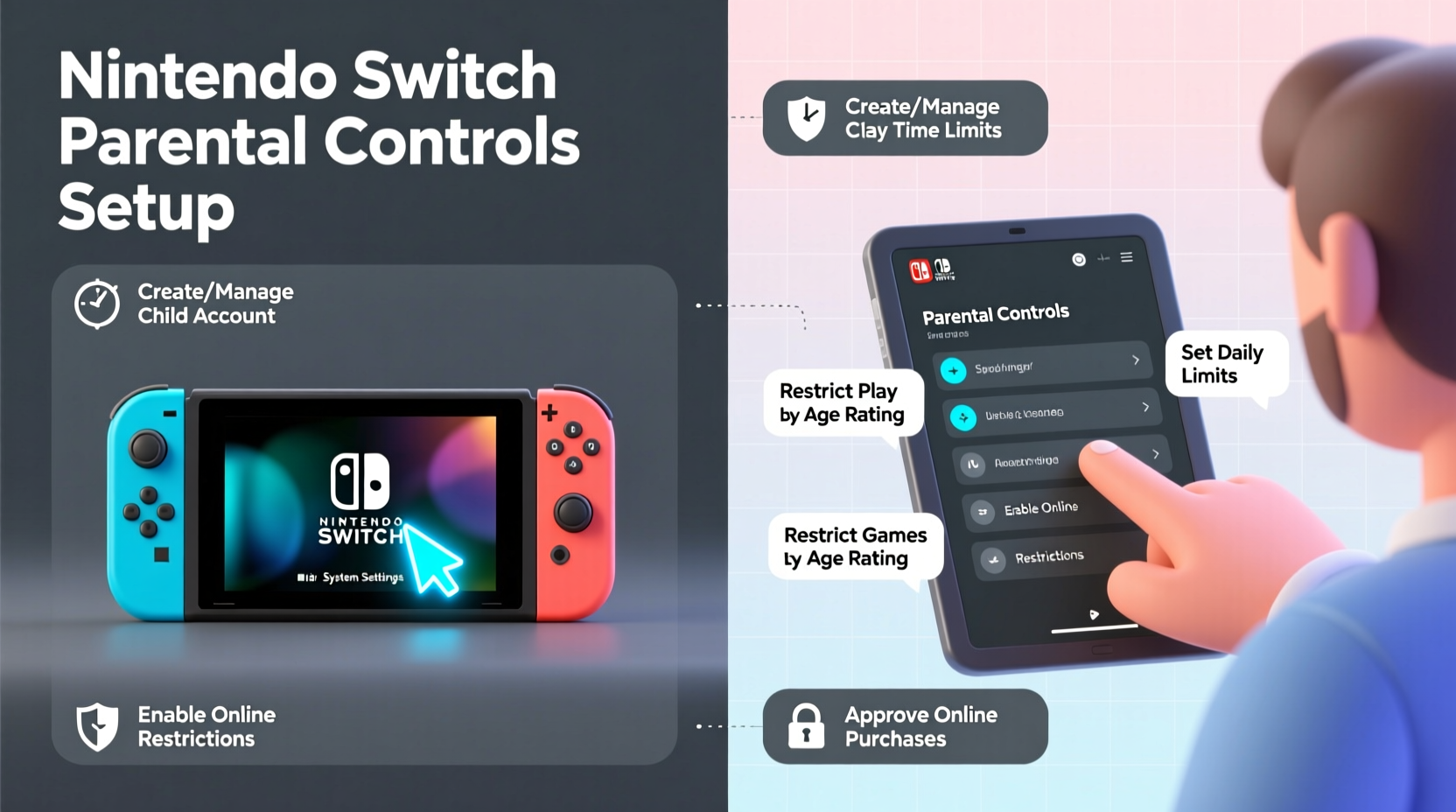
Nintendo’s approach to parental controls is unique in that it operates primarily through a mobile app rather than directly on the console. The Nintendo Switch Parental Controls app—available for iOS and Android—acts as the central hub for managing settings across one or more Switch systems linked to your account. Once connected, you can monitor gameplay activity, enforce downtime, and approve or block specific titles remotely.
This cloud-based model means you don’t need constant access to the physical device. Whether your child is playing at home or visiting a relative’s house, changes made via the app sync instantly when the Switch connects to the internet. However, this also requires an initial setup phase where the app must be paired with the console using a QR code displayed during configuration.
It's important to note that while the console itself has minimal built-in restriction options, nearly all meaningful controls are managed externally via the app. This design enhances flexibility but demands consistent use of a smartphone or tablet for ongoing management.
Step-by-Step Guide to Setting Up Parental Controls
Configuring parental controls correctly from the start prevents gaps in oversight. Follow this structured process to ensure full functionality and security.
- Download the App: Install “Nintendo Switch Parental Controls” from the Apple App Store or Google Play Store.
- Create or Log In to Your Nintendo Account: Use the same account associated with the primary user profile on the Switch.
- Launch Parental Controls on the Console: On the Switch, go to System Settings > Parental Controls > Start.
- Scan the QR Code: Open the app and select “Add a New Console.” Point your phone’s camera at the QR code shown on the TV or handheld screen.
- Name the Child’s Profile: Assign a recognizable name (e.g., “Emma – Age 9”) for easy identification in the app.
- Set a PIN: Choose a four-digit passcode known only to you. This prevents children from altering settings even if they gain access to the app.
- Review Default Restrictions: After pairing, review and adjust default settings based on your household rules.
Once linked, the app begins collecting data such as daily playtime, most-played games, and online interactions. These insights help refine future adjustments and identify potential issues early.
Managing Screen Time Limits
One of the most powerful features is the ability to set daily playtime allowances. You can define how long your child may play each day and schedule automatic shutdowns during homework hours, meals, or bedtime.
In the app, navigate to Restrictions > Play Time. Here, you can:
- Set a maximum number of minutes per day (up to 240).
- Schedule quiet periods when the console cannot be used.
- Send remote notifications to pause gameplay immediately.
If the time limit is reached, the console will display a countdown and eventually suspend gameplay until the next day—or until you manually grant additional time via the app.
“Establishing predictable gaming windows helps children develop self-regulation and reduces resistance to logging off.” — Dr. Laura Hernandez, Child Development Specialist
Controlling Game Content by Age Rating
The Switch uses the ESRB (Entertainment Software Rating Board) system to classify game content. Parental controls allow you to restrict access based on these ratings, ensuring kids only play games suitable for their maturity level.
To configure content filters:
- Open the app and go to Restrictions > Software Rating.
- Select the highest acceptable rating (e.g., \"E for Everyone,\" \"T for Teen\").
- Confirm your choice with the PIN.
Games exceeding the selected rating will be blocked from launching. Additionally, you can create exceptions for individual titles—even those above the general rating—if you’ve reviewed them personally and deem them appropriate.
| ESRB Rating | Description | Suggested Minimum Age |
|---|---|---|
| E (Everyone) | May contain mild cartoon violence or humor | 6+ |
| E10+ (Everyone 10+) | Includes fantasy violence or mild language | 10+ |
| T (Teen) | May have violence, suggestive themes, or crude humor | 13+ |
| M (Mature) | Frequent blood, strong language, or sexual content | 17+ |
Preventing Unauthorized Purchases and Online Interactions
Beyond gameplay, financial safety and social exposure are critical concerns. The Nintendo eShop allows purchases of games, DLC, and subscriptions, which can add up quickly—especially with impulsive young users.
To prevent accidental or unauthorized spending:
- Disable eShop access entirely under Restrictions > Communication & User-Generated Content > Add Friends / Send Messages.
- Require approval for any friend requests or chat attempts.
- Use purchase passwords instead of saved payment methods.
Additionally, multiplayer modes often include voice or text chat with strangers. While some games offer moderated environments, others provide open communication channels. To minimize risk:
- Turn off global matchmaking in favor of local or family-group play.
- Limit online functions to “Friends Only” mode.
- Regularly check recent activity logs in the app to see who your child interacted with.
Real Example: Managing Multiplayer Access for a 10-Year-Old
A parent in Portland noticed her son had been invited into voice chats during a popular online battle game. Concerned about exposure to inappropriate language, she opened the Parental Controls app and navigated to Communication Settings. She disabled voice chat globally and restricted messaging to approved friends only. She also reviewed the game’s ESRB rating (T for Teen) and decided to allow limited playtime only after homework completion. By combining content filtering with communication limits, she preserved the fun aspects of gaming while reducing risks.
Essential Checklist for Effective Parental Control Setup
Use this checklist to verify that all major safeguards are in place:
- ✅ Downloaded and installed the Nintendo Switch Parental Controls app
- ✅ Linked the app to the correct Switch console via QR code
- ✅ Set a secure 4-digit PIN known only to adults
- ✅ Configured daily playtime limits aligned with family routines
- ✅ Selected appropriate software rating thresholds
- ✅ Disabled or restricted online communications and friend requests
- ✅ Turned off eShop purchases or enabled password protection
- ✅ Reviewed recent activity weekly to monitor behavior trends
- ✅ Added exceptions for approved higher-rated games (if applicable)
- ✅ Enabled two-factor authentication on the Nintendo Account
Common Challenges and How to Solve Them
Even with proper setup, families may encounter obstacles. Here are frequent issues and solutions:
Problem: The app shows “No Connection” despite the Switch being online.
Solution: Ensure the console checks for updates regularly. Parental control syncing occurs during system maintenance cycles, typically once every 24 hours unless triggered manually.
Problem: A child bypasses time limits by switching user profiles.
Solution: Only create one child profile and avoid sharing the master PIN. Remove guest logins and lock account settings with your credentials.
Problem: Remote pausing doesn’t work immediately.
Solution: The pause command requires the Switch to connect to Wi-Fi. It may take several minutes to register, especially if the console is in sleep mode without internet access.
Frequently Asked Questions
Can I use parental controls without a smartphone?
No, the Nintendo Switch Parental Controls app is required to manage restrictions. There is no web-based alternative or direct console menu for setting time limits or content filters beyond basic user profiles.
Do parental controls apply to downloaded games and cartridges equally?
Yes. Whether a game is purchased digitally or played via physical cartridge, the system reads its rating and enforces restrictions accordingly. No offline loophole exists.
Can I temporarily lift restrictions for special occasions?
Absolutely. Through the app, you can send a “Play Time Reminder” or grant bonus minutes instantly. These overrides expire automatically and do not alter permanent settings.
Conclusion: Building Healthy Gaming Habits Starts with Smart Controls
Setting up parental controls on a Nintendo Switch isn’t about restricting fun—it’s about guiding responsible engagement. With thoughtful configuration, parents can foster a balanced relationship between gaming and other aspects of life, from schoolwork to sleep hygiene. The tools provided by Nintendo are comprehensive, but their effectiveness depends on consistent oversight and periodic reassessment as children grow.
Technology evolves rapidly, and so do the ways kids interact with it. Taking the time now to implement strong, personalized controls lays the foundation for safer digital habits that extend well beyond the Switch. Don’t wait for problems to arise before acting. Set up your controls today, involve your children in the conversation, and create a gaming environment that supports growth, creativity, and peace of mind.




 浙公网安备
33010002000092号
浙公网安备
33010002000092号 浙B2-20120091-4
Comments
No comments yet. Why don't you start the discussion?