
Gaming has become an integral part of modern family life, especially with consoles like the PlayStation 5 offering immersive experiences and online connectivity. While these features enrich entertainment, they also introduce concerns about screen time and exposure to age-inappropriate content. For parents, managing what children see and how long they play is essential. Fortunately, Sony has built robust parental control tools into the PS5 ecosystem, allowing caregivers to create safe, balanced gaming environments.
Unlike earlier console generations, the PS5 doesn’t handle all parental settings directly on the device. Instead, it relies on a companion app and online account management through the PlayStation Network (PSN). This shift provides greater flexibility and remote access but can be confusing at first. This guide walks you through every step needed to configure time limits, content restrictions, communication permissions, and purchase controls—ensuring your child’s gaming experience remains both fun and appropriate.
Understanding PS5 Parental Controls: How They Work
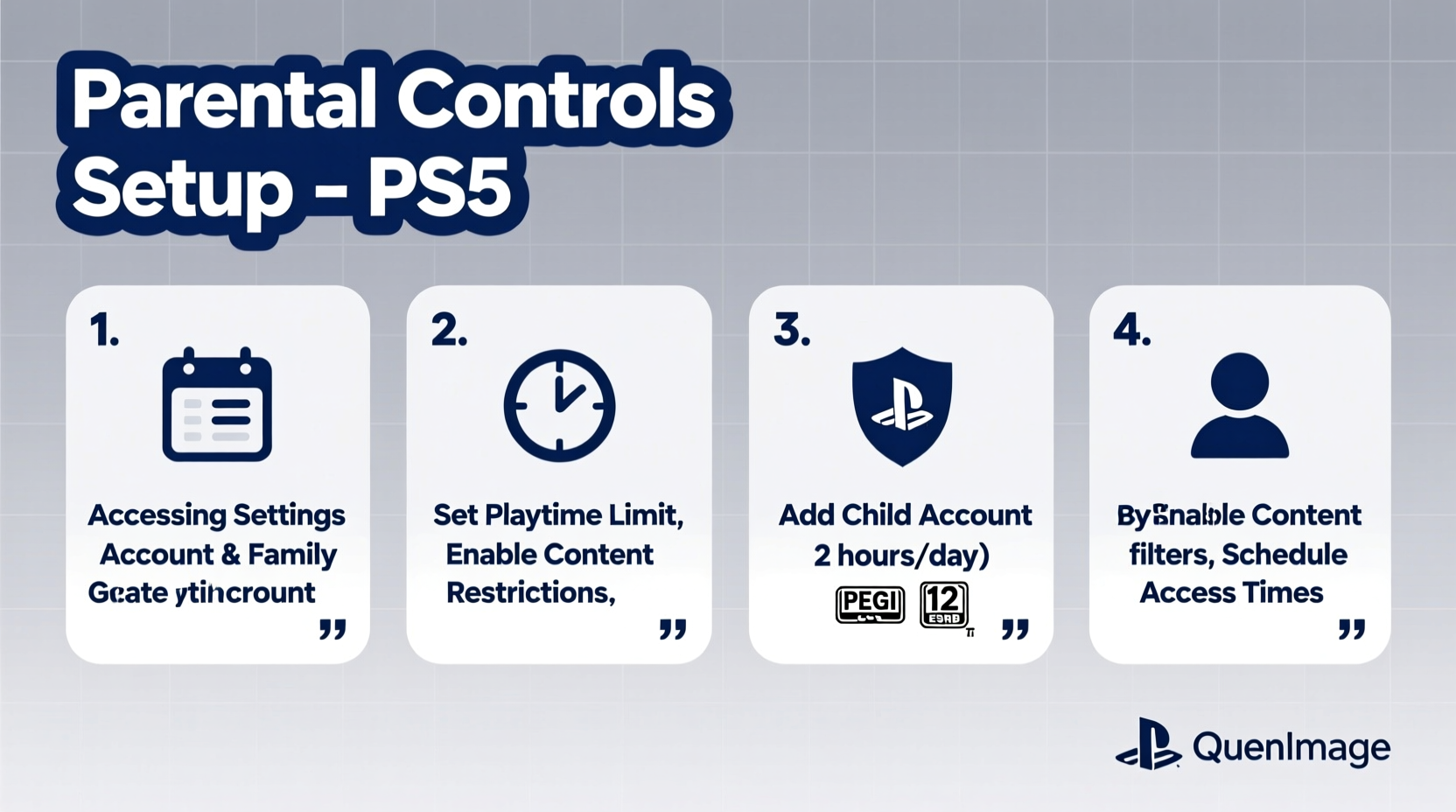
PS5 parental controls are managed through a system called Family Management, which operates via a master account (typically the parent or guardian) linked to one or more sub-accounts for children. These sub-accounts have restricted privileges that the master account can customize remotely using either the PlayStation website or the PlayStation App.
The key advantage of this cloud-based approach is that settings apply across devices. Whether your child plays on a PS5 at home or uses Remote Play on another network, the same rules remain in effect. Additionally, because the controls are tied to the PSN account rather than the console itself, switching hardware doesn’t compromise security.
Important features available under Family Management include:
- PlayTime Limits – Set daily or weekly maximums for gameplay.
- Content Restrictions – Filter games, movies, and apps by age rating.
- Communication Controls – Manage who your child can message or voice chat with.
- Purchase Permissions – Require approval for any digital store transactions.
- Sleep Mode Scheduling – Automatically suspend play after bedtime.
“Digital wellbeing starts with boundaries. The PS5’s parental tools give families real-time control over usage without removing the joy of play.” — Dr. Lena Patel, Child Technology Psychologist
Step-by-Step: Setting Up Family Management and Parental Controls
To begin using parental controls, you must first establish a Family Group. This process requires two separate PSN accounts: one for the adult (master account) and one for the child (sub-account).
Step 1: Create a Sub-Account for Your Child
- Log in to your PSN account via playstation.com.
- Navigate to “Settings” > “Family & Privacy” > “Family Management”.
- Select “Create a New Account” and follow prompts to set up a sub-account.
- Enter your child’s birthdate—this determines default content restrictions.
- Verify the account via email confirmation.
Step 2: Link the Sub-Account to Your Family Group
- From the Family Management dashboard, select “Add Member”.
- Enter the email associated with the child’s newly created PSN account.
- Send the invitation. Once accepted, the child becomes part of your family group.
- Sign in to the PS5 console with the child’s account to activate it locally.
Step 3: Configure PlayTime Limits
- In the Family Management section, select the child’s account.
- Click “PlayTime Settings” > “Daily Time Limits”.
- Set a maximum number of hours per day (e.g., 2 hours on weekdays, 3 on weekends).
- Optionally enable “Scheduled Rest Periods” to enforce breaks during school hours or bedtime.
- Save changes. The timer will now count down whenever the child plays.
When time runs out, the system prompts the user to stop playing. You can grant temporary extensions remotely via the PlayStation App if desired.
Step 4: Restrict Inappropriate Content
- Under the child’s profile, go to “Privacy Settings” > “Content & Media”.
- Select the highest allowed age rating (e.g., PEGI 12, ESRB T for Teen).
- Any game, movie, or app exceeding this rating will be blocked unless manually approved.
- You can also disable specific media types entirely (e.g., block web browsing).
Step 5: Control Online Interactions
- Go to “Communication & Multiplayer” settings for the sub-account.
- Choose whether the child can send/receive messages, join parties, or use voice chat.
- Limit interactions to “Friends Only” or disable them completely.
- Disable video sharing or screenshots if privacy is a concern.
Step 6: Prevent Unauthorized Purchases
- Navigate to “Wallet & Spending” under the child’s account.
- Select “Require Approval for Purchases”.
- Now, every transaction—whether $0.99 or $70—requires your explicit consent via push notification.
Managing Controls Remotely Using the PlayStation App
One of the most powerful aspects of PS5 parental controls is remote accessibility. With the free PlayStation App (available on iOS and Android), parents can adjust settings anytime—even when away from home.
After logging into the app with your master account, you can:
- View current playtime usage and remaining balance.
- Extend play sessions with a single tap.
- Approve or deny purchase requests instantly.
- Check recent activity logs, including games played and online interactions.
- Temporarily pause gameplay remotely (e.g., for dinner or homework time).
This level of responsiveness makes it easier to adapt to changing schedules while maintaining consistent rules. For example, granting extra weekend playtime or cutting short a session before bed becomes effortless.
Real-World Example: Managing Screen Time for a 10-Year-Old Gamer
Consider the case of Mark, a father of two in Seattle, whose youngest son, Eli, received a PS5 for his birthday. Excited by the new console, Eli began playing late into the night, often skipping homework and waking up tired.
Mark decided to implement structured controls:
- He created a sub-account for Eli and set a weekday play limit of 1.5 hours.
- Weekend limits were increased to 3 hours, encouraging moderation rather than total restriction.
- He disabled online chat and limited multiplayer access to known friends only.
- All purchases required approval, preventing accidental spending.
- Using the PlayStation App, Mark could check Eli’s activity during work breaks and occasionally approve bonus time for completing chores.
Within weeks, Eli adapted to the routine. His grades improved, sleep patterns normalized, and he still enjoyed gaming responsibly. Mark appreciated the transparency and ease of adjustments, calling the system “a digital chore chart with guardrails.”
Do’s and Don’ts of PS5 Parental Controls
| Do | Don't |
|---|---|
| Set age-appropriate content filters based on ESRB/PEGI ratings. | Use overly restrictive settings that eliminate all autonomy—this may encourage workarounds. |
| Review playtime reports weekly to spot trends. | Forget to update settings as your child grows older and matures. |
| Communicate openly about why certain limits exist. | Rely solely on technology—ongoing conversations about digital habits are just as important. |
| Use scheduled rest periods to align with school nights. | Enable unrestricted spending, even with a linked wallet. |
| Leverage the PlayStation App for real-time oversight. | Share your master account password with your child. |
Frequently Asked Questions
Can I change my child’s age on their PSN account?
Yes, but only if they haven’t reached adulthood (18+). Increasing the birth year lowers restrictions automatically. Decreasing it (to make them appear younger) requires customer support verification due to policy safeguards.
What happens when playtime runs out?
The system displays a warning five minutes before shutdown. After time expires, active games are suspended, and the console returns to the home screen. The child cannot resume until the next day—or until you grant an extension via the app.
Are parental controls enforced during offline play?
Most settings, including content filters and communication limits, still apply offline. However, precise playtime tracking requires internet connectivity. If the console is offline for extended periods, time usage may not sync accurately until reconnected.
Final Checklist: Securing Your Child’s PS5 Experience
- ✅ Create a master PSN account if you don’t already have one.
- ✅ Set up a sub-account for each child using accurate birthdates.
- ✅ Add sub-accounts to your Family Management group.
- ✅ Define daily playtime limits and rest periods.
- ✅ Adjust content restrictions by age rating (ESRB/PEGI).
- ✅ Disable unapproved communications and multiplayer features.
- ✅ Enable purchase approvals for all transactions.
- ✅ Download the PlayStation App for remote monitoring and adjustments.
- ✅ Review activity logs monthly and discuss gaming habits with your child.
- ✅ Reassess settings annually as your child grows older.
Take Control Today for a Healthier Gaming Environment
Setting up parental controls on a PS5 isn’t about restricting fun—it’s about fostering responsibility, safety, and balance. With the right configuration, children can enjoy the creativity and social benefits of gaming while staying protected from excessive screen time and inappropriate content.
The tools are already built in; they just need your attention. By investing an hour to configure Family Management, you lay the foundation for years of positive digital habits. And as your child grows, those early boundaries become lessons in self-regulation and mindful tech use.




 浙公网安备
33010002000092号
浙公网安备
33010002000092号 浙B2-20120091-4
Comments
No comments yet. Why don't you start the discussion?