
In today’s digital age, smart TVs offer endless entertainment—but they also expose children to content that may not be age-appropriate. Whether it's violent scenes, explicit language, or mature themes, unfiltered access can lead to uncomfortable conversations or developmental concerns. The good news? Setting up parental controls doesn’t require technical expertise or hours of tinkering. With a few simple steps, you can secure your family’s viewing experience across most major smart TV platforms—often in less than 10 minutes.
This guide walks you through universal strategies, brand-specific instructions, and best practices to ensure your children enjoy safe, curated content without compromising convenience for adults in the household.
Why Parental Controls Matter on Smart TVs
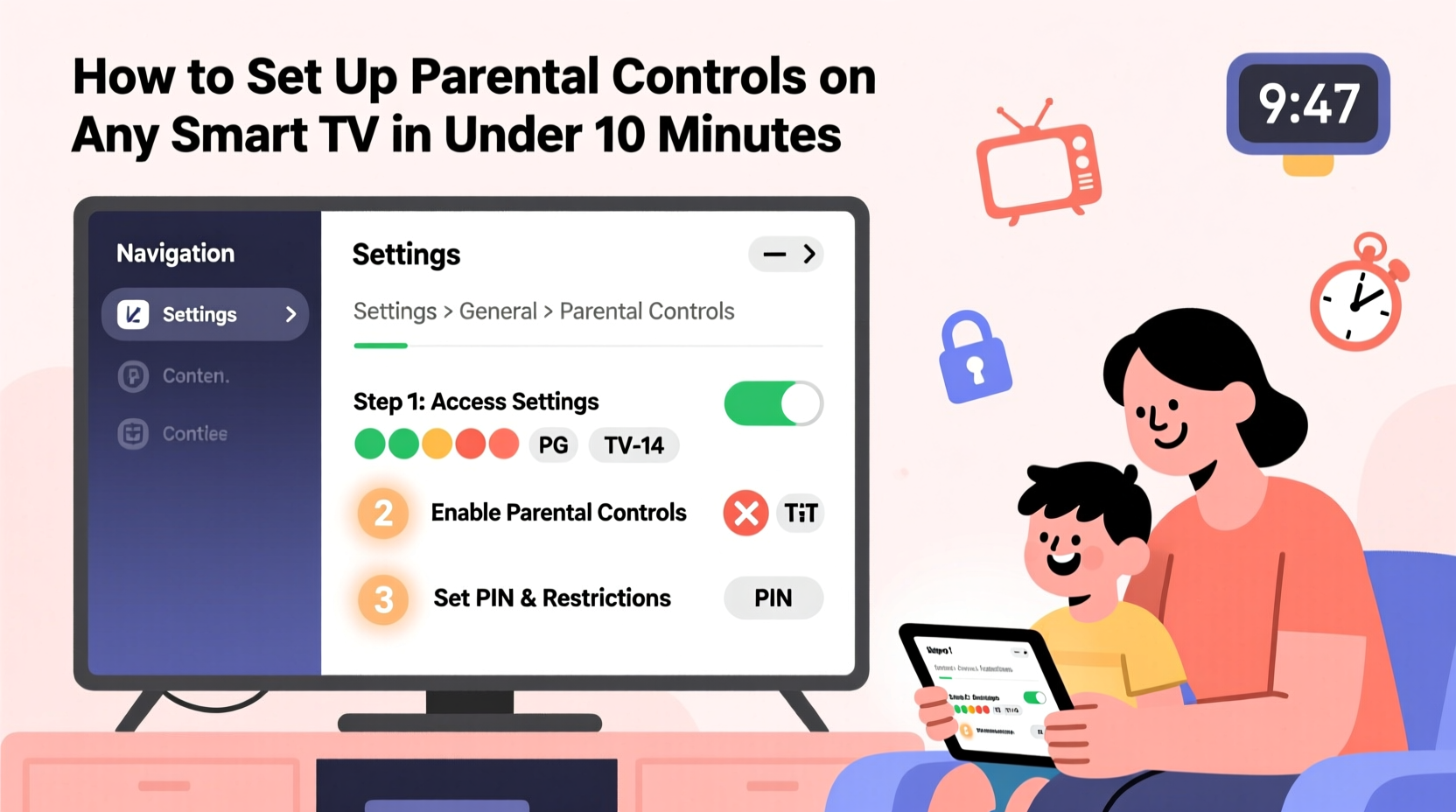
Smart TVs are no longer just devices for watching broadcast channels. They stream Netflix, YouTube, Disney+, Hulu, and hundreds of other apps—many of which host user-generated or algorithm-driven content. Unlike traditional cable, where parental locks were standardized, streaming services vary widely in their built-in safeguards. Without proper configuration, a child browsing YouTube Kids might accidentally land on regular YouTube, or a teen could stumble upon R-rated films with a single click.
“Children’s early exposure to inappropriate media can influence behavior, emotional regulation, and social development. Proactive filtering at the device level is one of the most effective ways to create a safer home environment.” — Dr. Lena Peterson, Child Development Specialist
Parental controls allow you to:
- Restrict content by age rating (e.g., block shows rated TV-MA or PG-13)
- Limit access to specific apps like YouTube or social media
- Set PIN-protected barriers for purchases or settings changes
- Control screen time with automatic shut-off features
These tools don’t replace open dialogue about media use—they enhance it by giving parents peace of mind when supervision isn’t possible.
Step-by-Step: Universal Setup Process
While every smart TV brand has slightly different menus, the underlying logic of parental controls remains consistent. Follow this general timeline to lock down your system quickly and effectively.
- Power on your TV and navigate to Settings – Usually found via a gear icon on the home screen or remote control.
- Select “General,” “System,” or “Security” – These sections typically house parental control options.
- Enable Parental Controls or Content Restrictions – Toggle the feature on and create a 4-digit PIN. Choose something memorable but not obvious (like 1234 or birth years).
- Set content filters by rating – Adjust limits based on MPAA (movies) or TV-Y7/FV (television) ratings.
- Lock specific apps or inputs – Prevent access to HDMI ports, web browsers, or streaming apps.
- Save and test the settings – Try accessing restricted content using a guest profile to verify protection works.
Samsung Smart TVs: Quick Lockdown Guide
Samsung’s Tizen OS offers robust parental tools under an intuitive menu structure.
- Press the Home button on your remote.
- Go to Settings > General > Parental Control.
- Enter your PIN (default may be 0000 if never changed).
- Choose restrictions:
- TV Viewing: Block programs above selected ratings.
- Channel Block: Hide specific channels manually.
- App Block: Disable apps like YouTube or Netflix.
- Confirm changes and exit.
Note: On newer models, some app-level restrictions must be managed within individual services (e.g., YouTube’s supervised experience).
LG WebOS TVs: Simple & Effective Filtering
LG’s WebOS platform uses a clean interface ideal for quick setup.
- Open Settings from the Home screen.
- Select All Settings > General > Security.
- Enable Parental Control and set a new PIN.
- Adjust:
- Content Rating Limits: Set maximum levels for movies and TV shows.
- Input Lock: Disable external devices (game consoles, Blu-ray players).
- Application Lock: Restrict access to non-kid-friendly apps.
- Exit and confirm functionality.
Roku TVs: Profile-Based Protection
Roku emphasizes user profiles, making it easy to customize experiences per viewer.
- From the home screen, go to Settings > Parental Controls.
- Turn on restrictions and enter a PIN.
- Choose what to limit:
- Content by rating: Apply filters for movies, TV, and games.
- Purchase PIN requirement: Prevent accidental buys.
- Channel downloads: Stop new apps from being added.
- Create a separate “Kids” profile under Settings > Accounts > Add New User.
- Link it to a supervised profile on roku.com/kids for tighter control.
Roku also integrates well with Common Sense Media ratings, helping parents identify suitable content at a glance.
Cross-Platform Comparison: Features by Brand
| Brand | Default PIN | App Blocking? | Kid Profiles? | Screen Time Scheduling? |
|---|---|---|---|---|
| Samsung | 0000 | Yes | No (but supports restricted mode) | No (requires third-party router tools) |
| LG | 0000 | Yes | Yes (“Kids” mode) | Limited (auto-shutdown after inactivity) |
| Roku | None (set during first use) | Yes | Yes (with online sync) | Yes (via mobile app scheduling) |
| Amazon Fire TV | 1234 | Yes (via Family Library settings) | Yes (Family Profiles) | Yes (with Alexa routines) |
| Apple TV | None (custom only) | Yes (via Screen Time) | Yes (child accounts) | Yes (robust time limits) |
This table highlights key differences in functionality. Apple TV and Fire TV lead in integration with broader ecosystem controls, while LG and Roku offer strong out-of-the-box simplicity.
Mini Case Study: The Martinez Family’s Solution
The Martinez family in Austin, Texas, recently upgraded to a 65-inch LG OLED TV. Their two children, ages 6 and 9, loved watching cartoons—but often ended up scrolling into mature content on free ad-supported apps like Tubi or Pluto TV. After one evening where their son watched a horror trailer autoplaying next to a kids’ show, Maria Martinez decided to act.
She spent eight minutes following the LG parental control steps outlined above. She enabled the “Kids” home screen, blocked all apps except Disney+ and PBS Kids, and set TV show limits to “TV-Y” and “TV-G” only. She also turned on input locking to prevent her husband’s PlayStation from being used without permission.
“It took less time than folding laundry,” she said. “Now I don’t have to hover behind them every time they turn on the TV. I still talk to them about what they watch, but now there’s a safety net.”
Essential Checklist: Secure Your Smart TV Now
Use this checklist to ensure full protection across any model:
- ☐ Set a strong PIN
- Not 1234 or 0000. Store it safely offline.
- ☐ Enable content filters by rating
- Cap movie and TV ratings at appropriate levels (e.g., PG or TV-PG).
- ☐ Block high-risk apps
- Disable YouTube, TikTok, or social media apps unless absolutely necessary.
- ☐ Lock external inputs
- Prevent unauthorized devices from connecting via HDMI.
- ☐ Create child-specific profiles
- If supported, use dedicated profiles with filtered content.
- ☐ Test the restrictions
- Log in as a child would and attempt to bypass limits.
- ☐ Review monthly
- Update settings as kids grow or new apps are installed.
Common Mistakes to Avoid
Even with the best intentions, users often make errors that undermine parental control effectiveness.
- Using weak or default PINs – Hackable codes defeat the purpose of locking content.
- Forgetting to update restrictions – A 12-year-old doesn’t need the same limits as a 6-year-old.
- Assuming app-level controls are enough – Many apps lack granular filtering; always enable system-wide locks too.
- Ignoring guest access – Unlogged users can sometimes bypass restrictions unless fully disabled.
- Not enabling purchase protection – Children may accidentally buy premium content or subscriptions.
“Technology evolves faster than parenting guides. Regular audits of your smart TV settings should be part of digital hygiene—just like checking smoke detectors.” — Mark Tran, Digital Safety Consultant
FAQ: Common Questions About Smart TV Parental Controls
Can I remotely manage parental controls?
Yes, on certain platforms. Roku and Amazon Fire TV allow management via smartphone apps. Apple TV integrates with iCloud Family Sharing, letting parents adjust Screen Time limits remotely. Samsung and LG currently require local access to the TV itself.
What if I forget my PIN?
Recovery options vary. Some brands allow resets using account credentials (e.g., Roku linked to email). Others, like older Samsung models, may require a factory reset—erasing all data. Always document your PIN in a secure place like a password manager.
Do parental controls work on streaming sticks and boxes?
Absolutely. Devices like Roku Stick, Amazon Fire Stick, and Apple TV support the same controls as built-in smart TVs. In fact, because they operate independently of the TV hardware, their restrictions often apply across multiple screens when connected.
Final Thoughts: Take Action Today
Setting up parental controls on a smart TV isn’t just a technical chore—it’s an essential part of modern parenting. The process is fast, free, and far more reliable than hoping your child won’t click the wrong thumbnail. Within 10 minutes, you can establish boundaries that protect young minds while still allowing flexibility for adult viewing.
Don’t wait for an awkward moment to prompt action. Most major brands make it easier than ever to filter content, block apps, and create kid-safe environments. Start tonight. Pick up the remote, follow the steps for your model, and breathe easier knowing your family’s screen time is both enjoyable and responsible.




 浙公网安备
33010002000092号
浙公网安备
33010002000092号 浙B2-20120091-4
Comments
No comments yet. Why don't you start the discussion?