
Streaming services have become a staple in modern households. With platforms like Netflix, Disney+, Hulu, Amazon Prime Video, and YouTube offering vast libraries of content, it's easier than ever for children to access entertainment. However, not all content is suitable for young viewers. Without proper safeguards, kids can stumble upon material that’s violent, explicit, or developmentally inappropriate. The good news? Setting up parental controls doesn’t require technical expertise or hours of trial and error. In just a few minutes, you can create a safer viewing environment across every major streaming platform.
Why Parental Controls Matter in the Streaming Era
Today’s children are digital natives. They often navigate devices more intuitively than adults. While this technological fluency is impressive, it also means they can bypass unsecured apps or profiles with ease. According to a 2023 report by Common Sense Media, over 70% of children aged 8–12 watch streaming content daily—often without direct supervision.
Unrestricted access increases exposure to mature themes, strong language, and even harmful behavior modeled in certain shows. Parental controls act as a digital gatekeeper, allowing caregivers to filter content based on age ratings, restrict account permissions, and monitor viewing habits—all without removing the benefits of educational or entertaining programming.
“Setting boundaries isn’t about restriction—it’s about enabling safe exploration. Just like we childproof a home, we need to digitally safeguard our media environments.” — Dr. Lena Patel, Child Development & Technology Researcher
Step-by-Step Guide to Enabling Parental Controls
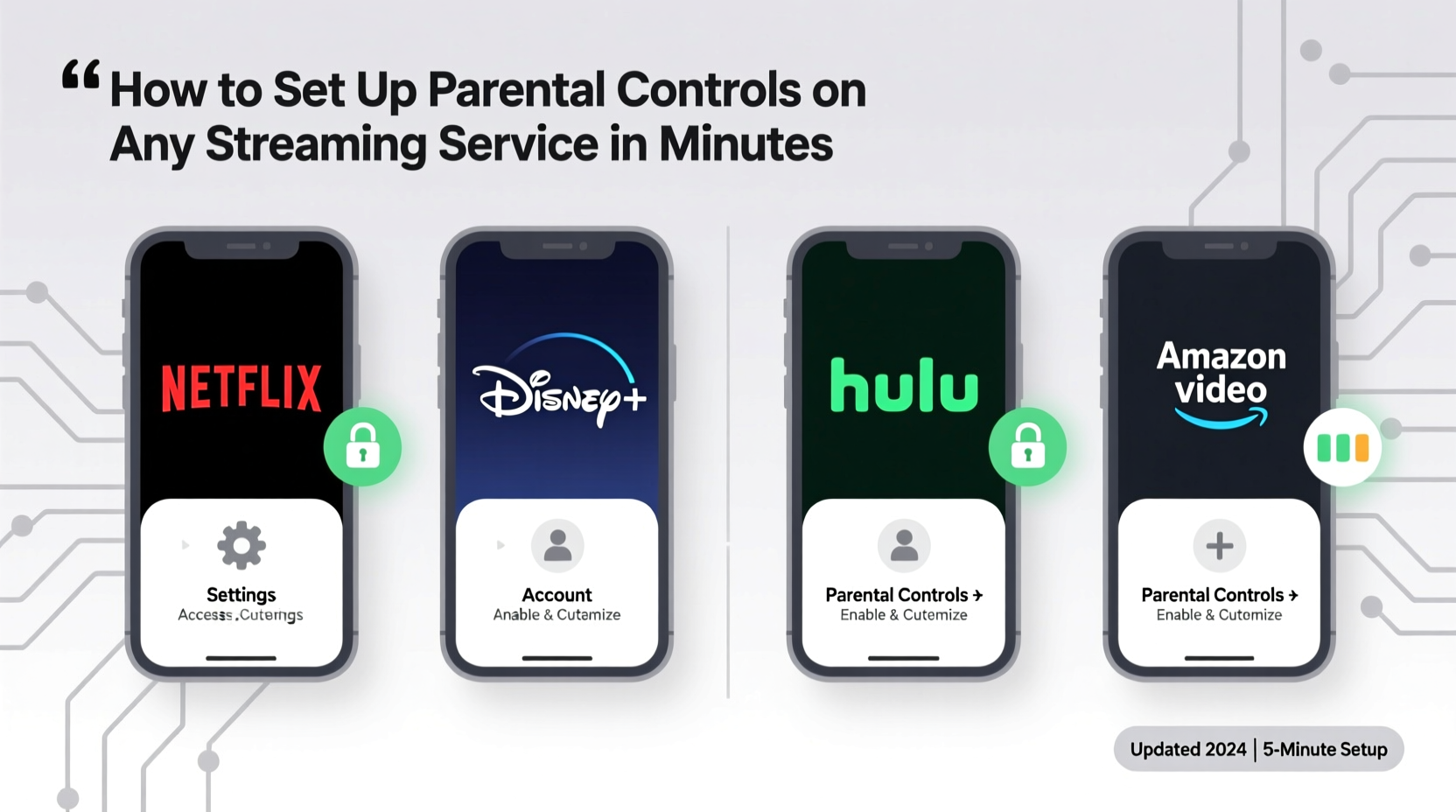
The process varies slightly between platforms, but the core principles remain consistent: access account settings, adjust maturity levels, and secure profile access. Follow these universal steps to protect your family across most streaming services.
- Log into the primary account: Use the admin or owner credentials for the streaming service. This ensures full access to settings.
- Navigate to ‘Settings’ or ‘Account’: Look for options like “Parental Controls,” “Viewing Restrictions,” or “Profile & Parental Controls.”
- Select the user profile: Apply restrictions to individual profiles, especially those used by children.
- Set maturity level or content rating limits: Choose an appropriate TV or movie rating (e.g., TV-Y7, PG, TV-14).
- Create a PIN or password: Prevent children from changing settings by locking preferences behind a code only adults know.
- Review and confirm changes: Test the profile by browsing content to ensure filters work correctly.
Platform-Specific Setup Instructions
Each streaming service structures its controls differently. Below is a breakdown of how to configure protections on five major platforms.
Netflix
- Go to Manage Profiles under your account settings.
- Select the child’s profile and click Edit.
- Scroll to Allowed TV Shows and Movies and choose a maturity level (e.g., \"Kids\" or custom rating).
- Enable Ask to Play for additional oversight on borderline content.
- Set a four-digit PIN under Parental Controls to lock changes.
Disney+
- Open the app and tap your profile icon.
- Select Parental Controls and enter your password.
- Choose Content Ratings and set maximum levels for movies and series.
- Optionally enable Pin Protection for purchases or profile switches.
Hulu
- From the home screen, go to Account.
- Under Settings, find Parental Controls.
- Toggle it on and select the highest allowed rating (e.g., TV-14).
- Enter a four-digit PIN when prompted.
- Note: Hulu Kids profiles automatically filter content and disable search functions.
Amazon Prime Video
- Visit Prime Video Settings via the website or app.
- Select Parental Controls and choose Set Restrictions.
- Pick a content rating limit (e.g., PG-13).
- Enter a PIN. This same PIN applies across all devices linked to the account.
- For extra safety, use Amazon Kids+ profiles, which offer time limits and curated content.
YouTube & YouTube Kids
- On mobile, open the YouTube app and tap your profile picture.
- Select Settings > General > Restricted Mode and toggle it on.
- To make it persistent, lock Restricted Mode with a passcode in the app settings.
- For younger users, download YouTube Kids, where parents can approve channels and set timers.
- In YouTube Kids, enable Approved Content Only mode for maximum control.
Comparison Table: Parental Control Features Across Platforms
| Service | Content Rating Limits | PIN Protection | Kids-Specific Profile | Search Restrictions |
|---|---|---|---|---|
| Netflix | Yes (per profile) | Yes | Yes | No |
| Disney+ | Yes (account-wide or per profile) | Yes | Yes | Yes (in Kids mode) |
| Hulu | Yes | Yes | Yes (Hulu Kids) | Yes |
| Amazon Prime Video | Yes | Yes | Yes (via Amazon Kids+) | Limited |
| YouTube | Restricted Mode (partial) | Yes (on mobile) | Yes (YouTube Kids) | Yes (in Restricted/Approved modes) |
Real Example: How One Family Secured Their Streaming Experience
The Thompsons, a family of four in Austin, Texas, noticed their 9-year-old son was watching action-packed superhero shows rated TV-PG and above—content they hadn’t realized was accessible. After a conversation revealed he found them through Netflix’s “Because You Watched” suggestions, they decided to act.
Within 15 minutes, they created a dedicated “Kids” profile on Netflix, set the maturity cap at TV-Y7, and enabled Ask to Play for anything higher. They repeated similar steps on YouTube, activating Restricted Mode and installing YouTube Kids with approved-only content. They also set up Google Family Link on the tablet, syncing time limits and content filters across apps.
Six weeks later, they reported fewer arguments about screen time and greater confidence in what their children were watching. “It wasn’t about banning fun shows,” said Maria Thompson. “It was about making sure the system supports our values, not overrides them.”
Essential Checklist: Secure Your Streaming Accounts in Under 10 Minutes
Use this actionable checklist to implement effective parental controls across all your services:
- ✅ Log into each streaming account using the main admin profile.
- ✅ Identify profiles used by children or guests.
- ✅ Set content rating limits based on age and maturity.
- ✅ Enable PIN or password protection to lock settings.
- ✅ Activate kids-specific modes (e.g., YouTube Kids, Hulu Kids).
- ✅ Disable auto-play and limit search functions where possible.
- ✅ Review monthly viewing activity to spot any anomalies.
- ✅ Sync with device-level controls (iOS, Android, smart TVs).
Avoid These Common Mistakes
Even well-intentioned efforts can fall short if common pitfalls aren’t addressed:
- Using the same profile for everyone: Shared profiles make filtering impossible. Always assign individual accounts.
- Forgetting the PIN: Store your PIN securely but accessibly—never share it with children.
- One-time setup without review: Children grow, and so do their viewing needs. Reassess controls every 6–12 months.
- Ignoring device-level settings: A locked Netflix profile won’t help if unrestricted YouTube is available on the same tablet.
- Assuming “kids” categories are foolproof: Algorithms sometimes misclassify content. Supervise early usage to catch errors.
“Technology evolves fast, but consistent oversight doesn’t have to be complicated. Ten minutes a month keeps your family’s digital space aligned with your parenting goals.” — Jordan Lee, Digital Safety Consultant
Frequently Asked Questions
Can I customize content filters within a kids' profile?
Yes, many platforms allow granular control. On Netflix, for example, you can restrict content by maturity level and enable “Ask to Play” for specific titles. YouTube Kids lets you approve or block individual videos and channels manually.
What if my child figures out the PIN?
If a PIN is compromised, change it immediately. Most services allow you to reset the code under Parental Controls. Consider using a non-obvious number (not birthdays or 0000). For added security, combine it with device-level authentication like Face ID or fingerprint locks.
Do parental controls work offline or on downloaded content?
Generally, yes. Once restrictions are applied, they sync across devices—even when offline. Downloaded content adheres to the profile’s rating limits. However, ensure the device has synced with the account before going offline to avoid outdated permissions.
Take Control Today—Safeguard Tomorrow
Setting up parental controls on streaming services is one of the fastest and most impactful steps you can take to protect your family’s digital well-being. The entire process takes less than ten minutes per platform and pays dividends in peace of mind. Whether you’re managing a household with toddlers or teens, these tools empower you to align screen time with your family’s values.
Don’t wait for an uncomfortable conversation to prompt action. Audit your current settings tonight. Create dedicated profiles, lock down permissions, and layer in device controls. Small steps today build a safer digital foundation for years to come.




 浙公网安备
33010002000092号
浙公网安备
33010002000092号 浙B2-20120091-4
Comments
No comments yet. Why don't you start the discussion?