
Finding the right balance between fun and safety is essential when children use gaming consoles. The Nintendo Switch offers a robust, free parental control system that lets you manage gameplay time, restrict content by age rating, and monitor activity—all from your smartphone. Setting it up takes less than five minutes and can be done remotely. Whether your child is playing *Animal Crossing*, *Super Mario Odyssey*, or exploring online worlds, these tools give you peace of mind without disrupting their enjoyment.
The Nintendo Switch Parental Controls app, available for iOS and Android, connects directly to your console through the internet. It allows real-time monitoring and adjustments, meaning you don’t need to be in the same room as the device. This flexibility makes it one of the most user-friendly parental systems among modern gaming platforms.
Why Parental Controls Matter on Nintendo Switch
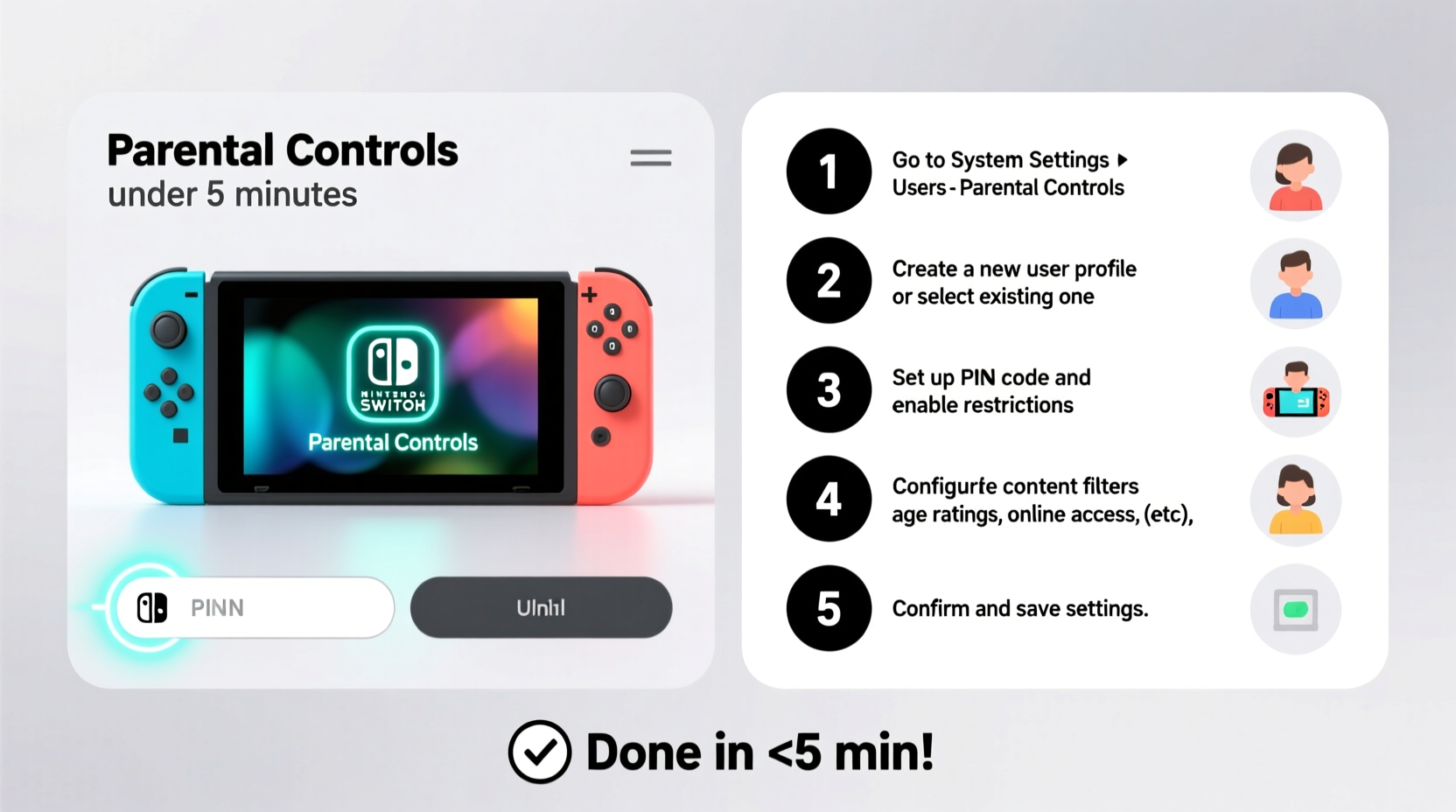
The Nintendo Switch blends education, creativity, and entertainment, but unrestricted access can lead to excessive screen time or exposure to inappropriate content. While Nintendo games are generally family-friendly, some titles carry age ratings that may not suit younger players. Additionally, features like voice chat in online multiplayer games introduce social interactions that require supervision.
According to the American Academy of Pediatrics, consistent digital boundaries help children develop healthy relationships with technology. Parental controls aren't about restriction—they're about enabling safe exploration. With the Nintendo Switch, you can tailor the experience to match your family's values and your child’s maturity level.
“Digital safety starts with proactive tools. The Nintendo Switch parental system gives parents visibility and control without being intrusive.” — Dr. Linda Park, Child Development & Technology Researcher
Step-by-Step: Setting Up Parental Controls in Under 5 Minutes
The entire setup process is intuitive and designed for non-tech-savvy users. You’ll need your smartphone and access to the Nintendo Switch console (or confirmation that it’s connected to Wi-Fi).
- Download the Nintendo Switch Parental Controls App
Go to your smartphone’s app store—App Store (iOS) or Google Play (Android)—and search for “Nintendo Switch Parental Controls.” Download and install the free app. - Open the App and Create a Parent Account
Launch the app and tap “Continue.” You’ll be prompted to sign in with an existing Nintendo Account or create a new one. Use your personal email—this will be the parent account. - Link the App to Your Nintendo Switch Console
On the Switch console, go to System Settings → Parental Controls → Start Setup.
A QR code will appear on the screen. Use your phone’s app to scan the QR code. This securely pairs the app with your console. - Confirm Connection and Assign Child Profile
Once linked, the app will detect the user profiles on the Switch. Select the profile used by your child. If no profile exists, create one now on the console (Settings → Users → Add User). - Set Basic Restrictions
In the app, go to “Restrictions” and adjust:
- Play Time: Set a daily limit (e.g., 60 minutes).
- Software Rating: Choose age-appropriate limits (e.g., allow ESRB E only).
- Screenshot Sharing: Disable if desired.
Confirm changes. You’re done.
What Happens After Setup?
Once configured, the app runs in the background. You’ll receive notifications when gameplay begins and when time limits are reached. The child cannot bypass restrictions without the parent PIN, which you set during account creation. If they attempt to exceed playtime, the console displays a countdown and then locks further gameplay until the next day—or until you approve additional time via the app.
Key Features of the Nintendo Switch Parental Controls App
The app offers more than just time limits. Understanding its full capabilities helps you make informed decisions about your child’s digital environment.
| Feature | Description | Benefit |
|---|---|---|
| Play-Time Timer | Set daily maximum play duration. | Prevents overuse and encourages balanced routines. |
| Activity Log | View what games were played and for how long. | Transparency without constant monitoring. |
| Content Filters | Restrict games by ESRB or PEGI age ratings. | Blocks mature content automatically. |
| Remote Suspend | Pause gameplay instantly from your phone. | Useful for dinner, homework, or bedtime. |
| Spending Alerts | Get notified before in-game purchases. | Prevents accidental spending on DLCs or coins. |
These tools work together to create a holistic safeguarding system. For example, if your 7-year-old tries to launch *Splatoon 3* (rated E10+), and your settings only allow E-rated games, the console will block access. Similarly, if they’ve used up their 45-minute daily allowance, they’ll need your approval to continue.
Customizing Restrictions for Different Ages
One size doesn’t fit all. A 6-year-old needs tighter limits than a responsible 13-year-old. The system supports tailored configurations based on developmental stages.
- Ages 3–6: Limit to E-rated games only, cap playtime at 30–45 minutes per day, disable internet communication.
- Ages 7–10: Allow E10+ titles, set 60-minute daily limits, enable activity logs to review weekly habits.
- Ages 11–13: Permit T-rated games with discussion, allow flexible time on weekends, use remote suspend for schedule changes.
- Teens 14+: Focus on transparency—use activity logs instead of strict limits, encourage self-regulation.
Mini Case Study: The Thompson Family
The Thompsons have two kids: Mia, age 8, and Liam, age 12. Both love the Switch, but their parents noticed Liam was staying up late playing *Mario Kart* online, while Mia was accidentally making microtransactions in *Animal Crossing*. They decided to act.
Using the parental controls app, they set Mia’s profile to ESRB E-only, disabled spending, and limited her to 40 minutes per day. For Liam, they allowed E10+ games, set a 90-minute weekday cap, and enabled spending alerts. They also used the remote suspend feature to pause gameplay during homework hours.
Within a week, screen time became predictable, and both children adapted to the new routine. The parents appreciated the app’s ease of use and the ability to adjust rules on the fly—like extending playtime on rainy weekends. Most importantly, conflicts over screen time decreased significantly.
Common Mistakes to Avoid
Even simple systems can be misused. Here are frequent errors parents make—and how to avoid them.
- Not setting a strong parent PIN
- Using \"0000\" or \"1234\" makes it easy for tech-savvy kids to bypass restrictions. Choose a unique 4-digit code only you know.
- Forgetting to update age settings
- Children grow quickly. A game that was too mature at age 7 might be appropriate at 10. Review restrictions quarterly.
- Over-restricting without explanation
- Blocking all online features may frustrate older kids. Discuss the reasons behind rules to build trust and understanding.
- Ignoring the activity log
- The log isn’t just data—it reveals patterns. If your child plays the same game for hours daily, it might indicate engagement or obsession. Use insights wisely.
Essential Checklist: Secure Your Nintendo Switch in 5 Minutes
Follow this checklist to ensure a complete and effective setup:
- ✅ Download the Nintendo Switch Parental Controls app on your smartphone
- ✅ Sign in with your Nintendo Account (create one if needed)
- ✅ Turn on the Switch and navigate to System Settings → Parental Controls → Start Setup
- ✅ Scan the QR code using the app
- ✅ Select your child’s user profile in the app
- ✅ Set daily playtime limit (start with 60 minutes if unsure)
- ✅ Choose software rating limit (e.g., ESRB E for young kids)
- ✅ Disable screenshot sharing and in-app purchases if desired
- ✅ Test the connection by starting a game on the Switch
- ✅ Save your parent PIN in a secure place (not on the phone!)
Frequently Asked Questions
Can I use parental controls without a smartphone?
No, the Nintendo Switch Parental Controls app requires a smartphone (iOS or Android) to function. However, once set up, restrictions remain active even if the phone is off. There is no web-based dashboard alternative at this time.
What happens if my child tries to delete the app or change settings?
The app cannot be deleted from the Switch without the parent PIN. All critical changes—such as disabling restrictions or removing the linked account—require authentication via the parent’s Nintendo Account.
Can I set different limits for weekdays and weekends?
The app does not currently support separate weekday/weekend schedules. However, you can manually adjust the timer daily or grant extra time remotely when needed. Many parents use this flexibility to allow longer play on Saturdays or holidays.
Maximizing Safety Beyond the Basics
While the built-in tools are powerful, consider layering additional safeguards:
- Enable Family Link (Google) or Screen Time (Apple): If your child uses a mobile device to access the app, restrict their phone usage during sleep or study hours.
- Discuss online behavior: Teach kids not to share personal information or accept friend requests from strangers—even in seemingly safe games.
- Use a dedicated family network: Some routers allow device-specific time limits. Combine this with Switch controls for double protection.
- Review game ratings together: Visit esrb.org to read detailed content descriptors. Make informed choices as a team.
Remember, technology is a tool—not a replacement for conversation. The best outcomes happen when controls are paired with open dialogue about digital responsibility.
Conclusion: Take Control Today—It Only Takes Five Minutes
Setting up parental controls on the Nintendo Switch is fast, free, and effective. In less time than it takes to brew a cup of coffee, you can establish boundaries that promote healthy gaming habits and protect your child from unintended risks. The system is designed with families in mind—flexible enough for growing kids, secure enough for peace of mind.
Don’t wait for screen-time battles or surprise in-app bills to take action. Open the app store, download the Nintendo Switch Parental Controls app, and follow the steps outlined here. Within minutes, you’ll have a smarter, safer gaming environment at home.




 浙公网安备
33010002000092号
浙公网安备
33010002000092号 浙B2-20120091-4
Comments
No comments yet. Why don't you start the discussion?