
In today’s digital landscape, streaming devices like Roku, Apple TV, Amazon Fire Stick, and Google Chromecast are central to home entertainment. While they offer endless content, they also expose children to material that may be inappropriate, overwhelming, or simply unsuitable for their age. Parental controls are essential—but too often, they’re implemented half-heartedly, leaving gaps that tech-savvy kids quickly exploit. A strong setup isn’t just about enabling a PIN; it’s about creating a layered, consistent, and monitored system across all platforms and devices.
This guide walks through the practical steps to configure robust parental controls on major streaming platforms, eliminate common loopholes, and maintain long-term oversight. The goal is not to restrict access entirely but to create a safe, age-appropriate environment where families can enjoy media together with confidence.
Understanding the Risks: Why Loopholes Matter
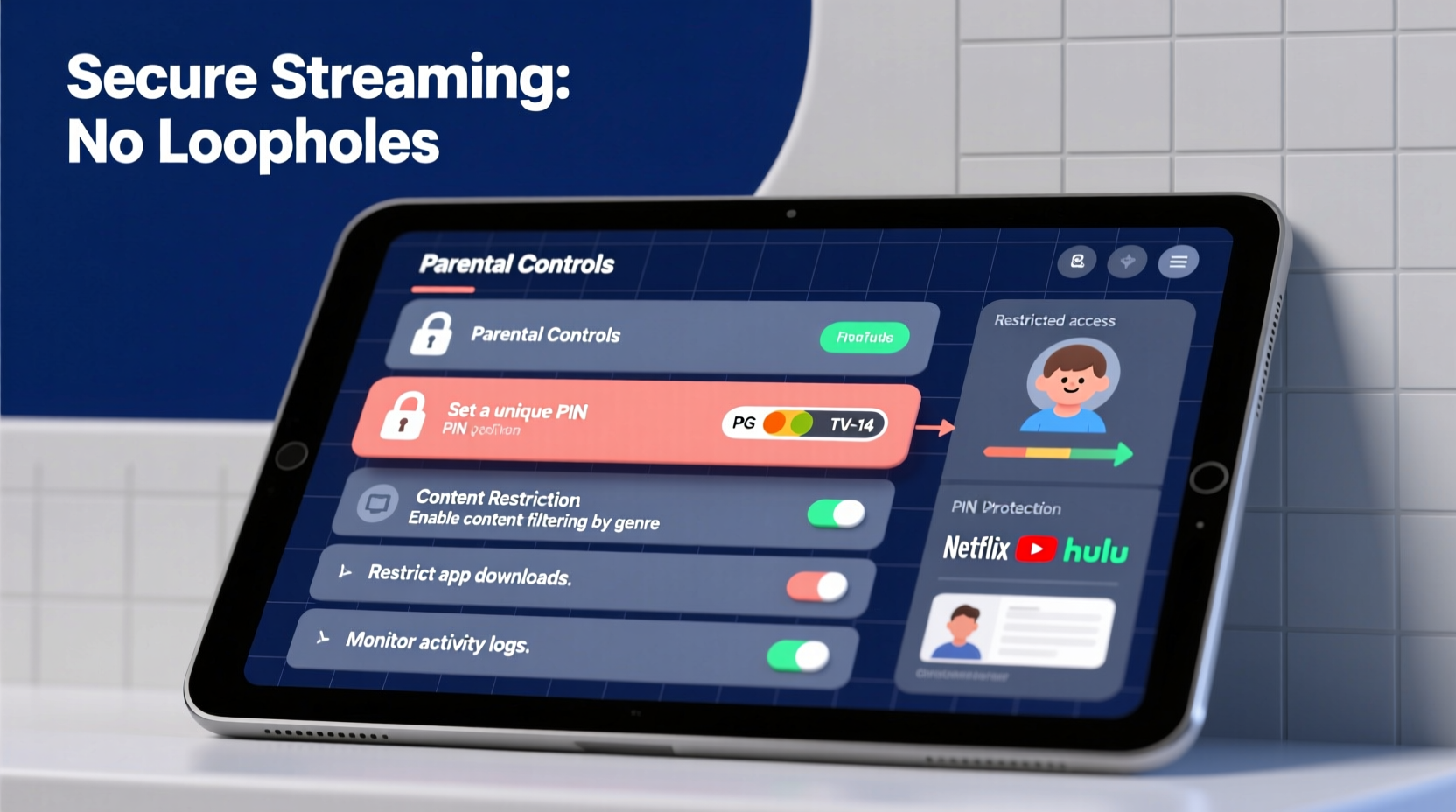
Many parents believe that setting a simple PIN on Netflix or YouTube Kids is enough. However, children today grow up immersed in technology. They learn quickly—often faster than adults—and will test boundaries. Common workarounds include:
- Using guest profiles to bypass restrictions
- Switching accounts via shared family logins
- Accessing unrestricted browsers on smart TVs
- Downloading unapproved apps from app stores
- Resetting device settings using default passwords or recovery options
A 2023 report by the Family Online Safety Institute found that over 60% of children aged 8–14 had accessed restricted content at least once, often through minor oversights in parental control configurations. The problem isn’t lack of tools—it’s inconsistent application and weak enforcement.
“Effective digital parenting isn’t about locking everything down. It’s about creating guardrails that adapt as your child grows.” — Dr. Lena Patel, Child Development & Digital Media Researcher, Stanford University
Step-by-Step Setup Across Major Platforms
To build a truly secure system, you must configure parental controls at multiple levels: the streaming device itself, individual apps, network settings, and user behavior. Below is a comprehensive timeline to implement full coverage.
- Inventory all devices: List every streaming device in your home (Fire Stick, Roku, Apple TV, etc.) and note which services are installed.
- Create dedicated child profiles: Use built-in profile systems to separate adult and child accounts.
- Set platform-specific restrictions: Configure content ratings, disable purchases, and lock settings.
- Secure network access: Use router-level filtering to block unrestricted traffic.
- Monitor usage regularly: Review watch history and adjust settings as needed.
- Educate your children: Explain why certain limits exist to foster cooperation rather than resistance.
Amazon Fire TV & Fire Stick
Fire devices come with robust parental controls under “Parental Controls” in Settings. Here’s how to lock it down:
- Navigate to Settings > Parental Controls.
- Enable Parental Controls and set a strong 4-digit PIN (avoid birthdays).
- Restrict content by maturity rating (e.g., block anything above TV-PG).
- Disable app downloads and in-app purchases.
- Turn off the browser if not needed—many kids use Silk Browser to circumvent filters.
Roku Devices
Roku offers a two-tiered approach: device-level restrictions and channel-specific locks.
- Go to Settings > Parental Controls.
- Set a PIN and enable content restrictions based on MPAA or TV ratings.
- Use “Channel Lock” to hide specific apps like YouTube or social media.
- Prevent new channel additions with a PIN requirement.
- Disable screen mirroring to avoid sideloading content from phones.
Apple TV
iOS-based controls make Apple TV one of the most secure platforms when configured properly.
- Open Settings > Screen Time.
- Enable Screen Time passcode (different from device unlock).
- Set content & privacy restrictions: limit movies, TV shows, and apps by age rating.
- Block explicit music, podcasts, and web content.
- Disable Siri from searching for mature content.
For added security, disable iCloud sign-in on the child’s profile to prevent syncing with unrestricted devices.
Google Chromecast & Android TV
Chromecast relies heavily on mobile device controls since it mirrors content.
- Use Google Family Link to manage child accounts.
- Link the child’s Google account to the TV and apply content filters.
- On Android TV, go to Settings > Users & Accounts > Restrictions and set a PIN.
- Disable Google Play Store installations from unknown sources.
- Turn off voice search if it allows unrestricted queries.
Eliminating Common Loopholes
Even well-configured devices can fail if underlying vulnerabilities aren’t addressed. Below are frequent escape routes and how to close them.
| Loophole | Solution |
|---|---|
| Kid uses parent’s profile when they’re asleep | Require password on wake-up and disable auto-login |
| Downloads third-party apps with no filters | Disable unknown app sources and lock app store access |
| Uses phone to cast unrestricted content | Manage casting permissions via Family Link or device settings |
| Resets device to factory settings | Store recovery codes securely and disable reset without admin login |
| Accesses unfiltered web browser on smart TV | Uninstall or disable the browser entirely |
Network-Level Protection: The Hidden Layer
Most parental controls operate at the device or app level, but true security starts at the router. By filtering content at the network level, you ensure protection even if a child switches devices or logs into a guest account.
Modern routers from brands like Netgear (via Circle), ASUS (with AiProtection), and Google Nest Wifi support built-in parental controls. These allow you to:
- Filter websites by category (violence, adult content, gambling)
- Set time limits for internet access
- Pause connectivity during bedtime or homework hours
- Monitor real-time activity across all connected devices
For example, using Circle Home Plus, you can assign profiles to each family member and apply different rules per device. You can block YouTube entirely during school hours or allow only educational sites after dinner.
If your router lacks these features, consider installing open-source firmware like OpenDNS. By changing your DNS settings to OpenDNS Family Shield, you automatically filter adult content across every device on the network—no configuration required.
Real-World Example: The Thompson Family
The Thompsons, a family of four in Portland, struggled with their 10-year-old accessing violent video game trailers on YouTube via the living room Fire Stick. They had set a PIN, but the child discovered that switching to “Guest Mode” removed all restrictions.
After consulting a digital wellness coach, they took the following steps:
- Disabled Guest Mode in Fire TV settings.
- Created a dedicated child profile with TV-Y7 restrictions.
- Installed OpenDNS on their router to filter adult content network-wide.
- Enabled weekly email reports from Google Family Link to monitor activity.
- Held a family meeting to explain the new rules and the reasons behind them.
Within two weeks, unsupervised viewing dropped by 90%. More importantly, their son began asking permission before watching something new—a sign of growing digital responsibility.
Essential Checklist for Secure Setup
Use this checklist to ensure no step is missed when securing your streaming ecosystem.
- ✅ Inventory all streaming devices and associated accounts
- ✅ Create separate child profiles on each device
- ✅ Set strong, non-obvious PINs for parental controls
- ✅ Disable guest modes and auto-login features
- ✅ Restrict content by age rating (TV-Y7, PG, etc.)
- ✅ Block or remove web browsers on smart TVs
- ✅ Disable app downloads and in-app purchases
- ✅ Enable network-level filtering via router or DNS
- ✅ Monitor viewing history weekly
- ✅ Educate children on digital safety and expectations
Frequently Asked Questions
Can kids bypass parental controls with a VPN?
Yes, technically. If a child installs a VPN app on a device with unrestricted access, they can mask their traffic and view blocked content. To prevent this, disable app installations from unknown sources and monitor for unfamiliar apps. On managed networks, block known VPN domains at the router level.
What if my streaming service doesn’t have built-in parental controls?
Services like Hulu, Disney+, and HBO Max do offer controls, but smaller or niche platforms may not. In such cases, rely on device-level restrictions and network filtering. For example, even if an app lacks a PIN, you can block its installation or restrict its internet access during certain hours.
How often should I update my parental control settings?
Review settings every 3–6 months, or whenever your child advances to a new developmental stage. A 6-year-old might need TV-Y only, while a 12-year-old can responsibly handle TV-PG with supervision. Adjusting limits shows trust and encourages responsible behavior.
Final Thoughts: Security Through Consistency
Setting up parental controls isn’t a one-time task. It’s an ongoing process that requires vigilance, adaptation, and communication. Technology evolves, and so do children. The most effective systems combine technical safeguards with open dialogue. When kids understand the reasoning behind restrictions, they’re less likely to seek ways around them.
Start today by auditing one device. Then expand to others. Use the checklist, leverage network-level tools, and stay involved. The goal isn’t perfection—it’s progress toward a safer, more intentional digital home environment.




 浙公网安备
33010002000092号
浙公网安备
33010002000092号 浙B2-20120091-4
Comments
No comments yet. Why don't you start the discussion?