
Finding the right balance between protecting children from inappropriate content and allowing them to enjoy their favorite shows can be a challenge for modern parents. With an ever-expanding library of content across platforms like Netflix, Disney+, Hulu, and Amazon Prime Video, unrestricted access can expose kids to mature themes, violence, or language not suitable for young audiences. At the same time, overly restrictive settings may prevent them from watching age-appropriate favorites like animated classics or educational series.
The good news is that today’s streaming services offer advanced parental control features that allow granular customization—so you don’t have to choose between safety and enjoyment. By leveraging profile-specific restrictions, content ratings filters, and PIN protection, families can create a viewing environment that’s both secure and flexible. This guide walks through practical strategies to implement effective parental controls while preserving access to beloved programs.
Understanding Modern Parental Control Features
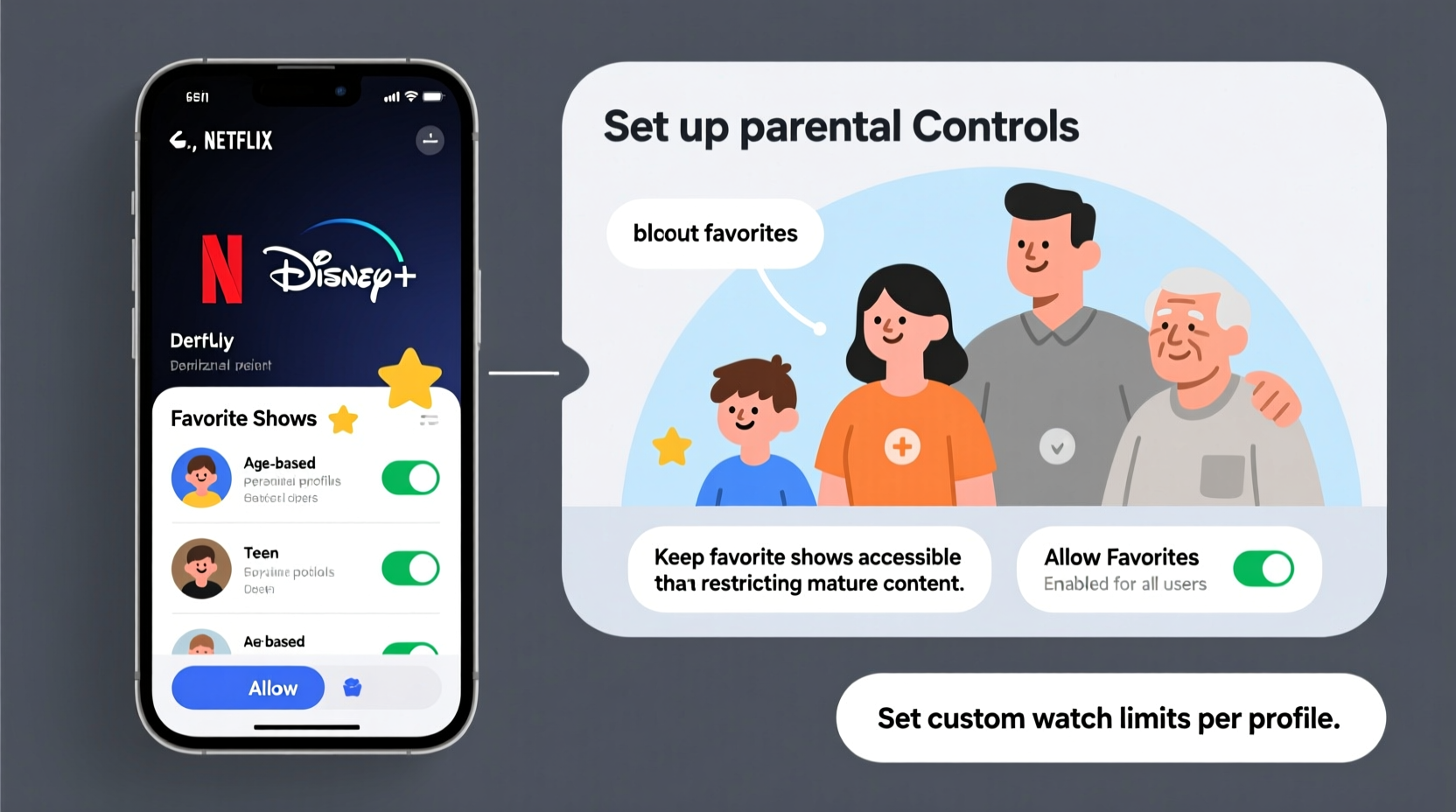
Streaming platforms have evolved significantly in how they handle content moderation. Unlike early TV parental locks that simply blocked entire channels or services, current systems use layered approaches based on user profiles, maturity ratings, and password protection. Most major platforms now support individualized accounts within a single subscription, enabling different rules for each family member.
These tools typically rely on MPAA-style rating systems (e.g., TV-Y7, PG, TV-14, R) or platform-specific classifications (like “Little Kids” on Netflix). You can restrict content by these ratings rather than outright banning specific titles. This means your child might still watch *Bluey* or *Paw Patrol* even if other shows at the same maturity level are restricted—provided the filtering threshold allows it.
Crucially, many services also let you manually approve or block individual titles. This hybrid model gives parents the precision needed to maintain safeguards without sacrificing personalization.
Step-by-Step: Configuring Profiles with Smart Restrictions
Setting up separate user profiles is the foundation of effective parental control. Each major streaming service handles this slightly differently, but the core principles remain consistent. Follow this universal timeline to configure profiles safely while preserving access to favorites.
- Create Individual Profiles: Start by setting up unique profiles for each family member. Label them clearly (e.g., “Emma – Age 8,” “Dad – Adult”) to avoid confusion.
- Assign Age-Based Restrictions: Navigate to account settings and apply age-appropriate content limits. For example, set a child’s profile to allow only TV-Y and TV-G content.
- Use Built-In Maturity Filters: On Netflix, go to \"Manage Profiles\" > \"Viewing Restrictions\" and select a PIN-protected maturity level. On Disney+, enable Kids Profiles which automatically limit content to age-appropriate material.
- Add Approved Titles Manually: If a favorite show falls just outside the allowed rating (e.g., a mild TV-PG cartoon), check whether the platform allows exceptions. Some apps let you unlock specific titles using a parent PIN.
- Test the Setup: Log into the child’s profile and search for both restricted and permitted content to confirm filters work as intended.
- Review Monthly: Reassess restrictions every few weeks, especially as children grow or new shows are added to the service.
This approach ensures that controls evolve with your child’s maturity level while minimizing friction during daily use.
Platform-Specific Strategies for Key Services
Different platforms offer varying degrees of control. Knowing the nuances helps you make informed decisions without over-blocking content.
| Service | Profile Types | Content Filtering | Manual Approvals | PIN Protection |
|---|---|---|---|---|
| Netflix | Up to 5 personalized profiles | Maturity levels (up to TV-MA) | No direct approval list; bypass via PIN | Yes – required for changing settings |
| Disney+ | Up to 7 profiles, including “Kids” mode | Kids profiles auto-filter mature content | No manual approvals, but all content is pre-vetted | Yes – for switching to adult profiles |
| Hulu | Limited profiles depending on plan | Parental controls via device settings | Not supported directly; use linked devices | Yes – for accessing higher-rated content |
| Amazon Prime Video | Up to 6 household profiles | Content restrictions by maturity rating | Yes – “Watchlist Unlock” with PIN | Yes – customizable per profile |
| YouTube / YouTube Kids | Multiple supervised accounts | Age-based filtering or curated content | Yes – parents can approve channels/titles | Yes – Google Family Link integration |
For instance, Netflix allows you to temporarily enter a PIN to watch a restricted title on a child’s profile, which is useful when co-viewing something slightly above their usual range—like *The Incredibles* with mild action scenes. Meanwhile, Amazon Prime Video lets you build a whitelist of approved content, ensuring key favorites remain accessible regardless of rating.
“Modern parental controls should empower families, not frustrate them. The goal isn't elimination of risk—it's guided exposure.” — Dr. Lena Torres, Child Development & Media Researcher, University of California
Real Example: The Martinez Family’s Streaming Setup
The Martinez family includes two parents and three children aged 6, 9, and 13. They wanted a system where younger kids couldn’t access violent superhero movies, but the 13-year-old could still watch age-appropriate Marvel films like *Spider-Man: Homecoming*. They used Netflix and Disney+ across multiple devices.
They created five distinct profiles and applied tiered restrictions:
- The youngest child’s profile was set to “Little Kids” mode on Disney+ and limited to TV-Y7 on Netflix.
- The middle child had access to most animated series and mild live-action shows (TV-PG).
- The teenager’s profile allowed TV-14 content but required a PIN for anything rated TV-MA.
When the family wanted to watch *Encanto* together—a film loved by all—they ensured it remained available across profiles. For occasional exceptions, like letting the 9-year-old watch *Zootopia* (rated PG for brief thematic elements), they used the temporary PIN override on Netflix.
By reviewing settings monthly and discussing viewing choices openly, the parents maintained trust while enforcing boundaries. The result? Fewer conflicts over screen time and greater peace of mind.
Best Practices Checklist
To ensure your parental controls are both effective and sustainable, follow this actionable checklist:
- ✅ Create a separate profile for every family member
- ✅ Set appropriate maturity levels based on age and sensitivity
- ✅ Enable a strong, non-obvious PIN known only to adults
- ✅ Use platform-specific features like “Kids Mode” or “Supervised Accounts”
- ✅ Whitelist or manually approve essential favorite titles
- ✅ Regularly review watched history to spot unintended access
- ✅ Educate children about why certain content is restricted
- ✅ Avoid sharing adult profile passwords—even casually
- ✅ Sync controls across devices (smart TVs, tablets, phones)
- ✅ Update settings as children grow older or show increased maturity
Frequently Asked Questions
Can I allow specific shows without lowering overall restrictions?
Yes, some platforms like Amazon Prime Video allow you to unlock individual titles with a parent PIN. While Netflix doesn’t support permanent whitelisting, you can temporarily view restricted content by entering the PIN when prompted. Consider using third-party parental control apps (like Kiddle or Qustodio) if deeper customization is needed.
What happens if my child figures out the PIN?
If a PIN is compromised, change it immediately through the account settings menu. Choose a number that isn’t easily guessed (avoid birthdays or simple sequences like 1234). Additionally, reinforce digital responsibility through conversation—explain that bypassing controls breaks family rules and may lead to reduced privileges.
Do parental controls work offline or on downloaded content?
Most services enforce restrictions even on downloaded videos. For example, Netflix downloads respect the profile’s maturity settings and will not play restricted content without authentication. However, once downloaded, there’s no real-time monitoring—so periodic checks are advised.
Final Thoughts: Safety Without Sacrifice
Setting up parental controls doesn’t mean stripping away joy or limiting entertainment options. With thoughtful configuration, today’s streaming platforms can offer a safe, enriching experience that respects both developmental needs and personal preferences. The key lies in using intelligent filters, maintaining open communication, and revisiting settings as your family evolves.
Technology should serve families—not complicate them. By investing a small amount of time upfront to configure profiles correctly, you gain long-term confidence that your children are exploring content that aligns with your values—while still enjoying the shows they love.




 浙公网安备
33010002000092号
浙公网安备
33010002000092号 浙B2-20120091-4
Comments
No comments yet. Why don't you start the discussion?