
Finding the right balance between protecting younger viewers and preserving viewing freedom for teens and adults is a common challenge in today’s connected households. With multiple family members sharing devices and accounts, unrestricted access to mature content can be concerning—yet locking down everything often leads to frustration. The good news is that most major streaming platforms offer nuanced parental control tools that allow for smart filtering, profile-based restrictions, and time management—without requiring blanket bans. When configured thoughtfully, these tools protect children while respecting autonomy for older users.
Understanding the Modern Streaming Household
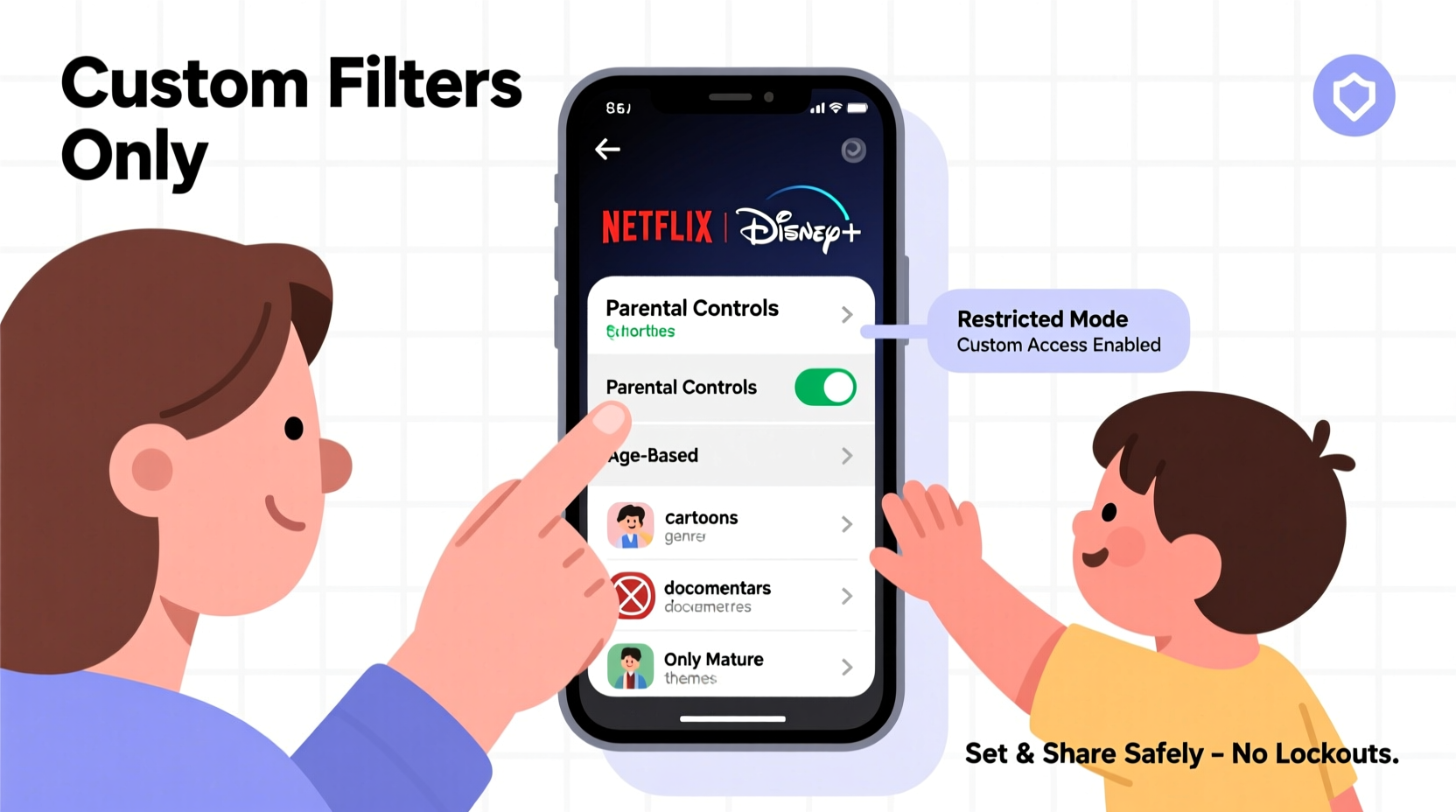
Today’s homes often juggle several streaming profiles under one subscription. A typical family might include young children who enjoy animated shows, teenagers drawn to edgier teen dramas, and adults watching documentaries or late-night comedies with adult themes. Applying one-size-fits-all restrictions doesn’t work—it either leaves kids exposed to inappropriate material or prevents older users from accessing content they’re mature enough to handle.
The key lies in leveraging individual user profiles. Platforms like Netflix, Disney+, Hulu, Amazon Prime Video, and YouTube have evolved beyond simple password locks. They now support tiered maturity settings, PIN-protected actions, and even usage monitoring—all designed to coexist with personalization and convenience.
Step-by-Step Guide to Setting Up Smart Parental Controls
Implementing effective parental controls without limiting access involves a structured approach. Follow this timeline to configure your household’s streaming setup securely and fairly.
- Inventory Your Streaming Services: List all platforms your family uses (e.g., Netflix, Hulu, YouTube, Max).
- Create Individual Profiles: For each service, ensure every user has their own profile.
- Assign Age-Based Maturity Levels: Use built-in rating filters to restrict content by age group.
- Set PIN Protections for Overrides: Enable PINs to prevent underage users from changing settings.
- Review Watch History and Adjust: Monitor viewing habits monthly and fine-tune restrictions as needed.
This process should take less than an hour per platform and can be done gradually. Start with the most frequently used service and expand from there.
Netflix: Profile-Specific Restrictions
Netflix allows you to assign maturity levels to each profile. To adjust settings:
- Go to Account > Profiles & Parental Controls.
- Select a child’s profile and set the viewing restriction level (e.g., \"Little Kids,\" \"Older Kids,\" \"Teens\").
- Enable a PIN to prevent changes to the profile or maturity setting.
Adult profiles can remain unrestricted, allowing full access. Children’s profiles will only show content within their assigned rating tier, but switching between profiles is seamless.
Disney+: Built-In Safeguards with Flexibility
Disney+ automatically sets up child-friendly profiles with limited content access. However, you can customize further:
- Navigate to Settings > Parental Controls.
- Choose content ratings to block (e.g., PG, TV-PG, TV-14).
- Use the Disney+ PIN to lock settings and prevent bypassing.
Unlike some platforms, Disney+ does not offer a completely open “adult” filter, but its library is generally family-safe, minimizing the need for heavy restrictions.
YouTube & YouTube Kids: Managing Autonomy vs. Safety
YouTube poses unique challenges due to its vast, user-generated content. Simply blocking the app isn’t practical—many teens and adults rely on it for education, music, and tutorials. Instead, use a dual approach:
- For children under 12: Use the dedicated YouTube Kids app, which filters content and disables comments.
- For teens: Keep them on main YouTube but enable Restricted Mode, which hides videos flagged as mature.
Restricted Mode can be locked with a Google Family Link account, ensuring teens can’t disable it without parental approval.
Comparison of Key Streaming Platforms’ Parental Tools
| Service | Profile-Based Controls | Content Rating Filters | PIN Protection | Time Limits |
|---|---|---|---|---|
| Netflix | Yes | Yes (up to TV-MA) | Yes | No native feature |
| Amazon Prime Video | Limited (profiles + parental PIN) | Yes (by MPAA/TV rating) | Yes | No |
| Hulu | Yes | Yes (Kids mode available) | Yes | No |
| Disney+ | Yes | Yes (up to TV-14) | Yes | No |
| YouTube | Yes (via Google account) | Restricted Mode | Family Link required | Yes (via Family Link) |
| Max (HBO) | Yes | Yes (Kids profile option) | Yes | No |
This table highlights that while most platforms offer core parental features, integration varies. For time limits and deeper device-level control, pairing streaming apps with operating system tools (like iOS Screen Time or Google Family Link) adds another layer of precision.
Avoiding Common Mistakes
Even well-intentioned parents can misconfigure settings in ways that reduce effectiveness or cause unnecessary friction. Here are frequent pitfalls and how to avoid them:
- Mistake: Using one profile for multiple children. This prevents tailored restrictions and mixes viewing histories. Solution: Create individual profiles even for siblings close in age.
- Mistake: Forgetting to set a PIN. Without a PIN, tech-savvy kids can lower maturity settings. Solution: Always enable and remember your PIN.
- Mistake: Blocking all non-kid content entirely. This leads to resentment from older users. Solution: Allow autonomy through separate profiles instead.
- Mistake: Never reviewing watch history. Habits change, and so should controls. Solution: Check activity logs monthly.
Real Example: The Thompson Family Setup
The Thompsons, a family of five in Austin, Texas, struggled with streaming conflicts. Their 10-year-old daughter loved cartoons, but she once stumbled upon a violent scene in a superhero series meant for her 15-year-old brother. After that incident, they restructured their accounts.
They created distinct profiles on Netflix and Hulu, setting the youngest two to “Older Kids” level. The teens were allowed “Mature” access but had to use a shared PIN to override filters if they wanted to watch something above their default level. On YouTube, the younger kids used YouTube Kids, while the teens had Restricted Mode enforced via Google Family Link.
Within a week, the parents noticed fewer arguments over screen time and no more accidental exposure to inappropriate content. The teens appreciated being trusted with more freedom, and the younger kids enjoyed uninterrupted access to their favorite shows.
Expert Insight on Digital Boundaries
“Effective digital parenting isn’t about blocking everything—it’s about creating intelligent boundaries that grow with the child. Parental controls should guide, not isolate.” — Dr. Lena Patel, Child Development & Technology Researcher, University of Michigan
Dr. Patel emphasizes that transparency matters. “When kids understand why certain shows are restricted, they’re more likely to respect the rules—even when they have the technical ability to bypass them.”
Checklist: Setting Up Balanced Parental Controls
Use this checklist to ensure your streaming environment is both safe and flexible:
- ✅ Create a unique profile for each family member
- ✅ Assign appropriate maturity levels based on age and sensitivity
- ✅ Set strong PINs for critical settings (don’t use 0000 or 1234)
- ✅ Enable Restricted Mode on YouTube or use YouTube Kids
- ✅ Pair streaming controls with device-level tools (e.g., Screen Time, Family Link)
- ✅ Review viewing activity at least once a month
- ✅ Talk to your kids about digital responsibility—not just restrictions
Frequently Asked Questions
Can I allow my teen to watch mature content with a password prompt?
Yes. Most platforms let you set a PIN that must be entered to view content above a profile’s maturity level. This gives teens agency while keeping younger siblings protected.
Do parental controls work on all devices?
Mostly. Settings sync across devices logged into the same account. However, if someone logs in on a new device, ensure the correct profile is selected. Some smart TVs may require re-entering PINs.
What if my child figures out the PIN?
If a PIN is compromised, change it immediately. Consider using a number that isn’t tied to birthdays or obvious patterns. More importantly, discuss why the controls exist—often, trust reduces the desire to bypass them.
Conclusion: Freedom with Responsibility
Setting up parental controls doesn’t mean turning your home into a digital lockdown. With thoughtful configuration, you can create a streaming ecosystem where safety and autonomy coexist. By using individual profiles, tiered access, and smart PIN protections, families can enjoy the best of both worlds: protection for the young and freedom for those ready to handle more mature content.
The goal isn’t perfection—it’s progress. Start with one platform, get comfortable with the settings, and expand from there. As your children grow, so should your approach. These tools aren’t just about restriction; they’re about guiding responsible media consumption in a world where content is always one click away.




 浙公网安备
33010002000092号
浙公网安备
33010002000092号 浙B2-20120091-4
Comments
No comments yet. Why don't you start the discussion?