
In today’s digital age, children are engaging with screens at younger ages than ever before. While platforms like YouTube Kids offer educational and entertaining content, unrestricted access can lead to overuse, exposure to inappropriate material, or disrupted sleep and routines. Setting up parental controls and managing screen time is not about restricting technology—it’s about guiding healthy digital habits. With the right tools and strategies, parents can create a safer, more balanced media environment for their children.
Understanding YouTube Kids: A Safer Alternative
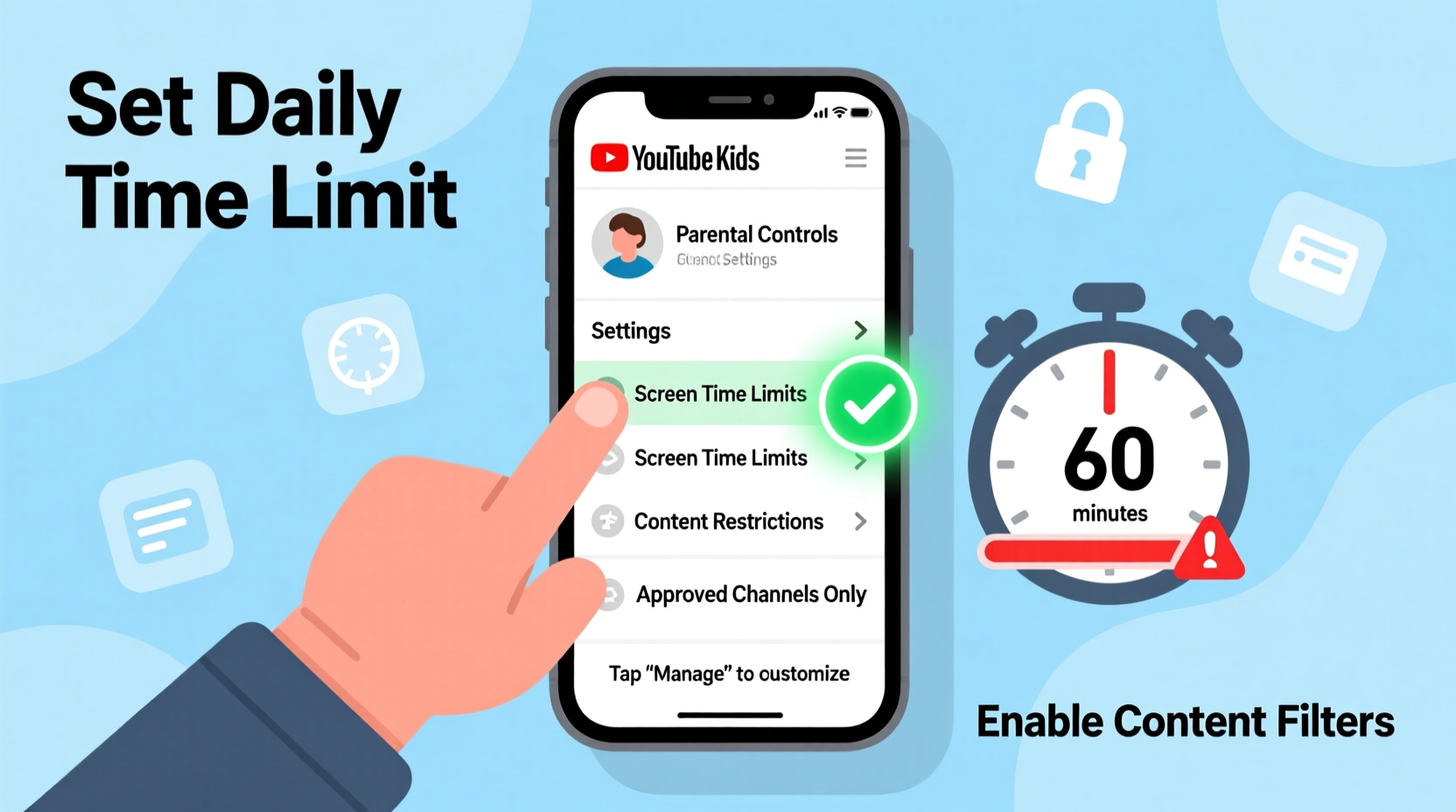
YouTube Kids is a standalone app designed specifically for children under 13. Unlike the main YouTube platform, it features curated content, simplified navigation, and built-in parental controls. However, no system is foolproof. The app relies on automated systems and human review to filter content, but occasionally, videos that don’t align with family values may slip through. That’s why active parental involvement remains essential.
The app allows caregivers to customize settings based on age groups—preschool, younger (5–7), older (8–12)—and even restrict search functionality entirely. These layers of control make it one of the most effective tools for managing what children watch. But configuration is key. Without proper setup, the default settings may still expose kids to longer viewing sessions or less filtered content than desired.
Step-by-Step Guide to Setting Up Parental Controls
Configuring parental controls on YouTube Kids takes just a few minutes but can have long-term benefits. Follow this sequence across devices to ensure consistent protection:
- Download the YouTube Kids App: Available on iOS, Android, Amazon Fire tablets, and select smart TVs. Ensure you’re installing the official “YouTube Kids” app, not regular YouTube.
- Create a Child Profile: Upon opening the app, you’ll be prompted to set up a profile for your child. Assign a name and select the appropriate age group. This determines the type of content shown.
- Choose Content Sources: You can choose whether your child sees only curated shows from trusted partners (like PBS or Disney), approved channels you’ve selected, or results from searches within the app.
- Set a Parent PIN: When prompted, create a four-digit PIN known only to you. This locks access to parental settings and prevents children from altering restrictions.
- Customize Search Permissions: Under “Settings,” disable search entirely or allow limited searching. Disabling search ensures kids only see pre-approved content.
- Approve Channels Manually: In the parent section, browse and approve individual channels. This gives you full oversight over who produces the content your child watches.
Managing Screen Time with Built-In Tools
Excessive screen time has been linked to issues such as reduced attention span, disrupted sleep, and sedentary behavior. The American Academy of Pediatrics recommends no more than one hour per day of high-quality programming for children aged 2 to 5, and consistent limits for older kids. YouTube Kids includes native tools to help enforce these guidelines.
To set daily time limits:
- Navigate to the parent settings using your PIN.
- Select “Watch Time” or “Daily Timer.”
- Choose a duration—common options are 30 minutes, 1 hour, or custom intervals.
- Enable “Timer Expiration Action” to either pause playback or end the session completely.
Once the timer runs out, the app will display a lock screen. Only someone with the parent PIN can extend viewing time, preventing unsupervised extensions. Additionally, you can schedule “bedtime mode” to automatically disable the app during sleep hours.
Using Device-Level Controls for Added Security
While YouTube Kids has robust internal settings, combining them with device-level restrictions strengthens overall control. On iOS, use Screen Time to set app limits. On Android, Google Family Link allows remote management of app usage, including pausing YouTube Kids at any time.
For example, with Family Link:
- Link your child’s Google account to yours via the Family Link app.
- Go to “Manage Settings” > “App Activity” > “YouTube Kids.”
- Set daily usage limits or remotely lock the app after homework or bedtime.
This dual-layer approach—app-specific and device-wide—ensures consistency even if your child switches devices.
Comparison: Parental Control Options Across Platforms
| Feature | YouTube Kids App | iOS Screen Time | Google Family Link |
|---|---|---|---|
| Content Filtering | Yes (by age group and channel approval) | Limited (via website restrictions) | No direct filtering, but app-level blocking |
| Daily Time Limits | Yes (in-app timer) | Yes (per app or grouped) | Yes (with remote override) |
| Search Restrictions | Yes (can disable entirely) | No (unless blocking entire app) | No |
| Remote Management | No (requires PIN on device) | No (local device only) | Yes (from parent’s phone) |
| Scheduling (e.g., bedtime) | Basic (timer-based) | Yes (downtime scheduling) | Yes (scheduled pauses) |
As shown, integrating YouTube Kids’ native tools with external parental control apps provides the most comprehensive protection. Relying solely on one method leaves gaps that tech-savvy kids might exploit.
A Real-World Example: The Martinez Family’s Approach
The Martinez family, based in Austin, Texas, struggled with their 6-year-old son spending up to three hours a day on YouTube Kids. He would often plead for “just five more minutes” after his time expired, leading to tantrums and inconsistent enforcement.
They decided to take a structured approach:
- Disabled search entirely in the YouTube Kids app.
- Limited daily watch time to 45 minutes using the in-app timer.
- Connected the child’s tablet to Google Family Link so both parents could monitor and pause usage remotely.
- Created a visual chart showing daily screen time allowance, which the child could track with stickers.
Within two weeks, arguments decreased significantly. The child adapted to the routine, and the parents reported improved focus during homework and calmer bedtimes. By combining technical controls with behavioral reinforcement, they turned screen time into a predictable, manageable part of the day.
Expert Insight: What Pediatricians Recommend
“Digital media isn’t inherently harmful, but unstructured use can displace critical activities like play, reading, and family interaction. Setting clear boundaries early helps children develop self-regulation.” — Dr. Naomi Klein, Pediatrician and Child Development Specialist
Dr. Klein emphasizes that parental controls are most effective when paired with open conversations. Children should understand why limits exist—not as punishment, but as part of a healthy lifestyle. Explaining that eyes need breaks, bodies need movement, and imaginations grow through offline play fosters cooperation rather than resistance.
Essential Checklist for Parents
Use this checklist to ensure your YouTube Kids setup is secure and sustainable:
- ✅ Download the official YouTube Kids app (not regular YouTube)
- ✅ Create a profile with the correct age range
- ✅ Set and remember a secure parent PIN
- ✅ Disable search or limit to approved channels only
- ✅ Manually approve channels your child can view
- ✅ Set a daily watch time limit (e.g., 30–60 minutes)
- ✅ Enable timer expiration action (pause or stop)
- ✅ Link device to Google Family Link or iOS Screen Time
- ✅ Review usage weekly and adjust as needed
- ✅ Talk to your child about screen time rules and reasons behind them
Frequently Asked Questions
Can my child bypass the YouTube Kids timer?
If the parent PIN is secure, children cannot extend the timer without permission. However, they may try switching devices or restarting the app. Using cross-device tools like Family Link reduces this risk by syncing limits across all devices.
Is YouTube Kids completely safe for young children?
While YouTube Kids filters content more rigorously than standard YouTube, occasional inappropriate videos may appear due to algorithmic errors or misleading titles. Active supervision and manual channel approvals are the best safeguards.
What if my child uses YouTube instead of YouTube Kids?
Regular YouTube is not designed for children and lacks the same level of filtering. Use device settings to block the main YouTube app or restrict access via parental control software. Educate older children about responsible use, especially as they approach adolescence.
Final Thoughts: Building Healthy Digital Habits
Setting up parental controls on YouTube Kids is not a one-time task—it’s part of an ongoing effort to guide children in a digital world. Technology evolves quickly, and so do children’s needs. A 4-year-old’s viewing habits will differ vastly from those of an 11-year-old, requiring regular reassessment of settings and expectations.
The goal isn’t to eliminate screen time, but to make it intentional, balanced, and aligned with family values. When parents take proactive steps—using tools wisely, setting consistent limits, and fostering open dialogue—they empower children to become mindful digital citizens.




 浙公网安备
33010002000092号
浙公网安备
33010002000092号 浙B2-20120091-4
Comments
No comments yet. Why don't you start the discussion?