
In today’s digital age, children are exposed to online content earlier than ever before. While platforms like YouTube Kids offer curated videos designed for young audiences, not all content is equally appropriate. Even with built-in safeguards, unrestricted access can lead to exposure to ads, mature themes, or misleading material. Setting up robust parental controls ensures that your child's viewing experience remains educational, entertaining, and safe. This guide walks you through the full process of configuring YouTube Kids with precision, offering practical steps, real-world insights, and expert-backed strategies to create a secure digital environment.
Understanding YouTube Kids and Its Safety Features
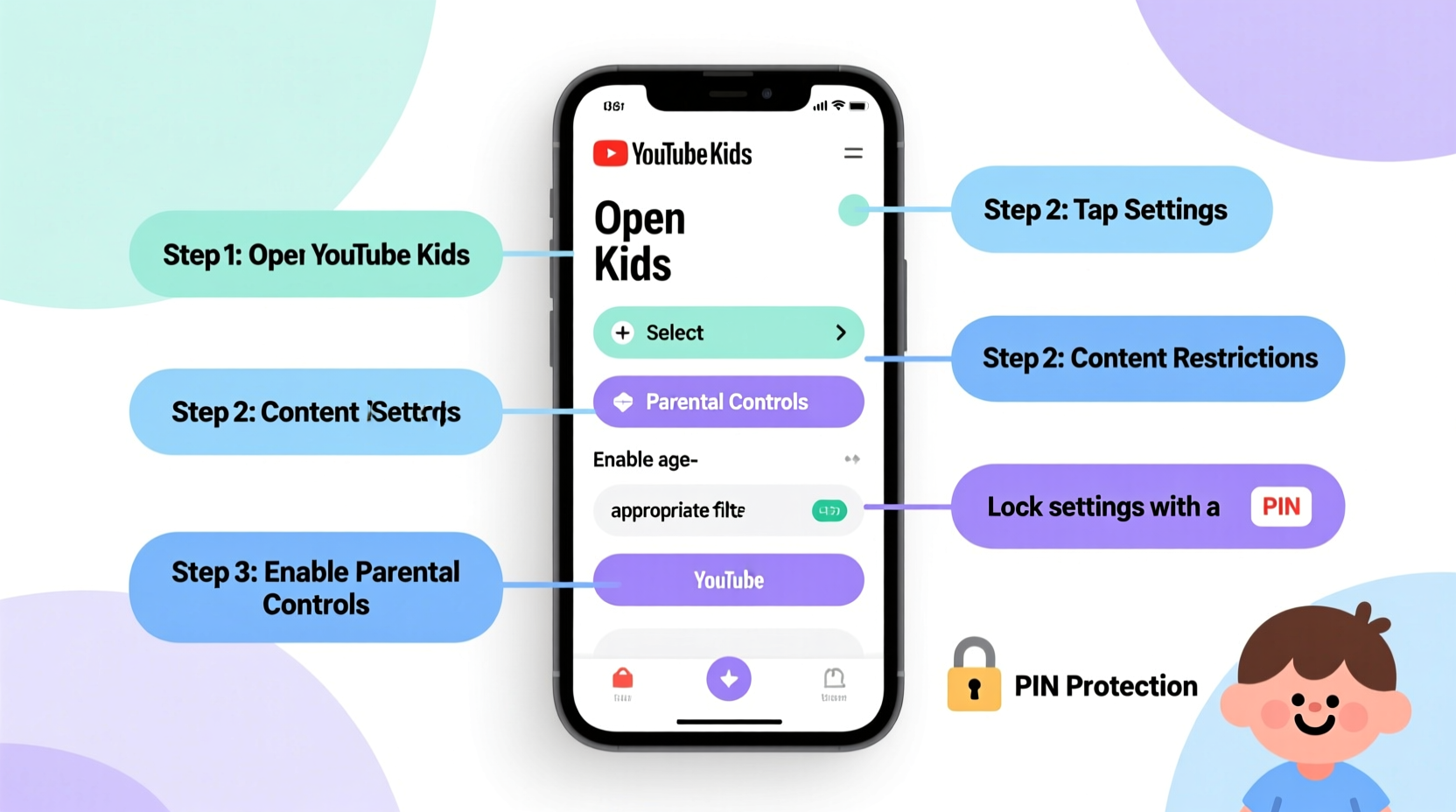
YouTube Kids is a standalone app developed by Google specifically for children aged 2 to 12. Unlike regular YouTube, it uses automated systems and human review to filter content into categories such as education, music, shows, and cartoons. However, the platform isn’t foolproof—some borderline content occasionally slips through, and external links or ad-like promotions may still appear.
The app includes several layers of parental control, including passcode-protected settings, screen time limits, search restrictions, and content filtering. These tools give caregivers significant influence over what their children can view and when. The key is knowing how to configure them properly.
“Parents often assume YouTube Kids is completely safe out of the box. While it’s a step in the right direction, active supervision and customized settings are essential.” — Dr. Lisa Mendez, Child Digital Safety Researcher at the Family Online Initiative
Step-by-Step Guide to Configuring Parental Controls
Setting up parental controls on YouTube Kids requires deliberate navigation through the app’s settings. Follow this detailed sequence to lock down access and tailor the experience to your child’s age and maturity level.
- Download and Install the App: Ensure you’re using the official YouTube Kids app from the Apple App Store or Google Play Store. Avoid third-party versions.
- Create a Profile for Your Child: Upon opening the app, select “Create a New Profile” and assign an age range (preschool, younger, older). This determines default content filters.
- Set a Parental PIN: During setup, you’ll be prompted to create a four-digit PIN. Choose one that your child doesn’t know. This PIN will be required to access Settings and make changes.
- Access the Parental Controls Section: Tap the lock icon in the bottom right corner of the home screen and enter your PIN. This opens the “Settings for Parents” menu.
- Disable Search Functionality: Under “Controls,” toggle off the option that allows searching. This prevents children from typing queries and potentially accessing unfiltered results.
- Customize Content by Channel or Video: Use the “Approved Content Only” mode to restrict playback to specific videos or channels you’ve pre-approved. This is ideal for younger children.
- Set Daily Screen Time Limits: Navigate to “Timer” and choose a duration (e.g., 30 minutes). When time expires, the app locks until reset by a parent using the PIN.
- Turn Off Background Play and Autoplay: Disable these features to prevent endless video loops and reduce passive screen exposure.
- Review Watch History: Regularly check the “History” section to see what your child has viewed and adjust filters accordingly.
- Enable Restricted Mode (if available): Though limited in YouTube Kids compared to main YouTube, some versions allow stricter filtering. Keep it enabled if accessible.
Do’s and Don’ts of Managing YouTube Kids
Missteps in configuration can undermine even the best intentions. The following table outlines critical practices to adopt—and those to avoid—when managing your child’s YouTube Kids experience.
| Do’s | Don’ts |
|---|---|
| Set a strong, unique PIN and store it securely | Use predictable PINs like 0000 or 1234 |
| Regularly review watch history and adjust filters | Assume the app is 100% safe without oversight |
| Use “Approved Content Only” for children under 6 | Allow unrestricted search for kids under 8 |
| Set consistent daily time limits | Let screen time extend past bedtime |
| Discuss online safety rules with your child | Rely solely on technology instead of conversation |
Real Example: How One Family Improved Their YouTube Kids Setup
The Thompson family initially allowed their 7-year-old son, Eli, to use YouTube Kids freely after school. They assumed the app’s reputation for safety meant minimal intervention was needed. Over time, however, they noticed Eli becoming fixated on toy unboxing videos—many of which promoted branded products aggressively and included fast-paced editing that affected his focus.
After consulting a pediatrician about screen-related attention issues, they revisited the app’s settings. They disabled search, switched to “Approved Content Only,” and hand-picked educational channels like SciShow Kids and PBS LearningMedia. They also set a 45-minute daily timer and began co-viewing content twice a week.
Within a month, Eli’s requests for commercial toys decreased, and he started asking questions about science experiments he saw. His parents credited the change not just to restrictions, but to intentional curation and engagement. “We didn’t block everything—we replaced low-value content with better options,” said Maria Thompson, a teacher and mother of two.
Essential Checklist for Secure YouTube Kids Configuration
Before handing the device to your child, run through this checklist to ensure maximum protection:
- ✅ Downloaded the official YouTube Kids app (not regular YouTube)
- ✅ Created a profile matched to your child’s actual age group
- ✅ Set a secure, non-obvious 4-digit parental PIN
- ✅ Disabled search functionality in Settings
- ✅ Activated “Approved Content Only” or adjusted category filters
- ✅ Set a daily screen time limit with automatic cutoff
- ✅ Turned off Autoplay and Background Play
- ✅ Reviewed recent watch history for unexpected content
- ✅ Discussed basic internet safety rules with your child
- ✅ Scheduled monthly check-ins to reassess settings
Frequently Asked Questions
Can I monitor what my child watches without being present?
Yes. The YouTube Kids app includes a “Watch History” feature accessible via the parent’s PIN. You can review recently viewed videos under the “History” tab. Additionally, if you link the app to your Google Family Link account, you can receive activity reports and manage usage remotely.
Is YouTube Kids completely ad-free?
No. While YouTube Kids filters many ads, it does display promotional content labeled as “Sponsored” or “Brand” videos. These are usually from toy companies or food brands targeting children. Using “Approved Content Only” mode significantly reduces exposure to such material.
What should I do if inappropriate content appears despite controls?
If your child encounters unsuitable content, report it immediately within the app. Tap the video, then select “Report” and choose the reason (e.g., inappropriate content). Also, consider tightening filters or reverting to approved-only mode. Reporting helps improve YouTube’s algorithm over time.
Going Beyond the App: Building a Holistic Digital Safety Plan
While YouTube Kids offers valuable tools, true safety comes from combining technology with parenting. No setting replaces open dialogue about online behavior, digital empathy, and media literacy. Start early conversations about why some videos might feel exciting but aren’t helpful, or how ads try to influence choices.
Consider integrating YouTube Kids into a broader digital routine. Use screen time as a reward for completed chores or reading, and balance it with creative play, physical activity, and family interaction. Tools like Google Family Link or Apple Screen Time can complement YouTube Kids by providing cross-app usage reports and bed-time locks.
“Technology sets boundaries, but trust and communication build lasting digital habits.” — Raj Patel, Director of Digital Wellness at the Center for Childhood Tech Responsibility
Conclusion: Take Control Today for a Safer Tomorrow
Setting up parental controls on YouTube Kids isn’t a one-time task—it’s an ongoing part of modern parenting. With the right configuration, you can transform the app from a passive entertainment feed into a dynamic, educational resource. By disabling search, curating content, setting time limits, and staying involved, you empower your child to explore safely while minimizing risks.
Digital safety starts with action. Revisit your YouTube Kids settings tonight. Run through the checklist, update your PIN, and talk to your child about what they enjoy watching. Small steps today create smarter, more responsible digital citizens tomorrow.




 浙公网安备
33010002000092号
浙公网安备
33010002000092号 浙B2-20120091-4
Comments
No comments yet. Why don't you start the discussion?