
In an era where digital security is non-negotiable, two-factor authentication (2FA) has become a critical defense against unauthorized access. It adds a second layer of verification beyond just a password—typically something you have (like a phone or hardware token) or something you are (biometrics). While 2FA dramatically improves account safety, many users hesitate to adopt it due to fear of locking themselves out. Losing access to recovery codes, misplacing a device, or failing to back up authenticator apps can result in permanent account loss.
The good news: with careful planning and the right tools, you can implement 2FA confidently while safeguarding access. This guide walks through practical strategies to enable 2FA across major platforms without compromising recoverability.
Why 2FA Is Essential—but Recovery Matters Just as Much
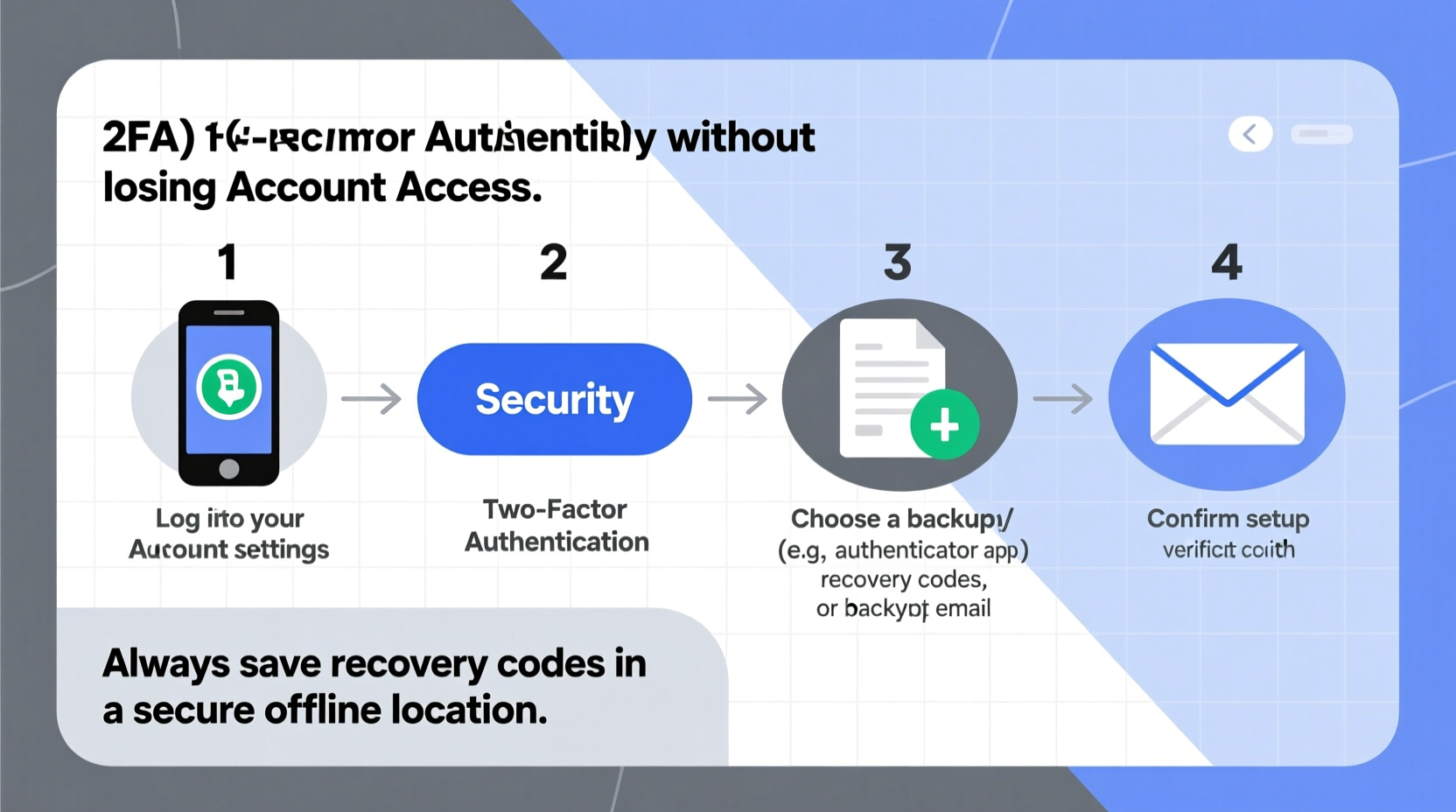
According to Google, enabling 2FA blocks over 99% of automated attacks on accounts. Cybercriminals often rely on stolen or reused passwords from data breaches. A second factor—such as a time-based code or biometric confirmation—makes those credentials useless without physical access to your device.
However, security fails when usability does. If users can't recover their own accounts after enabling 2FA, they may disable it altogether or avoid setting it up entirely. The goal isn’t just protection—it’s sustainable protection. That means building redundancy into your 2FA setup so that one point of failure doesn’t lock you out permanently.
“Security without accessibility leads to abandonment. The strongest lock is useless if you lose the key.” — Dr. Lena Torres, Cybersecurity Researcher at Stanford University
Step-by-Step Guide to Setting Up 2FA Safely
Follow this structured approach to enable 2FA across your most important accounts—email, banking, social media, cloud storage—without risking access loss.
- Inventory Your Critical Accounts: List all services where you use email, financial data, or personal information. Prioritize email first—your inbox is often the gateway to resetting other passwords.
- Choose the Right 2FA Method for Each Service: Not all 2FA types are equal in terms of security and recoverability. Evaluate options carefully before enabling.
- Back Up Recovery Options Before Enabling 2FA: Never activate 2FA without preparing backups. This includes saving recovery codes securely and linking secondary devices.
- Test Recovery Paths Immediately: After setup, log out and attempt to log back in using only your 2FA method and recovery options to ensure everything works.
- Update Recovery Methods Regularly: Every six months, review linked devices, regenerate lost recovery codes, and update contact info used for fallback.
Choosing the Best 2FA Methods: Security vs. Access Trade-offs
Different 2FA methods offer varying levels of convenience and resilience. Understanding their strengths and weaknesses helps prevent future access issues.
| Method | Security Level | Recovery Risk | Best For |
|---|---|---|---|
| Authenticator App (e.g., Google Authenticator, Authy) | High | Moderate – risk if phone is lost/unbacked | Most online services; balanced security & usability |
| SMS-Based Codes | Moderate – vulnerable to SIM swapping | Low – easy to regain via carrier | Low-risk accounts; temporary fallback option |
| Hardware Tokens (e.g., YubiKey) | Very High | High – single point of failure unless duplicated | High-value accounts like email, crypto wallets |
| Biometric + Device Trust (e.g., Apple Face ID + iCloud Keychain) | High | Low – tied to ecosystem recovery | Apple/Google ecosystem users |
| Email-Based 2FA | Low – relies on email security | Very Low – but creates circular dependency | Avoid for primary email; acceptable for low-sensitivity sites |
For optimal balance, use authenticator apps as your default method, supplement with hardware keys for high-value accounts, and treat SMS as a last-resort fallback—not a primary solution.
Real Example: Recovering From a Lost Phone With Proper 2FA Planning
Sophie, a freelance designer, enabled 2FA on her Gmail using Google Authenticator. She stored her recovery codes in a fireproof safe and also uploaded an encrypted copy to her password manager. When she dropped her phone in water and couldn’t retrieve it, she didn’t panic. Using a new device, she installed Authy (which syncs across devices), restored her account from backup, and regained access to her email within minutes. Because she had previously added a backup phone number and printed recovery codes, she was able to verify her identity and re-enable 2FA smoothly.
Had Sophie relied solely on her damaged phone without any backup strategy, she could have faced days—or weeks—of recovery delays, especially if customer support required documentation. Her foresight turned a potential crisis into a minor inconvenience.
Essential Backup Strategies to Prevent Lockout
No matter which 2FA method you choose, backup mechanisms are essential. Here’s how to build resilience into your setup:
- Save Recovery Codes Securely: Most services provide printable recovery codes during 2FA setup. Store these in multiple safe locations—never digitally unencrypted.
- Use Cloud-Synced Authenticators: Replace Google Authenticator with apps like Authy or Microsoft Authenticator that allow encrypted backups across devices.
- Link Multiple Devices: Add the same account to more than one authenticator app or device so losing one doesn’t mean losing access.
- Purchase a Second Hardware Key: For critical accounts like email or cryptocurrency exchanges, register two YubiKeys—one kept at home, one carried daily.
- Designate a Trusted Contact (Where Supported): Some platforms, like Apple ID, allow you to appoint a recovery contact who can help unlock your account after a waiting period.
Checklist: Secure 2FA Setup Without Risk of Lockout
Use this checklist every time you enable 2FA on a new service:
- ☐ Back up existing account recovery options (phone number, alternate email)
- ☐ Generate and securely store recovery codes before enabling 2FA
- ☐ Choose a reliable 2FA method (authenticator app or hardware token preferred)
- ☐ Enable multi-device sync if using an authenticator app (e.g., Authy)
- ☐ Register a secondary 2FA method where supported (e.g., backup key or SMS)
- ☐ Verify recovery process by logging out and back in
- ☐ Update emergency contacts or recovery emails if applicable
- ☐ Document your 2FA configuration in your password manager (excluding secrets)
Frequently Asked Questions
What should I do if I lose my phone with 2FA apps and no backup?
Act quickly. Use recovery codes if available. If not, contact the service provider’s support team with proof of identity. Many platforms require waiting periods for security reasons. In the future, always use a synced authenticator app or keep physical copies of recovery materials.
Is it safe to store 2FA recovery codes in a password manager?
Yes—if your password manager uses end-to-end encryption (like Bitwarden, 1Password, or KeePass). Avoid storing them in unencrypted notes, emails, or cloud documents. Treat recovery codes like physical keys: protect them with the same rigor as your master password.
Can I use the same recovery codes for multiple accounts?
No. Each account generates unique recovery codes. Reusing them won’t work and suggests a flawed implementation. Always keep codes organized by service and never mix them.
Final Thoughts: Security Should Empower, Not Paralyze
Two-factor authentication is one of the most effective tools for protecting your digital life. But its value diminishes if the setup process leaves you vulnerable to self-lockout. The key lies in preparation: treat recovery as part of the security workflow, not an afterthought.
By selecting resilient 2FA methods, maintaining redundant access paths, and testing your recovery plan, you gain both protection and peace of mind. You’re not just securing your accounts—you’re ensuring that you remain the rightful owner, even in unexpected situations.




 浙公网安备
33010002000092号
浙公网安备
33010002000092号 浙B2-20120091-4
Comments
No comments yet. Why don't you start the discussion?