
Many smartphone users prefer the clarity of an audible ringtone without the added sensation of vibration. Whether you're in a quiet office, attending a meeting, or simply want to reduce sensory distractions, knowing how to disable vibration while keeping your ringer active is essential. This guide provides clear, device-specific instructions for both iOS and Android platforms, ensuring your phone rings—but doesn’t buzz—when calls come in.
Why Ring Only Mode Matters
While vibration alerts are useful in noisy environments or silent settings, they aren't always appropriate. Excessive buzzing can be disruptive during focused work, disturb others in public spaces, or interfere with sensitive equipment. Conversely, relying solely on sound allows for immediate auditory recognition of incoming calls, especially when your phone is within earshot but out of sight.
Switching to ring-only mode gives you control over your notification experience. It’s particularly helpful for individuals who:
- Work in quiet environments where subtle alerts are preferred
- Have hearing impairments paired with visual or audio assistive devices
- Want to minimize physical feedback from their device
- Use hearing aids or cochlear implants that may interact poorly with vibration motors
How to Disable Vibration on iPhone (iOS)
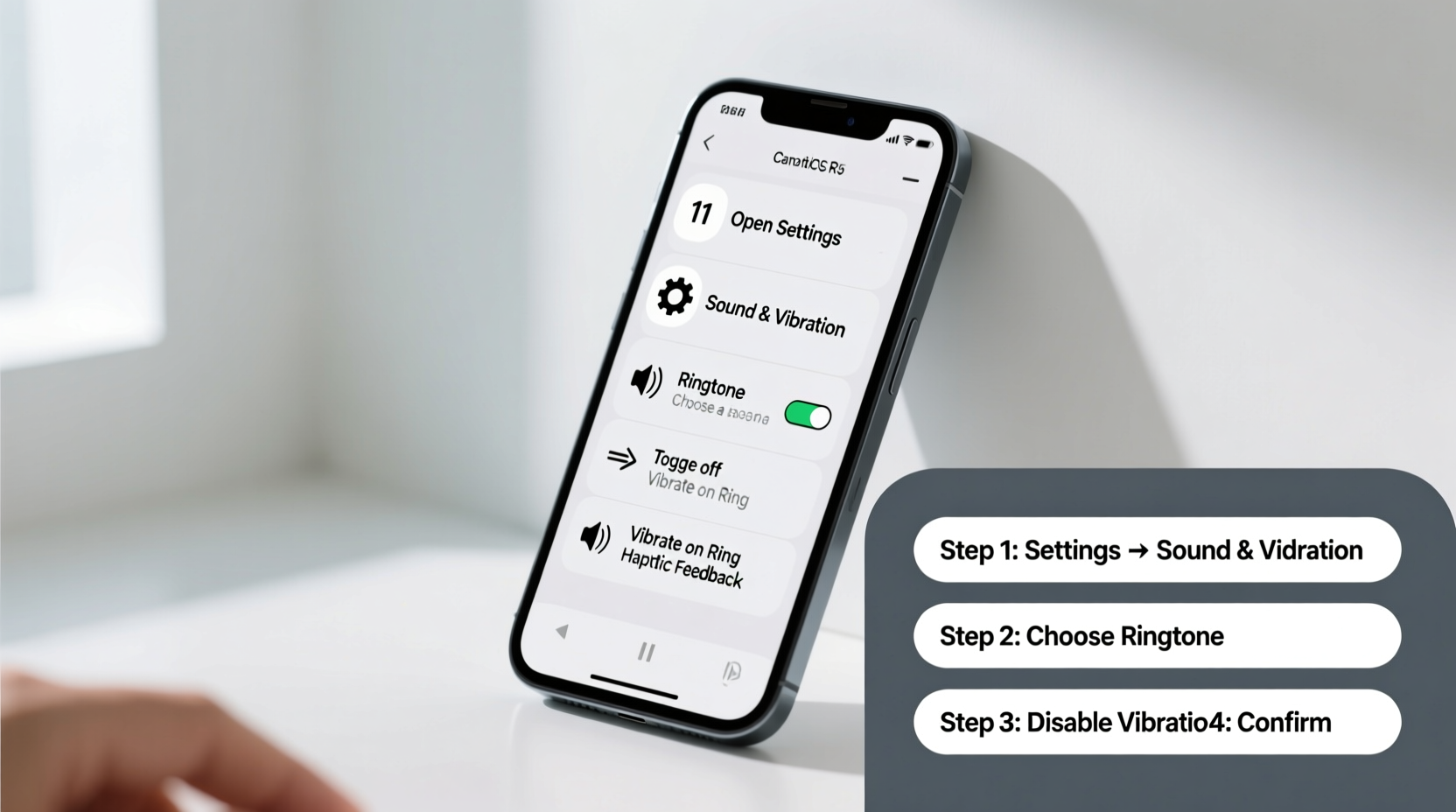
Apple makes it simple to customize alert behavior through its Settings app. Follow these steps to allow ringing without vibration on your iPhone:
- Open the Settings app on your home screen.
- Tap Sound & Haptics.
- Under the \"Ringtones\" section, ensure your desired ringtone is selected.
- Scroll down to the Vibration section and tap Ring Vibration.
- Select None from the list of options.
This disables vibration specifically for incoming calls while preserving the ringtone. You’ll still hear the ring, but the phone won’t vibrate when someone calls.
Note: The same process applies to text message alerts. To disable vibration for messages, return to Sound & Haptics, tap Text Tone, then choose Vibration and select None.
“Disabling unnecessary haptic feedback can significantly extend battery life and reduce wear on internal components.” — Dr. Alan Reyes, Mobile Device Engineer at TechInsight Labs
How to Set Ring Only on Android Devices
Android offers multiple pathways depending on the manufacturer and OS version. Below is a universal method applicable to most modern Android phones running Android 10 and above, including Samsung, Google Pixel, OnePlus, and others.
Step-by-Step: Disable Call Vibration on Android
- Open the Phone app (the dialer).
- Tap the three-dot menu icon (⋮) in the top-right corner.
- Select Settings or Call Settings.
- Choose Ringtone and vibration or similar option.
- Look for Vibration intensity or Vibrate on ring.
- Toggle off Vibrate on ring or set vibration intensity for calls to zero.
Alternatively, you can adjust this via the main Settings menu:
- Go to Settings > Sound (or Notifications).
- Tap Advanced if available.
- Select Vibration or Vibration intensity.
- Adjust the slider under Ringing vibration to minimum or toggle it off entirely.
Some manufacturers, like Samsung, offer separate toggles for different vibration types. In such cases, disable “Vibrate when ringing” while leaving “Ring volume” unchanged.
Do’s and Don’ts When Configuring Ring-Only Mode
| Do’s | Don’ts |
|---|---|
| Test your ringtone after disabling vibration | Assume all apps follow the same vibration rules |
| Check notification settings for messaging apps separately | Forget to adjust emergency alerts if needed |
| Use Do Not Disturb mode to automate ring/vibration schedules | Disable system sounds entirely—this may mute ringtones too |
| Customize per-contact vibration exceptions if desired | Ignore software updates that might reset sound preferences |
Real-Life Example: Managing Alerts in a Professional Setting
Sarah, a project manager at a financial consulting firm, used to receive client calls that triggered both loud rings and strong vibrations. Her phone would often slide across her desk due to the motor, drawing unwanted attention during meetings. After switching to ring-only mode, she maintained audibility while eliminating physical disruption. She also customized her Do Not Disturb schedule to automatically enable ring-only mode during business hours, reducing distractions without missing critical communications.
This small adjustment improved her workplace etiquette and reduced stress caused by sudden tactile alerts. She now recommends the change to colleagues who manage high-volume call schedules.
Frequently Asked Questions
Will disabling vibration affect my alarm or notification sounds?
No—disabling vibration for calls does not automatically change alarm or app notification behavior. You must adjust those settings separately under Alarm or App Notification settings. For example, on Android, go to Clock app > Alarm > Options > Vibration; on iPhone, visit Sounds & Haptics > Alarm Vibration.
Can I set different rules for specific contacts?
Yes. On both iPhone and Android, you can assign custom ringtones and vibration patterns per contact. To prevent vibration for a specific person, edit their contact entry and set their vibration pattern to “None” (iOS) or “No vibration” (Android), while keeping your general ringtone active.
What if my phone still vibrates after following these steps?
If vibration persists, check for third-party apps that override system settings (like automation tools). Also verify that Accessibility features such as “Haptic Feedback” or “Touch Feedback” aren’t forcing vibrations. Restarting the device after changes can help apply settings correctly.
Final Checklist: Ensure Your Phone Rings Without Vibrating
- ✅ Verified current ringtone is set and audible
- ✅ Disabled “Ring Vibration” in phone settings (iOS)
- ✅ Turned off “Vibrate on ring” or set vibration intensity to zero (Android)
- ✅ Tested with an incoming call or use of Find My Device/Find My iPhone
- ✅ Checked app-specific notifications (messaging, email) to avoid unintended vibrations
- ✅ Considered scheduling ring-only mode via Do Not Disturb or Focus modes
Take Control of Your Notification Experience
Your smartphone should adapt to your lifestyle—not disrupt it. By configuring your device to ring without vibrating, you gain precision over how and when you’re alerted. Whether you're in a library, courtroom, studio, or just enjoying a moment of calm, ring-only mode offers a balanced way to stay reachable without sensory overload.
Now that you know how to disable vibration while preserving your ringtone, take a few minutes to review your settings. A well-tuned notification system enhances productivity, reduces anxiety, and shows respect for shared spaces.




 浙公网安备
33010002000092号
浙公网安备
33010002000092号 浙B2-20120091-4
Comments
No comments yet. Why don't you start the discussion?