
Sharing a Wi-Fi password should be as simple as handing over a key to your front door. Yet, when it comes to connecting guests or family members across different smartphone ecosystems—especially between iPhones and Android devices—it often feels unnecessarily complicated. Apple’s ecosystem is tightly controlled, and Android’s diversity means inconsistent features across brands. But with the right techniques, you can bridge that gap seamlessly.
Whether you’re hosting a friend who needs internet access, helping a relative set up their phone, or simply switching from iOS to Android (or vice versa), knowing how to securely and efficiently transfer Wi-Fi credentials saves time and frustration. This guide walks through practical, tested methods that work in real-world scenarios—without relying on sketchy third-party apps or compromising network security.
Why Sharing Wi-Fi Between iPhone and Android Isn’t Straightforward
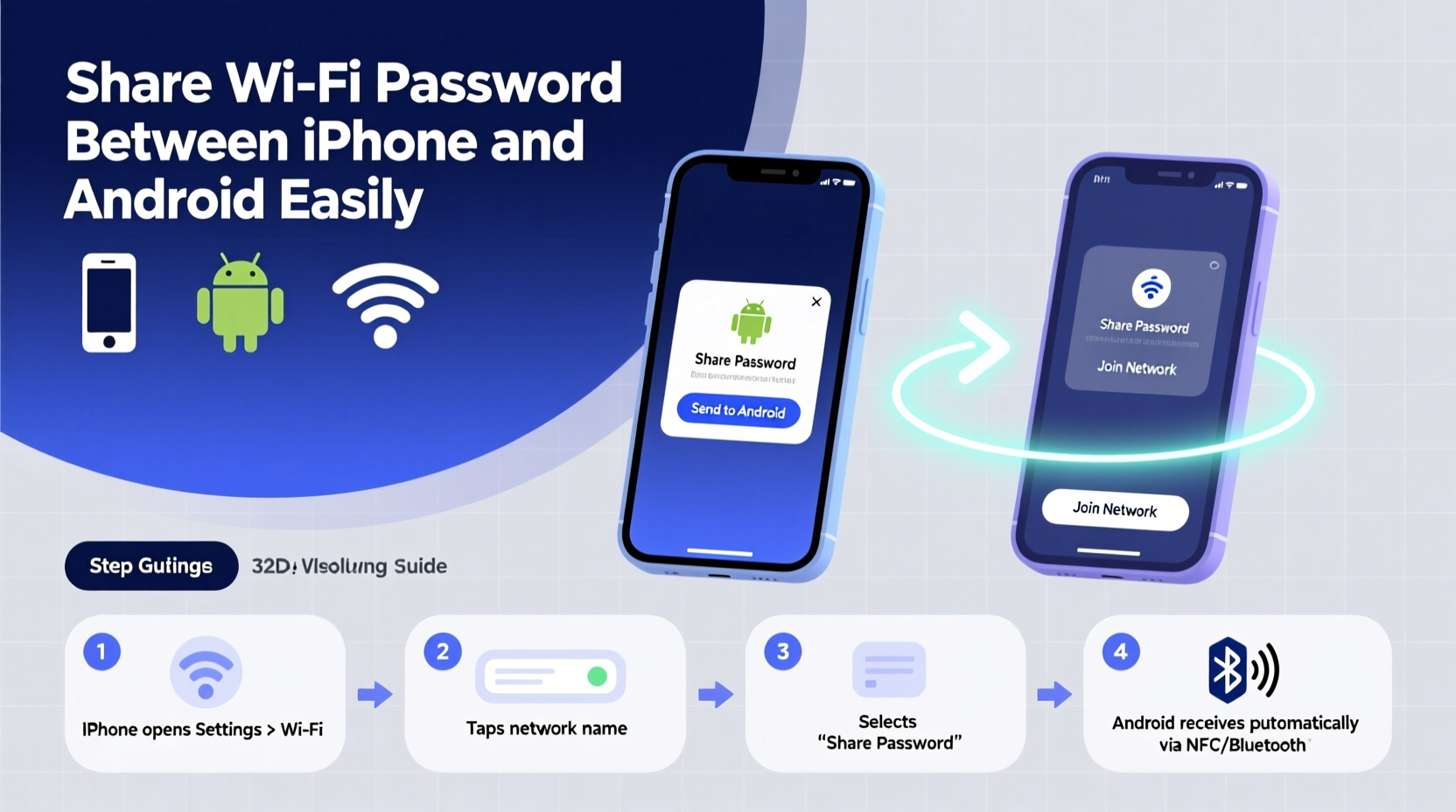
Apple introduced a convenient feature in iOS 11: the ability to share Wi-Fi passwords between two iPhones via AirDrop. However, this functionality only works within the Apple ecosystem. An iPhone cannot directly send a saved Wi-Fi password to an Android device using built-in tools like Quick Share or Nearby Share. Similarly, most Android phones lack native support for receiving credentials from iOS devices.
This limitation stems from fundamental differences in operating system architecture and security models. Apple encrypts Wi-Fi passwords in the iCloud Keychain and restricts access for privacy reasons. Android stores network credentials in its own secure credential storage, but there's no universal protocol for cross-platform exchange.
“Interoperability remains one of the biggest challenges in personal tech today. While both platforms prioritize user security, they do so in ways that create friction during everyday tasks like sharing a Wi-Fi password.” — Dr. Lena Torres, Mobile Systems Researcher at TechPolicy Institute
The good news? Several reliable workarounds exist. Some leverage modern hardware capabilities, while others use clever combinations of existing tools. Below are the most effective strategies currently available.
Method 1: Use QR Code Sharing (Recommended)
The most universally compatible way to share a Wi-Fi password between iPhone and Android is by generating a QR code. Both platforms can scan these codes natively, making this method fast, secure, and app-free.
Step-by-Step Guide: Generate & Scan a Wi-Fi QR Code
- On an Android phone: Go to Settings > Network & Internet > Internet. Tap the gear icon next to your connected network, then select “Share.” You’ll be prompted to authenticate with your PIN, pattern, or fingerprint.
- After authentication, a QR code will appear showing the network name (SSID) and password.
- On the iPhone: Open the Camera app, point it at the QR code displayed on the Android screen. A notification banner will appear at the top of the screen saying “Wi-Fi Network.” Tap it and confirm connection.
- The iPhone will automatically join the network without requiring manual entry.
Note: Not all Android manufacturers implement the QR share feature identically. Samsung, Google Pixel, OnePlus, and Xiaomi devices typically support it out of the box. Older or budget models may require downloading a lightweight QR generator app such as “WiFi QR Code Generator” from the Play Store.
Method 2: Manual Entry with Smart Copying
When QR scanning isn’t possible—due to low battery, broken screens, or unsupported devices—the simplest fallback is manual entry. While basic, this method benefits from smart tricks that reduce errors.
Best Practices for Accurate Manual Transfer
- Display the password clearly on one device before starting. On Android: Settings > Wi-Fi > [Connected Network] > Share (after authentication). On iPhone: Ask someone already connected to go to Settings > Wi-Fi, tap the “i” icon, and show the password if using iCloud Keychain sync.
- Use split-screen mode if both devices are accessible. Place the password-displaying phone upright beside the input device.
- Enable “Show Password” options where available to avoid typos with similar-looking characters (e.g., l vs 1, O vs 0).
- Speak passwords phonetically when reading aloud: “Alpha-Bravo-Charlie” instead of ABC, especially useful for complex keys.
| Do | Don't |
|---|---|
| Double-check case sensitivity in WPA2 passwords | Assume all letters are lowercase |
| Copy-paste when possible (on same-brand transfers) | Type from memory |
| Use a shared note app (like Google Keep or Notes) temporarily | Send via unencrypted SMS or social media DMs |
Method 3: Leverage Cloud Notes or Messaging Apps
A surprisingly efficient method involves using encrypted messaging or synced notes to relay the password securely. This avoids verbal miscommunication and leaves a digital trail for future reference.
How to Share via Encrypted Channels
- Open a trusted app like WhatsApp, Signal, or iMessage (if the recipient has an Apple ID).
- Type the SSID and password clearly, labeling each part: e.g., “Network: Home_Guest / Password: BlueSky$78!”
- Send the message. The recipient copies the details into their device’s Wi-Fi settings.
- Delete the message after successful connection for added security.
This method works best when both users have data connectivity. It also allows you to include additional info like IP reservations or captive portal instructions.
Real Example: Helping a Parent Switch from iPhone to Android
Sarah recently helped her mother switch from an iPhone 12 to a Samsung Galaxy A54. Her mom struggled to reconnect to home Wi-Fi because she didn’t know the password and couldn’t export it directly.
Sarah used the QR code method: She opened Wi-Fi settings on her mom’s old iPhone, tapped the “i” next to the network, and noticed no “Share” option. Realizing iOS doesn’t generate QR codes natively, she downloaded a free, reputable QR code generator app from the App Store. After entering the password manually once, the app created a scannable code.
She displayed it on the iPhone screen and had her mom open the Samsung’s camera app. Within seconds, the Galaxy recognized the code and connected. Total time: under two minutes. No extra cables, no cloud syncing delays.
This scenario highlights how combining a simple tool with native scanning capability bridges the ecosystem divide effectively.
Alternative Tools and Emerging Solutions
While native methods are safest, some third-party tools offer convenience—at a potential cost to privacy.
- Google’s Smart Lock (Deprecated): Once allowed automatic Wi-Fi sharing between Android and Chromebooks, but was discontinued in 2023 due to low adoption.
- Nearby Share + Fast Pair: Available on newer Samsung and Google devices, though still limited to Android-to-Android transfers.
- Cross-Platform Apps: Apps like “WiFi Key Share” claim to extract and transmit passwords, but require root or jailbreak access—strongly discouraged for average users due to security risks.
Future improvements may come from broader adoption of Passkeys and decentralized identity protocols. As FIDO Alliance standards evolve, we may see seamless network authentication without ever revealing the actual password.
Security Considerations When Sharing Wi-Fi
Every time you share a Wi-Fi password, you expand access to your local network. Consider these safeguards:
- Create a separate guest network if your router supports it. Many modern routers (like Eero, Google Nest, or ASUS) allow dual SSIDs with isolated traffic.
- Change your main network password periodically, especially after giving it to temporary visitors.
- Avoid sharing passwords for networks containing sensitive devices (smart locks, cameras, medical equipment).
- Never write down passwords on sticky notes or store them in unsecured files.
“Think of your Wi-Fi password like a house key. Just because someone visits doesn’t mean they need a permanent copy. Guest networks solve this elegantly.” — Marcus Reed, Cybersecurity Consultant at NetShield Group
Frequently Asked Questions
Can I share Wi-Fi from iPhone to Android using AirDrop?
No. AirDrop only works between Apple devices. It cannot transmit Wi-Fi credentials to Android phones, even if Bluetooth and Wi-Fi are enabled on both ends.
Why won’t my Android generate a QR code for Wi-Fi sharing?
Some manufacturers disable this feature by default or require authentication before displaying the password. Check your device’s Wi-Fi settings under “Share” or “Advanced.” If unavailable, install a trusted QR generator app from the Google Play Store.
Is it safe to send my Wi-Fi password through WhatsApp?
Yes, if end-to-end encryption is active (which it is by default in WhatsApp). However, delete the message after use and avoid forwarding it to multiple contacts. For maximum safety, use a self-destructing note via apps like Signal or Wickr.
Checklist: Securely Share Wi-Fi Between iPhone and Android
- ✅ Confirm both devices have working cameras and internet access
- ✅ Unlock the host device and navigate to Wi-Fi settings
- ✅ Display the network password (authenticate if required)
- ✅ Generate a QR code using built-in tools or a verified app
- ✅ Scan the code with the receiving device’s camera
- ✅ Test connection speed and access
- ✅ Delete temporary messages or close shared notes
- ✅ Consider enabling a guest network for future ease
Conclusion: Bridging the Gap Has Never Been Easier
Despite platform barriers, sharing a Wi-Fi password between iPhone and Android doesn’t have to be a hassle. With QR codes now widely supported and mobile cameras capable of instant recognition, the process takes less than a minute. Combine that with smart habits like using encrypted messaging and maintaining guest networks, and you’ve got a system that’s both convenient and secure.
Technology should simplify life, not complicate it. By mastering just one of the methods above—especially the QR code approach—you eliminate a common daily friction point. Whether you're tech-savvy or just looking to help a friend get online, these steps empower you to move effortlessly between ecosystems.




 浙公网安备
33010002000092号
浙公网安备
33010002000092号 浙B2-20120091-4
Comments
No comments yet. Why don't you start the discussion?