
Screen sharing has become an essential skill in today’s digital landscape. Whether you’re presenting a report in a virtual meeting, helping a family member troubleshoot a software issue, or collaborating on a design project, the ability to share your screen smoothly across devices can make all the difference. Yet many users struggle with compatibility issues, unclear instructions, or unexpected glitches. This guide walks you through everything you need to know to share your screen confidently—regardless of whether you're using a Windows PC, Mac, iPhone, or Android device.
Why Seamless Screen Sharing Matters
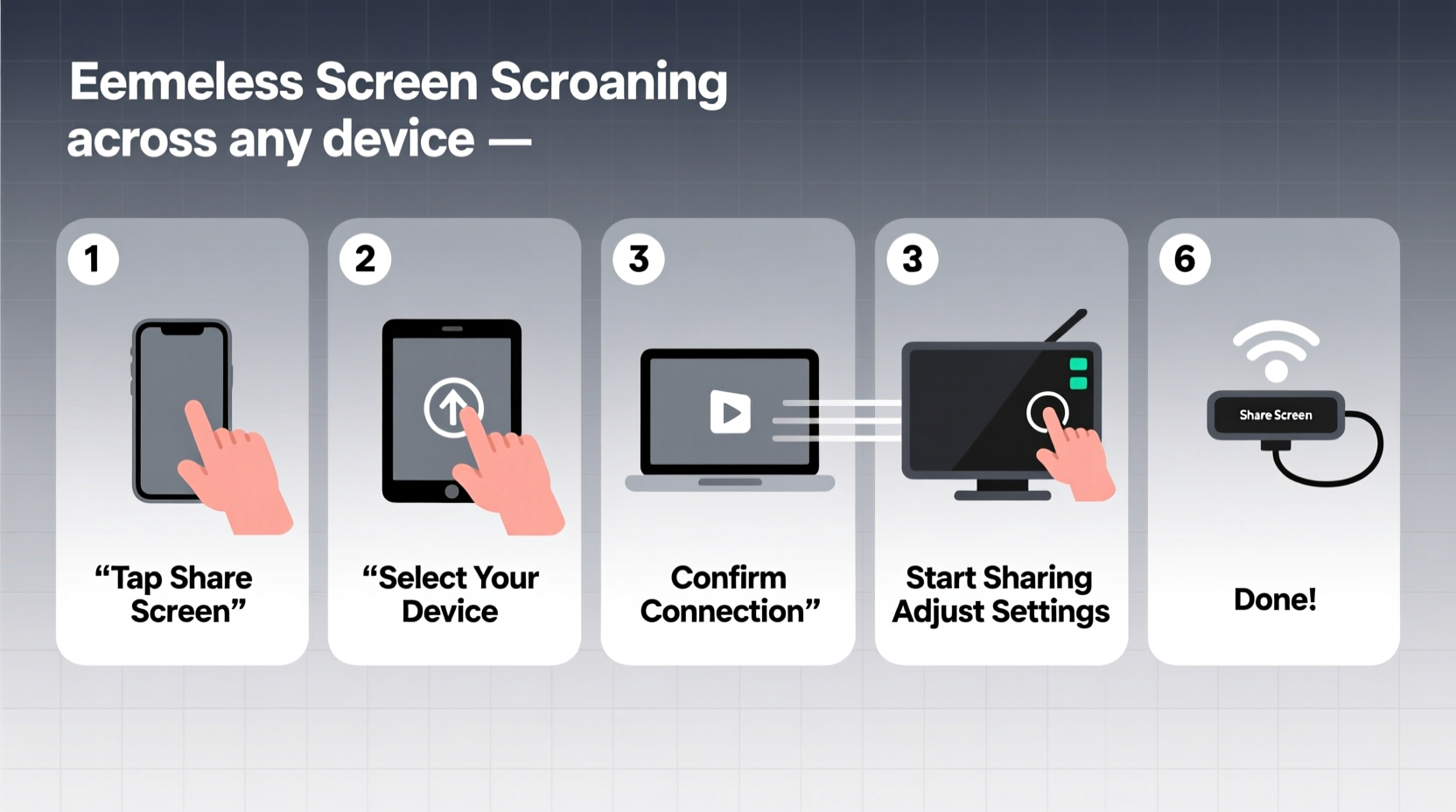
In a world where remote collaboration is the norm, seamless screen sharing ensures that communication remains clear and efficient. A smooth screen-sharing experience reduces delays, minimizes confusion, and keeps meetings productive. Poor performance—such as lag, audio sync issues, or permission errors—can disrupt workflows and damage professional credibility.
Understanding the tools available and preparing your device properly are key steps toward flawless screen sharing. The process varies slightly between operating systems and platforms like Zoom, Microsoft Teams, Google Meet, and native AirPlay or Miracast, but the underlying principles remain consistent: connectivity, permissions, and clarity.
Step-by-Step Guide to Screen Sharing by Device
The method you use depends on your device and the platform you're working with. Below is a detailed walkthrough for major platforms and operating systems.
For Windows 10/11 Users
- Open your preferred video conferencing app (e.g., Zoom, Teams, or Google Meet).
- Join or start a meeting.
- Click the “Share Screen” button (usually represented by a monitor icon).
- Select the window or entire desktop you wish to share.
- Check “Share sound” if you want to broadcast audio from your device.
- Click “Share” to begin.
To use wireless display (Miracast) without a meeting app:
- Press Win + K to open the Connect panel.
- Ensure your target device (TV, projector, or another PC) is discoverable.
- Select the device from the list.
- Confirm connection on both devices if prompted.
For macOS Users
- Launch your conferencing application and join a meeting.
- Click “Share Screen” in the meeting controls.
- Choose either your full screen or a specific application window.
- Click “Share” to begin broadcasting.
To use AirPlay for screen mirroring:
- Ensure both your Mac and receiving device (Apple TV, AirPlay-compatible smart TV) are on the same Wi-Fi network.
- Click the AirPlay icon in the menu bar (looks like a rectangle with an arrow).
- Select your target device.
- Your screen will mirror instantly.
“AirPlay remains one of the most reliable wireless screen-sharing technologies when used within Apple’s ecosystem.” — Jordan Lee, IT Infrastructure Consultant
For iPhone and iPad (iOS/iPadOS)
- Swipe down from the top-right corner to open Control Center.
- Tap the Screen Mirroring icon (a rectangle with a triangle at the bottom).
- Select your AirPlay-compatible device from the list.
- Enter the code displayed on the TV or receiver if prompted.
Note: You cannot natively share your screen directly into Zoom or Teams from the iOS app. Instead, use AirPlay to mirror to a compatible receiver, then capture that feed externally if needed.
For Android Devices
- Open the Settings app and go to “Connected devices” > “Connection preferences” > “Cast” (location may vary by manufacturer).
- Enable casting and ensure your Chromecast or compatible TV is visible.
- Select the device to begin mirroring.
- Alternatively, use Google Meet: Tap “Present now” during a meeting and choose “Share Entire Screen.”
Cross-Platform Compatibility: Bridging the Gap
Different ecosystems don’t always play well together. While AirPlay works best with Apple hardware and Miracast is common on Windows and Android, third-party tools help bridge these divides.
| Tool | Best For | Supported Platforms | Setup Required? |
|---|---|---|---|
| Google Chrome Cast | Web content sharing | Windows, Mac, Android, iOS | Yes (Chromecast dongle) |
| Miracast | Direct wireless display | Windows, Android, select TVs | No (if supported) |
| AirServer | Receiving AirPlay on Windows/Android | Windows, Android, Xbox | Yes (software install) |
| Reflector | Mirroring iOS/Android to PC/Mac | Windows, Mac | Yes (software install) |
Using these tools, you can receive an iPhone screen cast on a Windows laptop or mirror an Android phone to an Apple TV via third-party receivers—great for mixed-device environments.
Common Issues and How to Fix Them
Even with the right setup, problems can occur. Here are frequent challenges and their solutions:
- Device not appearing in list: Ensure both devices are on the same Wi-Fi network and that discovery settings are enabled.
- Lag or stuttering: Close bandwidth-heavy apps (streaming, downloads), move closer to the router, or switch to a 5GHz Wi-Fi band.
- No audio sharing: In Zoom or Teams, check the “Share computer sound” option. For AirPlay, audio should transmit automatically.
- Permission denied: On macOS, go to System Settings > Privacy & Security > Screen Recording and allow your conferencing app.
Mini Case Study: Remote Tech Support Made Easy
Sarah, a freelance graphic designer, was hired by a small business owner in another state to set up their branding suite. The client struggled with installing design software and navigating file exports. Instead of relying on vague instructions over the phone, Sarah scheduled a quick Zoom call. Using screen sharing from her MacBook, she walked the client through each step—demonstrating folder structures, export settings, and font installation—all in real time. The session lasted 20 minutes and resolved months of frustration. The client later said, “Seeing exactly what to do made it click instantly.”
Essential Checklist Before Sharing Your Screen
Before every screen-sharing session, run through this checklist to ensure professionalism and security:
- ✅ Close personal email, messaging apps, and social media tabs.
- ✅ Disable desktop notifications (use Focus Assist on Windows or Do Not Disturb on Mac).
- ✅ Test your microphone and camera beforehand.
- ✅ Confirm internet stability (minimum 5 Mbps upload speed recommended).
- ✅ Verify that your conferencing app has screen-sharing permissions enabled.
- ✅ Have a backup plan (e.g., pre-shared files via cloud link) in case of technical failure.
Frequently Asked Questions
Can I share only one window instead of my entire screen?
Yes. Most conferencing platforms—including Zoom, Teams, and Google Meet—allow you to select individual application windows during screen sharing. This is ideal for focusing attention and maintaining privacy.
Is screen sharing secure?
When done through reputable platforms with end-to-end encryption (like Zoom with E2EE enabled or Microsoft Teams), screen sharing is generally secure. However, avoid sharing sensitive data like passwords or financial documents unless absolutely necessary and in a private setting.
Why can’t others hear my videos during screen sharing?
You must explicitly enable audio sharing. In Zoom, check “Share sound” when selecting your screen. In Teams, audio shares automatically only if you’re sharing system audio—ensure your output device is correctly configured.
Final Tips for a Flawless Experience
Great screen sharing isn’t just about technology—it’s about preparation and awareness. Announce when you’re about to share your screen so participants can adjust. Use clear titles on documents and zoom in on critical details. And always stop sharing when finished to protect your privacy.
Consider rehearsing complex presentations with screen sharing turned on to catch any layout or visibility issues ahead of time. If you're using dual monitors, decide which one to share in advance and test orientation settings.
Conclusion: Share Confidently, Collaborate Effectively
Mastering screen sharing empowers you to communicate ideas clearly, solve problems faster, and work more efficiently—no matter your device or location. By understanding the tools at your disposal and following best practices for setup, security, and delivery, you turn a simple technical function into a powerful collaboration asset.




 浙公网安备
33010002000092号
浙公网安备
33010002000092号 浙B2-20120091-4
Comments
No comments yet. Why don't you start the discussion?