
As more students and remote learners rely on Chromebooks for education, many find themselves struggling with sluggish performance—especially on older models. Over time, accumulated files, outdated software, and too many background apps can bog down even the most reliable device. But before you consider replacing your Chromebook, there are several effective ways to restore its speed and ensure smooth performance during online classes and video streaming.
Chromebooks are designed for efficiency and simplicity, but like any technology, they require maintenance. With a few strategic adjustments, you can significantly improve boot times, browser responsiveness, and media playback quality—even on a device that’s several years old.
1. Clear Browser Clutter and Optimize Chrome Settings
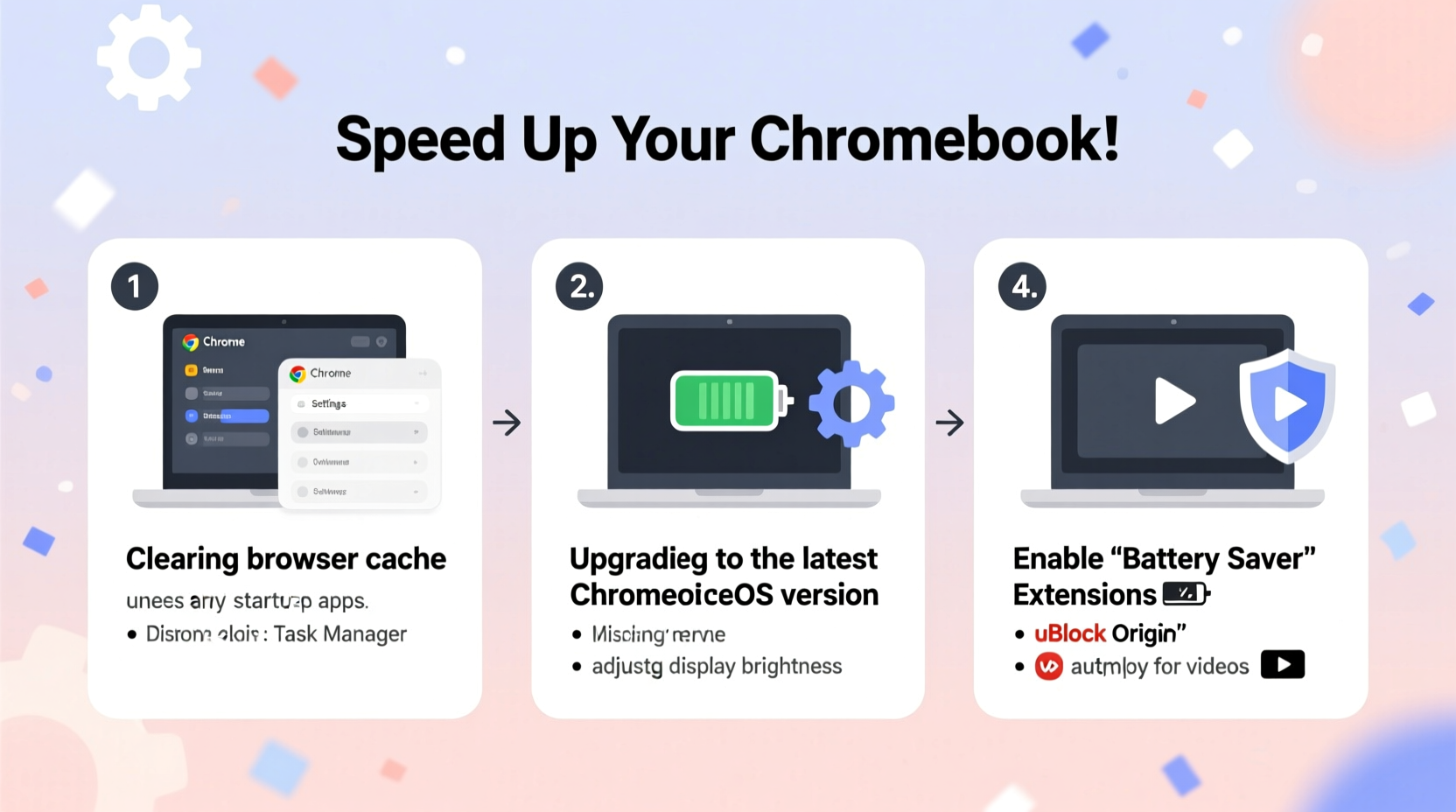
The Chrome browser is both the heart and the heaviest component of a Chromebook. Over months or years of use, it accumulates cached data, cookies, unused extensions, and open tabs that consume memory. Cleaning this digital clutter is one of the fastest ways to see performance gains.
Start by clearing browsing data: go to Settings > Privacy and security > Clear browsing data. Select “All time” as the time range and check boxes for cookies, cached images, and other site data. This often frees up hundreds of megabytes, especially if automatic clearing hasn’t been enabled.
Next, manage your extensions. Many users install tools for schoolwork—grammar checkers, note-takers, ad blockers—but forget to remove those no longer in use. Each extension runs in the background and consumes RAM. To review them, type chrome://extensions in the address bar. Disable or delete any that aren’t essential.
Consider switching to a lighter theme and disabling hardware acceleration if your Chromebook stutters during video calls. To do so, navigate to Settings > Advanced > System, then toggle off “Use hardware acceleration when available.” Restart the device afterward. While this may slightly reduce graphics performance, it often stabilizes systems with limited GPU support.
2. Manage Storage and Remove Unnecessary Files
Older Chromebooks typically come with 16GB or 32GB of internal storage. When over 75% full, performance drops noticeably because the system lacks space for temporary operations and caching. Freeing up storage isn’t just about making room—it directly impacts processing speed.
Open the Files app and sort items by size. Large video downloads, offline media, or forgotten project backups are common space hogs. Move important files to Google Drive (ensure sync is complete before deletion) or an external USB drive. Delete duplicates, screenshots, and old PDFs you no longer need.
Also, clear the Downloads folder regularly. By default, Chrome saves every file here, and many users never revisit it. Set a weekly reminder to audit this folder and purge unnecessary content.
“Storage pressure is one of the top reasons for slowdowns in older Chromebooks. Keeping free space above 20% can prevent lag and crashes.” — David Lin, Chrome OS Support Specialist
Do’s and Don’ts of Chromebook Storage Management
| Do’s | Don’ts |
|---|---|
| Back up files to Google Drive weekly | Store large video files locally long-term |
| Delete downloaded installers after use | Install Android apps you don’t actively use |
| Use external drives for heavy projects | Leave cache-heavy apps running in the background |
| Clear Downloads folder monthly | Ignore low-storage warnings |
3. Update Software and Reset the System
Google regularly releases Chrome OS updates that include performance improvements, security patches, and bug fixes. An outdated operating system not only poses risks but also runs less efficiently. To check for updates, go to Settings > About Chrome OS > Check for updates.
If your Chromebook hasn’t updated in months, installing the latest version could resolve underlying issues slowing it down. After updating, restart the device fully—don’t just close the lid—to ensure all components reload properly.
For deeper optimization, perform a Powerwash—a factory reset that wipes user data and restores default settings. This is especially useful if the device has been shared among multiple users or used for various purposes over time.
To initiate a Powerwash: go to Settings > Advanced > Reset settings > Powerwash > Restart. Note: Back up everything important first, as this process erases local files, accounts, and preferences.
After resetting, set up only what’s needed: your school account, essential apps, and minimal extensions. Avoid restoring all previous data from backup unless absolutely necessary.
4. Optimize Performance During Online Classes
During live sessions on Zoom, Google Meet, or Canvas, every resource counts. A single dropped frame or audio delay can disrupt learning. Optimizing real-time usage ensures smoother experiences without taxing the system.
Close all non-essential tabs and apps before joining a call. Even inactive tabs with embedded videos or auto-playing ads consume CPU cycles. Use the built-in Task Manager (Shift + Esc) to identify which processes are using the most memory or CPU. End tasks related to unused apps.
Lower the video resolution in your conferencing app settings. For example, in Google Meet, disable HD video under camera settings. You’ll still be visible, but the reduced load allows better audio stability and screen sharing performance.
If you're watching educational videos on YouTube or Khan Academy, play them in 480p or 720p instead of 1080p. Higher resolutions strain older GPUs and increase buffering, especially on slower connections.
Step-by-Step Guide: Pre-Class Optimization Routine
- Reboot the Chromebook 10–15 minutes before class.
- Clear browsing data or restart Chrome.
- Close all unrelated apps and tabs.
- Disable unnecessary extensions temporarily.
- Set video quality to 720p or lower in streaming platforms.
- Connect to a stable Wi-Fi network; avoid public hotspots.
- Position the Chromebook near the router to strengthen signal.
This routine takes less than five minutes but dramatically improves reliability during critical sessions.
5. Real-World Example: Reviving a 2017 Chromebook for Remote Learning
Sophia, a high school junior in Portland, relied on her Acer Chromebook 11 (released in 2017) for virtual classes during a semester-long hybrid schedule. By early November, she noticed frequent freezing during Google Meet lectures, delayed responses when opening assignments, and constant spinning wheels on YouTube tutorials.
She tried restarting daily, but the issues persisted. Then, following a tech support guide, she took these steps:
- Cleared over 2.1 GB of cached data and deleted 14 unused extensions.
- Moved 4.7 GB of photos and project drafts to Google Drive.
- Disabled hardware acceleration due to repeated video glitches.
- Performed a Powerwash and reinstalled only essential apps.
The results were immediate. Boot time dropped from 90 seconds to 35. Video streams loaded faster, and Google Docs responded instantly. Her teacher even commented on the clarity of her audio during presentations. What felt like a failing device became reliable again—with no cost and no upgrade required.
Checklist: How to Speed Up Your Old Chromebook
- ✅ Clear browsing data and cached files
- ✅ Remove unused extensions and apps
- ✅ Free up at least 20% of internal storage
- ✅ Update Chrome OS to the latest version
- ✅ Perform a Powerwash if performance remains poor
- ✅ Disable hardware acceleration if experiencing lag
- ✅ Close background tabs during video calls
- ✅ Use lower video resolution for streaming
- ✅ Reboot regularly (at least once a week)
- ✅ Connect to a strong, stable internet source
Frequently Asked Questions
Can I add more RAM to my Chromebook?
No, most Chromebooks have soldered RAM that cannot be upgraded. However, optimizing software and reducing multitasking can compensate for limited memory.
Why does my Chromebook get slow after being on for a few hours?
This is often due to memory leaks from browser tabs or apps. Over time, unmanaged processes consume RAM until the system struggles. Regular reboots and closing unused tabs help maintain consistent performance.
Will using Linux or Android apps slow down my Chromebook?
Potentially. While Chromebooks support Android and Linux apps, these run additional services that demand more CPU and storage. Only install such apps if necessary, and uninstall them when no longer in use.
Conclusion
An aging Chromebook doesn’t have to mean poor performance. With thoughtful maintenance and smart usage habits, even a model from 2015–2018 can handle modern online classes and HD streaming reliably. The key lies in proactive care—regular cleanups, timely updates, and mindful resource management.
Speed isn’t always about hardware. Often, it’s about removing what’s holding your device back. By applying these strategies, you extend the life of your Chromebook, save money, and create a smoother, more focused learning environment.




 浙公网安备
33010002000092号
浙公网安备
33010002000092号 浙B2-20120091-4
Comments
No comments yet. Why don't you start the discussion?