
Chromebooks are known for their simplicity, security, and efficiency. But even the most reliable device can slow down over time. Whether you're a student juggling multiple tabs, a remote worker managing video calls, or a parent using streaming apps, a sluggish Chromebook can disrupt your flow. The good news: most performance issues aren’t permanent. With a few strategic adjustments, you can restore speed, improve responsiveness, and extend your device’s lifespan without spending a dime.
1. Understand Why Chromebooks Slow Down
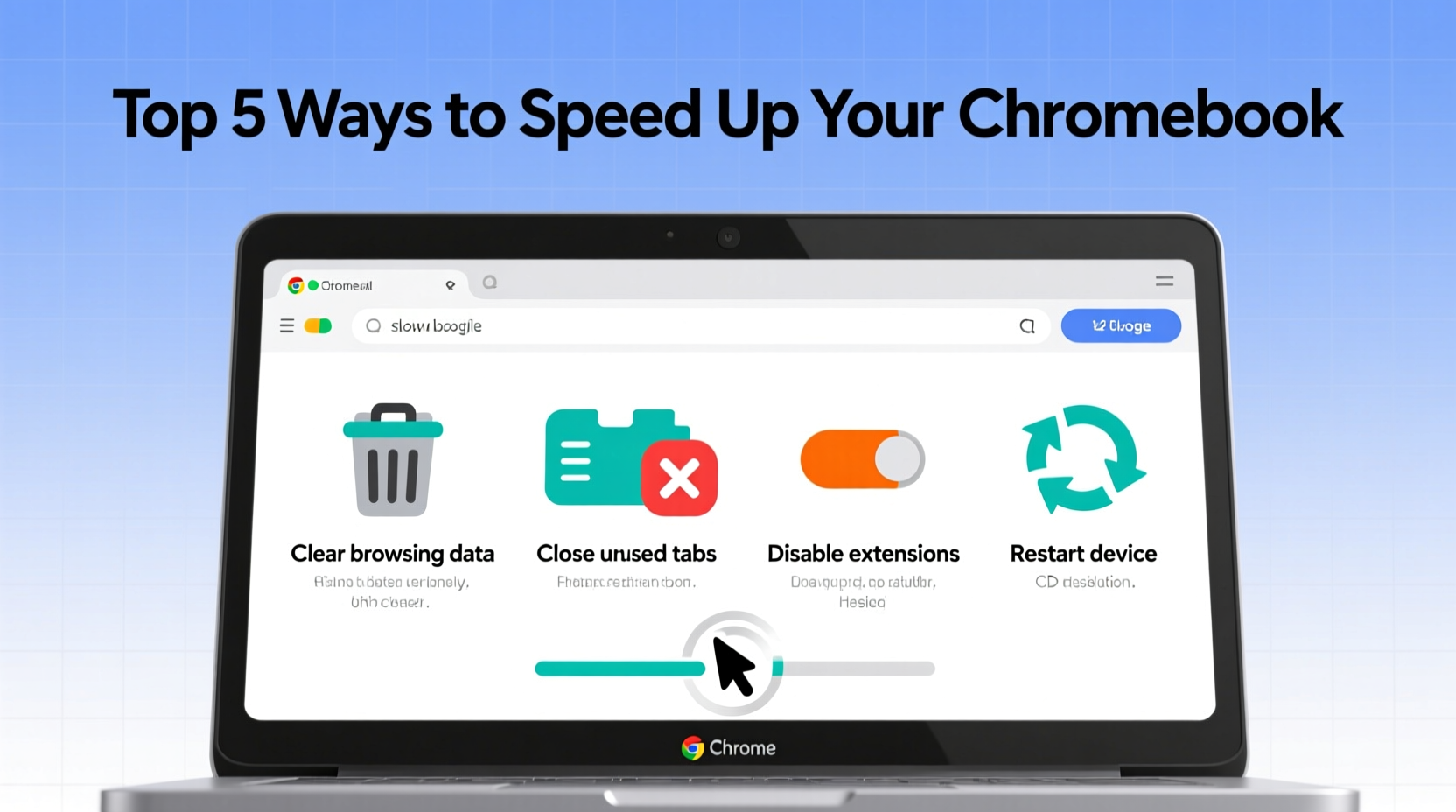
Unlike traditional laptops running heavy operating systems, Chrome OS is lightweight by design. However, performance degradation usually stems from user behavior and system clutter rather than hardware failure. Common culprits include:
- Too many open browser tabs – Each tab consumes memory, especially those with videos or dynamic content.
- Excessive extensions – Some add-ons run in the background, draining CPU and RAM.
- Full storage space – Chromebooks rely on fast access to internal storage; low space slows everything down.
- Outdated firmware or apps – Missing updates can introduce bugs or compatibility issues.
- Background apps and sync processes – Cloud syncing, notifications, and auto-login services add overhead.
Chromebooks typically come with limited storage (32GB or 64GB), making optimization essential. When free space drops below 10%, performance noticeably declines because the system struggles to manage temporary files and cache operations.
“Just like any computer, Chromebooks need regular maintenance. Even minimal hardware can feel fast with clean software habits.” — David Lin, Chrome OS Systems Engineer
2. Immediate Fixes to Regain Speed
If your Chromebook is currently unresponsive, start with these real-time actions to relieve pressure on the system.
Close Unnecessary Tabs and Apps
The single most effective step? Reduce tab overload. Having 20+ tabs open—even if minimized—can max out your RAM. Chrome OS prioritizes active tabs, but background ones still consume resources.
Restart Your Device Regularly
A full reboot clears cached data, stops rogue processes, and reloads the OS cleanly. Most users overlook this simple fix. Aim to restart at least once a week—even daily if you’re a heavy user.
Use Task Manager to Identify Resource Hogs
Press Shift + Esc to open Chrome’s built-in Task Manager. Here, you’ll see which tabs, extensions, or apps are consuming the most memory (RAM) and CPU.
Sort by “Memory” or “CPU” usage and end high-consuming tasks by selecting them and clicking “End Process.” Be cautious not to close critical system processes like “Browser” or “GPU Process,” but feel free to terminate unfamiliar or idle entries.
Switch to Guest Mode Temporarily
If your main profile feels slow due to accumulated data, try logging into Guest Mode. This provides a fresh, clean session with no extensions, history, or synced data. If performance improves dramatically, the issue lies within your user profile.
3. Optimize Chromebook Settings for Long-Term Speed
Beyond quick fixes, sustainable performance comes from smart configuration. These changes take minutes but deliver lasting benefits.
Manage Extensions Wisely
Extensions enhance functionality, but each one adds background load. Audit your current list:
- Go to chrome://extensions in your browser.
- Disable or remove tools you no longer use.
- Keep only essential ones like ad blockers, password managers, or grammar checkers.
Consider replacing multiple extensions with a single versatile tool. For example, instead of having separate dark mode, screenshot, and note-taking extensions, use an all-in-one productivity suite.
Clear Browsing Data Regularly
Over time, cookies, cached images, and site data accumulate. While they help pages load faster initially, too much stored data eventually hampers performance.
To clear data:
- Navigate to Settings > Privacy and security > Clear browsing data.
- Select “All time” as the time range.
- Check boxes for Cookies, Cached images, and Browsing history.
- Click “Clear data.”
Set a monthly reminder to repeat this process. Alternatively, use incognito windows for one-off searches to avoid saving unnecessary data.
Turn Off Startup Apps
Many apps are set to launch automatically when you log in. These eat up boot time and memory. To disable them:
- Open Settings > Apps > Google Play Store > Manage Android preferences > Startup.
- Toggle off non-essential apps.
Note: Not all Chromebooks support Android apps. If you don’t use them, consider disabling the Play Store entirely under Settings to prevent background activity.
Reduce Visual Effects
Animations and desktop wallpapers may look nice but consume GPU resources. Switch to a solid color wallpaper and reduce motion:
- Go to Settings > Personalization > Wallpaper and choose a plain background.
- Disable “Show animations in Chrome OS” via experimental flags (
chrome://flags), though proceed cautiously here.
4. Free Up Storage and Maintain System Health
Storage is a silent bottleneck. When your Chromebook runs out of space, it can't efficiently handle downloads, updates, or temporary files.
Delete Unused Files and Downloads
Open the Files app and review your Downloads folder. Many users forget that every saved image, document, or installer stays there unless manually removed.
- Delete duplicate files and outdated installers.
- Move large media files (videos, photos) to Google Drive or an external USB drive.
- Empty the trash after deletion—files remain in trash until permanently erased.
Offload to the Cloud
Leverage Google Drive for long-term storage. Right-click files in the Files app and select “Save to Drive.” This removes them locally while keeping them accessible online.
For automatic cleanup, enable “Free up space” in Google Drive settings. It removes local copies of files already synced to the cloud when storage is low.
Uninstall Unused Android and Linux Apps
If you’ve enabled Android or Linux (Crostini) support, unused apps from these environments still occupy space and may run background services.
To uninstall:
- Android apps: Open Play Store > Menu > My apps & games > Installed > Uninstall.
- Linux apps: Open Terminal and run
sudo apt remove [package-name].
Monitor Storage Usage
Visit Settings > About Chrome OS > Storage management to see a breakdown of what’s using space. This tool categorizes usage into Apps, Browsing data, Files, and System, helping you pinpoint waste.
| Storage Category | What It Includes | Action to Take |
|---|---|---|
| Browsing Data | Cookies, cache, history | Clear via Privacy settings |
| Files | Downloads, documents, media | Delete or move to cloud |
| Apps | Chrome, Android, Linux apps | Uninstall unused ones |
| System | OS files (cannot be deleted) | No action needed |
5. Real-World Example: A Student’s Turnaround
Maria, a college sophomore, relied on her Chromebook for research, Zoom lectures, and writing papers. After six months, it began freezing during class—tabs crashed, audio cut out, and typing lagged.
She followed a structured cleanup:
- Closed 30+ open tabs she had left running for weeks.
- Removed five unused extensions, including a crypto tracker and two ad blockers.
- Cleared 1.2 GB of cached data and browsing history.
- Deleted old lecture recordings saved locally and moved notes to Google Drive.
- Rebooted the device.
The result? Her Chromebook booted in under 15 seconds, apps launched instantly, and multitasking became smooth again. She now schedules a 10-minute maintenance session every Sunday night.
Step-by-Step Optimization Checklist
Follow this checklist monthly to keep your Chromebook running fast:
- Reboot your device to clear memory and refresh the system.
- Open Task Manager (Shift + Esc) and end high-resource processes.
- Review and remove unused extensions at chrome://extensions.
- Clear browsing data for the past four weeks or more.
- Check storage usage and delete or offload large files.
- Uninstall unused Android or Linux apps.
- Disable startup apps that run on login.
- Switch to a solid-color wallpaper to reduce GPU load.
- Ensure your Chromebook is updated (Settings > About Chrome OS).
- Test performance in Guest Mode to isolate profile-based issues.
Frequently Asked Questions
Can I upgrade my Chromebook’s RAM or storage?
No, Chromebooks have soldered components—you cannot upgrade RAM or internal storage after purchase. This makes optimizing existing resources even more important. Use external USB drives or microSD cards for additional file storage.
Why does my Chromebook slow down after an update?
Sometimes, new Chrome OS updates require more resources or trigger background indexing. After an update, the system may run slower for 24–48 hours as it reorganizes files and caches. If slowness persists beyond that, follow the optimization steps above.
Is it safe to use third-party cleaning apps?
Generally, no. Chrome OS doesn’t need registry cleaners or “boost” apps. Most third-party utilities are ineffective or potentially harmful. Stick to built-in tools and manual cleanup methods for best results.
Final Thoughts: Speed Starts with Habits
Speeding up a lagging Chromebook isn’t about magic fixes—it’s about consistent digital hygiene. Most slowdowns stem from small oversights: too many tabs, forgotten downloads, or unchecked extensions. By integrating regular maintenance into your routine, you can preserve peak performance for years.
Your Chromebook was designed for simplicity and efficiency. Return to that intent. Close tabs you don’t need. Delete what you don’t use. Trust the cloud. Restart often. These habits cost nothing but deliver significant returns in speed, reliability, and usability.




 浙公网安备
33010002000092号
浙公网安备
33010002000092号 浙B2-20120091-4
Comments
No comments yet. Why don't you start the discussion?