
Transferring files between a Mac and a PC should be fast and frictionless—yet many users still experience slow speeds, failed connections, or compatibility issues. Whether you're moving large video projects, backing up personal photos, or collaborating across platforms, inefficient transfers can disrupt workflow and waste time. The good news is that with the right setup, tools, and optimizations, you can dramatically accelerate file transfers between macOS and Windows systems. This guide dives into practical, tested strategies that go beyond basic drag-and-drop, helping you achieve seamless, high-speed data exchange.
Optimize Your Network Infrastructure
The foundation of any fast file transfer lies in your network. Most Mac-to-PC transfers happen over a local network, and even minor bottlenecks here can cripple performance. To ensure maximum throughput, start by evaluating your hardware and configuration.
Wired Ethernet connections consistently outperform Wi-Fi, especially when dealing with large files. If both devices support Gigabit Ethernet (1000 Mbps), use Cat 6 or higher cables and connect them through a Gigabit-capable router or switch. This setup can deliver real-world transfer speeds of 90–110 MB/s, far surpassing typical Wi-Fi performance.
If you must use Wi-Fi, ensure both machines are connected to a 5 GHz band on an 802.11ac or 802.11ax (Wi-Fi 6) network. Avoid older standards like 802.11n or congested 2.4 GHz channels, which often max out below 30 MB/s under ideal conditions.
Choose the Right Transfer Method
Different transfer methods offer varying levels of speed, security, and convenience. Understanding their strengths helps you pick the best one for each scenario.
| Method | Speed Potential | Setup Complexity | Best For |
|---|---|---|---|
| SMB File Sharing | High (network-limited) | Medium | Regular transfers, shared folders |
| External SSD via USB-C | Very High (up to 550 MB/s) | Low | Large one-time transfers |
| Cloud Services (Dropbox, OneDrive) | Variable (upload/download speed) | Low | Remote access, small teams |
| FTP/SFTP Servers | High (configurable) | High | Automated or scripted workflows |
| Direct Cable (Thunderbolt/USB-C) | Extremely High (up to 1.3 GB/s) | High | Professional media workflows |
For everyday use, SMB (Server Message Block) file sharing is the most balanced option. It’s natively supported on both platforms, secure, and allows bidirectional access. Cloud services are convenient but introduce latency and depend on internet bandwidth—fine for documents, less so for 4K video files.
“SMB remains the gold standard for cross-platform local transfers. When properly configured, it delivers near-wire speed with minimal overhead.” — David Lin, Network Systems Engineer at TechFlow Solutions
Step-by-Step: Set Up Fast SMB File Sharing
To maximize transfer speed using SMB, follow this optimized setup process:
- Enable File Sharing on the Mac: Go to System Settings > General > Sharing. Turn on “File Sharing.” Click the “Options” button and ensure “Share files and folders using SMB” is checked. Add the user accounts you want to grant access to.
- Configure Shared Folders: In the same window, click the \"+\" under \"Shared Folders\" to add the directories you wish to share. Set appropriate read/write permissions for connected users.
- Access from Windows: On the PC, open File Explorer and type
\\\\[Mac's-IP-Address]in the address bar (e.g.,\\\\192.168.1.20). Press Enter. You’ll be prompted for the Mac username and password. - Map as Network Drive (Optional): Right-click the shared folder and select “Map network drive” for persistent access.
- Optimize SMB Version: On macOS, force SMB2 or SMB3 by editing the
/etc/nsmb.conffile (create if missing) and adding:
[default]
smb_neg=smb2_only
This disables outdated SMB1, improving both speed and security. - Adjust Windows SMB Settings: On the PC, disable SMB compression and enable large MTU frames via PowerShell (run as admin):
Set-SmbClientConfiguration -DisableCompression $true
Set-SmbClientConfiguration -MaxPacketSize 131072
These tweaks reduce protocol overhead and allow larger data packets, resulting in smoother, faster transfers—especially noticeable with multi-gigabyte files.
Leverage High-Speed External Storage
When network limitations persist, bypass them entirely with direct storage solutions. Modern external SSDs connected via USB-C or Thunderbolt deliver transfer speeds exceeding 500 MB/s—ideal for moving terabytes of data quickly.
Use exFAT as the filesystem format for full compatibility between Mac and PC. Unlike NTFS (read-only on macOS without third-party tools) or HFS+ (inaccessible on Windows), exFAT supports large files (over 4GB) and works out of the box on both platforms.
For maximum speed, connect the drive to a USB 3.2 Gen 2 (10 Gbps) or Thunderbolt 3/4 port. Avoid daisy-chaining hubs or using older USB-A ports, which can bottleneck performance.
Use Direct Connection Cables for Maximum Speed
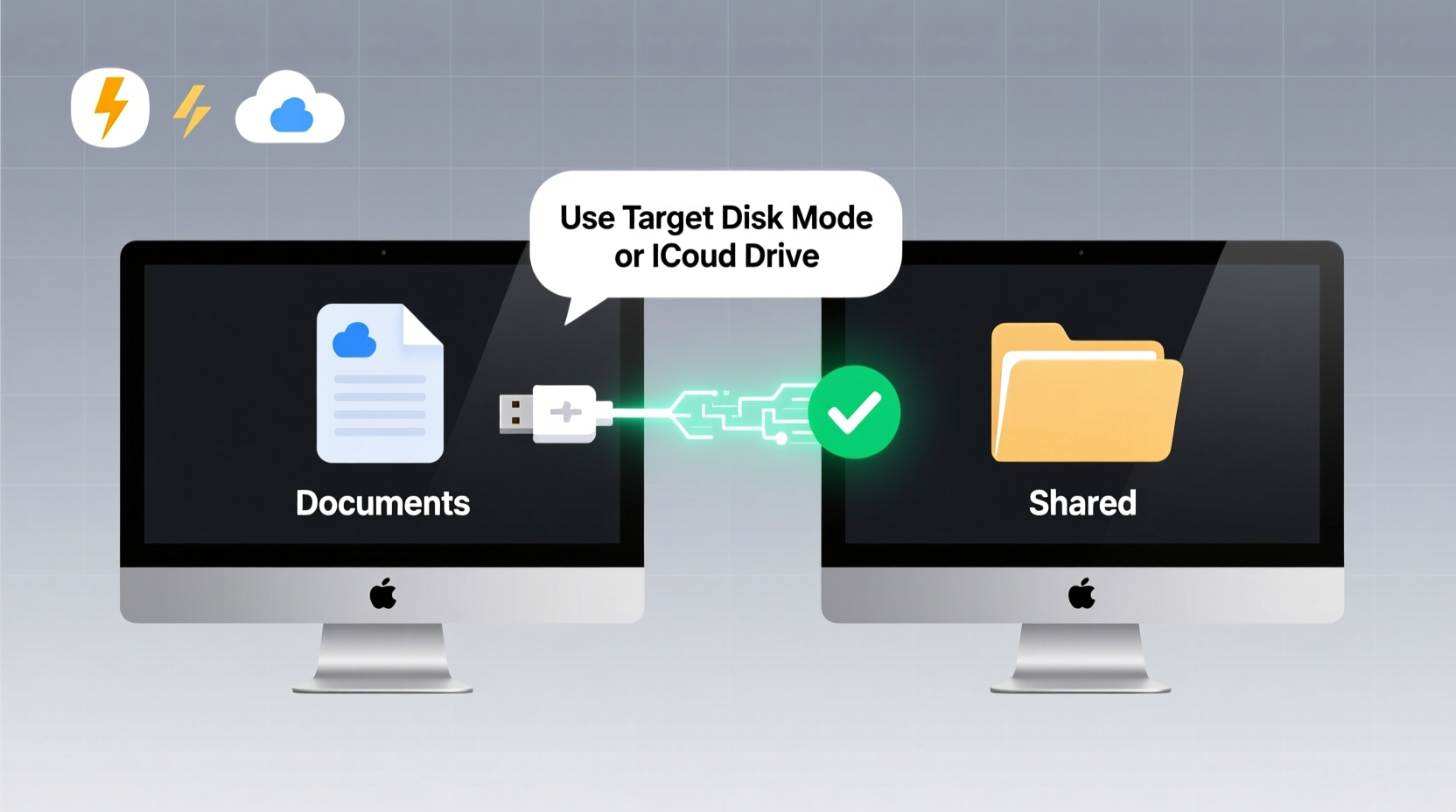
For professionals handling massive datasets—such as video editors or photographers—direct cable connections offer unparalleled speed. Apple’s Target Disk Mode (available on Intel and M-series Macs) allows a Mac to act as an external drive when connected to a PC via Thunderbolt or USB-C.
On Macs with Apple Silicon, Target Disk Mode is accessed differently: shut down the Mac, then connect it to the PC using a compatible Thunderbolt cable. Power on while holding the power button until the connection screen appears. The Mac’s drives will appear as external volumes on the Windows machine.
This method bypasses network protocols entirely, enabling raw disk-speed transfers. With Thunderbolt 3, speeds can exceed 1 GB/s—making it the fastest way to move large libraries between machines.
Mini Case Study: Video Production Workflow
A freelance video editor in Austin routinely works on 4K timelines stored on her MacBook Pro. Each week, she delivers final cuts to a client’s Windows-based post-production studio. Initially, she used cloud uploads, which took over six hours per project. After switching to a direct Thunderbolt connection using Target Disk Mode, the same transfer completed in 18 minutes. She now uses a portable NVMe SSD formatted as exFAT for backup and transport, ensuring compatibility and speed regardless of the receiving system.
Software Tools That Accelerate Transfers
Beyond built-in options, third-party software can enhance speed, reliability, and automation.
- TeraCopy (Windows): Replaces the default copy engine with one that uses dynamic buffer allocation and error recovery. Can increase throughput by 20–30% on fragmented transfers.
- ChronoSync (macOS): Offers intelligent synchronization with block-level copying—only changed portions of files are transferred, saving time on large media files.
- Resilio Sync: Uses peer-to-peer syncing based on BitTorrent technology. Files move directly between devices without cloud intermediaries, maintaining high speeds even across networks.
- FreeFileSync: Open-source tool for mirroring folders between Mac and PC over a network. Supports real-time sync and batch processing.
For automated workflows, scripting tools like rsync (available on macOS and via WSL on Windows) allow scheduled, incremental transfers. A simple command like:
rsync -avz --partial user@mac-ip:/path/to/files /windows/destination
ensures only new or modified data moves, drastically cutting repeat transfer times.
Checklist: Optimize for Fast Cross-Platform Transfers
- ✅ Use wired Gigabit Ethernet when possible
- ✅ Format external drives as exFAT for compatibility
- ✅ Enable SMB2/3 and disable SMB1 on both systems
- ✅ Update macOS and Windows to latest versions for improved SMB support
- ✅ Disable antivirus real-time scanning during large transfers
- ✅ Use TeraCopy or ChronoSync for faster, resilient copying
- ✅ Leverage direct Thunderbolt/USB-C cables for largest files
- ✅ Clean up unnecessary files before transferring to reduce load
Frequently Asked Questions
Why is my Mac-to-PC transfer so slow?
Slow transfers are typically caused by outdated network hardware, SMB1 usage, wireless interference, or background processes consuming bandwidth. Ensure both machines are on a modern network, disable legacy protocols, and close unused applications during transfers.
Can I use AirDrop to send files to a Windows PC?
No, AirDrop is exclusive to Apple devices. However, Microsoft’s Nearby Share (on newer Windows 11 devices) offers similar functionality between Android and Windows. For Mac-to-PC, use SMB sharing, cloud links, or physical media instead.
Is it safe to transfer files between Mac and PC?
Yes, as long as you use trusted methods and scan files for malware. While macOS has fewer viruses, executable files (.exe, .dmg) should always be scanned before opening. Avoid transferring files from untrusted sources, and keep antivirus software updated on the Windows side.
Conclusion: Achieve Seamless, High-Speed Transfers
Speeding up file transfers between Mac and PC isn’t about buying expensive gear—it’s about smart configuration. From optimizing network settings and choosing the right protocol to leveraging direct cables and efficient software, every step compounds to create a seamless experience. Whether you're a creative professional, student, or home user, these strategies eliminate frustration and save hours over time.




 浙公网安备
33010002000092号
浙公网安备
33010002000092号 浙B2-20120091-4
Comments
No comments yet. Why don't you start the discussion?