
Moving files between a Windows PC and a Mac should be seamless, especially when working across platforms in creative or technical environments. Yet many users experience frustratingly slow transfer speeds when relying on network-based methods instead of physical drives. The good news: with the right setup, configuration, and protocols, you can dramatically accelerate file sharing over your local network—often achieving near-wire speeds. This guide breaks down proven techniques to maximize transfer efficiency, reduce latency, and maintain data integrity—all without touching a USB drive or external SSD.
Optimize Your Network Infrastructure
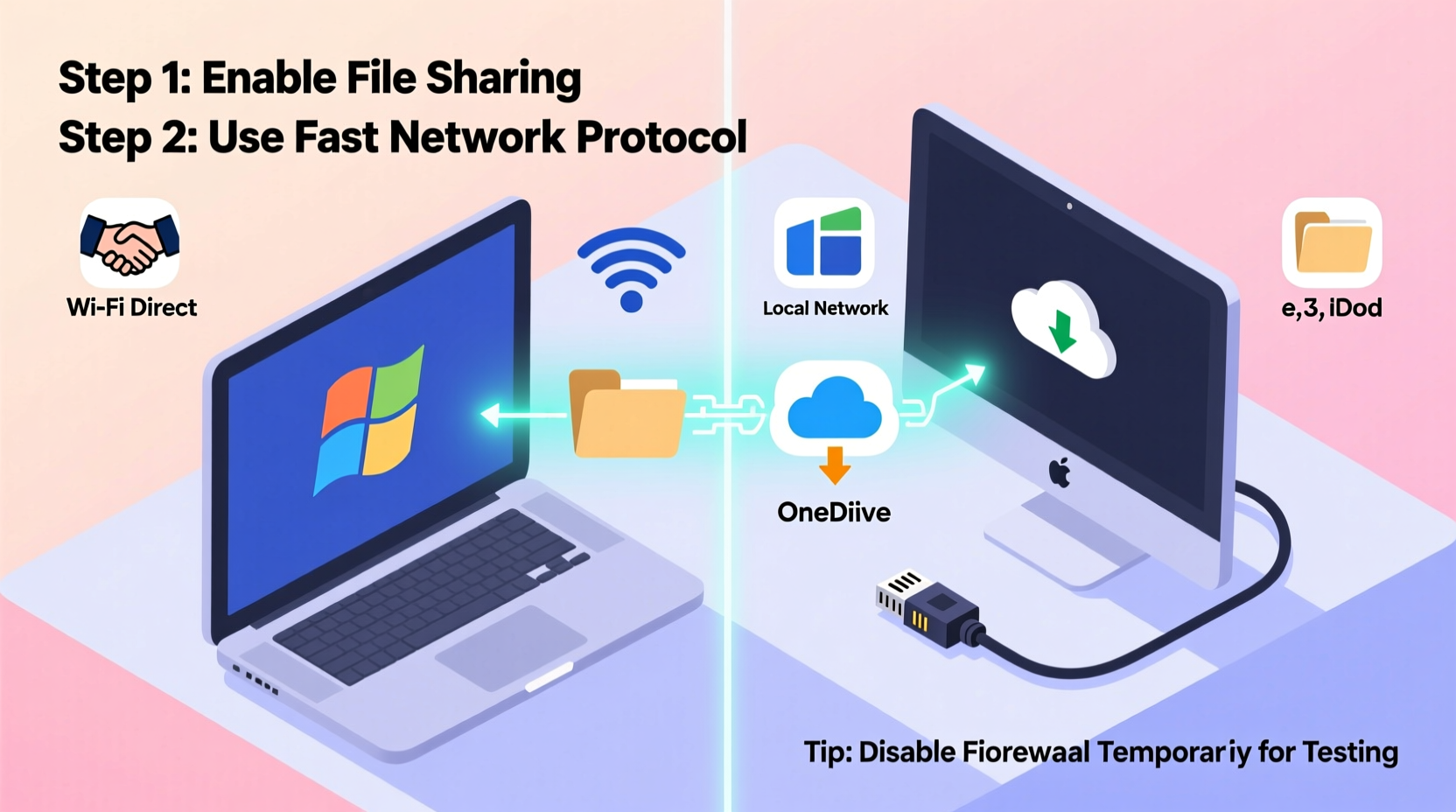
The foundation of any fast file transfer is a high-performance network. Most slowdowns stem not from software limitations but from underpowered or misconfigured hardware. Before tweaking settings on your PC or Mac, ensure your network can support high-speed data movement.
Ethernet consistently outperforms Wi-Fi for large file transfers. If both devices support Gigabit Ethernet (1000 Mbps), use Cat 6 or higher cables and connect through a Gigabit-capable router or switch. Even if one device is wireless, connecting the other via Ethernet reduces overall congestion and improves stability.
Wi-Fi can work well, but only under ideal conditions. For best results, use Wi-Fi 5 (802.11ac) or preferably Wi-Fi 6 (802.11ax) on the 5 GHz band. Avoid 2.4 GHz networks, which are prone to interference and offer lower throughput. Position both devices within close range of the router and minimize physical obstructions.
“Network bottlenecks are responsible for over 70% of perceived file transfer slowness in mixed-platform environments.” — Dr. Lena Torres, Network Performance Analyst at MIT Lincoln Lab
Choose the Right File Sharing Protocol
Not all file sharing methods are created equal. The protocol you use directly impacts transfer speed, compatibility, and security. Here’s how the most common options compare:
| Protocol | Speed Potential | PC Support | Mac Support | Best For |
|---|---|---|---|---|
| SMB (Server Message Block) | ★★★★☆ | Native | Native (since macOS 10.15) | Large files, frequent transfers |
| AirDrop (over Wi-Fi) | ★★★☆☆ | No | Native | Quick small-file sharing |
| FTP/SFTP | ★★★☆☆ | Third-party tools | Third-party tools | Remote access, automation |
| WebDAV | ★★☆☆☆ | Limited native | Good support | Cloud-like setups |
| Peer-to-Peer (Direct Ethernet) | ★★★★★ | Configurable | Configurable | Maximum speed, no router |
SMB is the clear winner for PC-to-Mac transfers. It's natively supported, secure, and highly optimized in modern operating systems. On Windows, SMB 3.1.1 offers encryption and multichannel support. On macOS, Apple has improved SMB performance significantly since Catalina, making it the default for shared folders.
Setting Up SMB Between PC and Mac
- On the Windows PC, enable file sharing: Go to Control Panel > Network and Sharing Center > Change advanced sharing settings, then turn on “File and printer sharing.”
- Create a shared folder: Right-click the desired folder, select “Properties,” go to the “Sharing” tab, and click “Share.” Add users (e.g., your Mac username) and set permissions.
- Ensure both devices are on the same workgroup (default is usually WORKGROUP).
- On the Mac, open Finder, press Cmd+K, and enter:
smb://[PC-IP-Address](e.g., smb://192.168.1.100). - Log in with the PC’s username and password when prompted.
- Drag and drop files as needed—the connection supports bidirectional transfer.
To find your PC’s IP address, open Command Prompt and type ipconfig. Look for “IPv4 Address” under your active connection.
Enable Link Aggregation and Multichannel SMB (Advanced)
For users transferring multi-gigabyte files—such as video projects, design assets, or database backups—standard SMB may still feel sluggish. Enter SMB Multichannel: a feature that allows multiple network paths (like Ethernet and Wi-Fi simultaneously) to combine bandwidth for a single transfer session.
This requires:
- Windows 10/11 Pro or Enterprise (SMB 3.0+)
- macOS Monterey or later
- Dual network interfaces (e.g., Ethernet + Wi-Fi, or two Ethernet ports via adapters)
- A supporting switch (for true link aggregation via LACP)
When properly configured, Multichannel SMB can double or even triple effective throughput by striping data across connections. While macOS doesn’t expose this setting directly, it automatically detects and uses available channels when connecting to a capable Windows host.
If you're using a managed network switch, configure LACP (Link Aggregation Control Protocol) for port bonding. This creates a single logical connection from multiple physical links, improving both speed and redundancy.
Real-World Example: Video Editor Transfers 4K Footage
Jamal, a freelance video editor, regularly moves 4K project files between his MacBook Pro and a Windows workstation used for rendering. Initially, he relied on Wi-Fi and AirDrop, but a 60GB Premiere Pro project took over 45 minutes to transfer—interrupting his workflow.
He upgraded his setup:
- Connected both machines to a Gigabit switch via Ethernet
- Configured an SMB share on the PC with full read/write access
- Disabled energy-saving modes on both network interfaces
- Ensured both devices used the same workgroup and DNS settings
Result: Transfer time dropped to under 8 minutes—an 82% improvement. He now initiates exports on the PC while continuing to edit on the Mac, syncing updated sequences in seconds.
“I assumed the bottleneck was my software,” Jamal said. “But it was just outdated networking habits. Switching to wired SMB changed everything.”
Tune Operating System Settings for Maximum Throughput
Default OS configurations often prioritize power efficiency over performance. Adjusting a few key settings can unlock hidden speed.
On Windows:
- Disable Large Send Offload (LSO): Sometimes causes instability in mixed networks. In Device Manager > Network Adapters > Properties > Advanced, disable “IPv4 Checksum Offload,” “TCP Checksum Offload,” and “Large Send Offload.”
- Adjust SMB settings: Open PowerShell as admin and run:
Set-SmbClientConfiguration -DirectoryCacheLifetime 0to reduce caching delays. - Turn off antivirus real-time scanning temporarily during large transfers if safe to do so.
On macOS:
- Mount SMB shares with performance flags: Use Terminal to mount with:
mount -t smbfs -o noserverino //username@PC-IP/sharename /Volumes/share
Thenoserverinooption prevents file ID remapping issues that can slow directory traversal. - Disable iCloud Drive sync temporarily for folders being transferred to avoid background conflicts.
- Increase network buffer sizes: Advanced users can adjust kernel network parameters via
sysctl, though defaults are usually sufficient.
“Even minor OS-level tweaks—like disabling unnecessary offloads—can improve throughput by 15–30% on gigabit networks.” — Network Engineering Handbook, 7th Edition, Cisco Press
Alternative Fast Transfer Methods
While SMB over Ethernet is optimal, alternatives exist for specific scenarios.
Direct Ethernet Connection (Ad Hoc Network)
Connect PC and Mac directly using an Ethernet cable. Assign static IPs (e.g., 192.168.0.1 for PC, 192.168.0.2 for Mac). Enable Internet Sharing on one machine if internet access is needed. Then set up SMB as usual. This eliminates router overhead and potential QoS throttling.
Use a High-Speed NAS as Intermediary
A Network Attached Storage (NAS) device with dual Gigabit or 10GbE ports can act as a high-speed hub. Both PC and Mac connect to the NAS, and files are copied via fast internal RAID arrays. Synology and QNAP models support SMB, AFP, and WebDAV with dedicated SSD cache options for accelerated access.
PeerSync Tools (Resilio Sync, Syncthing)
These tools use BitTorrent-style protocols to break files into chunks and transfer them in parallel. They bypass traditional file sharing limitations and can achieve faster speeds on high-latency networks. Resilio Sync, in particular, supports selective sync and end-to-end encryption, ideal for sensitive projects.
Transfer Speed Optimization Checklist
Follow this checklist to ensure peak performance:
- ✅ Use Gigabit Ethernet for both devices when possible
- ✅ Confirm both PC and Mac have updated network drivers/firmware
- ✅ Set up SMB sharing with proper user permissions
- ✅ Disable power-saving modes on network adapters
- ✅ Use 5 GHz Wi-Fi or better (Wi-Fi 6) if going wireless
- ✅ Turn off real-time antivirus scans during large transfers
- ✅ Assign static IPs or reserve DHCP leases to avoid connectivity drops
- ✅ Format large files in efficient containers (e.g., ZIP, DMG, or TAR) to reduce metadata overhead
- ✅ Test speed with a large single file first, then multiple small files
- ✅ Monitor activity via Task Manager (PC) and Activity Monitor (Mac) to spot bottlenecks
Frequently Asked Questions
Why is my PC-to-Mac file transfer so slow over Wi-Fi?
Wi-Fi speed depends on signal strength, interference, frequency band, and router capabilities. Slowness often stems from using 2.4 GHz instead of 5 GHz, distance from the router, or outdated hardware. Ensure both devices support modern Wi-Fi standards and are positioned optimally. Also, check if Quality of Service (QoS) settings on your router are throttling file transfers.
Can I use AirDrop between PC and Mac?
No. AirDrop is exclusive to Apple devices and relies on Bluetooth LE and peer-to-peer Wi-Fi. PCs lack the necessary firmware and protocol support. Use SMB, FTP, or third-party tools like Dukto or Snapdrop for cross-platform wireless sharing.
How fast should file transfers be on a Gigabit network?
Theoretical maximum for Gigabit Ethernet is 125 MB/s. Real-world speeds typically range from 80–115 MB/s due to protocol overhead, disk write speeds, and system load. If you’re getting less than 30 MB/s, investigate cabling, driver issues, or hard drive performance on either end.
Conclusion: Take Control of Your Workflow Speed
Transferring files between a PC and Mac doesn’t have to mean waiting around or resorting to flash drives. With a solid network foundation, the right protocols, and a few strategic optimizations, you can achieve fast, reliable, and secure transfers entirely over the air or via cable. Whether you're a designer, developer, or home user, eliminating transfer friction leads to smoother workflows and greater productivity.




 浙公网安备
33010002000092号
浙公网安备
33010002000092号 浙B2-20120091-4
Comments
No comments yet. Why don't you start the discussion?