
As smartphones age, their performance often degrades—not because the hardware suddenly fails, but because software demands grow faster than device capabilities. Older phones may struggle with slow page loads, buffering videos, and delayed app responses, especially when using mobile data or Wi-Fi. While upgrading seems like the only solution, many users can significantly improve internet speed through smart software optimizations. These changes don’t require rooting or technical expertise, just a few strategic adjustments that target inefficiencies in how the phone manages connectivity, background processes, and network resources.
The good news is that most slowdowns on aging devices stem from bloated apps, outdated settings, and inefficient data handling—issues entirely within your control. By fine-tuning your phone’s software environment, you can reclaim responsiveness, reduce latency, and enjoy smoother browsing even on models several years old.
1. Optimize Network Settings for Better Throughput
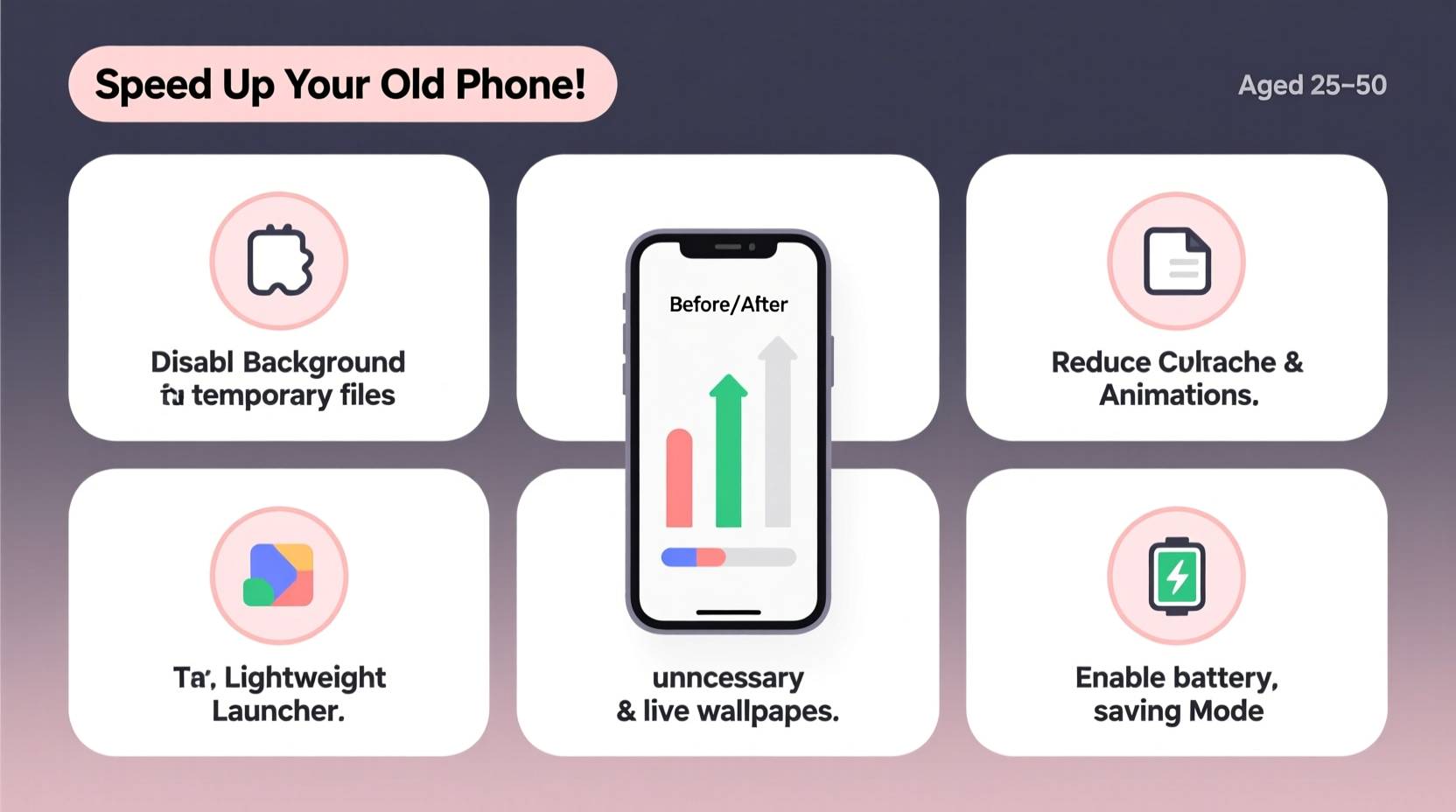
One of the most overlooked areas for improving internet speed lies within the phone’s native network configuration. Default settings are often generic and not optimized for real-world conditions, especially on older hardware that may misinterpret signal strength or fail to switch efficiently between networks.
Start by ensuring your phone connects to the best available band. On Wi-Fi, 5 GHz offers faster speeds than 2.4 GHz, though it has shorter range. If your router supports dual-band and your phone is near the access point, manually select the 5 GHz network in Wi-Fi settings. This reduces interference from household appliances and other devices.
For mobile data, force your phone to use LTE instead of fluctuating between 3G and 4G. On Android, go to Settings > Network & Internet > Mobile Network > Preferred Network Type, then choose “LTE/WCDMA/GSM” or “LTE only” if available. iPhones running iOS 13 and later allow similar control under Settings > Cellular > Cellular Data Options > Voice & Data, where selecting “LTE” ensures maximum compatibility and speed.
Avoid automatic switching between Wi-Fi and mobile data unless necessary. Features like “Smart Network Switch” on Samsung or “Wi-Fi Assist” on iPhone can cause abrupt handoffs that interrupt streaming or downloads. Disable them if you notice inconsistent speeds.
2. Reduce Background Data Consumption
Background apps are silent bandwidth hogs. Even when not actively used, social media platforms, email clients, cloud sync tools, and advertising SDKs constantly ping servers, consuming data and clogging network pipelines. On older smartphones with limited RAM, this leads to resource contention that slows down foreground tasks like web browsing.
To regain control, audit which apps use the most data. On Android: Settings > Network & Internet > Data Usage > Mobile Data Usage shows a ranked list. On iPhone: Settings > Cellular displays data consumption per app. Identify heavy users—often Facebook, Instagram, YouTube, or weather apps—and restrict their background activity.
On Android, tap any app in the data usage list and select “Background data” to disable it. Also enable “Data Saver” mode (Network & Internet > Data Usage > Data Saver), which blocks background data for all apps system-wide unless exempted. iOS users should navigate to Settings > General > Background App Refresh and turn it off globally or selectively.
“Background processes can consume up to 40% of a device’s usable bandwidth without the user’s knowledge,” says Rajiv Mehta, senior network analyst at Mobile Insights Group. “Cutting them off is the fastest way to boost perceived internet speed.”
In addition, uninstall bloatware or rarely used apps that run persistent services. Many pre-installed apps cannot be uninstalled but can be disabled via Settings > Apps, preventing them from launching or syncing in the background.
3. Streamline Browser Performance
The browser is usually the primary interface for internet use, yet most users never optimize it. Stock browsers on older phones often lack modern rendering engines and come bundled with intrusive ads or tracking scripts that delay page loads.
Switching to a lightweight alternative can dramatically improve speed. Browsers like Mozilla Firefox Lite, Opera Mini, or Dolphin Browser compress pages before delivery, reducing data transfer by up to 90%. They also block ads and trackers by default, eliminating render-blocking elements that stall loading on underpowered devices.
Within any browser, adjust settings to prioritize speed:
- Disable images or enable “Lite Mode” for text-heavy browsing.
- Turn off JavaScript for static sites (use cautiously, as many sites break without it).
- Clear cache and cookies weekly to prevent storage bloat.
- Use DNS-over-HTTPS (DoH) for faster domain resolution—available in Firefox and Chrome.
Set a fast, privacy-focused DNS provider like Cloudflare (1.1.1.1) or Google (8.8.8.8). On Android, this can be done per-Wi-Fi network under advanced IP settings. iOS requires a configuration profile or third-party app like 1.1.1.1 from the App Store.
| Browser | Data Savings | Best For | Key Feature |
|---|---|---|---|
| Opera Mini | Up to 90% | Low-end devices | Server-side compression |
| Firefox Lite | Up to 70% | Privacy + speed | Tracker blocking |
| Dolphin Browser | Up to 60% | Customization | Gesture controls |
| Chrome (Lean Mode) | Up to 40% | Familiar interface | Integrated Google services |
4. Manage System Resources and Update Strategically
An older smartphone’s CPU and RAM are finite resources. When too many apps run simultaneously, even basic internet functions suffer due to memory pressure and thermal throttling. Unlike newer phones, older models lack aggressive process management, so manual intervention is essential.
Close unused apps regularly. On Android, use the Recents screen to swipe away apps; on iPhone, double-click the Home button or swipe up and hold to access the app switcher. Avoid keeping more than five apps open at once, especially those known for high memory usage (e.g., Facebook, Spotify, games).
Keep the operating system updated—but selectively. Major OS updates (like Android 13 or iOS 17) may introduce features that overwhelm older hardware. Instead, install only security patches and minor revisions that fix bugs without adding visual effects or background services. Check your manufacturer’s update policy: some brands stop supporting devices after two years, making third-party firmware like LineageOS a viable option for tech-savvy users.
If your phone allows, move apps to an SD card (Android only) to free up internal storage. A full storage drive slows down the entire system, including network I/O operations. Aim to keep at least 15–20% of storage free for optimal performance.
5. Real-World Example: Reviving a 2016 Samsung Galaxy S7
Consider Maria, a freelance writer relying on her 2016 Samsung Galaxy S7 for remote work. Over time, she noticed her phone took over 20 seconds to load news articles, and video calls frequently froze. Despite having strong Wi-Fi, the experience felt unusable.
She began by disabling background data for Facebook, Instagram, and weather apps, which collectively consumed 1.2 GB per month in the background. Next, she switched from Chrome to Opera Mini and enabled its turbo mode. Page load times dropped from 18 seconds to under 5.
Maria then reset network settings, forcing her phone to reconnect cleanly to her 5 GHz Wi-Fi band. She also cleared cached data across messaging apps and disabled auto-play videos in social media settings. After a full restart, her download speeds increased from 8 Mbps to 22 Mbps in speed tests—matching her router’s output.
These software-only changes extended her phone’s usability by over a year, delaying the need for a costly upgrade while maintaining reliable internet access for writing, research, and client communication.
Step-by-Step Optimization Checklist
Follow this sequence to maximize internet speed on any older smartphone:
- Assess current speed: Run a baseline test using Speedtest.net or Fast.com.
- Update OS and apps: Install pending updates, but avoid major version upgrades if performance suffers.
- Switch to a lightweight browser: Install Opera Mini or Firefox Lite and set as default.
- Limit background data: Disable background refresh and data for non-essential apps.
- Optimize Wi-Fi settings: Connect to 5 GHz, forget weak networks, and set a fast DNS.
- Clear app caches: Go to Settings > Storage and clear cache for top data-consuming apps.
- Restart the device: Reboot to apply changes and flush temporary files.
- Re-test speed: Compare results and fine-tune based on improvements.
Frequently Asked Questions
Can clearing cache really improve internet speed?
Yes. Accumulated cache forces the system to sift through outdated files before loading new content. Clearing it reduces processing overhead and improves responsiveness, especially in browsers and messaging apps.
Will using a data-saving browser affect website functionality?
Sometimes. Compressed browsers may strip out certain scripts, videos, or layouts. However, most core content remains accessible. Use standard mode for complex sites like banking portals, and reserve lite mode for general browsing.
Is it safe to disable background app refresh?
Perfectly safe. It only prevents apps from updating content when not in use. You’ll still receive notifications and can manually refresh when opening the app. Battery life and network performance typically improve as a result.
Conclusion: Take Control Without Upgrading
You don’t need the latest flagship phone to enjoy fast internet. Older smartphones, when properly tuned, can deliver surprisingly responsive online experiences through disciplined software management. The key is understanding that speed isn’t solely a function of hardware—it’s shaped by how efficiently your device uses its existing resources.
By optimizing network settings, eliminating background drain, choosing efficient browsers, and maintaining system health, you reclaim performance that manufacturers assume is lost to age. These tweaks cost nothing, take little time, and can breathe new life into a device you thought was ready for retirement.




 浙公网安备
33010002000092号
浙公网安备
33010002000092号 浙B2-20120091-4
Comments
No comments yet. Why don't you start the discussion?