
Elder Scrolls Online (ESO) is a vast, immersive MMORPG that spans continents, dungeons, and countless dynamic events. However, even on well-tuned systems, long load times can disrupt gameplay—especially when fast travel, zone transitions, or respawns cause frustrating delays. While many assume hardware upgrades are the only solution, players often overlook how much performance gains are possible through optimization alone. With strategic adjustments to game settings, system configuration, and background processes, it’s entirely feasible to significantly reduce load times without spending a cent on new hardware.
Understanding What Causes Slow Load Times
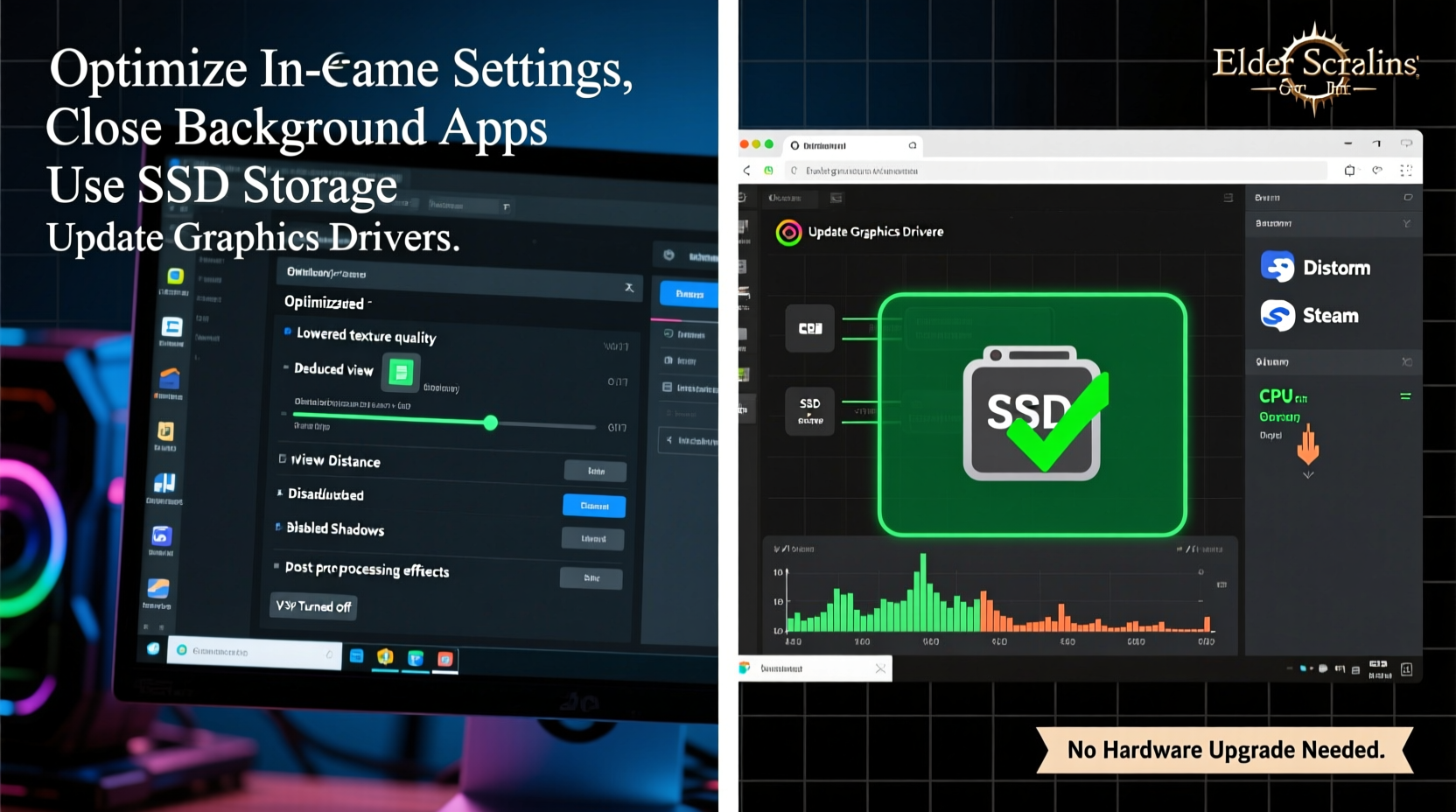
Before diving into fixes, it's important to understand what contributes to slow loading in ESO. Unlike frame rate drops, which are primarily GPU- or CPU-bound, load times depend heavily on data retrieval speed from storage, memory management, and background resource competition.
- Storage Speed: HDDs are far slower than SSDs at reading game assets. Even if you're not ready to upgrade, optimizing file access helps.
- Background Processes: Applications running in the background consume RAM and CPU, delaying asset loading.
- Texture and Asset Streaming: High-resolution textures take longer to load, especially during fast travel.
- Mod and Addon Overload: Poorly coded or excessive addons increase memory usage and initialization time.
- Windows Resource Management: Default OS settings may deprioritize game-related tasks.
By addressing these factors systematically, you can improve both initial startup and in-game transition speeds—even on older machines.
Optimize In-Game Video Settings for Faster Loading
While video settings mainly affect frame rate, they also influence how quickly assets are loaded and rendered. Reducing the demand on your system allows faster processing of incoming zone data.
Focus on settings that impact texture streaming and draw distance—two major contributors to load delays:
- Texture Quality: Set to Medium or High instead of Ultra. The visual difference is minimal, but lower-res textures load faster.
- View Distance: Reduce from Ultra to High or Medium. This limits the number of objects and terrain chunks loaded simultaneously.
- Shadow Quality: Lower this setting—it doesn’t affect load times directly but frees up GPU resources for smoother asset rendering.
- World Detail: Disable or set to Low. Fewer grass patches and environmental clutter mean less data to stream.
- Local Reflections & Ambient Occlusion: Turn off. These effects add minimal immersion but cost significant processing power.
After adjusting, restart the game to ensure changes apply fully. You’ll likely notice faster transitions between zones and reduced hitching after fast travel.
| Setting | Recommended Value | Impact on Load Time |
|---|---|---|
| Texture Quality | High | Reduces asset read time |
| View Distance | Medium | Lowers world chunk loading |
| World Detail | Low | Fewer objects to render |
| Local Reflections | Off | Minor gain, but frees GPU |
| Shadow Quality | Medium | Indirect improvement |
Manage Addons and User Interface Overhaul
Addons enhance functionality but come at a cost. Each addon loads scripts, textures, and UI elements that compete for memory and processing time. A bloated UI setup can delay login, zone entry, and fast travel by several seconds.
To optimize:
- Disable unused addons through the ESO launcher under “Add-ons.”
- Keep only essential ones like Minion (for addon management), Combat Metrics, or quest helpers.
- Avoid addons that modify map rendering or inventory display—they’re heavy on I/O operations.
- Use lightweight themes. Some UI packages bundle high-res textures that slow down interface loading.
“Many players don’t realize that UI lag isn’t just visual—it can delay underlying asset streaming. A clean UI means faster readiness.” — Jason Reed, MMO Performance Analyst
Consider testing performance with all addons disabled. If load times improve drastically, re-enable them one by one to identify the culprit.
System-Level Tweaks for Maximum Responsiveness
Your operating system plays a critical role in how efficiently ESO accesses resources. Windows, by default, balances priorities across all applications, which can deprioritize game threads.
Set ESO to High Priority in Task Manager
- Launch Elder Scrolls Online.
- Open Task Manager (Ctrl+Shift+Esc).
- Go to the “Details” tab.
- Right-click
eso64.exe(oreso.exe). - Select “Set priority” → “High.”
This tells Windows to allocate more CPU time to ESO during loading phases. Avoid setting it to “Realtime,” as this can destabilize the system.
Defragment Your Hard Drive (If Using HDD)
If you're still using a traditional hard drive, fragmentation slows down file access. Run the built-in Windows defragmentation tool:
- Search for “Defragment and Optimize Drives.”
- Select your game drive and click “Optimize.”
- Repeat monthly for consistent performance.
Note: Do not defragment SSDs. It provides no benefit and reduces lifespan.
Adjust Power Plan to High Performance
Power-saving modes throttle CPU and disk speed. Switch to a performance-oriented plan:
- Open Control Panel → Hardware and Sound → Power Options.
- Select “High performance” or create a custom plan.
- Ensure “Minimum processor state” is set to 100% when plugged in.
This prevents Windows from downclocking your CPU during intense loading sequences.
powercfg -duplicatescheme e9a42b02-d5df-448d-aa00-03f14749eb61
Clear Cache and Rebuild Game Files
Over time, ESO accumulates temporary files, corrupted textures, and outdated cache data that can hinder performance. Clearing these forces the game to rebuild optimized versions on next launch.
Step-by-Step Cache Cleanup
- Close Elder Scrolls Online completely.
- Navigate to:
C:\\Users\\[YourName]\\Documents\\Elder Scrolls Online\\ - Open the folder corresponding to your game version (e.g.,
liveorpts). - Delete the following folders:
SavedVariables(backup first if needed)CacheLogs(optional)
- Also delete the
userSettings.txtfile if you’re comfortable resetting UI layout. - Relaunch the game. It will regenerate necessary files.
This process may take slightly longer on first startup, but subsequent load times often improve due to cleaner data handling.
Verify Game Files via Launcher
The ESO launcher includes a repair function:
- Open the Zenimax Launcher.
- Click the gear icon next to “Launch” for ESO.
- Select “Scan and Repair.”
- Wait for completion—this checks for missing or corrupted files.
Regular scans prevent silent corruption that degrades performance over time.
Mini Case Study: Reducing Load Time on a 7-Year-Old Laptop
Mark, a player using a mid-2017 HP laptop (Intel i5-7200U, 8GB RAM, 1TB HDD), consistently experienced 45–60 second load times when fast traveling. Frustrated but unwilling to upgrade, he applied the following steps:
- Disabled all addons except Minion and Quest Helper.
- Lowered texture quality to High and view distance to Medium.
- Set ESO to High Priority in Task Manager.
- Ran disk defragmentation and switched to High Performance power plan.
- Cleared cache and scanned for corrupted files.
Result: Average load time dropped to 22–28 seconds—a 50% improvement. Mark reported smoother transitions and fewer stutters during city entries. He noted that the most impactful changes were disabling addons and clearing the cache.
Checklist: How to Speed Up ESO Load Times (No Hardware Upgrade Needed)
- ✅ Close background apps (browser, Discord, etc.)
- ✅ Lower texture and view distance settings
- ✅ Disable unnecessary addons
- ✅ Set ESO process to High Priority in Task Manager
- ✅ Defragment HDD (if applicable)
- ✅ Switch to High Performance power plan
- ✅ Delete Cache and SavedVariables folders
- ✅ Run “Scan and Repair” in Zenimax Launcher
- ✅ Restart your router (reduces network-related lag during login)
- ✅ Launch ESO in windowed borderless mode (can improve focus handling)
Frequently Asked Questions
Will lowering graphics settings really make load times faster?
Yes, especially reducing texture quality and view distance. These settings determine how much data must be loaded from your drive. Lower demands mean faster retrieval, particularly on HDDs.
Can I damage my PC by setting ESO to High Priority?
No. Setting process priority to High doesn’t overclock or stress components. It simply tells Windows to favor ESO when allocating CPU time. Just avoid “Realtime” priority, which can freeze your system.
Is it safe to delete the Cache folder?
Absolutely. The cache is temporary data. Deleting it forces ESO to rebuild optimized files on next launch. It’s a safe and recommended maintenance step every few months.
Conclusion: Small Changes, Big Gains
You don’t need a new graphics card or SSD to enjoy faster load times in Elder Scrolls Online. By understanding how the game loads data and where bottlenecks occur, you can make targeted optimizations that yield real results. From tweaking in-game settings to managing system resources and cleaning outdated files, each adjustment compounds to deliver a smoother, more responsive experience.
Performance isn’t just about hardware—it’s about efficiency. A well-tuned setup maximizes what you already have. Start with the checklist, monitor your improvements, and fine-tune based on your system’s behavior. Whether you're exploring Coldharbour or racing to a public dungeon, every second saved on loading is a second gained in adventure.




 浙公网安备
33010002000092号
浙公网安备
33010002000092号 浙B2-20120091-4
Comments
No comments yet. Why don't you start the discussion?