
Slow Chrome tabs are a common frustration for users across all platforms. Whether you're working on multiple projects, streaming video, or managing email alongside research, Chrome can quickly become bogged down. While closing and reopening the browser might seem like the easiest fix, it disrupts workflow and risks losing unsaved data. The good news is that there are several proven techniques to restore responsiveness—without restarting Chrome.
Modern web applications demand more from browsers than ever before. Tabs running JavaScript-heavy sites, autoplaying videos, or background sync processes can silently consume memory and CPU, leading to sluggish performance. Understanding how Chrome manages resources allows you to intervene intelligently and reclaim speed with minimal disruption.
Identify the Culprit: Use Chrome’s Built-in Task Manager
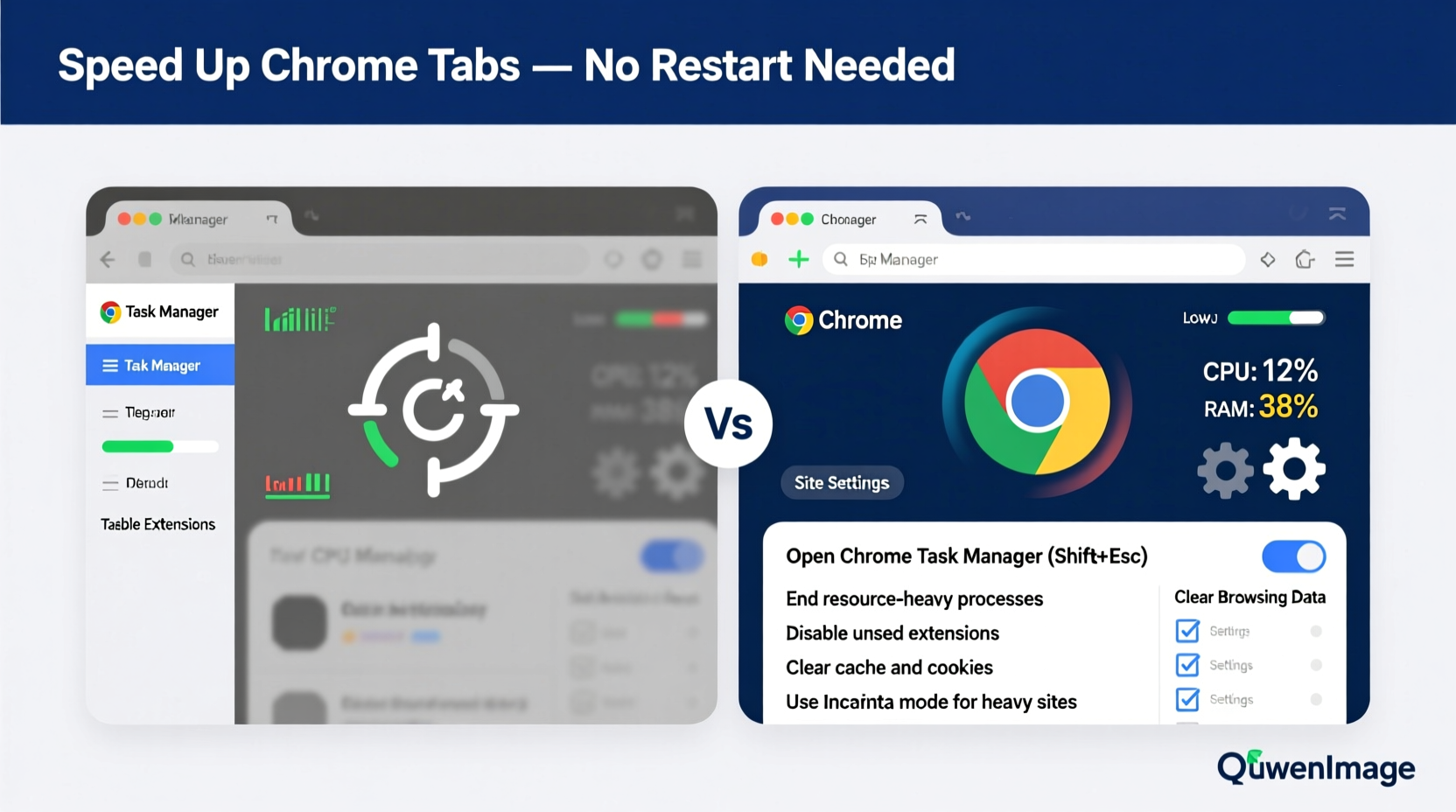
The first step in resolving performance issues is identifying which tab or process is consuming excessive resources. Unlike standard operating system task managers, Chrome includes its own dedicated tool that breaks down usage by individual tab, extension, and internal process.
To access Chrome's Task Manager:
- Click the three-dot menu in the top-right corner of Chrome.
- Select More Tools > Task Manager.
- Review the list of active processes sorted by memory usage, CPU load, or network activity.
In the Task Manager, look for entries with unusually high CPU percentages (consistently above 50%) or memory usage exceeding 300–500 MB per tab. These are likely the primary contributors to slowdowns.
Closing only the problematic tab—not your entire session—can dramatically improve performance while preserving your workflow.
Reduce Load with Tab Suspension and Freezing
Keeping dozens of tabs open may feel productive, but each one continues to run scripts, check for updates, and use memory—even when inactive. This background activity accumulates and degrades performance over time.
One effective strategy is to suspend unused tabs manually or through automation. While Chrome doesn’t natively freeze tabs, extensions such as The Great Suspender or OneTab allow you to pause background activity in non-active tabs.
The Great Suspender automatically suspends tabs after a set period of inactivity, freeing up memory and CPU. When you click back on the tab, it reloads seamlessly. This is particularly useful for reference pages, articles you haven’t finished reading, or dashboards you check occasionally.
OneTab takes a different approach: it converts all open tabs into a single list stored in memory. Each tab becomes a link rather than an active process, reducing RAM usage by up to 95% depending on the number of tabs closed.
| Tool | Function | Best For |
|---|---|---|
| The Great Suspender (or similar forks) | Suspends inactive tabs after delay | Users who frequently switch between long-open tabs |
| OneTab | Converts tabs into a list of links | Extreme multitaskers with 20+ open tabs |
| Auto Tab Discard | Built-in-like suspension with customization | Advanced users wanting granular control |
Using these tools prevents unnecessary processing while keeping your information accessible—no need to restart Chrome just because five tabs went rogue.
Manage Extensions and Background Processes
Browser extensions are often overlooked sources of performance degradation. While they add functionality—from ad blocking to password management—they also run scripts continuously in the background. Some poorly optimized extensions can consume more resources than full web pages.
To manage extensions effectively:
- Navigate to
chrome://extensions - Disable any you no longer use regularly.
- Look for alternatives with better performance ratings.
- Enable “Developer mode” to see detailed background activity if needed.
Additionally, certain websites request permission to run background sync or push notifications. Even when minimized, these permissions allow sites to wake up processes periodically, draining both performance and battery life.
“We’ve seen cases where disabling two aggressive notification-based extensions reduced Chrome’s average memory footprint by nearly 1.2 GB.” — David Lin, Senior Browser Performance Analyst at WebPerf Labs
Go to chrome://settings/content to review site permissions. Consider revoking notification access from non-essential domains. You can also disable background app activity entirely under Settings > System > Continue running background apps when Chrome is closed, though this will affect features like chat availability in Gmail or Slack.
Optimize Chrome Settings for Speed
Chrome offers several under-the-radar settings that directly influence performance. Tweaking them can yield noticeable improvements, especially on older hardware or machines with limited RAM.
Step-by-Step Guide: Optimize Chrome Internally
- Enable Hardware Acceleration: Go to
chrome://settings/systemand ensure “Use hardware acceleration when available” is turned on. This offloads graphics processing to your GPU, improving rendering speed. - Clear Browsing Data Regularly: Accumulated cache, cookies, and temporary files can slow page loads. Visit
chrome://settings/clearBrowserDataand clear cached images and files weekly. - Limit Preloading: Under
chrome://settings/privacy, adjust “Preload pages for faster browsing” to “No preloading” if you notice instability or high data usage. - Update Chrome Frequently: New versions include performance patches and security fixes. Check
chrome://settings/helpto confirm you’re on the latest build. - Turn Off Animations: While not directly related to tab speed, animations consume GPU cycles. Advanced users can disable them via command-line flags (e.g.,
--disable-animations) on launch.
--single-process only for troubleshooting; avoid regular use as it reduces stability.
These adjustments fine-tune Chrome’s behavior to prioritize responsiveness over convenience features that may be costing you performance.
Real-World Example: Recovering a Frozen Work Session
Sarah, a digital marketing analyst, routinely works with eight to ten Chrome tabs open: Google Analytics, Facebook Ads Manager, Trello, Gmail, and several content research pages. One afternoon, her browser became unresponsive—clicks were delayed, scrolling stuttered, and new tabs took over 15 seconds to load.
Instead of restarting and risking loss of draft emails and form inputs, she opened Chrome’s Task Manager (Shift+Esc). She discovered that a third-party survey widget embedded in a research article was using 87% CPU. Another tab hosting a live dashboard had accumulated 1.2 GB of memory usage due to unchecked JavaScript loops.
Sarah closed only those two tabs, disabled a rarely used grammar-checking extension, and installed Auto Tab Discard to prevent future buildup. Within minutes, her remaining tabs responded smoothly again—without interrupting her workflow.
This scenario illustrates how targeted intervention beats brute-force solutions like restarting. By understanding what’s happening behind the scenes, users maintain control and continuity.
Checklist: Quick Actions to Speed Up Slow Tabs
If you're facing lag right now, follow this checklist in order:
- ✅ Open Chrome Task Manager (Shift + Esc)
- ✅ Identify tabs or extensions using excessive CPU or memory
- ✅ Close or reload the heaviest offenders
- ✅ Disable recently added or suspicious extensions
- ✅ Clear cache and cookies temporarily
- ✅ Suspend inactive tabs using OneTab or Auto Tab Discard
- ✅ Restart Chrome only if no improvement occurs after 2 minutes
This sequence maximizes recovery chances while minimizing disruption. Most slowdowns stem from one or two misbehaving components—not the entire browser.
Frequently Asked Questions
Why do some Chrome tabs suddenly become slow even when nothing changed?
Websites often update their code dynamically, loading new scripts or tracking pixels that weren't present before. A previously lightweight page might start running cryptocurrency miners, infinite carousels, or real-time analytics—all of which spike CPU usage. Additionally, background sync events or expired sessions triggering re-authentication loops can cause sudden lag.
Can I prevent tabs from slowing down in the first place?
Yes. Proactive measures include limiting simultaneous tabs, using tab suspenders, disabling non-essential extensions, and enabling hardware acceleration. Regularly clearing browsing data and updating Chrome also help maintain baseline performance. Think of it like vehicle maintenance: consistent small efforts prevent major breakdowns.
Is it safe to suspend tabs with forms or logged-in sessions?
Most modern suspender tools preserve session state and form data upon reload. However, unsaved text in forms may be lost if the page hasn’t implemented auto-save. Always save drafts before suspending, or use extensions that snapshot input fields. Sites requiring constant authentication (like banking portals) may log you out after suspension.
Conclusion: Take Control Without Closing Everything
Dealing with slow Chrome tabs doesn’t require drastic measures. With built-in tools and smart habits, you can diagnose and resolve performance bottlenecks efficiently—preserving your workflow and avoiding the hassle of logging back into every service. The key lies in moving beyond reflexive actions like restarting and instead applying informed, surgical fixes.
From monitoring resource hogs to leveraging suspension tools and optimizing settings, each step empowers you to maintain a fast, stable browsing experience. These strategies aren’t just quick fixes—they build long-term resilience against slowdowns.




 浙公网安备
33010002000092号
浙公网安备
33010002000092号 浙B2-20120091-4
Comments
No comments yet. Why don't you start the discussion?