
Chromebooks are known for their simplicity, security, and efficiency. But over time, even the most reliable device can begin to lag. Whether you're a student juggling online classes, a professional managing remote work, or a parent using it for everyday tasks, a sluggish Chromebook disrupts productivity. The good news: most performance issues are fixable without technical expertise. With a few targeted adjustments, you can restore your Chromebook to near-new responsiveness. Here’s how to diagnose and resolve slowdowns in five actionable steps.
Step 1: Close Unnecessary Tabs and Browser Extensions
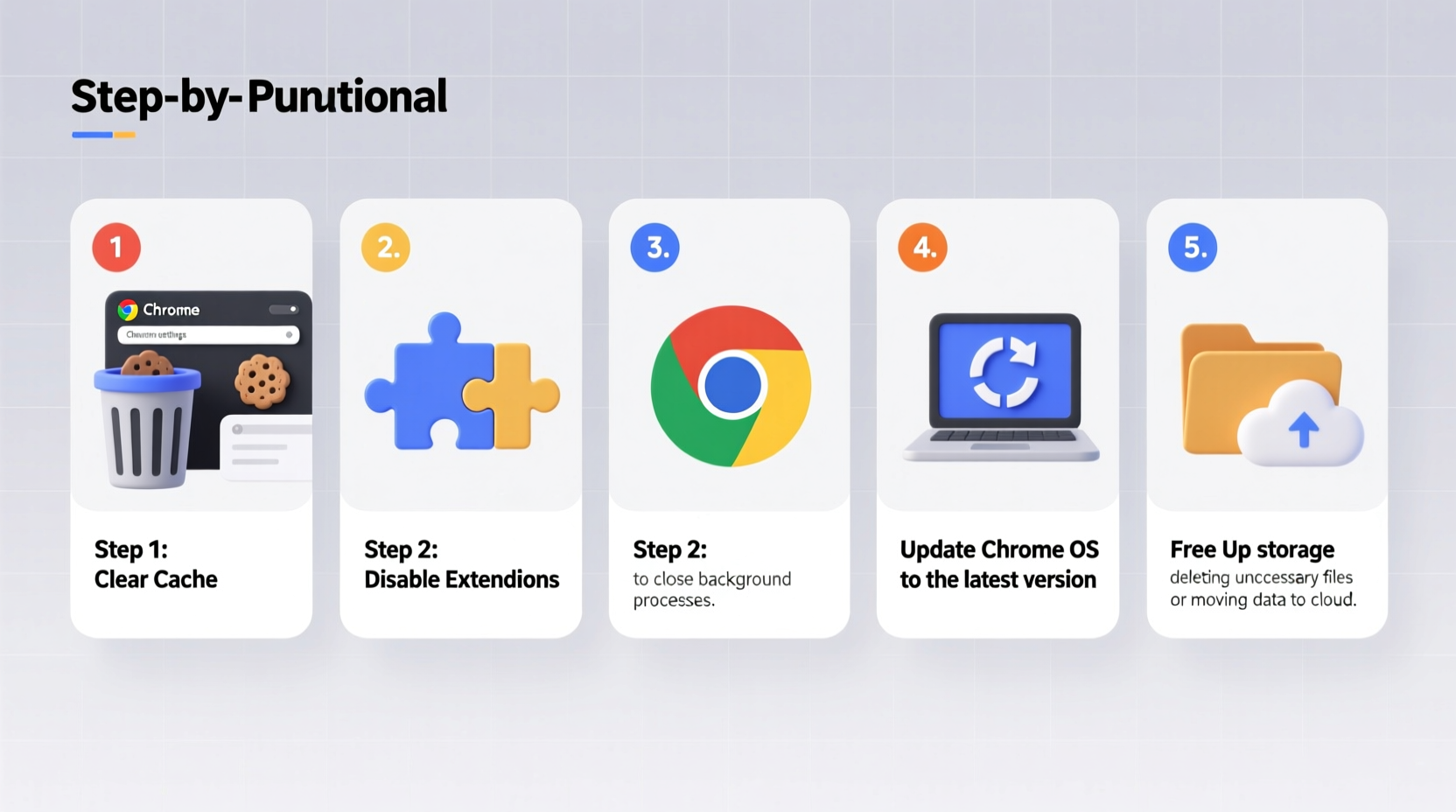
One of the leading causes of Chromebook slowdowns is browser overload. Each open tab consumes memory (RAM), and too many tabs—even minimized—can overwhelm your system. Chrome extensions, while useful, also run in the background and drain resources. A single extension might not make a noticeable difference, but ten running simultaneously can cripple performance.
To identify resource hogs, open Chrome’s Task Manager by pressing Shift + Esc. This reveals which tabs and extensions are consuming the most CPU and memory. Sort by “Memory” or “CPU” to spot the worst offenders.
Here’s how to manage extensions:
- Click the three-dot menu in Chrome’s top-right corner.
- Select Settings, then go to Extensions.
- Toggle off any you don’t actively use.
- For permanent removal, click “Remove” next to the extension.
As a general rule, keep only essential extensions like password managers, ad blockers (used sparingly), or grammar tools. Avoid redundant tools that perform similar functions.
Real Example: Sarah’s Tab Habit
Sarah, a high school teacher, noticed her Chromebook freezing during virtual lessons. She often had 15+ tabs open across multiple windows—lesson plans, grading portals, YouTube videos, and personal email. After opening the Task Manager, she found two tabs alone were using over 70% of her CPU. By closing unused tabs and pinning only critical ones, her Chromebook responded instantly again. She now uses tab groups and bookmarks to organize her workflow without overloading the system.
Step 2: Clear Browsing Data and Cache Regularly
Over months of use, your Chromebook accumulates cached images, cookies, and site data. While caching speeds up initial page loads, excessive buildup can lead to sluggishness and even crashes. Old or corrupted cache files may conflict with updated websites, forcing your browser to work harder than necessary.
Clearing this data doesn’t delete important bookmarks or saved passwords (unless you choose to). It simply resets temporary files that can bog down performance.
How to Clear Browsing Data
- Open Chrome and click the three-dot menu.
- Go to More tools > Clear browsing data.
- Select a time range—start with “Last 24 hours” or “Last 7 days.” For deeper cleanup, choose “All time.”
- Check boxes for:
- Browsing history
- Cookies and other site data
- Cached images and files
- Click “Clear data.”
For automated maintenance, set Chrome to clear cookies and site data when you close the browser:
- Go to Settings > Privacy and security > Clear browsing data.
- Enable “Always clear this setting when you close the browser.”
“Regular cache cleaning is like defragmenting a hard drive—it removes digital clutter that slows everything down.” — David Lin, Chrome OS Support Specialist
Step 3: Manage Apps and Background Processes
Many users install apps from the Google Play Store or Progressive Web Apps (PWAs) without realizing they continue running in the background. These apps consume RAM and battery, even when minimized. Over time, this background activity adds up, especially on Chromebooks with limited memory (typically 4GB or less).
Start by reviewing installed apps:
- Click the Launcher (circle icon at the bottom-left).
- Scroll through your app list and uninstall anything unused.
- Right-click on an app and select “Uninstall,” or go to Settings > Apps > Manage apps for a full list.
Pay special attention to:
- Old games
- Duplicate note-taking or calendar apps
- Unused social media clients
Do’s and Don’ts: App Management
| Action | Do | Don't |
|---|---|---|
| Installing apps | Only install apps you use weekly. | Download apps “just in case” you might need them later. |
| Background activity | Disable auto-start for non-critical apps. | Allow all apps to run in the background. |
| Updates | Keep apps updated for performance fixes. | Ignore update notifications for months. |
Additionally, disable startup apps:
- Go to Settings > Apps > Google Play Store > Manage Android preferences.
- Navigate to Apps & notifications > See all apps.
- Select an app, tap Advanced > Auto-start, and disable if unnecessary.
Step 4: Update Your Chromebook and Optimize Settings
An outdated operating system can significantly impact performance. Google regularly releases Chrome OS updates that include bug fixes, security patches, and performance optimizations. Running an old version means missing out on these improvements—and potentially dealing with compatibility issues.
To check for updates:
- Click the system tray (bottom-right clock area).
- Select the gear icon to open Settings.
- Go to About ChromeOS > Check for updates.
- If an update is available, install it. Your Chromebook will restart automatically.
In addition to OS updates, optimize key settings:
Enable Hardware Acceleration (If Available)
This feature uses your Chromebook’s GPU to handle graphics-intensive tasks, reducing CPU load. To enable:
- Go to Settings > Advanced > System > Use hardware acceleration when available.
- Toggle it on, then restart your device.
Note: On very old or low-end models, disabling this may improve stability if you experience glitches.
Reduce Visual Effects
Animations and desktop effects look nice but consume processing power. Disable them for snappier response:
- Go to Settings > Personalization > Device theme.
- Switch to “Dark” or “Light” mode—avoid dynamic themes.
- Under Accessibility, turn off animations if available.
Use Guest Mode to Test Performance
If your Chromebook still feels slow after optimization, try logging into Guest Mode. This runs a clean, temporary session with no user data or extensions. If performance improves dramatically in Guest Mode, the issue lies in your user profile—likely due to corrupted settings or bloated data.
“Updating Chrome OS isn’t just about security—it often includes under-the-hood improvements that boost speed and battery life.” — Chrome Enterprise Support Team
Step 5: Powerwash as a Last Resort
When all else fails, a Powerwash (factory reset) can breathe new life into a sluggish Chromebook. This wipes all local data, apps, and settings, returning the system to its original state. It’s especially effective if your device has accumulated years of configuration clutter.
Important: Back up your files to Google Drive or an external USB drive before proceeding. Bookmarks, passwords (if synced to Google), and apps will restore after sign-in, but locally stored files will be lost.
How to Powerwash
- Sign out of your Chromebook.
- Press Ctrl + Alt + Shift + R.
- Select “Restart” > “Powerwash” > “Continue.”
- Follow the prompts to confirm.
- After reboot, sign back in and let Chrome OS sync your data.
Post-Powerwash, resist the urge to immediately reinstall every app and extension. Instead, reintroduce them gradually, monitoring performance after each addition. This helps identify any problematic software.
Quick Checklist: Speed Up Your Chromebook Now
Use this checklist to quickly implement all five steps:
- ✅ Close all unused browser tabs
- ✅ Disable or remove unnecessary Chrome extensions
- ✅ Clear browsing data (cache, cookies, history)
- ✅ Uninstall unused Android and web apps
- ✅ Disable background app permissions
- ✅ Check for and install Chrome OS updates
- ✅ Enable hardware acceleration
- ✅ Restart your Chromebook weekly
- ✅ Consider Powerwashing if performance remains poor
Frequently Asked Questions
Will clearing cache delete my saved passwords?
No—unless you specifically check the box for “Passwords and other sign-in data” when clearing browsing data. To keep passwords, uncheck that option. Your Google Account-synced passwords will remain intact regardless.
Can I speed up an old Chromebook with only 2GB of RAM?
Limited RAM restricts multitasking, but you can still improve responsiveness. Stick to one or two tabs, avoid Android apps, disable all extensions, and use lightweight websites. Consider upgrading to a model with 4GB+ RAM if your budget allows.
Why does my Chromebook slow down after updates?
Rarely, a new Chrome OS update may introduce bugs or require additional system resources. Wait a few days for patches, or report the issue via Settings > Report an issue. In most cases, performance stabilizes after a restart and cache refresh.
Conclusion: Take Control of Your Chromebook’s Speed
A slow Chromebook doesn’t mean it’s time for a replacement. Most performance issues stem from manageable habits—too many tabs, outdated software, or unused apps running silently. By following these five steps, you regain control over your device’s responsiveness and extend its usable life. Start with simple fixes like closing tabs and clearing cache, then progress to deeper optimizations if needed. The result? A faster, more reliable Chromebook that keeps up with your daily demands.




 浙公网安备
33010002000092号
浙公网安备
33010002000092号 浙B2-20120091-4
Comments
No comments yet. Why don't you start the discussion?